Connecting your LG Dual Inverter air conditioner to Wi-Fi lets you control it remotely using the LG ThinQ app. This guide walks you through setup, troubleshooting, and tips for a smooth experience.
Learn how to how to connect lg dual inverter air conditioner to wifi.
Key Takeaways
- Check compatibility: Ensure your LG Dual Inverter AC model supports Wi-Fi and the LG ThinQ app.
- Download the LG ThinQ app: Available for iOS and Android, this app is essential for setup and remote control.
- Use a stable 2.4 GHz Wi-Fi network: Most LG ACs only work with 2.4 GHz, not 5 GHz networks.
- Follow the on-screen setup: The app guides you through connecting the AC to your home network step by step.
- Keep firmware updated: Regular updates improve performance and add new features.
- Troubleshoot connection issues: Restart devices, check signal strength, and re-enter Wi-Fi details if needed.
- Use voice assistants: Once connected, control your AC with Google Assistant or Amazon Alexa.
[FEATURED_IMAGE_PLACEHOLDER]
How to Connect LG Dual Inverter Air Conditioner to Wifi
Imagine adjusting your home’s temperature from your phone while still at work. Or turning on the AC just before you get home so the house is cool and comfortable the moment you walk in. With an LG Dual Inverter air conditioner connected to Wi-Fi, this isn’t just a dream—it’s everyday convenience.
Connecting your LG Dual Inverter AC to Wi-Fi unlocks smart features like remote control, scheduling, energy monitoring, and voice commands. Whether you’re lounging on the couch or miles away, you can manage your cooling with just a few taps. This guide will walk you through the entire process, from checking compatibility to troubleshooting common issues. By the end, you’ll have your air conditioner fully connected and ready to make your life easier.
Why Connect Your LG Dual Inverter AC to Wi-Fi?
Before diving into the setup, it’s worth understanding why connecting your AC to Wi-Fi is such a smart move. LG’s Dual Inverter technology already delivers energy-efficient cooling with quiet operation. Adding Wi-Fi takes it to the next level.
With Wi-Fi connectivity, you can:
- Control your AC remotely: Turn it on or off, adjust temperature, or change modes from anywhere using your smartphone.
- Set schedules: Program your AC to turn on at specific times, like 30 minutes before you get home.
- Monitor energy usage: Track how much power your AC uses and adjust settings to save on bills.
- Receive alerts: Get notifications if the filter needs cleaning or if there’s a system error.
- Use voice commands: Pair with Google Assistant or Amazon Alexa to control your AC with your voice.
All of this is made possible through the LG ThinQ app, LG’s smart home platform. It’s user-friendly, reliable, and designed to work seamlessly with LG appliances.
What You’ll Need Before Starting
Before you begin, make sure you have everything ready. A smooth setup starts with preparation.
Compatible LG Dual Inverter AC Model
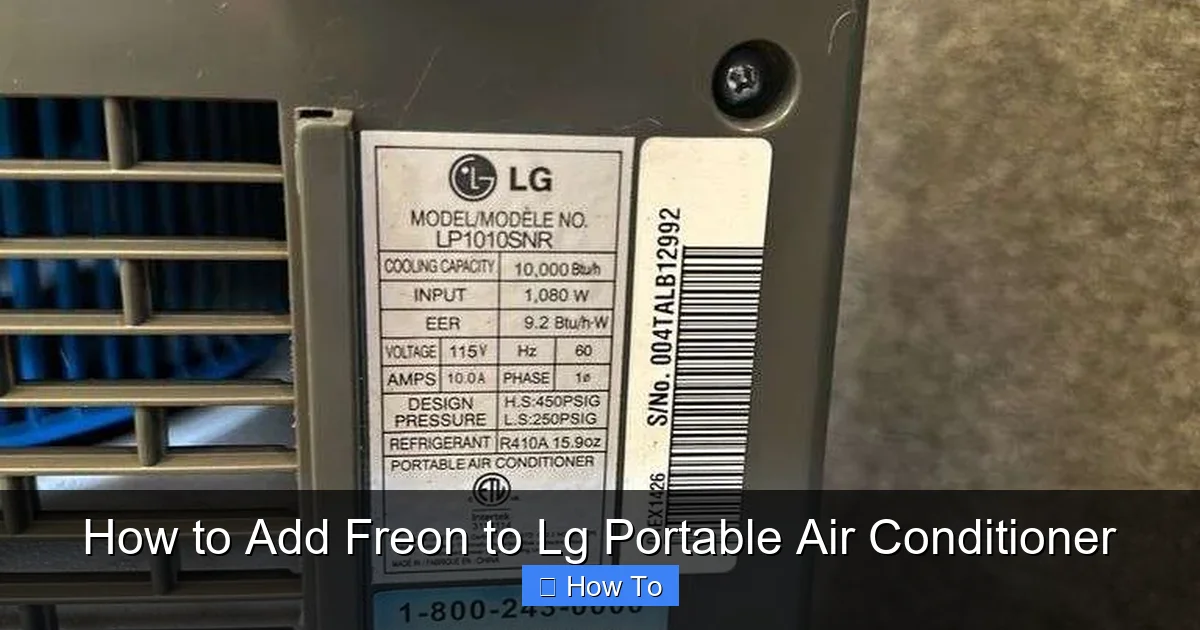
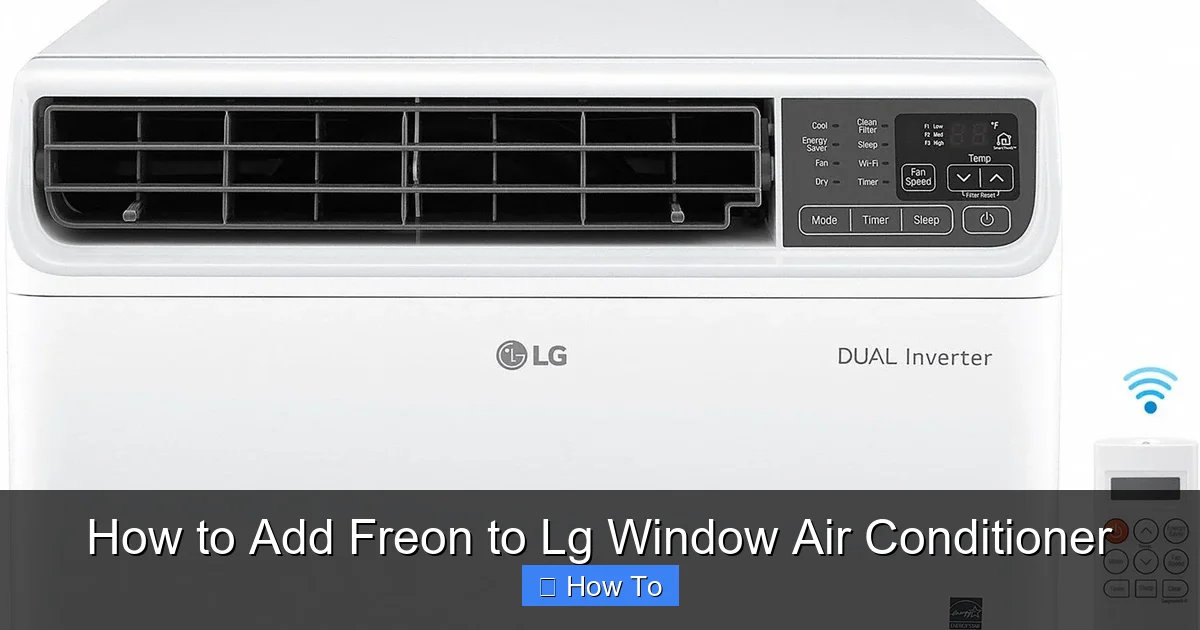
Not all LG air conditioners support Wi-Fi. Check your model number—usually found on a label inside the front panel or on the back. Look for models that include “Wi-Fi” or “Smart” in the name, or check the user manual. Most recent LG Dual Inverter models (like the LG DualCool or LG Smart Inverter series) support Wi-Fi, but older units may not.
Smartphone or Tablet
You’ll need a device running iOS 11 or later, or Android 6.0 or later, to download and use the LG ThinQ app. Make sure your device is connected to the same Wi-Fi network you plan to use for the AC.
Stable Wi-Fi Network
Your home Wi-Fi should be reliable and strong enough to reach the location of your air conditioner. Most LG ACs only connect to 2.4 GHz networks, not 5 GHz. If your router broadcasts both, make sure the 2.4 GHz band is enabled and accessible.
LG ThinQ App Installed
Download the LG ThinQ app from the Apple App Store or Google Play Store. It’s free and regularly updated. Open the app and create an account if you don’t already have one.
Power and Access
Ensure your air conditioner is plugged in and powered on. You should also be able to access the indoor unit’s control panel, as you may need to press buttons during setup.
Step-by-Step Guide to Connecting Your LG Dual Inverter AC to Wi-Fi
Now that you’re prepared, let’s get your AC connected. Follow these steps carefully for a successful setup.
Step 1: Download and Open the LG ThinQ App
Launch the LG ThinQ app on your smartphone. If you’re new, tap “Sign Up” and follow the prompts to create an account using your email or social login. If you already have an account, simply log in.
Once logged in, tap the “+” or “Add Product” button, usually found on the home screen. The app will ask what type of appliance you’re adding. Select “Air Conditioner” from the list.
Step 2: Put Your AC in Wi-Fi Pairing Mode
This step varies slightly by model, but here’s the general process:
- Turn on your air conditioner using the remote or control panel.
- Press and hold the “Wi-Fi” or “Connect” button on the indoor unit’s control panel for about 3 seconds. On some models, this button may be labeled “Smart” or have a Wi-Fi symbol.
- The Wi-Fi indicator light (usually near the display) should start blinking, indicating the unit is in pairing mode.
If your model doesn’t have a physical Wi-Fi button, you may need to use the remote. Try pressing and holding the “Sleep” and “Turbo” buttons together for 3 seconds, or consult your user manual for model-specific instructions.
Step 3: Follow the App’s On-Screen Instructions
The LG ThinQ app will now search for nearby LG devices. When it detects your air conditioner, it will appear on the screen. Tap on it to proceed.
The app will then prompt you to select your Wi-Fi network from a list. Choose your 2.4 GHz network (not 5 GHz). Enter your Wi-Fi password carefully—case-sensitive and without extra spaces.
The app will send the network information to your AC. This may take 30 seconds to a minute. During this time, the blinking Wi-Fi light on your AC may change speed or color.
Step 4: Confirm Connection and Name Your AC
Once connected, the app will confirm success and ask you to name your air conditioner. You might call it “Living Room AC” or “Bedroom Cooler”—whatever helps you identify it easily.
You can also assign it to a room in your home for better organization within the app.
Step 5: Test Remote Control Features
Try using the app to turn your AC on and off, change the temperature, or switch between cooling, fan, and energy-saving modes. If everything responds correctly, your setup is complete!
Tips for a Smooth Wi-Fi Connection
Even with the right steps, connection issues can happen. Here are some tips to keep things running smoothly.
Use a Strong Wi-Fi Signal
Place your router as close as possible to the air conditioner, or use a Wi-Fi extender if the signal is weak. A strong signal ensures reliable remote control and fewer disconnections.
Stick to 2.4 GHz Networks
Most LG ACs don’t support 5 GHz Wi-Fi. If your router combines both bands under one name (like “HomeWiFi”), try splitting them into separate networks (e.g., “HomeWiFi_2.4G” and “HomeWiFi_5G”) so you can select the correct one.
Keep the App and Firmware Updated
LG regularly releases updates for both the ThinQ app and AC firmware. These improve performance, fix bugs, and add new features. Check for updates in the app settings and enable automatic updates if available.
Restart Devices if Needed
If the connection fails, try restarting your AC (turn it off for 30 seconds, then back on), your router, and your smartphone. This often resolves temporary glitches.
Use the Same Network
Make sure your phone and AC are connected to the same Wi-Fi network. If you’re using a guest network or a different band, the app won’t communicate with the AC.
Troubleshooting Common Connection Problems
Even with careful setup, you might run into issues. Here’s how to fix the most common ones.
AC Not Detected by the App
If the app can’t find your AC:
- Ensure the AC is in pairing mode (Wi-Fi light blinking).
- Move closer to the AC—your phone should be within 10–15 feet.
- Turn off Bluetooth on your phone, as it can interfere with Wi-Fi discovery.
- Try resetting the AC’s Wi-Fi module by holding the Wi-Fi button for 10 seconds until the light turns off and on again.
Incorrect Wi-Fi Password
If the connection fails after entering the password:
- Double-check the password for typos, capital letters, or special characters.
- Try re-entering it slowly.
- If unsure, log into your router’s settings to confirm the correct password.
Weak or Unstable Connection
If the AC connects but frequently disconnects:
- Move your router closer or use a Wi-Fi extender.
- Avoid placing the AC near large metal objects, microwaves, or cordless phones, which can interfere with signals.
- Reduce the number of devices on your network during setup.
App Crashes or Freezes
If the LG ThinQ app becomes unresponsive:
- Close and reopen the app.
- Clear the app’s cache (via phone settings).
- Reinstall the app if problems persist.
AC Works Locally but Not Remotely
If you can control the AC with the remote but not the app:
- Check that your phone has internet access (try opening a webpage).
- Ensure the AC is still connected to Wi-Fi (look for a solid Wi-Fi light).
- Log out and back into the ThinQ app.
Using Your Connected LG Dual Inverter AC
Once connected, explore the full range of smart features.
Remote Control
Use the app to adjust temperature, fan speed, and mode from anywhere. Perfect for cooling your home before you arrive.
Scheduling
Set daily or weekly schedules. For example, program the AC to turn on at 5:30 PM every weekday so your home is cool when you get back from work.
Energy Monitoring
View usage reports to see how much energy your AC consumes. Adjust settings to reduce costs—like using the “Energy Saver” mode during peak hours.
Filter Alerts
The app will notify you when it’s time to clean or replace the air filter, helping maintain efficiency and air quality.
Voice Control
Link your LG ThinQ account to Google Assistant or Amazon Alexa. Then say commands like, “Hey Google, set the living room AC to 72 degrees,” for hands-free control.
Maintaining Your Wi-Fi Connection
To keep your smart AC running smoothly:
- Check the Wi-Fi light periodically—it should be solid, not blinking.
- Update the app and firmware regularly.
- Avoid changing your Wi-Fi network name or password without reconfiguring the AC.
- If you move the AC to a new location, re-pair it with the nearest Wi-Fi signal.
Conclusion
Connecting your LG Dual Inverter air conditioner to Wi-Fi is a simple process that opens up a world of convenience and control. With the LG ThinQ app, you can manage your cooling from anywhere, save energy, and enjoy a smarter home. By following this guide—checking compatibility, using the right network, and troubleshooting when needed—you’ll have your AC online in no time.
Take a few minutes today to set it up. Once connected, you’ll wonder how you ever lived without remote control. Stay cool, save energy, and enjoy the comfort of smart cooling with your LG Dual Inverter AC.