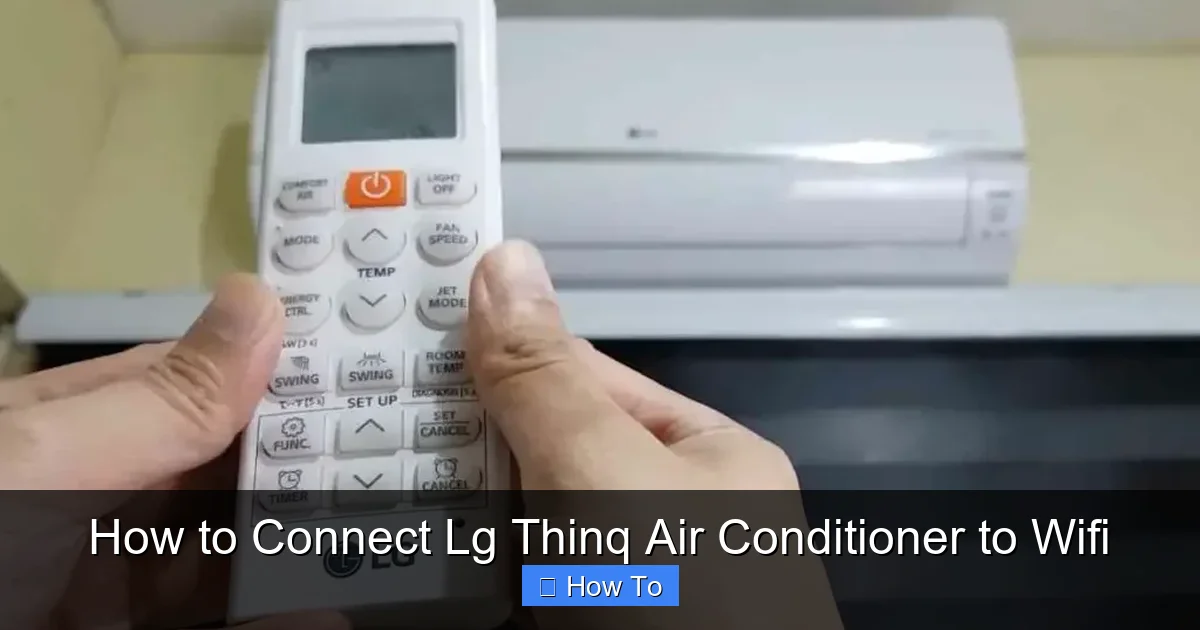
Connecting your LG ThinQ air conditioner to WiFi allows you to control temperature, set schedules, and monitor energy use from anywhere using the LG ThinQ app. This guide walks you through every step, from setup to troubleshooting, ensuring a smooth and successful connection.
Key Takeaways
- Download the LG ThinQ app: This is the essential tool for connecting and controlling your air conditioner remotely. It’s available for both iOS and Android devices.
- Ensure your AC supports WiFi: Not all LG air conditioners are WiFi-enabled. Check your model number and user manual to confirm ThinQ compatibility.
- Use a 2.4GHz WiFi network: LG ThinQ devices only work with 2.4GHz networks, not 5GHz. Make sure your router broadcasts this frequency.
- Keep your phone and AC close during setup: For best results, stay within 10–15 feet of the air conditioner while pairing to ensure a strong signal.
- Follow the on-screen prompts carefully: The app guides you through each step—don’t skip any, especially entering your WiFi password correctly.
- Restart devices if connection fails: If pairing doesn’t work, restart your phone, router, and air conditioner before trying again.
- Update firmware regularly: Keep your AC’s software up to date through the app to maintain performance and security.
Introduction: Why Connect Your LG ThinQ Air Conditioner to WiFi?
Imagine walking into a cool, comfortable home on a hot summer day—without ever touching a remote. That’s the power of connecting your LG ThinQ air conditioner to WiFi. With smart connectivity, you can control your AC from anywhere using your smartphone, set cooling schedules, receive maintenance alerts, and even integrate it with voice assistants like Amazon Alexa or Google Assistant.
This comprehensive guide will walk you through the entire process of connecting your LG ThinQ air conditioner to your home WiFi network. Whether you’re a tech newbie or a smart home enthusiast, we’ve broken it down into simple, easy-to-follow steps. By the end, you’ll be able to enjoy remote control, energy savings, and peace of mind knowing your home climate is always under control.
We’ll cover everything from checking compatibility to troubleshooting common issues. No jargon, no confusion—just clear, practical advice to get your AC online and working smarter, not harder.
Step 1: Check If Your LG Air Conditioner Is ThinQ-Enabled
Before you begin, it’s crucial to confirm that your LG air conditioner actually supports WiFi and the ThinQ platform. Not all LG AC models are equipped with smart features, so this step saves you time and frustration.
Visual guide about How to Connect Lg Thinq Air Conditioner to Wifi
Image source: smartacsolutions.com
How to Identify a ThinQ-Compatible Model
Look for the “LG ThinQ” logo on the unit itself, usually near the control panel or on the front grille. You can also check the model number. Most ThinQ-enabled air conditioners have model numbers that include “LW” or “LS” followed by digits (e.g., LW1222IVSM, LS1222FVSM). Visit the official LG website and enter your model number in the support section to verify compatibility.
Consult the User Manual
Your air conditioner’s user manual will clearly state whether it supports WiFi connectivity. If you’ve misplaced the physical copy, you can download a digital version from LG’s support page using your model number. Look for sections titled “Smart Features,” “WiFi Setup,” or “LG ThinQ.”
Check for a WiFi Indicator Light
Many LG ThinQ air conditioners have a small LED light near the control panel that indicates WiFi status. If you see a light labeled “WiFi” or “Network,” that’s a strong sign your unit is ready for connection.
Step 2: Download and Install the LG ThinQ App
The LG ThinQ app is your command center for all smart LG appliances. It’s free, user-friendly, and essential for connecting your air conditioner to WiFi.
Where to Get the App
Download the LG ThinQ app from the Apple App Store (for iPhone users) or Google Play Store (for Android users). Search for “LG ThinQ” and make sure you’re downloading the official app by LG Electronics. Avoid third-party imitations.
Create or Sign In to Your LG Account
When you open the app for the first time, you’ll be prompted to sign in or create a new LG account. If you already have an account (perhaps from another LG appliance), use those credentials. Otherwise, tap “Create Account” and follow the steps. You’ll need a valid email address and a secure password.
Grant Necessary Permissions
The app may ask for access to your location, Bluetooth, and notifications. Allow these permissions—they’re required for device discovery and remote control. Don’t worry; LG uses this data only to improve your experience and ensure secure connections.
Step 3: Prepare Your WiFi Network
A stable and correctly configured WiFi network is key to a successful connection. LG ThinQ devices have specific network requirements that must be met.
Use a 2.4GHz WiFi Network
LG ThinQ air conditioners only support 2.4GHz WiFi bands. They do not work with 5GHz networks. If your router broadcasts both frequencies (dual-band), make sure your phone is connected to the 2.4GHz network during setup. You can usually identify this by looking for “2.4G” or “_2.4” in your WiFi network name (SSID).
Ensure Strong Signal Strength
Place your air conditioner within range of your router—ideally no more than 30 feet away, with minimal obstructions like walls or metal objects. A weak signal can cause connection failures or intermittent control issues.
Check Your WiFi Password
Make sure you know your WiFi password. It’s case-sensitive, so double-check capital letters and special characters. If you’ve recently changed your password, update it on all devices.
Disable Guest Networks and VPNs
Guest networks often have restricted access and may block device connections. Similarly, VPNs can interfere with local network communication. Temporarily disable any VPNs on your phone and avoid using guest networks during setup.
Step 4: Put Your Air Conditioner in Pairing Mode
To connect your AC to the app, you’ll need to activate its pairing mode. This tells the unit to search for and accept a connection from your phone.
Locate the WiFi or Reset Button
On most LG ThinQ air conditioners, there’s a physical button labeled “WiFi,” “Connect,” or “Reset.” It’s usually found on the control panel or behind a small flap. Refer to your user manual if you can’t find it.
Press and Hold the Button
Press and hold the WiFi button for 3 to 5 seconds until you see the WiFi indicator light blink rapidly. This means the unit is now in pairing mode and ready to connect. The blinking may be green, blue, or white, depending on the model.
Wait for Confirmation
Keep the unit in pairing mode while you proceed to the next step. If the light stops blinking or turns solid, the mode may have timed out. Simply press the button again to restart pairing.
Step 5: Add Your Air Conditioner in the LG ThinQ App
Now it’s time to let the app find and connect to your air conditioner. This is where the magic happens.
Open the LG ThinQ App
Launch the app on your smartphone. If you’re not already signed in, do so now. Tap the “+” or “Add Device” button, usually located at the bottom or top of the screen.
Select “Air Conditioner”
The app will show a list of compatible appliances. Tap “Air Conditioner” or “Cooling” to begin the search. The app will scan your network for available LG devices.
Follow the On-Screen Instructions
The app will guide you through the process. It may ask you to confirm that your AC is in pairing mode (with the blinking light). Tap “Yes” or “Continue” to proceed.
Enter Your WiFi Credentials
When prompted, select your 2.4GHz WiFi network from the list and enter your password. Double-check for typos—this is a common cause of failure. Tap “Connect” or “Next.”
Wait for Connection
The app will attempt to connect your air conditioner to the network. This may take 30 seconds to 2 minutes. You’ll see a progress bar or status message. Do not close the app or move too far from the AC during this time.
Name Your Device
Once connected, the app will ask you to name your air conditioner (e.g., “Living Room AC” or “Master Bedroom Cooler”). Choose a name that helps you identify it easily, especially if you have multiple LG appliances.
Complete Setup
Tap “Done” or “Finish” to complete the process. Your air conditioner should now appear in the app’s home screen, ready to control.
Step 6: Test Remote Control Features
Now that your AC is connected, it’s time to test its smart features and ensure everything works as expected.
Turn the AC On and Off Remotely
Open the app and tap on your air conditioner. Use the power button to turn it on. Wait a few seconds, then turn it off. If the unit responds, remote control is working.
Adjust Temperature and Modes
Try changing the temperature, switching between Cool, Fan, Dry, or Auto modes, and adjusting fan speed. Each change should reflect on the unit within a few seconds.
Set a Schedule
Use the scheduling feature to program your AC to turn on at 6 PM every weekday. This helps you come home to a cool house without wasting energy all day.
Check Notifications
Enable notifications in the app settings. You should receive alerts for filter changes, maintenance reminders, or if the unit loses connection.
Try Voice Control (Optional)
If you have an Amazon Echo or Google Home, link your LG account to enable voice commands. Say, “Alexa, turn on the living room AC” or “Hey Google, set the bedroom AC to 72 degrees.”
Step 7: Optimize Your Smart AC Experience
Once connected, there are several ways to get the most out of your LG ThinQ air conditioner.
Enable Energy Monitoring
The app tracks your energy usage and provides tips to reduce consumption. Review weekly reports to identify patterns and adjust settings for efficiency.
Use Geofencing (If Available)
Some models support geofencing, which uses your phone’s location to turn the AC on when you’re near home and off when you leave. Enable this in the app’s settings for hands-free convenience.
Update Firmware Regularly
LG periodically releases firmware updates to improve performance and security. The app will notify you when an update is available. Follow the prompts to install it—usually takes just a few minutes.
Share Access with Family Members
You can invite family members to control the AC by sharing access through the app. Go to “Device Settings” > “Share Device” and enter their LG account email.
Integrate with Smart Home Platforms
Connect your AC to platforms like SmartThings or IFTTT for advanced automation. For example, set your AC to turn on when your smart thermostat detects high humidity.
Troubleshooting Common Connection Issues
Even with careful setup, you might run into problems. Here’s how to fix the most common issues.
Air Conditioner Not Found by the App
- Ensure the AC is in pairing mode (blinking WiFi light).
- Move closer to the unit—within 10–15 feet.
- Restart the app and try again.
- Check that your phone is on the 2.4GHz network.
Connection Fails After Entering WiFi Password
- Double-check the password for typos.
- Ensure your router isn’t blocking new devices (check MAC filtering settings).
- Restart your router and AC, then retry.
- Try connecting from a different phone or tablet.
AC Disconnects Frequently
- Move the router closer or use a WiFi extender.
- Avoid placing the AC near microwaves, cordless phones, or other interference sources.
- Update your router’s firmware.
- Reset the AC’s network settings and reconnect.
App Shows “Offline” Status
- Check your home internet connection.
- Restart the AC and router.
- Reinstall the LG ThinQ app.
- Contact LG support if the issue persists.
WiFi Light Is Solid or Off
- A solid light may mean the AC is already connected—try controlling it via the app.
- If the light is off, the unit may not be powered or in pairing mode.
- Press the WiFi button again to re-enter pairing mode.
Conclusion: Enjoy Smart Cooling with LG ThinQ
Connecting your LG ThinQ air conditioner to WiFi opens up a world of convenience, efficiency, and control. From remote temperature adjustments to automated schedules and energy insights, smart cooling transforms how you experience comfort at home.
By following this guide, you’ve successfully set up your AC for WiFi control. Remember to keep your app and firmware updated, use a strong 2.4GHz network, and troubleshoot issues promptly. With your LG ThinQ air conditioner online, you’re not just cooling your space—you’re upgrading your lifestyle.
Now go ahead, turn on the AC from your couch, or set it to cool your bedroom before you get home. Welcome to the future of home comfort.