
Resetting your LG air conditioner’s WiFi connection can resolve connectivity issues and restore smart functionality. This guide walks you through the process using the remote, mobile app, or manual reset—ensuring your AC works flawlessly with your home network in 2026.
Key Takeaways
Resetting WiFi restores smart features: If your LG AC isn’t connecting to the app or responding to voice commands, a WiFi reset can fix common glitches and improve performance.
Use the LG ThinQ app for easiest reset: The app provides a guided process to reconnect your AC to your home network without needing technical skills.
Manual reset works when the app fails: If the app isn’t responding, you can reset WiFi directly via the remote or unit buttons—no smartphone required.
Check your network compatibility: Ensure your router supports 2.4GHz WiFi, as most LG ACs don’t work with 5GHz-only networks in 2026.
Update firmware after reset: Always check for firmware updates post-reset to ensure optimal performance and security.
Keep your remote handy: The remote is essential for both initiating and confirming the reset process on most LG models.
Contact support if issues persist: If the reset doesn’t work, LG’s 2026 support team offers remote diagnostics and live assistance.
For more tips on keeping your system efficient, see our seasonal maintenance checklist.
How to Reset LG Air Conditioner WiFi in 2026: A Complete Step-by-Step Guide
Is your LG air conditioner suddenly offline? Can’t control it from your phone or smart speaker? You’re not alone. In 2026, smart home technology has advanced, but connectivity hiccups still happen—especially with WiFi-enabled appliances like LG air conditioners. Whether you’ve changed your WiFi password, upgraded your router, or just noticed your AC dropped off the network, resetting the WiFi connection is often the fastest fix.
This comprehensive guide will walk you through how to reset LG air conditioner WiFi using multiple methods—via the LG ThinQ app, the remote control, or manually on the unit itself. We’ll also cover troubleshooting tips, network requirements, and best practices to keep your smart AC running smoothly. By the end, you’ll know exactly what to do when your LG AC loses its connection—and how to prevent it from happening again.
Why Reset Your LG Air Conditioner’s WiFi?
Before diving into the steps, it’s helpful to understand why a WiFi reset might be necessary. LG air conditioners with smart features rely on a stable internet connection to communicate with the LG ThinQ app, voice assistants like Alexa or Google Assistant, and cloud-based services. When that connection breaks, you lose remote control, scheduling, energy monitoring, and firmware updates.
LG’s official support page provides the latest firmware notes and compatibility details (https://www.lg.com/us/support).
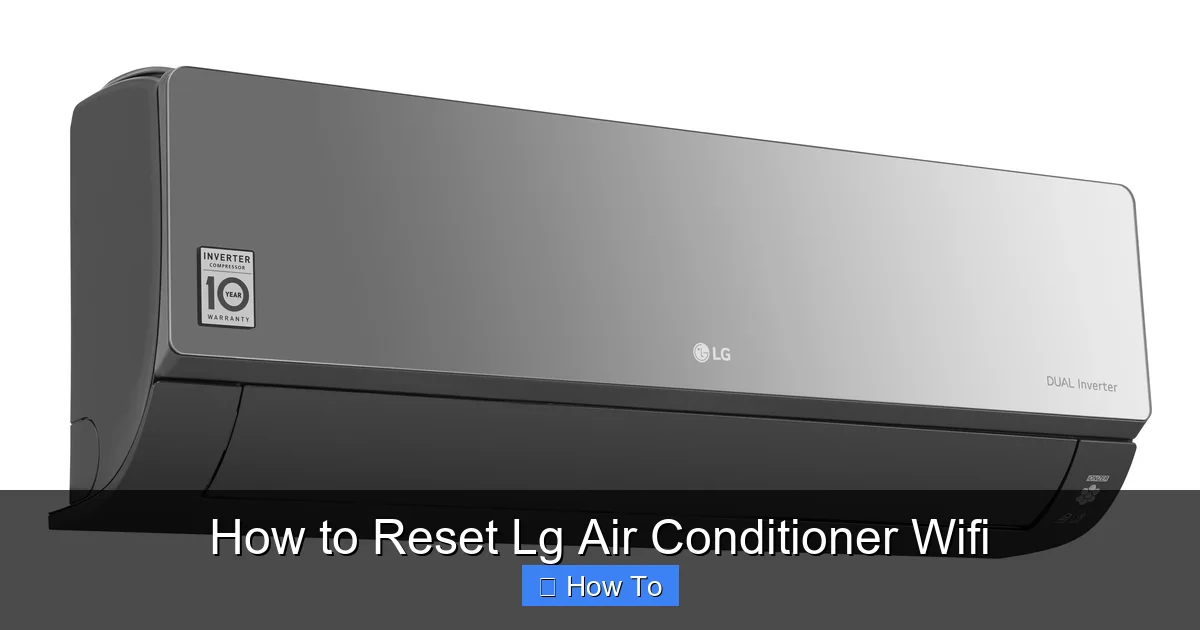
Diagram showing the WiFi reset button location on an LG indoor unit.
Image source: media.alvinology.com
Common reasons to reset the WiFi include:
You’ve changed your WiFi network name (SSID) or password.
Your router was replaced or reconfigured.
The AC keeps disconnecting or shows “offline” in the app.
You’re setting up the AC in a new home or location.
Firmware updates failed due to poor connectivity.
Resetting the WiFi essentially “refreshes” the connection between your AC and your home network. It’s like giving your air conditioner a digital restart—clearing old settings and allowing it to reconnect with updated credentials.
What You’ll Need Before Starting
To successfully reset your LG air conditioner’s WiFi, make sure you have the following:
A compatible smartphone or tablet: Running iOS 16+ or Android 12+ (as of 2026), with the latest version of the LG ThinQ app installed.
Your WiFi network details: The exact network name (SSID) and password. Double-check for typos—case sensitivity matters.
The AC remote control: Most LG models require the remote to initiate or confirm the reset.
Access to the air conditioner unit: You may need to press buttons on the indoor unit itself, especially if the remote isn’t working.
A stable 2.4GHz WiFi network: Most LG smart ACs in 2026 still don’t support 5GHz-only networks. If your router broadcasts both bands, ensure the 2.4GHz band is enabled.
Pro tip: If you’re unsure whether your router supports 2.4GHz, check the label on the back of your router or log into its admin panel (usually via a web browser at 192.168.1.1 or similar). Look for “Wireless Settings” and confirm both 2.4GHz and 5GHz are active.
If you’re unsure which model fits your space, our guide on choosing the right air conditioner can help.
Method 1: Reset WiFi Using the LG ThinQ App (Recommended)
The easiest and most user-friendly way to reset your LG air conditioner’s WiFi is through the LG ThinQ app . This method is ideal if your AC is still partially connected or if you’re setting it up for the first time. Here’s how to do it step by step.
Step 1: Open the LG ThinQ App
Launch the LG ThinQ app on your smartphone or tablet. If you don’t have it, download it from the Apple App Store or Google Play Store. Make sure it’s updated to the latest version—LG frequently releases updates in 2026 to improve compatibility and security.
Step 2: Sign In to Your Account
Log in with your LG account credentials. If you don’t have an account, tap “Create Account” and follow the prompts. Having an account allows you to save settings, receive firmware updates, and access remote diagnostics.
Step 3: Locate Your Air Conditioner
Once logged in, you’ll see a dashboard with all your connected LG smart devices. Find your air conditioner in the list. If it’s not showing up, tap the “+” icon to add a new device.
Step 4: Select “Reconnect” or “Reset Network”
Tap on your AC to open its control panel. Look for an option like “Reconnect to WiFi” , “Reset Network” , or “Change WiFi Settings” . This may appear in a menu (three dots or gear icon) depending on your model.
Step 5: Follow the On-Screen Instructions
The app will guide you through the process. It may ask you to:
Press and hold a specific button on the remote (usually the “WiFi” or “Function” button).
Confirm the AC is in pairing mode (indicated by a blinking light on the unit).
Select your WiFi network from a list.
Enter your WiFi password.
Be patient—this process can take 1–3 minutes. The app will notify you once the connection is successful.
Step 6: Test the Connection
Once connected, try controlling your AC from the app. Turn it on, adjust the temperature, or set a schedule. If everything works, the reset was successful!
Tip: If the app says “Connection Failed,” double-check your WiFi password and ensure your phone is connected to the same 2.4GHz network. Some users in 2026 report better success when temporarily disabling 5GHz on dual-band routers during setup.
For troubleshooting warm air issues after a reset, refer to our warm air troubleshooting guide.
Method 2: Reset WiFi Using the Remote Control
If the LG ThinQ app isn’t working—or you prefer a direct approach—you can reset the WiFi using the remote control. This method is especially useful if your AC is completely offline or if you’re troubleshooting without a smartphone.
Step 1: Turn On the Air Conditioner
Press the “Power” button on the remote to turn on the AC. Wait for the unit to fully start up (you should hear the fan and see the display light up).
Step 2: Enter WiFi Reset Mode
Press and hold the “WiFi” button on the remote for 3–5 seconds. On some models, this button may be labeled “Function” or have a WiFi icon. You’ll know it’s working when the WiFi indicator light on the indoor unit starts blinking rapidly.
Step 3: Confirm the Reset
After holding the button, the AC will enter pairing mode. The display may show “AP” or “WiFi” to indicate it’s ready to connect. This means the old WiFi settings have been cleared.
Step 4: Reconnect via the App
Now, open the LG ThinQ app and follow the setup process as described in Method 1. The app should detect the AC in pairing mode and guide you through reconnecting to your network.
Note: Not all LG remote controls have a dedicated WiFi button. If yours doesn’t, try pressing and holding the “Function” button while pressing “Timer” or “Sleep”—this varies by model. Check your user manual or LG’s 2026 support site for model-specific instructions.
Method 3: Manual Reset via the Indoor Unit
In rare cases—such as a remote malfunction or battery failure—you may need to reset the WiFi directly on the air conditioner unit. This method requires physical access to the indoor unit and is a bit more technical, but it’s reliable when other options fail.
Step 1: Locate the Control Panel
Find the indoor unit of your LG air conditioner. The control panel is usually behind a front grille or access panel. You may need to gently pull or slide it open.
Step 2: Find the Reset Button
Look for a small button labeled “Reset,” “WiFi,” or “Function.” On some 2026 models, this button is recessed and requires a paperclip or pen to press.
Step 3: Press and Hold the Button
Press and hold the reset button for 5–10 seconds. You should see the WiFi light blink rapidly, indicating the unit is clearing its network settings.
Step 4: Reconnect Using the App
Once the light stops blinking and stays solid or turns off, the reset is complete. Now use the LG ThinQ app to reconnect the AC to your WiFi network as described earlier.
Caution: Avoid pressing any other buttons during this process, as it could trigger a factory reset (which erases all settings, including temperature preferences and schedules). If you accidentally do a full reset, you’ll need to reconfigure everything from scratch.
If you need to install a new split unit, our split AC installation guide covers the basics.
Factory Reset vs. WiFi Reset: What’s the Difference?
A factory reset restores the air conditioner to its original out‑of‑box state, erasing all user preferences, schedules, and network credentials. A WiFi reset only clears the network configuration, leaving temperature settings and timers intact. Choose a factory reset only when you plan to give the unit to a new owner or when persistent software glitches remain after a WiFi reset.
| Method | Speed | Requires Smartphone? | Best For |
|---|---|---|---|
| LG ThinQ App | 1–3 min | Yes | First‑time setup or partial connectivity |
| Remote Control | <1 min | No | Fully offline unit, no phone handy |
| Indoor Unit Button | 1–2 min | No | Remote dead or lost, physical access only |
Troubleshooting Common WiFi Reset Issues
Even with clear instructions, things don’t always go smoothly. Here are some common problems and how to fix them in 2026.
Problem: The AC Won’t Enter Pairing Mode
If the WiFi light doesn’t blink when you press the button, try these fixes:
Replace the remote batteries—low power can prevent signal transmission.
Stand closer to the unit when pressing the button.
Ensure the AC is powered on and not in sleep or timer mode.
Wait 30 seconds between attempts—some models need a cooldown period.
Problem: The App Can’t Find the AC
If the LG ThinQ app doesn’t detect your air conditioner during setup:
Make sure your phone is connected to the same 2.4GHz WiFi network.
Restart your smartphone and the app.
Move closer to the AC—WiFi signal strength matters.
Try turning off Bluetooth on your phone, as it can interfere with the connection.
Problem: Connection Drops After a Few Minutes
If your AC connects but keeps going offline:
Check for WiFi interference from other devices (microwaves, cordless phones).
Move your router closer to the AC or use a WiFi extender.
Update your router’s firmware—many 2026 routers have auto-update features.
Ensure your AC’s firmware is up to date via the ThinQ app.
Problem: “Invalid Password” Error
If the app says your WiFi password is incorrect:
Re-enter the password carefully—check for uppercase letters, numbers, and symbols.
Temporarily change your WiFi password to something simple (e.g., “Test1234”) to test the connection.
Reset your router and reconfigure it with a new network name and password.
Reconnecting Voice Assistants After a WiFi Reset
After a successful WiFi reset, Alexa or Google Assistant may lose the device link. Open the respective assistant app, remove the LG AC skill, then re‑enable it and run device discovery. This restores voice control without a full re‑pairing of the AC.
Best Practices to Prevent Future WiFi Issues
Once your LG air conditioner is back online, take these steps to keep it connected and running smoothly in 2026:
Update firmware regularly: LG releases updates to improve stability and security. Enable auto-updates in the ThinQ app.
Use a strong WiFi signal: Place your router centrally and avoid physical obstructions. Consider a mesh network for large homes.
Avoid frequent network changes: Changing your WiFi name or password often can disrupt smart devices. If you must change it, update all devices at once.
Keep the remote charged: Use rechargeable batteries or replace them every 6 months to ensure reliable operation.
Monitor app notifications: The ThinQ app will alert you if your AC goes offline or needs attention.
Optimizing your thermostat settings can further reduce energy use; see our energy‑efficiency settings article.
When to Contact LG Support
If you’ve tried all the methods above and your LG air conditioner still won’t connect, it’s time to reach out for help. In 2026, LG offers several support options:
Live chat: Available 24/7 on the LG website and within the ThinQ app.
Remote diagnostics: LG technicians can access your device (with permission) to identify hardware or software issues.
Service appointments: If the problem is hardware-related (e.g., a faulty WiFi module), a technician can visit your home.
Before calling, have your model number, serial number, and a description of the issue ready. You can find the model number on a sticker inside the front grille or in the ThinQ app under device info.
Frequently Asked Questions
How long does a WiFi reset take on an LG air conditioner?
Most resets complete in under three minutes; the app will confirm when the unit is back online.
Can I reset WiFi without the remote?
Yes, the indoor unit’s reset button works without a remote, though you’ll still need the ThinQ app to re‑enter credentials.
Why does my LG AC only connect to 2.4 GHz networks?
LG’s current smart modules lack 5 GHz radios; the 2.4 GHz band offers better wall penetration for HVAC locations.
Will a WiFi reset delete my temperature schedules?
No, only a factory reset removes schedules; a WiFi reset preserves all user‑defined settings.
What if the ThinQ app shows “Device Offline” after a successful reset?
Restart the app, ensure your phone stays on the same 2.4 GHz SSID, and verify the AC’s firmware is current.
Where can I find the model number for LG support?
Look on the sticker behind the front grille or in the ThinQ app under Device Info → Model.
Conclusion
Resetting your LG air conditioner’s WiFi doesn’t have to be complicated. Whether you use the LG ThinQ app, the remote, or the unit itself, the process is straightforward and usually takes just a few minutes. In 2026, with smarter homes and more connected devices, keeping your AC online ensures you get the most out of its energy-saving features, remote control, and integration with voice assistants.
Remember: a WiFi reset is often the quickest fix for connectivity issues . By following this guide, you’ll be able to troubleshoot like a pro and enjoy cool, comfortable air—no matter where you are. And if all else fails, LG’s support team is just a tap away.
Stay cool, stay connected, and enjoy your smart LG air conditioner to the fullest!

