
This guide teaches you how to use LG split air conditioner remote control effectively in 2026. You’ll master all functions, from basic cooling to smart features, and solve common issues with ease.
Key Takeaways
Understand Remote Layout: Familiarize yourself with buttons like Power, Mode, Fan Speed, and Temperature to operate your LG AC efficiently.
Use Smart Features: Activate Wi-Fi, voice control, and scheduling via the LG ThinQ app for modern, hands-free convenience.
Set Timer and Sleep Mode: Save energy and improve comfort by using timer functions and sleep mode for automatic adjustments.
Clean and Maintain Remote: Regular cleaning and battery checks ensure reliable performance and longer remote life.
Troubleshoot Common Issues: Fix problems like unresponsive buttons or signal issues with simple, proven solutions.
Optimize Airflow and Efficiency: Use swing, fan speed, and mode settings to maximize cooling and reduce energy use.
Pair with Other Devices: Sync your remote with smart home systems like Google Assistant or Alexa for seamless control.
Introduction: Master Your LG Split Air Conditioner Remote in 2026
Welcome to the ultimate guide on how to use LG split air conditioner remote control in 2026. Whether you’re new to LG air conditioners or upgrading to a newer model, understanding your remote is key to enjoying cool, comfortable air with maximum efficiency. LG has continued to innovate, and their 2026 split AC remotes come packed with smart features, intuitive controls, and energy-saving options.
In this guide, you’ll learn everything from basic operation to advanced smart functions. We’ll walk you through each button, explain how to set timers, use sleep mode, connect to Wi-Fi, and even troubleshoot common problems. By the end, you’ll feel confident using your remote like a pro—whether you’re cooling your bedroom at night or scheduling your AC to turn on before you get home.
Let’s dive in and unlock the full potential of your LG split air conditioner remote.
Understanding the LG Split AC Remote Layout
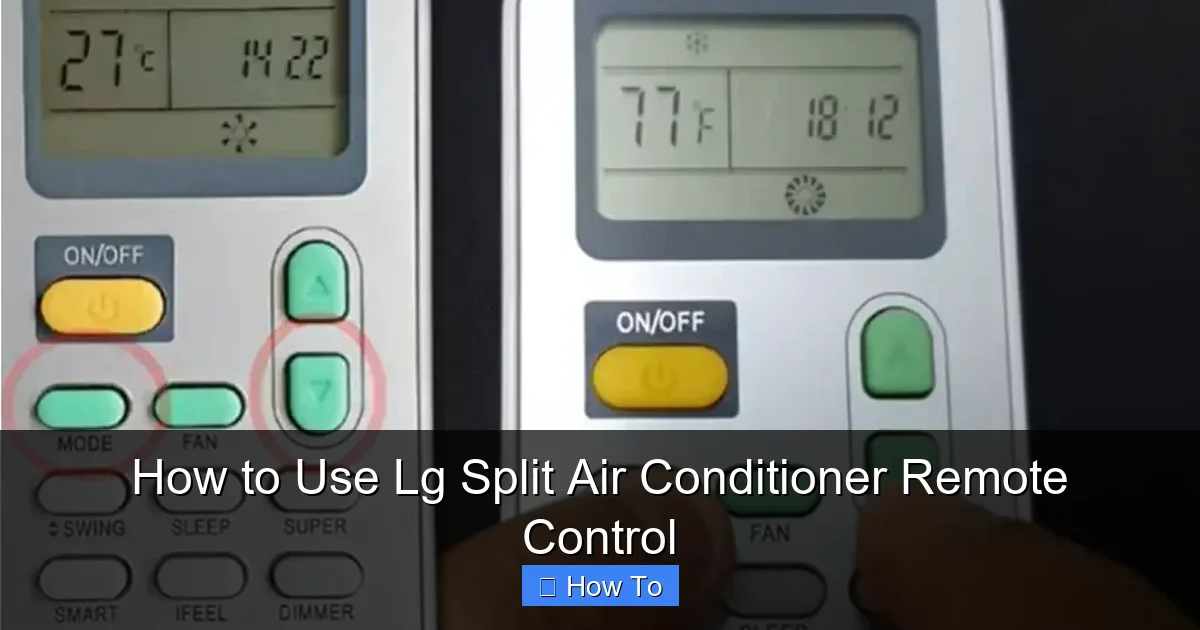
Diagram showing the button layout of a 2026 LG split air conditioner remote.
Visual guide about How to Use Lg Split Air Conditioner Remote Control
Image source: smartacsolutions.com
Before you start pressing buttons, it’s important to know what each one does. LG’s 2026 remote controls are designed for simplicity and functionality. While the exact model may vary slightly, most remotes share a similar layout.
Main Buttons and Their Functions
Here’s a breakdown of the most common buttons you’ll find:
Power Button: Turns the AC on or off. Press once to start, press again to stop.
Mode Button: Cycles through operating modes: Cool, Heat, Fan, Dry, and Auto. Each press changes the mode, and an icon appears on the display.
Temperature Up/Down: Adjusts the desired temperature. Most models allow settings between 16°C and 30°C (60°F–86°F).
Fan Speed Button: Controls how fast the fan blows. Options usually include Low, Medium, High, and Auto.
Swing Button: Activates vertical and horizontal airflow adjustment. Helps distribute air evenly across the room.
Timer Button: Sets the AC to turn on or off after a certain time. Great for energy savings.
Sleep Mode Button: Gradually adjusts temperature while you sleep for comfort and efficiency.
Wi-Fi/Smart Button: Connects the AC to your home network for app and voice control.
Filter Reset Button: Reminds you when to clean the air filter. Press after cleaning to reset the indicator.
Display Screen Features
The small LCD screen on your remote shows important information:
Current temperature setting
Selected mode (Cool, Heat, etc.)
Fan speed level
Timer countdown
Wi-Fi connection status
Filter alert icon
Take a moment to look at your remote. Identify each button and practice pressing them while watching the display. This will help you get comfortable with the interface.
Step-by-Step: Basic Operation of Your LG AC Remote
Now that you know the layout, let’s go through the basic steps to operate your LG split air conditioner.
Step 1: Turn On the AC
Press the Power button. You should hear a beep, and the indoor unit will start up. The display on the remote will light up, showing the current settings.
Step 2: Select the Operating Mode
Press the Mode button repeatedly until you see the desired mode on the screen:
Cool: Cools the room. Best for hot days.
Heat: Heats the room. Ideal for cold weather (if your model supports heating).
Fan: Circulates air without cooling or heating. Good for ventilation.
Dry: Reduces humidity. Useful in damp or rainy weather.
Auto: The AC automatically selects Cool or Heat based on room temperature.
For most users in 2026, Cool mode is the most commonly used.
Step 3: Set the Temperature
Use the Temperature Up and Down buttons to set your preferred temperature. A good starting point is 24°C (75°F) for balance between comfort and energy efficiency.
Tip: Avoid setting the temperature too low (like 16°C). The AC will work harder, use more energy, and may not cool the room faster.
Step 4: Adjust Fan Speed
Press the Fan Speed button to choose how fast the air blows:
Low: Quiet operation, gentle airflow. Good for nighttime.
Medium: Balanced noise and cooling.
High: Strong airflow for quick cooling.
Auto: The AC adjusts fan speed based on room temperature.
For most situations, Auto is the best choice—it saves energy and maintains comfort.
Step 5: Use the Swing Function
Press the Swing button to activate airflow direction control. This moves the louvers up and down (and sometimes side to side), spreading air evenly.
Tip: Use swing mode to avoid direct airflow on people, especially babies or elderly individuals.
Advanced Features: Smart and Energy-Saving Functions
LG’s 2026 remotes include advanced features that make your AC smarter and more efficient. Let’s explore them.
Using Timer Function
The timer lets you schedule when the AC turns on or off. This is great for saving energy and coming home to a cool house.
To Set a Timer to Turn Off:
Press the Timer button.
Use the Up/Down buttons to set the number of hours (e.g., 2 hours).
Press Timer again to confirm.
The AC will automatically turn off after the set time.
To Set a Timer to Turn On:
Make sure the AC is off.
Press and hold the Timer button for 3 seconds.
Set the desired time using the Up/Down buttons.
Press Timer to confirm.
Now, the AC will turn on at the scheduled time.
Example: Set the timer to turn on 30 minutes before you get home from work. Your house will be cool and comfortable when you arrive.
Activating Sleep Mode
Sleep mode gradually adjusts the temperature while you sleep, so you stay comfortable without wasting energy.
How to Use Sleep Mode:
Press the Sleep button.
The AC will increase the temperature by 1°C after 1 hour, and another 1°C after 2 hours (in Cool mode).
This prevents overcooling and saves up to 10% on energy.
Sleep mode typically runs for 7–8 hours, then the AC turns off automatically.
Tip: Use sleep mode every night for better rest and lower electricity bills.
Connecting to Wi-Fi and Smart Features
Many 2026 LG split ACs support Wi-Fi and smart home integration. Here’s how to connect:
Step 1: Download the LG ThinQ App
Search for “LG ThinQ” in your phone’s app store (iOS or Android) and install it.
Step 2: Create an Account
Open the app and sign up or log in with your LG account.
Step 3: Add Your AC
Tap the “+” icon in the app.
Select “Air Conditioner” and follow the prompts.
Press and hold the Wi-Fi button on the remote for 3 seconds until the light blinks.
The app will search for your AC and connect it to your home Wi-Fi.
Once connected, you can control your AC from anywhere using your phone.
Smart Features You Can Use:
Remote Control: Turn the AC on/off, change settings, or check status from your phone.
Scheduling: Set daily or weekly schedules (e.g., cool the house at 6 PM every weekday).
Energy Monitoring: Track how much energy your AC uses.
Voice Control: Use Google Assistant or Amazon Alexa to say, “Hey Google, set the AC to 24 degrees.”
Tip: Enable geofencing in the app so your AC turns on when you’re near home and off when you leave.
For detailed pairing steps, refer to the LG support site.
Comparing LG Remote Models (2026 vs 2025)
LG refreshed its remote design in 2026 with a larger backlit display, dedicated AI‑mode button, and faster Bluetooth pairing. The 2025 version lacks the AI‑mode shortcut and uses a single‑color LED indicator. If you’re upgrading, the new layout reduces button‑press steps for scheduling and voice activation.
Voice Control Setup Details
After linking the AC in the ThinQ app, open the Google Home or Alexa app, add the “LG ThinQ” skill, and assign a room name. You can then say “Set living‑room AC to 22 °C” or “Turn off bedroom AC.” Voice commands work even when the phone is off‑network, as long as the AC stays on Wi‑Fi.
Maintaining Your LG Remote Control
A well-maintained remote works better and lasts longer. Here’s how to care for it.
Cleaning the Remote
Dust and fingerprints can block the infrared signal or make buttons sticky.
How to Clean:
Turn off the AC and remove the batteries.
Wipe the remote with a soft, dry cloth.
For stubborn dirt, use a cloth lightly dampened with water or isopropyl alcohol.
Never spray liquid directly on the remote.
Let it dry completely before reinserting batteries.
Clean your remote once a month for best performance.
Replacing Batteries
Most LG remotes use two AAA batteries. When the display dims or buttons stop responding, it’s time to replace them.
Steps to Replace:
Slide open the battery compartment on the back.
Remove the old batteries.
Insert two new AAA batteries, matching the + and – symbols.
Close the compartment.
Tip: Use alkaline batteries for longer life. Avoid rechargeable batteries unless specified.
Storing the Remote
Keep the remote in a dry, cool place. Avoid direct sunlight or high humidity. Use a remote holder or hook near the AC unit so it’s easy to find.
Seasonal Remote Care Checklist
- Spring: Verify Wi‑Fi connection after any router changes; re‑pair if needed.
- Summer: Clean IR window weekly; replace batteries if display dims.
- Fall: Test timer and sleep schedules before cooler weather.
- Winter: Store remote in a temperature‑controlled drawer if the unit is off for months.
Troubleshooting Common Remote Issues
Even the best remotes can have problems. Here’s how to fix the most common issues.
Remote Not Working
If the AC doesn’t respond:
Check batteries: Replace if weak or dead.
Clean the infrared sensor: Wipe the front of the remote and the AC’s receiver (usually on the indoor unit).
Check distance and obstacles: Stand within 8 meters (26 feet) and ensure nothing blocks the signal.
Reset the remote: Remove batteries for 1 minute, then reinsert.
Buttons Are Sticky or Unresponsive
This usually means dirt or moisture inside.
Clean the remote as described earlier.
If problems persist, contact LG support—don’t disassemble the remote yourself.
Wi-Fi Connection Fails
If the LG ThinQ app can’t connect:
Ensure your Wi-Fi is working and the AC is in range.
Restart your router and the AC.
Re-enter Wi-Fi credentials in the app.
Make sure your AC model supports Wi-Fi (check the manual).
Display Is Blank or Flickering
Replace the batteries.
If the issue continues, the remote may be faulty. Contact LG for a replacement under warranty.
AC Turns On/Off Randomly
This could be due to:
A weak signal from the remote.
Interference from other devices (like TV remotes).
A malfunctioning sensor.
Try moving closer to the AC or resetting the remote. If the problem persists, call a technician.
Tips for Optimal Performance and Energy Efficiency
Using your remote wisely can save energy and extend your AC’s life.
Set the Right Temperature
Avoid extreme settings. In summer, 24°C–26°C (75°F–78°F) is ideal. Each degree lower can increase energy use by 6–8%.
Use Timer and Sleep Mode Daily
These features prevent overcooling and reduce runtime. Use them every night and when you’re away.
Close Doors and Windows
For best results, cool one room at a time. Close doors to unused areas and keep windows shut.
Clean Air Filters Regularly
Dirty filters block airflow and make the AC work harder. Clean them every 2–4 weeks.
Press the Filter Reset button after cleaning to reset the reminder.
Use Fan Mode When Possible
If it’s not too hot, use Fan mode instead of Cool. It uses much less energy.
Schedule Maintenance
Have a professional service your AC once a year. This keeps it running efficiently and prevents breakdowns.
Additional Energy‑Saving Strategies
- Zone cooling: Close vents in unused rooms to focus airflow where you need it.
- Night‑time setback: Program a 2 °C rise after midnight; the ThinQ app can automate this.
- Shade the outdoor unit: A simple awning cuts condenser load by up to 5 %.
- Regular coil cleaning: Dirty coils raise compressor work; schedule a coil rinse annually.
Conclusion: Become an LG Remote Expert in 2026
You now know how to use LG split air conditioner remote control like a pro. From basic cooling to smart scheduling, your remote is a powerful tool for comfort and efficiency.
Remember to:
Learn the button functions
Use timer and sleep mode
Connect to Wi-Fi for smart control
Clean and maintain the remote
Troubleshoot issues quickly
With these skills, you’ll enjoy a cooler, smarter home all year round. LG’s 2026 remotes are designed to make life easier—so take full advantage of their features.
Stay cool, save energy, and make the most of your LG air conditioner!
Ready to cut your cooling costs? Explore our guide on the latest cooling tech.
Frequently Asked Questions
How do I reset my LG split AC remote to factory settings?
Remove the batteries, hold the Power button for 10 seconds, then reinsert the batteries. The remote will reboot and clear any custom schedules.
Can I control multiple LG AC units with one ThinQ account?
Yes. After adding the first unit, tap “+” in the app and repeat the pairing steps for each additional indoor unit; all appear under the same account.
Why does the remote’s Wi‑Fi indicator blink but never connect?
A blinking indicator means the remote is in pairing mode. Ensure your phone is on the same 2.4 GHz network, the router isn’t blocking new devices, and the AC firmware is up to date.
What temperature range is recommended for sleep mode in summer?
Set the initial temperature to 24–25 °C; sleep mode will raise it 1 °C per hour, ending around 26–27 °C for comfortable, low‑energy overnight cooling.
How often should I replace the remote’s AAA batteries?
Typically every 6–12 months, or whenever the LCD dims or button response slows. Alkaline cells last longer than standard zinc‑carbon types.

