
How to Use an Lg Air Conditioner
This guide walks you through how to use an LG air conditioner effectively in 2026, covering setup, remote and app controls, cooling modes, energy-saving tips, and troubleshooting. Whether you’re a first-time user or upgrading your system, you’ll learn how to maximize comfort and efficiency.
Key Takeaways
Proper installation ensures optimal performance: Always follow LG’s guidelines or hire a certified technician to install your unit safely and correctly.
Use the remote or LG ThinQ app for full control: Adjust temperature, fan speed, and modes from anywhere using your smartphone or the included remote.
Choose the right mode for your needs: Cool, Heat, Dry, Fan, and AI modes help you adapt to changing weather and preferences.
Regular maintenance extends unit life: Clean filters monthly, check vents, and schedule professional servicing annually.
Energy-saving features reduce bills: Use Sleep Mode, Eco Mode, and Smart Diagnosis to cut energy use without sacrificing comfort.
Troubleshoot common issues quickly: From unresponsive remotes to poor airflow, most problems have simple fixes.
Smart features enhance convenience: Voice control via Google Assistant or Alexa lets you manage your AC hands-free.
How to Use an LG Air Conditioner: A Complete 2026 Guide
Welcome to your complete guide on how to use an LG air conditioner in 2026. Whether you’ve just unboxed a brand-new LG window unit, split system, or portable AC, or you’re upgrading from an older model, this step-by-step guide will help you get the most out of your cooling system. LG air conditioners are known for their smart technology, energy efficiency, and user-friendly design—but only if you know how to use them properly.
In this guide, you’ll learn how to set up your unit, operate it using the remote or smartphone app, choose the best cooling modes, maintain it for long-term performance, and troubleshoot common issues. We’ll also cover smart features like voice control and energy-saving settings that make LG ACs stand out in 2026.
By the end, you’ll be confident in managing your LG air conditioner like a pro—keeping your home cool, comfortable, and energy-efficient all year round.
Pro tip: Before diving in, register your product on LG’s website to activate the full warranty and receive firmware updates automatically.
Step 1: Unboxing and Initial Setup
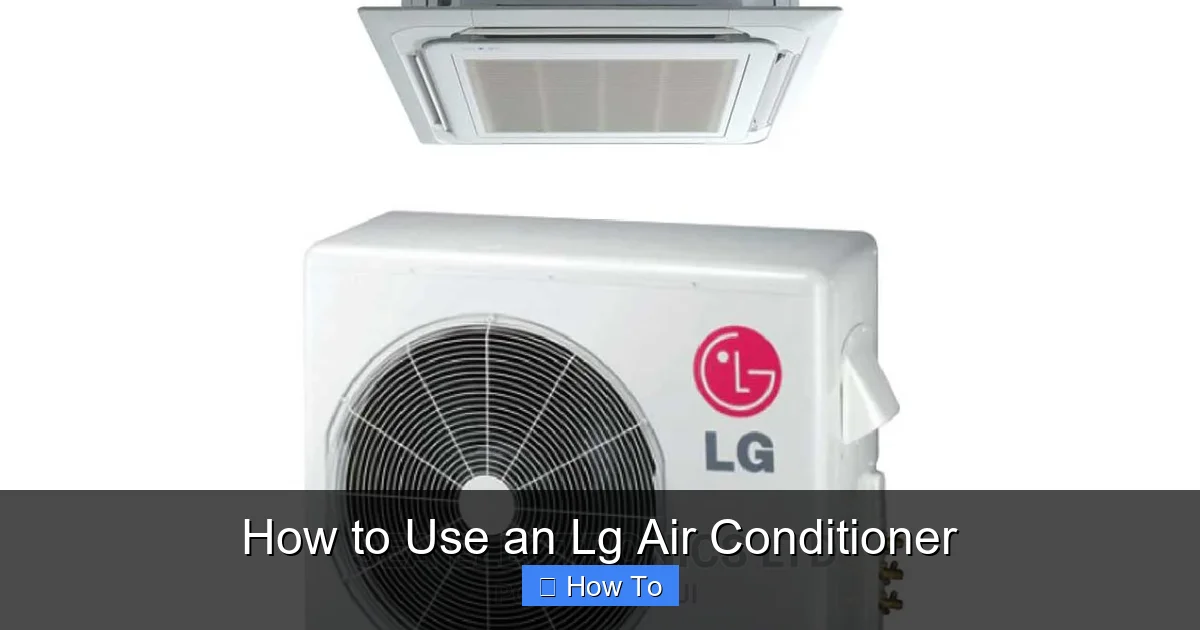
LG air conditioner components and installation accessories shown for reference
Before you turn on your LG air conditioner, proper setup is essential. A well-installed unit runs more efficiently, lasts longer, and avoids safety hazards.
Unbox Carefully
Start by unboxing your LG air conditioner. Most models come with the indoor unit, outdoor unit (for split systems), remote control, installation brackets, screws, and a user manual. Check that all parts are included and undamaged.
For window or portable units, you’ll also find window sealing kits or exhaust hoses. Keep all packaging materials until installation is complete—you may need them for returns or warranty claims.
Choose the Right Location
Where you place your AC matters. For split systems, the indoor unit should be mounted on an interior wall, away from direct sunlight, heat sources, and moisture. The outdoor unit needs clear space around it for airflow—at least 12 inches on all sides.
For window units, ensure the window frame is strong enough to support the weight. Avoid placing the unit where it will blow directly on people or electronics.
In practice, a common mistake is mounting the indoor unit too close to the ceiling — leave at least 6 inches of clearance for proper air intake and filter access.
Install Properly
If you’re installing a window or portable AC, follow the included instructions carefully. Use the sealing kit to close gaps and prevent hot air from entering.
For split systems, always hire a certified HVAC technician . Improper installation can void your warranty, reduce efficiency, or even cause refrigerant leaks. In 2026, many LG models also require a licensed pro to activate the smart features and warranty.
For detailed guidance on split-system placement and refrigerant line routing, see our split-system mounting and line-set best practices.
Plug In and Power On
Once installed, plug the unit into a dedicated outlet. Avoid using extension cords, as they can overheat. Turn on the power at the circuit breaker, then press the power button on the unit or remote.
Step 2: Understanding the Remote Control
The remote control is your main interface for operating your LG air conditioner. Most 2026 models come with a sleek, backlit remote with intuitive buttons.
Remote Layout and Buttons
Here’s a quick breakdown of common buttons:
- Power: Turns the unit on or off.
- Mode: Cycles through Cool, Heat, Dry, Fan, and AI modes.
- Temperature Up/Down: Adjusts the desired temperature (usually between 60°F and 86°F).
- Fan Speed: Sets low, medium, high, or auto fan speed.
- Swing: Controls airflow direction (up/down or left/right).
- Timer: Sets on/off schedules.
- Sleep Mode: Gradually adjusts temperature for comfort during sleep.
- Eco Mode: Reduces energy use by optimizing performance.
Using the Remote Effectively
Point the remote at the indoor unit’s sensor (usually on the front panel). If the signal isn’t working, check the batteries—most remotes use two AAA batteries. Replace them if the display is dim or unresponsive.
Some 2026 LG models feature a “Remote Lock” function to prevent accidental changes, especially useful in homes with kids.
Quick tip: If you lose the remote, the ThinQ app (covered in Step 4) works as a full replacement — no need to order a spare.
Step 3: Operating Your LG Air Conditioner
Now that your unit is set up, let’s explore how to use it for maximum comfort and efficiency.
Selecting the Right Mode
LG air conditioners offer several operating modes. Choose the one that fits your needs:
- Cool Mode: The default setting. Cools the room to your set temperature. Ideal for hot summer days.
- Heat Mode: Available on heat pump models. Warms your home in cooler months.
- Dry Mode: Reduces humidity without overcooling. Great for humid climates or rainy seasons.
- Fan Mode: Circulates air without cooling. Useful for ventilation on mild days.
- AI Mode: A 2026 innovation. Uses sensors to detect room conditions and automatically adjust temperature, fan speed, and airflow for optimal comfort.
For a deeper look at how LG’s AI-driven climate logic compares to traditional thermostatic control, explore our overview of recent compressor and sensor advancements.
Setting the Temperature
Use the temperature buttons to set your desired level. For energy savings, aim for 78°F (26°C) when you’re home and higher when away. Every degree above 72°F can save up to 3–5% on energy costs.
Adjusting Fan Speed
Higher fan speeds cool faster but use more energy. Use “Auto” mode to let the unit decide the best speed based on room temperature. For quiet operation at night, choose “Low.”
Using Airflow Direction (Swing)
Press the “Swing” button to adjust the louvers. Direct airflow away from people to avoid drafts. In cooling mode, aim slightly upward so cold air circulates evenly.
Step 4: Using the LG ThinQ App (2026 Edition)
In 2026, LG’s ThinQ app is smarter than ever. It turns your smartphone into a powerful remote and adds smart home integration.
Download and Set Up the App
Download “LG ThinQ” from the Apple App Store or Google Play. Create an account or log in if you already have one.
Connect Your AC to Wi-Fi
- Turn on your air conditioner.
- Open the ThinQ app and tap “Add Product.”
- Select your AC model and follow the on-screen instructions.
- The app will guide you through connecting to your home Wi-Fi network.
Most 2026 LG ACs support 2.4 GHz Wi-Fi. Ensure your router is within range for a stable connection.
Control Your AC from Anywhere
Once connected, you can:
- Turn the unit on or off remotely.
- Adjust temperature and fan speed.
- Switch between modes.
- Set schedules (e.g., cool the room before you get home).
- Monitor energy usage.
The app also sends maintenance reminders, like when to clean the filter.
Smart Home Integration
Link your LG AC to Google Assistant or Amazon Alexa. Say commands like:
- “Hey Google, set the living room AC to 74 degrees.”
- “Alexa, turn on the bedroom air conditioner.”
You can also create routines—like turning on the AC when you leave work or turning it off when you go to bed.
According to the U.S. Department of Energy, integrating smart thermostats with automated schedules can reduce cooling energy use by up to 10% annually when configured properly.
Step 5: Energy-Saving Tips for 2026
LG air conditioners are designed to be energy-efficient, but smart usage can save even more.
Use Eco Mode
Eco Mode reduces power consumption by limiting compressor speed and adjusting fan operation. It’s perfect for mild weather or when you’re trying to cut energy bills.
Enable Sleep Mode
Sleep Mode gradually increases the temperature by 1–2°F per hour after you fall asleep. This prevents overcooling and saves energy without sacrificing comfort.
Set a Timer
Use the timer to turn the AC off after a few hours or turn it on 30 minutes before you wake up. This avoids running the unit unnecessarily.
Keep Doors and Windows Closed
Close curtains during the day to block heat from sunlight. Seal gaps around windows and doors to prevent cool air from escaping.
Use Ceiling Fans
Ceiling fans help circulate cool air, allowing you to raise the thermostat by 4°F without feeling warmer.
For a full breakdown of setback schedules, fan pairing, and humidity-aware setpoints, see our guide on optimizing AC settings for lower bills.
Step 6: Maintenance and Cleaning
Regular maintenance keeps your LG air conditioner running smoothly and extends its lifespan.
Clean the Air Filter Monthly
A dirty filter blocks airflow and reduces efficiency. Here’s how to clean it:
- Turn off the unit and unplug it.
- Open the front panel and remove the filter.
- Rinse it under lukewarm water. Use mild soap if needed.
- Let it dry completely before reinstalling.
Some 2026 models have washable filters with antimicrobial coatings—check your manual.
Clean the Outdoor Unit
For split systems, clean the outdoor unit every 3–6 months:
- Turn off power at the breaker.
- Remove debris like leaves and dirt.
- Use a garden hose to gently rinse the fins (don’t use high pressure).
- Trim nearby plants to ensure airflow.
Check Drainage
Ensure the condensate drain is clear. Clogs can cause water leaks or indoor humidity issues. Use a wet/dry vacuum or pipe cleaner to remove blockages.
Schedule Professional Service
Have a technician inspect your unit once a year. They’ll check refrigerant levels, electrical connections, and overall performance.
Seasonal prep matters: before peak summer, clear the condenser coil and verify refrigerant charge; before winter, cover the outdoor unit if recommended by your model’s manual. Our seasonal maintenance checklist walks through each step.
Step 7: Troubleshooting Common Issues
Even the best ACs can have problems. Here’s how to fix common issues with your LG air conditioner.
Unit Won’t Turn On
- Check the power cord and outlet.
- Ensure the circuit breaker hasn’t tripped.
- Replace remote batteries.
- Make sure the unit isn’t in “Sleep” or “Timer Off” mode.
Poor Cooling or Heating
- Clean or replace the air filter.
- Check if the outdoor unit is blocked.
- Ensure the temperature is set correctly.
- Verify the mode is set to Cool or Heat.
If the unit runs but blows warm air, the cause is often a refrigerant issue or a stuck reversing valve — our warm-air troubleshooting flowchart covers the diagnostic steps.
Strange Noises
- Rattling: Loose panels or debris in the fan.
- Hissing: Possible refrigerant leak—call a technician.
- Clicking: Normal during startup or mode changes.
Water Leaks
- Check if the drain hose is clogged.
- Ensure the unit is level (especially window units).
- Clean the indoor coil if it’s dirty.
Remote Not Working
- Replace batteries.
- Clean the remote’s infrared sensor.
- Reset the remote by removing batteries for 1 minute.
Smart Features Not Connecting
- Restart your router and AC.
- Reconnect via the ThinQ app.
- Ensure your phone and AC are on the same Wi-Fi network.
Frequently Asked Questions
How do I reset my LG air conditioner to factory settings?
Press and hold the Power and Mode buttons on the remote simultaneously for 5 seconds, or use the ThinQ app’s “Device Reset” option. This clears custom schedules and Wi-Fi credentials but retains firmware.
Can I run my LG AC continuously in Dry Mode?
Yes, Dry Mode is designed for extended use. It cycles the compressor at low speed to dehumidify without overcooling. Empty the drain pan or ensure the condensate line is clear for runs longer than 8 hours.
Why does my LG AC show “CH” or “E1” error codes?
These indicate a communication fault between indoor and outdoor units. Power-cycle the breaker for 2 minutes. If the code persists, contact a certified technician — it often signals a wiring or PCB issue.
Does LG ThinQ work with Matter or Thread in 2026?
Most 2026 LG ACs support Matter over Wi-Fi via a firmware update. Check the ThinQ app’s “Software Update” section. Thread border router support varies by model; consult your spec sheet.
How often should I replace the air filter instead of washing it?
Wash monthly; replace annually or if the filter frame cracks, the media tears, or the antimicrobial coating degrades. LG sells OEM replacements — avoid generic cuts that restrict airflow.
Can I use my LG window AC in a casement (crank-out) window?
Only with a manufacturer-approved casement installation kit. Standard sliding-window kits won’t seal safely. Verify compatibility on LG’s accessories page for your model number.
Conclusion
Using an LG air conditioner in 2026 is easier and smarter than ever. With intuitive controls, advanced modes, and powerful smart features, your AC can keep your home comfortable while saving energy and money.
By following this guide, you’ve learned how to set up your unit, operate it with the remote or app, choose the right settings, maintain it properly, and fix common problems. Whether you’re cooling a small bedroom or a large living space, your LG air conditioner is designed to deliver reliable performance year after year.
Remember: regular maintenance and smart usage are the keys to long-term efficiency. Clean your filters, use energy-saving modes, and take advantage of the ThinQ app’s features.
Stay cool, stay comfortable, and enjoy the advanced technology that makes LG a leader in home climate control.
Ready to upgrade or add zones? Compare the latest LG multi-split and ducted options in our residential system buyer’s guide.

