
Learn how to use your LG air conditioner remote control effectively with this complete 2026 guide. From basic functions like temperature and fan speed to advanced features like Wi-Fi setup and sleep mode, we’ll walk you through every button and setting. Whether you're a first-time user or upgrading to a newer model, this guide ensures you get the most comfort and efficiency from your LG AC unit.
Key Takeaways
Understand every button: Learn the purpose of each remote control button, including power, mode, fan speed, temperature, and timer.
Use cooling, heating, and fan modes: Switch between modes based on season and comfort needs for year-round climate control.
Set timers and sleep mode: Save energy and improve sleep quality with programmable timers and automatic temperature adjustments.
Connect to Wi-Fi for smart control: Pair your LG remote with the ThinQ app to control your AC from your smartphone or voice assistant.
Troubleshoot common issues: Fix problems like unresponsive remotes, signal interference, or incorrect temperature readings.
Maintain remote and AC performance: Keep your remote clean, replace batteries regularly, and ensure proper signal alignment.
Optimize energy efficiency: Use eco modes and smart scheduling to reduce electricity bills without sacrificing comfort.
How to Use Air Conditioner Remote Control LG: A Complete 2026 Guide
Welcome to your ultimate guide on how to use the LG air conditioner remote control in 2026. Whether you’ve just installed a brand-new LG Dual Inverter or are upgrading from an older model, understanding your remote is the first step to enjoying cool, comfortable air all year long. LG remotes are packed with smart features, energy-saving modes, and intuitive controls—but only if you know how to use them. For more on this, see our guide on what are the best hvac air conditioning systems.
In this guide, we’ll walk you through every function, from turning on your AC to setting up Wi-Fi connectivity and troubleshooting common problems. By the end, you’ll feel confident using your LG remote like a pro, maximizing both comfort and efficiency.
Let’s dive in!
Getting to Know Your LG Air Conditioner Remote
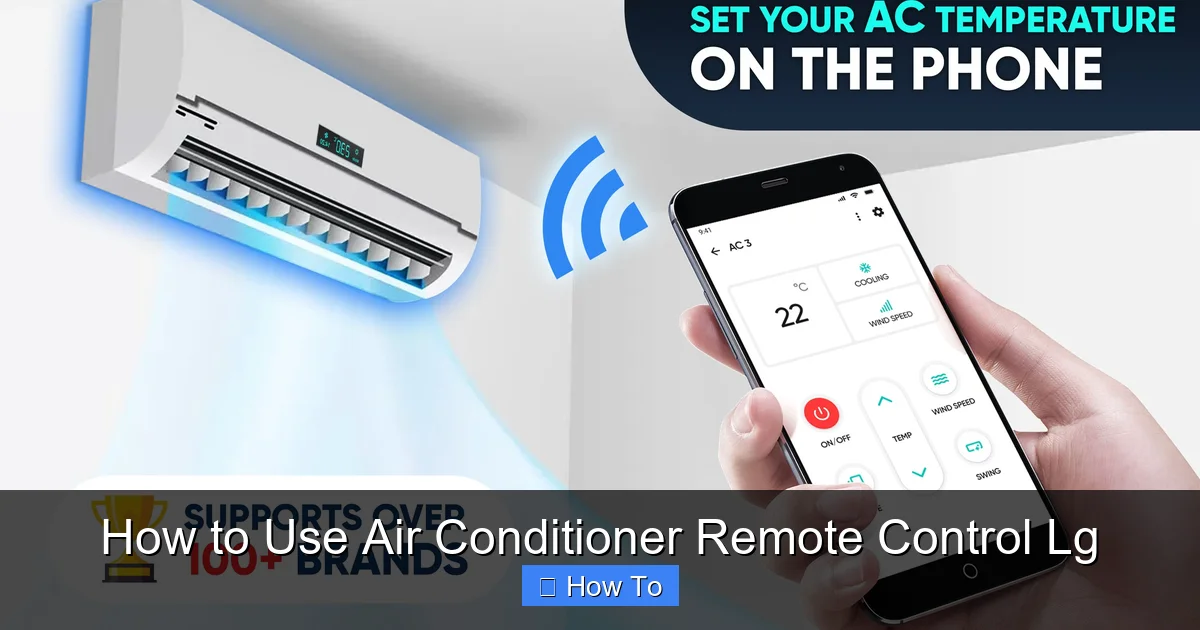
Diagram showing the main buttons on a typical LG AC remote.
Image source: image.winudf.com
Before you start pressing buttons, take a moment to familiarize yourself with the layout of your LG remote. While designs may vary slightly between models (like the LG Standard Remote, LG Smart Remote, or the newer LG ThinQ-enabled remotes), most share a similar structure.
Here’s a breakdown of the key components:
Power Button: Usually at the top, this turns your AC on or off.
Mode Button: Cycles through cooling, heating, fan, dry, and auto modes.
Temperature Up/Down: Adjusts your desired room temperature.
Fan Speed Button: Controls how fast the fan blows air (low, medium, high, auto).
Timer Button: Sets on/off schedules for energy savings.
Sleep Mode: Gradually adjusts temperature while you sleep.
Wi-Fi or ThinQ Button: Found on smart models, this connects your AC to the LG ThinQ app.
Swing or Airflow Button: Adjusts the direction of airflow from the vents.
Eco or Energy Saver Mode: Reduces power consumption.
Most LG remotes also have a small LCD screen that displays the current mode, temperature, and timer settings. Some newer 2026 models include touch-sensitive buttons or voice command support via integration with Google Assistant or Amazon Alexa.
Remote Model Variations
LG ships several remote families — standard infrared, smart ThinQ‑enabled, and the newer touch‑panel version that ships with 2026 Dual Inverter units. The button count and layout differ slightly: the standard remote uses physical keys for every function, the ThinQ remote adds a dedicated Wi‑Fi pairing button, and the touch panel replaces most keys with a capacitive surface that lights up only the active controls. Checking the model number on the back of the handset (usually “AKB7…”) tells you which feature set you have.
Step-by-Step: Basic Remote Functions
Now that you know what each button does, let’s go through the essential steps to operate your LG air conditioner using the remote.
1. Turning On Your LG Air Conditioner
It’s simple: press the Power button. You’ll hear a beep, and the AC unit will start up. The remote’s display will light up, showing the current mode and temperature.
Tip: Make sure the remote is pointed at the AC unit’s receiver (usually on the front panel) and that there are no obstacles blocking the signal.
2. Selecting the Right Mode
Press the Mode button repeatedly to cycle through the available options:
Cool: Lowers room temperature. Ideal for hot days.
Heat: Warms the room. Great for chilly mornings or winter.
Fan: Circulates air without cooling or heating. Useful for ventilation.
Dry: Reduces humidity. Perfect during rainy seasons or in damp climates.
Auto: The AC automatically selects the best mode based on room temperature.
For most users, Cool and Heat are the most commonly used modes. In 2026, many LG models also include an AI Mode that learns your preferences and adjusts settings automatically.
3. Adjusting Temperature
Use the Temperature Up (▲) and Down (▼) buttons to set your desired comfort level. Most LG ACs allow settings between 16°C and 30°C (60°F–86°F).
Pro Tip: For energy efficiency, set your AC to 24°C (75°F) in summer and 20°C (68°F) in winter. Every degree lower in summer can increase energy use by up to 8%.
4. Controlling Fan Speed
Press the Fan Speed button to choose between Low, Medium, High, or Auto.
Low: Quiet operation, ideal for nighttime.
Medium: Balanced noise and airflow.
High: Maximum cooling or heating, best for quick temperature changes.
Auto: The AC adjusts fan speed based on room conditions.
In 2026, some LG models feature a “Silent Mode” that reduces fan noise even further—perfect for bedrooms or home offices.
5. Using the Timer Function
The Timer button lets you schedule when your AC turns on or off. This is great for saving energy and ensuring your room is comfortable when you arrive home.
To Set a Timer:
Press the Timer button.
Use the ▲ and ▼ buttons to set the number of hours (up to 12 hours).
Press Timer again to confirm.
For example, if you want the AC to turn off in 3 hours, press Timer, set it to 3, and confirm. The AC will automatically shut down after that time.
Bonus: Some 2026 LG models allow you to set both a “Start Timer” and “Stop Timer” for more precise control.
6. Activating Sleep Mode
Sleep Mode gradually increases the temperature (in cooling mode) or decreases it (in heating mode) over time, mimicking your body’s natural temperature drop during sleep. This helps you sleep better and saves energy.
To Use Sleep Mode:
Press the Sleep button.
The AC will run for 1–2 hours, then slowly adjust the temperature.
After 7–8 hours, the AC turns off automatically.
Note: Sleep Mode is not available in Fan or Dry modes.
Advanced Features of the LG Remote (2026 Models)
LG continues to innovate, and 2026 models come with smarter, more intuitive features. Here’s how to use them.
1. Wi-Fi and ThinQ App Integration
Many LG air conditioners now support Wi-Fi connectivity, allowing you to control your AC from anywhere using the LG ThinQ app .
How to Connect Your Remote to Wi-Fi:
Download the LG ThinQ app on your smartphone (iOS or Android).
Create an account or log in.
Press and hold the Wi-Fi or ThinQ button on your remote for 3 seconds until the light blinks.
Follow the in-app instructions to pair your AC with your home Wi-Fi network.
Once connected, you can control temperature, modes, timers, and more from your phone.
Smart Tip: Use voice commands via Google Assistant or Alexa. Say, “Hey Google, set the living room AC to 23 degrees,” and it’ll respond instantly.
For official pairing steps and firmware updates, see the LG support portal.
2. AI and Auto Mode
Some 2026 LG models feature AI Mode , which uses sensors to detect room occupancy, temperature, and humidity. It then adjusts settings automatically for optimal comfort and efficiency.
To activate AI Mode:
Press the Mode button until “AI” appears on the display.
The AC will learn your habits over time and suggest personalized settings.
In practice, the AI routine fine‑tunes the compressor speed and fan curve every few minutes, so you rarely need to touch the remote after the first week.
3. Eco and Energy Saver Modes
Press the Eco or Energy Saver button to reduce power consumption. This mode slightly adjusts temperature and fan speed to save energy without sacrificing comfort.
In 2026, LG’s Dual Inverter Compressor technology works with Eco Mode to cut energy use by up to 70% compared to conventional ACs.
When Eco Mode is active, the compressor runs at a lower frequency and the fan ramps down once the setpoint is reached, which can shave 10‑15 % off a typical summer bill.
4. Airflow and Swing Control
Use the Swing or Airflow button to adjust the direction of air from the vents. You can set it to oscillate (move up and down) or fix it in one position.
Why it matters: Proper airflow ensures even cooling and prevents hot or cold spots in the room.
For larger rooms, set the swing to “wide” and aim the louvers slightly upward; cold air sinks and will circulate more evenly.
Troubleshooting Common Remote Issues
Even the best remotes can have issues. Here’s how to fix the most common problems with your LG air conditioner remote.
1. Remote Not Responding
If your remote isn’t working:
Check the batteries: Replace old or weak batteries. Use high-quality alkaline batteries for best performance.
Clean the remote: Dust or dirt on the buttons or infrared sensor can block signals. Wipe with a dry cloth.
Ensure line of sight: Point the remote directly at the AC unit. Avoid using it from another room.
Reset the remote: Remove batteries, wait 30 seconds, then reinsert.
2. Weak or Intermittent Signal
If the signal is weak:
Move closer to the AC unit.
Remove any objects blocking the infrared path (like curtains or furniture).
Check for bright light sources (sunlight or LEDs) that may interfere with the signal.
3. Wrong Temperature Display
If the remote shows a different temperature than the room:
The remote has a built-in sensor. Keep it away from heat sources (lamps, electronics).
Some models allow you to calibrate the sensor via the ThinQ app.
4. Wi-Fi Connection Problems
If your AC won’t connect to Wi-Fi:
Ensure your home network is 2.4 GHz (most LG ACs don’t support 5 GHz).
Restart your router and the AC unit.
Re-enter Wi-Fi credentials in the ThinQ app.
Update the app and AC firmware if available.
5. Buttons Sticking or Unresponsive
Over time, buttons can wear out. Try:
Gently cleaning around the buttons with a cotton swab and isopropyl alcohol.
Avoiding excessive force when pressing.
Contacting LG support if the issue persists—some 2026 models come with a 2-year remote warranty.
Tips for Optimal Performance and Energy Savings
Using your LG remote correctly isn’t just about comfort—it’s also about efficiency. Here are some smart tips for 2026:
Use timers wisely: Set your AC to turn on 30 minutes before you get home instead of running all day.
Close curtains and blinds: Reduce heat gain from sunlight, so your AC doesn’t work as hard.
Maintain your AC: Clean filters monthly and schedule professional servicing annually.
Use Sleep Mode at night: Saves energy and improves sleep quality.
Upgrade to a smart thermostat: Pair your LG AC with a compatible smart thermostat for even better control.
Want deeper energy‑saving strategies? Check our guide on optimal temperature settings.
Frequently Asked Questions
How do I pair my LG remote with the ThinQ app?
Press and hold the Wi‑Fi/ThinQ button on the remote for three seconds until the indicator blinks, then follow the in‑app prompts to connect to your 2.4 GHz network.
Why does my remote show a temperature that feels wrong?
The remote’s built‑in sensor can be skewed by direct sunlight or nearby electronics; move the handset to a shaded spot or calibrate it through the ThinQ app.
Can I use the LG remote with Google Assistant or Alexa?
Yes — once the AC is linked to ThinQ, enable the LG ThinQ skill in the Alexa app or add the device in Google Home, then control it by voice.
What’s the difference between Eco Mode and AI Mode?
Eco Mode statically reduces compressor speed and fan to save power, while AI Mode continuously learns occupancy and humidity to adjust settings dynamically.
How often should I replace the remote batteries?
Replace alkaline batteries once a year or whenever the display dims; low batteries are the most common cause of intermittent signal loss.
Does the remote work through walls?
No — LG remotes use infrared, which requires line‑of‑sight. For through‑wall control, use the ThinQ app on your phone.
Conclusion
Mastering your LG air conditioner remote control in 2026 is easier than ever—thanks to intuitive design, smart features, and energy-saving technology. From basic cooling to Wi-Fi control and AI modes, your remote is the key to a comfortable, efficient home.
By following this guide, you’ve learned how to use every function, troubleshoot common issues, and optimize your AC for peak performance. Whether you’re cooling down on a hot summer day or warming up in winter, your LG remote puts comfort at your fingertips.
So go ahead—press that power button, set your ideal temperature, and enjoy the cool, quiet comfort only LG can deliver.

