
How to Turn on Wifi on Lg Thinq Air Conditioner
Turning on WiFi on your LG ThinQ air conditioner lets you control cooling from anywhere using your smartphone. This guide walks you through setup, app pairing, and troubleshooting for a seamless smart home experience in 2026.
Key Takeaways
Ensure Compatibility: Only LG ThinQ-enabled AC models support WiFi. Check your model number on the unit or manual to confirm.
Download the LG ThinQ App: Available on iOS and Android, this app is essential for connecting and controlling your air conditioner remotely.
Stable 2.4GHz Network Required: LG ThinQ ACs connect only to 2.4GHz WiFi networks, not 5GHz. Adjust your router settings if needed.
Follow On-Screen Prompts: The app guides you through pairing with clear instructions—just keep your phone near the AC during setup.
Use Voice Assistants: Once connected, integrate with Google Assistant or Amazon Alexa for hands-free control in 2026.
Update Firmware Regularly: Keep your AC’s software current via the app to ensure optimal performance and new features.
Troubleshoot Connection Issues: Restart the AC, router, and app if pairing fails. Reset network settings as a last resort.
How to Turn on WiFi on LG ThinQ Air Conditioner: A Complete 2026 Guide
Welcome to the future of home cooling! In 2026, smart air conditioners like the LG ThinQ series are no longer just about keeping you cool—they’re about giving you total control, energy savings, and seamless integration with your digital lifestyle. One of the most powerful features? WiFi connectivity. Once you turn on WiFi on your LG ThinQ air conditioner, you can adjust temperatures, set schedules, monitor energy usage, and even receive maintenance alerts—all from your smartphone, whether you're on the couch or halfway across the world.
But let’s be honest: setting up smart devices can sometimes feel like solving a puzzle. Don’t worry. This comprehensive guide will walk you through every step to turn on WiFi on your LG ThinQ air conditioner with confidence. Whether you’re a tech newbie or a smart home enthusiast, we’ve got you covered. By the end of this guide, you’ll have your AC connected, your app configured, and your home cooler—and smarter—than ever.
We’ll cover everything from checking compatibility to troubleshooting common issues, plus tips to get the most out of your LG ThinQ experience in 2026. Let’s get started!
Why Connect Your LG ThinQ Air Conditioner to WiFi?
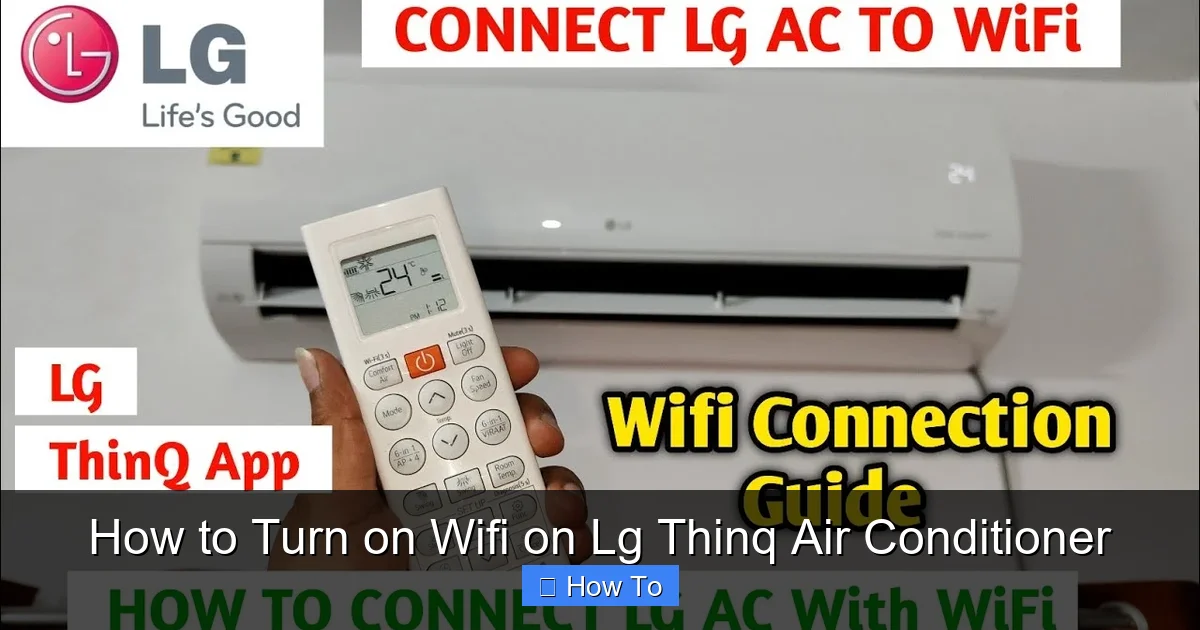
Illustration showing the LG ThinQ app pairing screen with a WiFi-enabled air conditioner.
Before we dive into the how-to, let’s talk about the “why.” Why should you bother turning on WiFi on your LG ThinQ air conditioner? The benefits go far beyond just remote control.
First, convenience . Imagine coming home on a hot summer day to a perfectly cooled house—because your AC started cooling an hour before you arrived. With the LG ThinQ app, you can set schedules, adjust settings, and even turn the unit on or off from your phone. No more fumbling with remotes or walking into a sweltering room.
Second, energy efficiency . The app provides real-time energy usage reports and suggests optimal settings to reduce consumption. In 2026, with rising energy costs and environmental awareness, this feature is more valuable than ever. You can even receive alerts when it’s time to clean the filter or if the unit is running inefficiently.
Third, smart home integration . Your LG ThinQ AC can work with Google Assistant and Amazon Alexa. Just say, “Hey Google, set the living room AC to 72 degrees,” and it’s done. You can also create routines—like turning off all AC units when you leave the house or lowering the temperature when you say, “I’m going to sleep.”
Finally, remote diagnostics and support . If something goes wrong, LG can often diagnose issues remotely and guide you through fixes—or schedule a service call—without you having to describe the problem over the phone.
In short, turning on WiFi transforms your air conditioner from a simple appliance into a smart, responsive part of your home ecosystem.
Check Your LG ThinQ Air Conditioner Compatibility
Not all LG air conditioners support WiFi. Before you begin, you need to confirm that your model is part of the LG ThinQ lineup.
How to Identify a ThinQ-Enabled AC
Look for the “ThinQ” logo on the front panel or near the control display of your unit. You can also check the model number. LG ThinQ models typically include letters like “TQ” or “W” in the model number (e.g., LW1222IVSM, LP1419IVSM). Visit the LG official website and enter your model number in the support section to verify ThinQ compatibility.
If your unit is from 2020 or later and has a digital display with smart features, there’s a good chance it’s ThinQ-enabled. However, older models or basic window units may not support WiFi.
What If Your AC Isn’t ThinQ-Compatible?
If your LG air conditioner doesn’t support WiFi, you have a few options. You can upgrade to a newer ThinQ model, which often comes with improved efficiency and smart features. Alternatively, consider a smart AC controller like the Cielo Breez or Sensibo Air, which can add WiFi functionality to non-smart units. But for the full LG experience, a native ThinQ model is best.
Advanced Compatibility Checks
Beyond the logo and model number, verify that your unit’s firmware supports the latest ThinQ cloud services. Some early‑release models require a firmware flash before they appear in the app. Consult the LG support portal for the most recent firmware release notes. If you’re still deciding on a unit, our guide on choosing the right air conditioner outlines the key specs to match your space and smart‑home goals.
Download and Set Up the LG ThinQ App
The LG ThinQ app is the command center for all your LG smart appliances. It’s available for free on both iOS and Android devices and is regularly updated with new features in 2026.
Step 1: Download the App
Open the App Store (iOS) or Google Play Store (Android) on your smartphone or tablet. Search for “LG ThinQ” and download the official app. Make sure it’s published by LG Electronics—there are fake apps out there, so double-check the developer name.
Step 2: Create or Sign In to Your LG Account
When you open the app for the first time, you’ll be prompted to sign in or create an LG account. If you already have an account (maybe from a previous LG appliance), use those credentials. If not, tap “Create Account” and follow the steps. You’ll need to provide an email address, create a password, and verify your email.
Having an LG account allows you to sync your appliances across devices, receive firmware updates, and access customer support.
Step 3: Allow Permissions
The app will ask for permissions to access your location, Bluetooth, and notifications. Grant these permissions—they’re necessary for discovering and connecting to your air conditioner. Location helps the app find nearby LG devices, while Bluetooth assists in the initial pairing process.
Prepare Your WiFi Network
Your LG ThinQ air conditioner connects to your home WiFi, but there are a few important requirements to ensure a smooth setup.
Use a 2.4GHz Network
This is critical: LG ThinQ air conditioners only connect to 2.4GHz WiFi networks , not 5GHz. Most modern routers broadcast both frequencies, but your phone might be connected to the faster 5GHz band by default.
To fix this:
- Open your phone’s WiFi settings.
- Look for your network name (SSID). It might appear as “YourNetwork” and “YourNetwork_5G.”
- Connect to the 2.4GHz version (usually just “YourNetwork” without the “_5G” suffix).
If your router uses a combined SSID (both bands under one name), you may need to log into your router’s admin panel (usually via a web browser) and temporarily separate the bands or disable 5GHz during setup.
Ensure Strong Signal Strength
Place your air conditioner within range of your WiFi router. Thick walls, metal objects, or long distances can weaken the signal. If your AC is in a basement or far corner of the house, consider using a WiFi extender or mesh network system to boost coverage.
Check Network Security
Your WiFi should use WPA2 or WPA3 encryption. Older security types like WEP are not supported. Also, avoid using special characters (like @, #, or spaces) in your WiFi password—they can cause connection issues.
Router Band‑Separation Tip
If your router merges 2.4 GHz and 5 GHz under a single SSID, create a dedicated 2.4 GHz network (e.g., “Home‑2.4”) for all smart appliances. This prevents the AC from accidentally hopping to the 5 GHz band and reduces interference. For more on optimizing your home network for HVAC gear, see our seasonal maintenance checklist.
Turn On WiFi on Your LG ThinQ Air Conditioner
Now for the main event: turning on WiFi on your LG ThinQ air conditioner. The process is straightforward, but it requires careful attention to the on-screen prompts.
Step 1: Power On the Air Conditioner
Make sure your AC is plugged in and turned on. You should see the display light up and hear the fan start. If it’s a window unit, ensure it’s securely installed and the power cord is connected.
Step 2: Enter WiFi Setup Mode
On the AC’s control panel, look for a button labeled “WiFi,” “Smart,” or “ThinQ.” Press and hold this button for 3–5 seconds until the WiFi indicator light starts blinking. This means the unit is in pairing mode and ready to connect.
If your model doesn’t have a dedicated WiFi button, try pressing and holding the “Mode” and “Fan” buttons simultaneously for 5 seconds. Refer to your user manual for model-specific instructions.
Step 3: Open the LG ThinQ App
Launch the LG ThinQ app on your phone. Tap the “+” or “Add Device” button (usually in the top-right corner). The app will scan for nearby LG appliances.
Step 4: Select Your Air Conditioner
When your AC appears in the list, tap on it. The app will ask you to confirm the model number—double-check that it matches your unit.
Step 5: Connect to WiFi
The app will prompt you to select your home WiFi network from a list. Choose the 2.4GHz network you prepared earlier. Enter your WiFi password carefully—typos are a common cause of failure.
Once entered, tap “Connect.” The app will send the network credentials to your AC via Bluetooth. This may take 30–60 seconds.
Step 6: Wait for Confirmation
If successful, the WiFi light on your AC will stop blinking and stay solid. The app will display a confirmation message and ask you to name your device (e.g., “Living Room AC”). You can also assign it to a room for better organization.
Step 7: Test the Connection
Try adjusting the temperature or turning the AC off and on using the app. If it responds, congratulations—you’ve successfully turned on WiFi on your LG ThinQ air conditioner!
Verifying Firmware After Pairing
After the first successful connection, open the device settings in the app and check the firmware version. LG typically pushes a stability update within the first 48 hours. Keeping the firmware current ensures you benefit from the latest smart‑cooling innovations and security patches.
Using the LG ThinQ App to Control Your AC
Now that your AC is connected, let’s explore what you can do with the app in 2026.
Remote Control Features
From the app’s home screen, tap on your air conditioner. You’ll see a virtual remote with all the same controls as your physical unit: temperature, fan speed, mode (cool, heat, fan, dry), and timer.
You can also:
- Set custom schedules (e.g., cool to 74°F from 6 PM to 8 AM).
- Enable “Smart Cooling” to automatically adjust based on outdoor weather.
- View energy usage in real time and set monthly budgets.
Voice Control Setup
To use voice commands:
- Open the Google Home or Amazon Alexa app.
- Search for “LG ThinQ” and link your LG account.
- Say, “Hey Google, discover devices” or “Alexa, discover devices.”
- Once linked, control your AC with voice: “Set the bedroom AC to 70 degrees.”
Smart Notifications
Enable push notifications in the app to receive alerts when:
- The filter needs cleaning.
- The unit detects a malfunction.
- Energy usage spikes unexpectedly.
These alerts help maintain efficiency and prevent breakdowns.
Smart Scheduling and Energy Reports
The ThinQ app lets you build weekly schedules that align with your utility’s time‑of‑use rates, automatically shifting cooling to off‑peak hours. Combined with the built‑in energy dashboard, you can track kWh consumption per day and set budget alerts. For deeper guidance on dialing in the most efficient temperature curves, review our rundown of energy‑saving settings.
Troubleshooting Common WiFi Connection Issues
Even with careful setup, things can go wrong. Here’s how to fix the most common problems when turning on WiFi on your LG ThinQ air conditioner.
Issue 1: AC Not Found by the App
If the app doesn’t detect your AC:
- Ensure the AC is in pairing mode (WiFi light blinking).
- Move your phone closer to the unit (within 3–5 feet).
- Restart the app and try again.
- Make sure Bluetooth is enabled on your phone.
Issue 2: Connection Fails After Entering Password
If the app says “Connection Failed”:
- Double-check your WiFi password.
- Confirm you’re connected to the 2.4GHz network.
- Restart your router and AC.
- Try resetting the AC’s network settings (see below).
Issue 3: WiFi Light Blinks Continuously
A blinking WiFi light means the AC is trying to connect but can’t. This usually indicates a network issue:
- Check if other devices can connect to the same WiFi.
- Temporarily disable MAC filtering or firewall settings on your router.
- Move the router closer or use a WiFi extender.
How to Reset Network Settings on Your AC
If all else fails, reset the network settings:
- Press and hold the “WiFi” button for 10 seconds until the light turns off.
- Wait 30 seconds, then press and hold again for 3–5 seconds to re-enter pairing mode.
- Repeat the setup process in the app.
This clears any stored network data and gives you a fresh start.
Contact LG Support
If you’ve tried everything and still can’t connect, contact LG customer support. In 2026, LG offers 24/7 chat, phone, and remote diagnostics. Have your model number and purchase date ready.
When to Seek Professional Help
Persistent pairing failures can sometimes stem from a faulty WiFi module or outdated router firmware. If a factory reset of the AC and a router firmware update don’t resolve the issue, it’s worth scheduling a service visit. Our article on troubleshooting warm air issues covers related diagnostic steps that often overlap with connectivity problems.
Tips for Maintaining Your LG ThinQ AC Connection
Once connected, keep your smart AC running smoothly with these best practices.
Update Firmware Regularly
LG releases firmware updates to improve performance, fix bugs, and add features. The ThinQ app will notify you when an update is available. Tap “Update Now” to install it. Updates usually take 5–10 minutes and require the AC to be on.
Keep the App Updated
Check your app store monthly for updates. New versions often include better compatibility, security patches, and user interface improvements.
Use a Dedicated Network for Smart Devices
If you have many smart devices, consider setting up a separate 2.4GHz network just for appliances. This reduces congestion and improves reliability.
Monitor Energy Usage
Use the app’s energy reports to identify patterns and adjust usage. For example, you might discover that cooling during peak hours increases costs—so you shift to off-peak times.
Security and Privacy Considerations
Smart appliances transmit usage data to the cloud. LG encrypts traffic with TLS 1.2+ and stores credentials in a secure element on the device. Still, you can harden your setup: enable WPA3 on the 2.4 GHz SSID, disable UPnP on the router, and periodically review the ThinQ app’s data‑sharing permissions. For a broader look at how modern HVAC platforms handle privacy, see the air‑conditioning innovations overview.
Conclusion
Turning on WiFi on your LG ThinQ air conditioner is one of the best upgrades you can make to your home cooling system in 2026. It’s not just about remote control—it’s about smarter energy use, seamless integration with your digital life, and peace of mind.
From checking compatibility to downloading the app, preparing your network, and following the step-by-step pairing process, this guide has covered everything you need to know. And if you run into issues, the troubleshooting section will help you get back on track.
Once connected, you’ll wonder how you ever lived without it. Whether you’re adjusting the temperature from bed, setting a schedule while at work, or asking Alexa to cool the house, your LG ThinQ AC becomes a responsive, intelligent part of your home.
So go ahead—turn on that WiFi, download the app, and start enjoying the future of cooling. Your comfort, your wallet, and the planet will thank you.
Ready to take the next step? Explore our guide on choosing the right air conditioner to match your space and smart‑home ambitions.
Frequently Asked Questions
Can I connect my LG ThinQ AC to a 5 GHz network?
No. LG ThinQ air conditioners only support 2.4 GHz WiFi. Use a dedicated 2.4 GHz SSID or split your router’s bands during setup.
What if the ThinQ app never discovers my unit?
Confirm the AC is in pairing mode (WiFi light blinking), keep your phone within a few feet, enable Bluetooth, and restart both the app and the AC. If it still fails, reset the AC’s network settings and retry.
How often does LG push firmware updates?
LG typically releases firmware updates quarterly, with critical security patches arriving sooner. The app notifies you automatically; install updates promptly for best performance.
Does the ThinQ app work without an internet connection?
Local control via Bluetooth works for basic on/off and temperature changes, but scheduling, energy reports, and voice‑assistant integration require cloud connectivity.
Can multiple users control the same AC?
Yes. Invite family members through the LG account “Family” feature; each user gets their own login and can manage the device from their phone.
Is there a way to reduce the AC’s data usage?
Disable “Smart Cooling” weather‑based adjustments and turn off automatic energy‑report uploads in the app settings if bandwidth is limited.

