
Turning on WiFi on your LG air conditioner in 2026 is simple and unlocks smart home convenience. This guide walks you through setup using the LG ThinQ app, ensuring seamless remote control, scheduling, and energy tracking from your smartphone.
Key Takeaways
Check Compatibility: Only select LG air conditioners with built-in WiFi or a compatible WiFi module can connect to your network.
Use the LG ThinQ App: Download and install the official LG ThinQ app (2026 version) on your smartphone or tablet.
Ensure Strong WiFi Signal: Place your AC unit within range of your router to avoid connection drops during setup and use.
Follow On-Screen Prompts: The app guides you through pairing, network selection, and device naming for easy identification.
Update Firmware Regularly: Keep your AC’s firmware updated via the app to ensure optimal performance and new features.
Troubleshoot Common Issues: If connection fails, restart devices, check credentials, or reset the WiFi module as needed.
Enjoy Smart Features: Once connected, control temperature, set schedules, monitor energy use, and receive maintenance alerts remotely.
How to Turn on WiFi on LG Air Conditioner in 2026: A Complete Step-by-Step Guide
Welcome to the future of home cooling! In 2026, LG air conditioners are smarter than ever, offering seamless integration with your home network and smart devices. Whether you're looking to cool your room before you get home, adjust settings from bed, or monitor energy usage in real time, enabling WiFi on your LG air conditioner is the first step toward a more comfortable and efficient lifestyle. For more on this, see our guide on how to choose the right air conditioner for.
In this comprehensive guide, we’ll walk you through everything you need to know about how to turn on WiFi on LG air conditioner models available in 2026. From checking compatibility to troubleshooting connection issues, we’ve got you covered. By the end of this article, you’ll be able to control your AC remotely using the LG ThinQ app, set personalized schedules, and even integrate your unit with voice assistants like Google Assistant and Amazon Alexa.
Let’s get started!
Why Enable WiFi on Your LG Air Conditioner?
Before diving into the setup process, it’s important to understand why connecting your LG air conditioner to WiFi is worth your time. In 2026, smart home technology is no longer a luxury—it’s a standard expectation. Here are some key benefits of enabling WiFi on your LG AC:
Remote Control: Adjust temperature, fan speed, and modes from anywhere using your smartphone.
Energy Efficiency: Monitor usage patterns and optimize settings to reduce electricity bills.
Smart Scheduling: Set your AC to turn on or off at specific times, so your home is always comfortable when you arrive.
Maintenance Alerts: Receive notifications when filters need cleaning or if there’s a system error.
Voice Control: Use voice commands via Google Assistant or Alexa to control your AC hands-free.
Integration with Smart Home Systems: Sync your AC with other LG ThinQ devices like refrigerators, washing machines, and air purifiers.
With these features, your air conditioner becomes more than just a cooling device—it becomes a central part of your smart home ecosystem.
Check Your LG Air Conditioner’s WiFi Compatibility
Not all LG air conditioners support WiFi connectivity. Before attempting to connect, you need to verify whether your model is compatible. Here’s how:
Before you begin, verify that your unit’s firmware is up to date; outdated firmware can block the pairing process. You can check the current version in the LG ThinQ app once the device is added, or consult the manufacturer’s support page for the latest firmware releases. latest firmware releases
Look for Built-in WiFi or a WiFi Module
In 2026, most new LG air conditioners come with built-in WiFi capabilities. However, some older or budget models may require an external WiFi module (sold separately) to enable smart features.
To check:
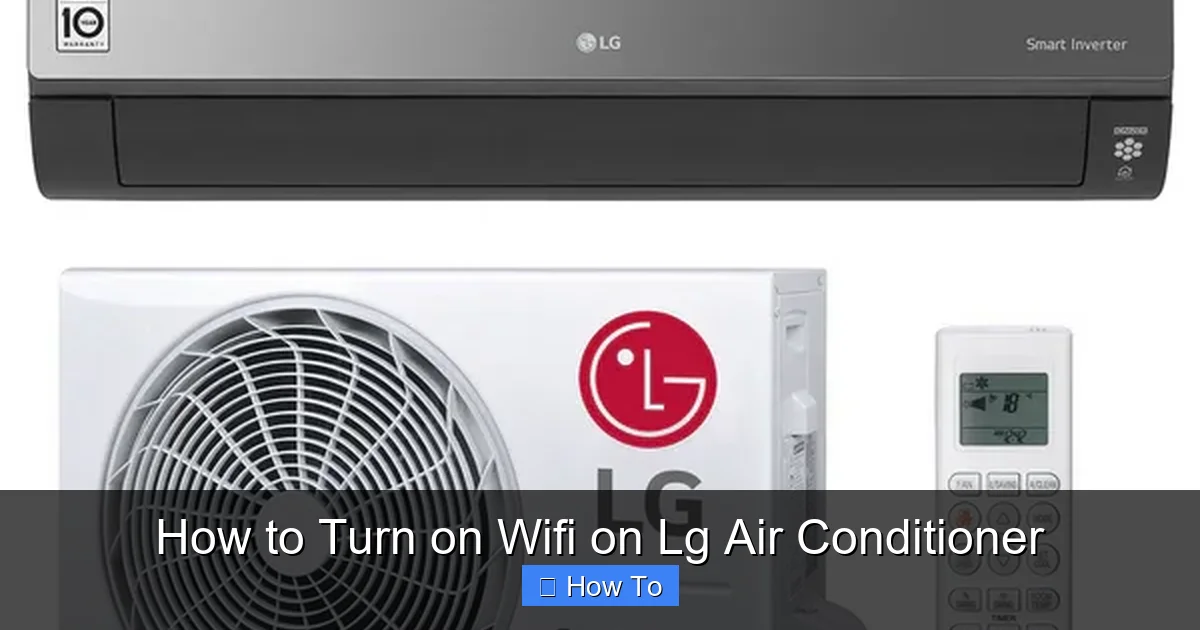
Illustration showing WiFi pairing steps for LG AC
Image source: rolls.cy
Refer to your user manual—look for terms like “WiFi,” “Smart,” “ThinQ,” or “IoT.”
Check the product label on the unit or packaging for model numbers that include “WiFi” or “Smart” (e.g., LG LW1223ERSM).
Visit the official LG website and search your model number to confirm WiFi support.
Identify Your Model Type
LG offers several types of air conditioners, including window units, portable units, and ductless mini-splits. In 2026, the majority of new models—especially those in the premium and mid-range categories—support WiFi. However, portable units may have limited smart features.
For example:
Window Units: Models like the LG LW1522IVSM come with built-in WiFi.
Mini-Split Systems: The LG Art Cool Mirror series supports full smart functionality.
Portable ACs: Some models, like the LG LP1419IVSM, include WiFi, but check the specs to be sure.
If your model isn’t WiFi-enabled, you may still be able to add smart functionality using a third-party smart plug or a compatible WiFi module (if available from LG). However, these solutions may not offer full app control or scheduling features.
Download and Set Up the LG ThinQ App
The LG ThinQ app is the central hub for controlling all your LG smart appliances, including your air conditioner. In 2026, the app has been updated with improved UI, faster pairing, and enhanced security features.
Step 1: Download the App
Available on both iOS and Android, the LG ThinQ app is free to download:
Open the App Store (iOS) or Google Play Store (Android).
Search for “LG ThinQ” and download the official app.
Ensure you’re downloading the 2026 version, which supports the latest LG appliances and security protocols.
Step 2: Create or Log In to Your LG Account
To use the app, you’ll need an LG account:
Open the app and tap “Sign Up” if you’re new.
Enter your email, create a password, and verify your account via email.
If you already have an account, simply log in.
Tip: Use the same email across all LG devices for seamless integration.
Step 3: Grant Necessary Permissions
The app will request access to your location, Bluetooth, and notifications. These are essential for device discovery and remote control:
Allow location access to help the app detect nearby LG devices.
Enable Bluetooth for initial pairing (even if using WiFi).
Turn on notifications to receive alerts about your AC’s status.
Prepare Your Home Network
A stable WiFi connection is crucial for reliable performance. Before connecting your AC, ensure your network meets the following requirements:
Make sure your router uses WPA2‑PSK (AES) encryption and that MAC‑address filtering is disabled, as these settings can prevent the AC from joining the network. securing your wireless network
Check WiFi Signal Strength
Your air conditioner should be within range of your router. Weak signals can cause connection drops or pairing failures.
Use a WiFi analyzer app (like NetSpot or WiFi Analyzer) to check signal strength near your AC unit.
If the signal is weak, consider moving your router or using a WiFi extender.
Use a 2.4 GHz Network
Most LG air conditioners in 2026 support only 2.4 GHz WiFi bands. While some newer models may support 5 GHz, the 2.4 GHz band offers better range and wall penetration.
Log in to your router’s admin panel (usually via a browser at 192.168.1.1 or similar).
Ensure your 2.4 GHz network is enabled and broadcasting.
If your router uses a combined SSID (e.g., “HomeWiFi” for both bands), make sure your phone connects to the 2.4 GHz band during setup.
Note Your Network Name and Password
You’ll need this information during the pairing process. Write it down or keep it handy on your phone.
Turn on WiFi on Your LG Air Conditioner: Step-by-Step
Now that everything is prepared, it’s time to connect your AC to WiFi. Follow these steps carefully.
Step 1: Power On the Air Conditioner
Make sure your AC is plugged in and turned on. The unit should be in standby or operating mode.
Step 2: Enter WiFi Pairing Mode
Each LG model has a slightly different method to activate pairing mode. Here are the most common ways:
Method A: Using the Remote Control Press and hold the “WiFi” or “Smart” button on the remote for 3–5 seconds. The indicator light on the unit will blink rapidly, indicating pairing mode.
Method B: Using the Control Panel On units with a digital display, press and hold the “Mode” and “Fan” buttons simultaneously for 5 seconds. The WiFi icon will flash.
Method C: Automatic Detection Some 2026 models automatically enter pairing mode the first time they’re powered on. Wait 1–2 minutes for the light to blink.
Note: If the light doesn’t blink, consult your user manual for model-specific instructions.
Step 3: Open the LG ThinQ App
Launch the app and tap the “+” icon or “Add Device” button.
Step 4: Select Your Device Type
Choose “Air Conditioner” from the list of appliances. The app will begin scanning for nearby devices.
Step 5: Follow On-Screen Instructions
The app will guide you through the process:
Confirm that your AC is in pairing mode (light blinking).
Select your home WiFi network from the list.
Enter your WiFi password when prompted.
Wait while the app connects the AC to your network.
This process typically takes 1–3 minutes. Do not turn off the AC or close the app during this time.
Step 6: Name and Organize Your Device
Once connected, the app will ask you to name your air conditioner (e.g., “Living Room AC” or “Bedroom Cooler”). You can also assign it to a room for better organization.
Tip: Use descriptive names if you have multiple LG appliances.
Step 7: Test Remote Control
Try adjusting the temperature or turning the AC on/off from the app. If it responds, congratulations—your WiFi is successfully enabled!
Advanced Setup and Features
Now that your AC is connected, explore these advanced features to get the most out of your smart unit.
You can also add the AC to custom routines in the ThinQ app, such as a “Good Night” scene that lowers the temperature and turns off lights. custom smart‑home routines
Set Up Schedules
Use the app to create daily or weekly cooling schedules. For example:
Set the AC to turn on at 6:00 PM so your home is cool when you return from work.
Program it to turn off at 11:00 PM to save energy while you sleep.
Enable Geofencing
Geofencing uses your phone’s location to automatically adjust the AC. When you leave home, the AC turns off. When you’re 10 minutes away, it turns on.
Go to Settings > Geofencing in the app.
Enable the feature and set your home location.
Monitor Energy Usage
The app provides real-time and historical energy consumption data. Use this to identify usage patterns and reduce costs.
Integrate with Voice Assistants
Link your LG ThinQ account to Google Assistant or Amazon Alexa:
Open the Google Home or Alexa app.
Search for “LG ThinQ” and link your account.
Use voice commands like “Hey Google, set the living room AC to 72 degrees.”
Troubleshooting Common WiFi Connection Issues
Even with careful setup, you might encounter problems. Here’s how to fix the most common issues.
AC Not Detected by the App
Ensure the AC is in pairing mode (light blinking).
Move your phone closer to the AC unit.
Restart the app and try again.
Reset the WiFi module (see below).
Connection Fails After Entering Password
Double-check your WiFi password for typos.
Ensure you’re connecting to the 2.4 GHz network.
Restart your router and try again.
AC Disconnects Frequently
Check WiFi signal strength near the unit.
Reduce interference from microwaves, cordless phones, or other devices.
Update your router’s firmware.
How to Reset the WiFi Module
If all else fails, reset the WiFi settings:
Turn off the AC and unplug it for 1 minute.
Press and hold the “WiFi” button on the remote or control panel for 10 seconds.
Plug the unit back in and re-enter pairing mode.
Repeat the setup process in the LG ThinQ app.
Maintaining Your Smart Air Conditioner
To ensure long-term performance, follow these maintenance tips:
Seasonal checks keep the unit running efficiently and preserve WiFi reliability. seasonal upkeep checklist
Update Firmware: The LG ThinQ app will notify you of available updates. Install them to fix bugs and add features.
Clean Filters Regularly: Dirty filters reduce efficiency and can trigger error alerts.
Check for App Updates: Keep the LG ThinQ app updated for the best experience.
Reconnect After Network Changes: If you change your WiFi password or router, you’ll need to reconnect your AC.
Conclusion
Turning on WiFi on your LG air conditioner in 2026 is a simple process that opens the door to a smarter, more comfortable home. By following this guide, you’ve learned how to check compatibility, download the LG ThinQ app, connect your unit to your network, and unlock powerful remote control features.
With WiFi enabled, you can enjoy energy savings, automated scheduling, voice control, and peace of mind knowing your home is always at the perfect temperature. Whether you’re cooling a single room or managing multiple units, LG’s smart technology makes it easier than ever to stay comfortable.
So go ahead—take control of your climate. Your future self will thank you.
Want to cut your cooling costs further? See our recommendations for the most efficient temperature settings. optimal temperature settings
Frequently Asked Questions
How do I know if my LG AC model supports WiFi?
Check the model number on the unit or manual for “WiFi,” “Smart,” or “ThinQ.” The LG website also lists connectivity specs for each model.
Can I connect the AC to a 5 GHz network?
Most 2026 LG models only support 2.4 GHz. A few newer units add 5 GHz, but 2.4 GHz gives better range through walls.
What should I do if the ThinQ app never finds my AC?
Confirm the AC is in pairing mode (blinking WiFi light), move your phone closer, restart the app, and ensure your phone is on the same 2.4 GHz SSID.
How often should I update the AC firmware?
Install firmware updates as soon as the ThinQ app notifies you; they fix bugs, improve security, and sometimes add new smart features.
Will a power outage break the WiFi connection?
The AC will automatically reconnect when power returns, provided the router is back online. If it doesn’t, repeat the pairing steps.

