
How to Reset Lg Air Conditioner with Remote
Resetting your LG air conditioner with a remote can resolve common performance issues, restore factory settings, and improve energy efficiency. This guide walks you through the entire process clearly and safely , ensuring your unit works like new in minutes.
Key Takeaways
Resetting restores default settings: A remote reset clears error codes, resets timers, and returns your LG AC to factory defaults, improving performance and reliability.
Always check the remote batteries first: Weak or dead batteries are a common cause of remote malfunctions and can prevent a successful reset.
Use the correct button combination: Most LG models require holding the “Reset” or “Filter” and “Temperature Down” buttons simultaneously for 3–5 seconds.
Power cycle if the reset fails: If the remote reset doesn’t work, turn off the AC at the wall, wait 10 minutes, then turn it back on to reset the internal system.
Refer to your model’s manual: Reset steps can vary slightly by model—always check your user guide or LG’s official support site for model-specific instructions.
Reset after filter cleaning or maintenance: Performing a reset after cleaning the air filter ensures the system recognizes the change and resumes optimal operation.
Contact LG support if issues persist: If your AC still doesn’t respond after multiple resets, there may be a hardware issue requiring professional assistance.
Introduction: Why Resetting Your LG Air Conditioner Matters
In 2026, LG air conditioners continue to lead the market with smart features, energy efficiency, and sleek designs. However, even the most advanced units can develop glitches over time—whether it’s a frozen display, unresponsive controls, or inconsistent cooling. One of the simplest and most effective ways to fix these issues is by resetting your LG air conditioner using the remote control.
Resetting your AC isn’t just about fixing problems—it’s also a smart maintenance step. It clears temporary errors, resets internal timers, and restores factory settings, which can improve performance and extend the life of your unit. Whether you’ve just cleaned your air filter, moved the unit, or noticed odd behavior, a reset can bring your system back to peak condition.
This comprehensive guide will walk you through how to reset LG air conditioner with remote in clear, easy-to-follow steps. You’ll learn the correct button combinations, troubleshoot common issues, and understand when a reset is necessary. No technical expertise is required—just your remote, a few minutes, and this guide.
By the end, you’ll be able to confidently reset your LG AC and enjoy cooler, more reliable air all year long.
Understanding When to Reset Your LG Air Conditioner
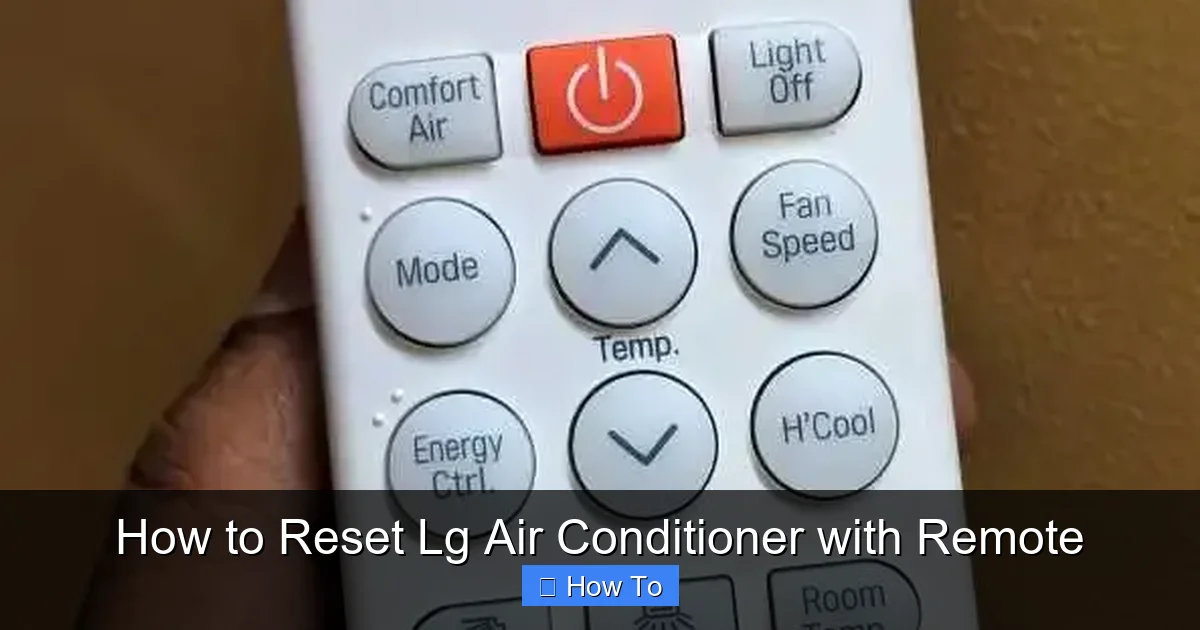
LG remote showing reset button location and typical button layout
Image source: i2.wp.com
Before jumping into the reset process, it’s important to know when a reset is actually needed. Not every issue requires a full system reboot, but there are several common scenarios where a reset is highly recommended.
Common Signs Your AC Needs a Reset
The remote isn’t responding: If pressing buttons does nothing, the remote or AC may need a reset to re-establish communication.
Error codes on the display: Codes like “CH 01” or “CH 09” often indicate sensor or communication issues that a reset can clear.
Unit won’t turn on or off: If the AC ignores power commands, a reset can restore normal operation.
Temperature settings aren’t working: When the AC doesn’t cool or heat to the set temperature, a reset may recalibrate the system.
After cleaning or replacing the air filter: LG units track filter usage. Resetting after cleaning tells the system the filter is new.
Following a power outage: Sudden power loss can disrupt internal settings. A reset helps the system reboot properly.
Benefits of Regular Resets
Performing a reset isn’t just for fixing problems—it’s also a proactive maintenance step. Regular resets (every 3–6 months) can:
Improve energy efficiency by clearing outdated performance data
Prevent minor glitches from becoming major issues
Extend the lifespan of your AC by reducing strain on internal components
Ensure smart features (like Wi-Fi connectivity) work smoothly
In short, a reset is like giving your AC a fresh start—simple, safe, and highly effective.
For a comprehensive seasonal checklist, see our guide on keeping your system efficient year-round.
What You’ll Need Before Starting
Resetting your LG air conditioner with the remote is straightforward, but a few preparations will ensure success.
Check Your Remote Control
Make sure your remote is functioning properly:
Replace the batteries if they’re low or dead. Weak batteries are the #1 reason remotes fail to send signals.
Clean the remote’s infrared sensor (the small window at the top) with a soft, dry cloth.
Ensure there are no obstructions between the remote and the AC unit’s receiver.
Locate Your Model Number
Different LG models may have slightly different reset procedures. Find your model number:
On the back or side of the indoor unit
On the original packaging or user manual
On the LG website by entering your serial number
Knowing your model helps you follow the most accurate steps and avoid confusion.
Gather Basic Tools (Optional)
While no tools are required for a remote reset, having these nearby can help:
A small flashlight (to see buttons in dim light)
A notepad (to jot down error codes if needed)
Your smartphone (to access the LG ThinQ app or online manual)
Once you’re prepared, you’re ready to begin the reset process.
Step-by-Step Guide: How to Reset LG Air Conditioner with Remote
Now that you’re ready, let’s walk through the most common and effective method to reset your LG air conditioner using the remote. This method works for the majority of LG window, split, and portable AC units sold in 2026.
Step 1: Turn On the Air Conditioner
Make sure your AC is powered on and running. You don’t need to adjust any settings—just ensure it’s receiving power and the display is active.
Step 2: Locate the Reset Button on the Remote
Most LG remotes have a dedicated “Reset” button, often labeled clearly. It’s usually located:
Near the bottom of the remote
Next to the “Filter” or “Timer” buttons
Sometimes marked with a circular arrow icon
If your remote doesn’t have a “Reset” button, don’t worry—many models use a button combination instead (see Step 4).
Step 3: Press and Hold the Reset Button
Press and hold the “Reset” button for 3 to 5 seconds. You should see the display on the AC unit blink or change, indicating the reset has started.
Step 4: Alternative Method (No Reset Button)
If your remote lacks a “Reset” button, use this common button combination:
Press and hold the “Filter” button and the “Temperature Down” (▼) button at the same time.
Hold both buttons for 3 to 5 seconds.
The AC display should flash or show “88” briefly, confirming the reset.
This method works on many LG models, including the LG Dual Inverter and LG Smart Window units.
Step 5: Wait for the System to Reboot
After releasing the buttons, wait 30–60 seconds. The AC may turn off and back on automatically. The display should return to normal, showing the default settings.
Step 6: Test the Remote and AC
Try adjusting the temperature, fan speed, or mode (cool, heat, fan, dry). If the remote responds and the AC operates correctly, the reset was successful.
Step 7: Reset the Filter Indicator (If Applicable)
If your AC has a filter alert, you’ll need to reset it separately:
Press and hold the “Filter” button for 3 seconds.
The filter light should turn off, indicating the system recognizes a clean filter.
This step ensures your AC doesn’t falsely alert you about a dirty filter after cleaning.
Model-Specific Reset Instructions
While the above method works for most LG units, some models have unique reset procedures. Here are a few common examples from 2026.
LG Window Air Conditioner (e.g., LW1216ER)
Press and hold the “Reset” button on the remote for 5 seconds.
If no “Reset” button, use “Filter” + “Temp Down” for 3 seconds.
The unit will beep and the display will flash.
LG Split System (e.g., LS1219IVSM)
Use the “Filter” + “Temp Down” method.
Hold for 5 seconds until the indoor unit beeps twice.
The system will restart automatically.
LG Portable Air Conditioner (e.g., LP1419IVSM)
Press and hold “Mode” and “Fan Speed” buttons simultaneously for 5 seconds.
The display will show “88” and then return to normal.
LG Smart AC with Wi-Fi (e.g., LW1022FVSM)
Use the remote method above.
Alternatively, use the LG ThinQ app: go to Settings > Device Reset > Confirm.
This resets both the AC and its Wi-Fi connection.
Always check your user manual or LG’s support page for your exact model if you’re unsure.
Quick Comparison of Reset Methods by Model Type
| Model Type | Primary Reset Method | Button Combination | Typical Confirmation |
|---|---|---|---|
| Window AC | Reset button | Filter + Temp Down | Beep + display flash |
| Split System | Filter + Temp Down | Filter + Temp Down (5 sec) | Double beep + auto restart |
| Portable AC | Mode + Fan Speed | Mode + Fan Speed (5 sec) | Shows "88" then normal |
| Smart Wi-Fi | Remote or ThinQ app | App: Settings > Device Reset | Wi-Fi reconnect required |
Using the LG ThinQ App for Reset and Diagnostics
For LG smart models, the ThinQ app offers a convenient way to reset and diagnose issues without the remote. Open the app, select your device, navigate to Settings > Device Reset, and confirm. The app will also display current error codes, firmware version, and filter status. In practice, the app reset is especially useful when the remote is lost or damaged. After an app reset, you’ll need to reconnect the unit to your Wi-Fi network. LG’s official support portal provides model-specific manuals and firmware updates.
Troubleshooting Common Reset Issues
Sometimes, the reset doesn’t work as expected. Here’s how to fix the most common problems.
Remote Still Not Working After Reset
If the remote remains unresponsive:
Replace the batteries with fresh ones (even if they seem fine).
Clean the remote’s sensor and the AC’s receiver with a dry cloth.
Try the reset again from a distance of 3–5 feet.
Test the remote with a smartphone camera—press a button and look for a flashing light through the camera.
AC Doesn’t Respond to Remote Commands
If the AC powers on but ignores the remote:
Ensure the remote is set to the correct mode (e.g., “Cool” not “Heat”).
Check if the AC is in “Sleep” or “Timer” mode, which may limit remote control.
Try resetting the AC using the power button on the unit itself (hold for 5 seconds).
Error Codes Persist After Reset
If error codes like “CH 01” or “CH 09” remain:
Turn off the AC at the wall outlet.
Wait 10 minutes to allow the internal system to fully discharge.
Turn it back on and try the reset again.
If the code returns, it may indicate a sensor or wiring issue—contact LG support.
Unit Beeps But Doesn’t Reset
A beep without a reset usually means the button combination was incorrect:
Double-check the correct button sequence for your model.
Hold the buttons longer (up to 7 seconds).
Ensure you’re pressing two buttons at the exact same time.
Wi-Fi Connection Lost After Reset
Smart ACs may lose Wi-Fi settings after a reset:
Reconnect via the LG ThinQ app.
Follow the on-screen setup guide.
Ensure your home Wi-Fi is stable and the AC is within range.
Common LG AC Error Codes and What They Mean
| Error Code | Meaning | Typical Fix |
|---|---|---|
| CH 01 | Indoor temperature sensor fault | Reset; if persists, sensor replacement |
| CH 02 | Outdoor temperature sensor fault | Check wiring; reset after power cycle |
| CH 03 | Communication error (indoor/outdoor) | Power cycle; check connections |
| CH 05 | Drain pump / float switch issue | Clear drain line; reset |
| CH 09 | EEPROM / memory error | Reset; if repeats, board service needed |
| CH 38 | High pressure protection | Clean condenser; check refrigerant |
Codes vary by model; always verify in your manual.
Advanced Reset: Power Cycling the AC
If the remote reset doesn’t work, a power cycle (also called a hard reset) can often solve deeper issues.
How to Power Cycle Your LG Air Conditioner
Turn off the AC using the remote or power button.
Unplug the unit from the wall outlet or turn off the circuit breaker.
Wait at least 10 minutes. This allows capacitors to discharge and the system to fully reset.
Plug the unit back in or turn the breaker back on.
Turn on the AC and test the remote.
Power cycling is especially effective after power outages or when the AC has been acting erratically for days.
Maintaining Your LG Air Conditioner After a Reset
A reset is just one part of AC care. To keep your unit running smoothly in 2026 and beyond, follow these maintenance tips.
Clean the Air Filter Monthly
A dirty filter reduces airflow and efficiency. Clean it with warm water and mild soap, then let it dry completely before reinstalling.
Check the Outdoor Unit (For Split Systems)
Ensure the outdoor condenser is free of debris, leaves, and dirt. Trim nearby plants to allow proper airflow.
Inspect Drainage Lines
Clogged drains can cause leaks or error codes. Use a wet/dry vacuum to clear the drain line every few months.
Schedule Professional Maintenance Annually
Even with regular care, have a certified technician inspect your AC once a year. They can check refrigerant levels, electrical connections, and internal components.
Update Firmware (For Smart Models)
Use the LG ThinQ app to check for firmware updates. These can improve performance, fix bugs, and add new features.
The U.S. Department of Energy offers tips on maximizing AC efficiency that complement these steps.
Preventive Maintenance to Minimize Resets
A well-maintained LG air conditioner rarely needs frequent resets. Beyond the basics above, consider these habits:
- Keep the remote in a designated spot to avoid loss and battery drain.
- Vacuum the indoor unit’s intake grille quarterly to prevent dust buildup on sensors.
- Monitor error codes via the ThinQ app — early alerts let you address issues before a full reset is needed.
- Avoid rapid mode changes (e.g., switching from Cool to Heat instantly); give the compressor a minute to equalize.
- Use a surge protector for window and portable units to guard against power spikes that scramble settings.
In practice, units that receive consistent care go years between manual resets.
When to Call LG Support
Most issues can be resolved with a reset or basic troubleshooting. However, contact LG customer support if:
The AC still doesn’t turn on after multiple resets and power cycles.
You hear unusual noises (grinding, clicking, or buzzing).
There’s a refrigerant leak or water pooling around the unit.
Error codes persist or change frequently.
The remote and AC are completely unresponsive.
LG offers 24/7 support via phone, chat, and the ThinQ app. Have your model number and purchase date ready.
Frequently Asked Questions
How often should I reset my LG air conditioner?
Reset only when you notice issues (unresponsive remote, error codes, after filter cleaning). Routine resets every 3–6 months can help, but aren’t mandatory if the unit runs normally.
Will resetting my LG AC delete my Wi-Fi settings?
Yes, a full device reset via remote or power cycle clears Wi-Fi credentials. The ThinQ app reset also removes network info. You’ll need to reconnect through the app afterward.
What does the CH 01 error code mean on my LG air conditioner?
CH 01 indicates an indoor temperature sensor fault. Try a reset and power cycle first; if the code returns, the sensor or its wiring likely needs professional replacement.
Can I reset my LG air conditioner without a remote?
Yes. Most models have a recessed reset button on the indoor unit (press with a paperclip for 3–5 seconds). Alternatively, power cycle at the breaker for 10 minutes.
Why is my LG AC remote not working after a reset?
Common causes: dead batteries, blocked IR sensor, or the remote lost pairing. Replace batteries, clean both IR windows, and re-pair via the ThinQ app if it’s a smart model.
Conclusion: Keep Your LG AC Running Smoothly
Resetting your LG air conditioner with the remote is a simple yet powerful way to maintain performance, fix common issues, and extend the life of your unit. Whether you’re dealing with a frozen display, unresponsive controls, or just want to refresh the system after cleaning, a reset can make a big difference.
By following the steps in this guide—checking your remote, using the correct button combination, and troubleshooting when needed—you can confidently reset your AC in minutes. And with regular maintenance, your LG unit will keep you cool and comfortable for years to come.
Remember: Resetting is safe, easy, and often the first step to solving AC problems . Don’t wait for a breakdown—take control of your comfort today.
For more ways to cut cooling costs, check our guide to the best energy-saving AC settings.

