
Connecting your LG air conditioner to Alexa lets you control cooling with simple voice commands like “Alexa, turn on the AC.” This guide walks you through setup using the LG ThinQ app and linking it to your Amazon Alexa account.
Key Takeaways
- Compatible LG AC models required: Only LG air conditioners with Wi-Fi and LG ThinQ support can connect to Alexa.
- LG ThinQ app is essential: You must download and set up the LG ThinQ app before linking to Alexa.
- Alexa app setup needed: Ensure your Alexa device is set up and connected to the same Wi-Fi network.
- Voice commands simplify control: Once connected, use commands like “Alexa, set the AC to 72 degrees” for hands-free comfort.
- Troubleshooting tips included: Common issues like connection failures or unresponsive devices are addressed with easy fixes.
- Smart home integration benefits: Connecting your AC to Alexa enhances automation, allowing routines like “Goodnight” to turn off the AC.
- Regular updates improve performance: Keep both the LG ThinQ and Alexa apps updated for the best experience.
How to Connect Alexa to LG Air Conditioner
Imagine walking into your home on a hot summer day and simply saying, “Alexa, turn on the AC,” and feeling the cool air kick in instantly. That’s the power of smart home integration. If you own an LG air conditioner with Wi-Fi capabilities, you can easily connect it to Amazon Alexa and control your cooling system with voice commands. This guide will walk you through the entire process step by step, ensuring a smooth and successful setup.
Whether you’re a tech beginner or a smart home enthusiast, this comprehensive how-to will help you link your LG AC to Alexa using the LG ThinQ app. You’ll learn how to enable voice control, set up routines, and troubleshoot common issues. By the end, you’ll be able to adjust temperature, change modes, and even turn your AC on or off—all without lifting a finger.
Let’s get started!
What You’ll Need Before Starting
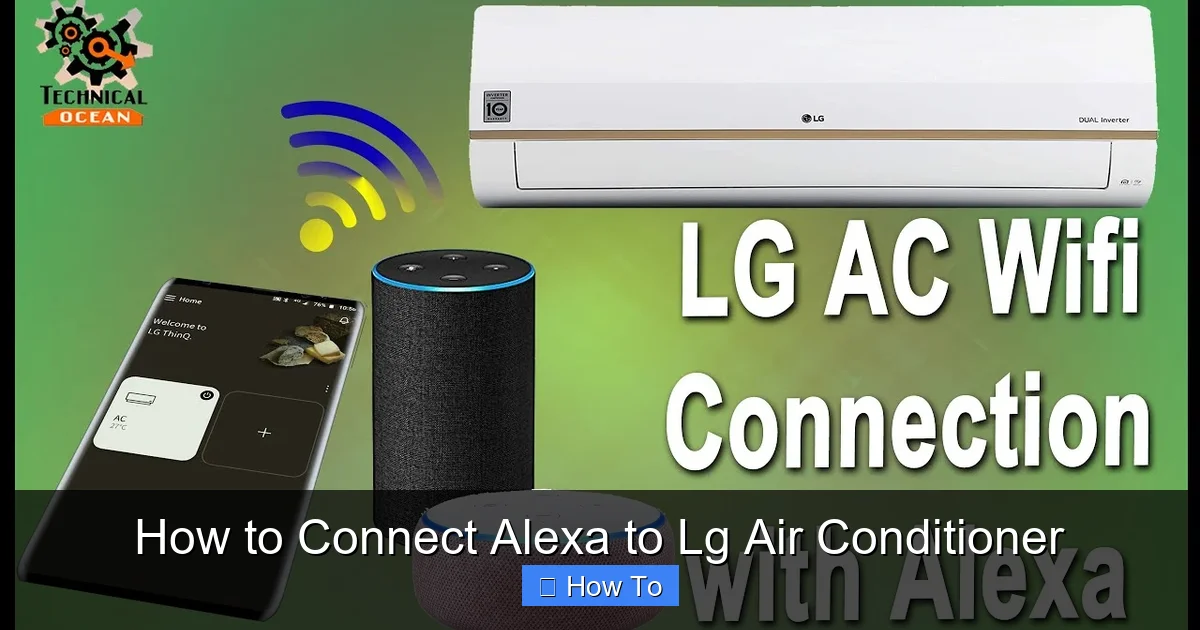
Visual guide about How to Connect Alexa to Lg Air Conditioner
Image source: i.ytimg.com
Before diving into the setup, make sure you have everything in place. Missing one small detail can delay the process, so take a moment to gather the essentials.
Compatible LG Air Conditioner
Not all LG air conditioners work with Alexa. You’ll need a model that supports Wi-Fi and is compatible with the LG ThinQ app. Most LG smart window units and portable ACs released in the last few years include this feature. Check your user manual or the product label for “LG ThinQ” or “Wi-Fi” compatibility. Popular models include the LG Dual Inverter Window AC, LG Portable AC with Wi-Fi, and LG Smart Tower AC.
Amazon Alexa Device
You’ll need an Alexa-enabled device such as an Echo Dot, Echo Show, or Echo Studio. Make sure it’s powered on, connected to Wi-Fi, and set up through the Alexa app. If you haven’t done this yet, download the Alexa app (available on iOS and Android), follow the on-screen instructions, and connect your device to your home network.
Smartphone or Tablet
You’ll use your mobile device to download and configure both the LG ThinQ and Alexa apps. Ensure it’s connected to the same Wi-Fi network as your Alexa device and LG AC.
Stable Wi-Fi Connection
A strong and reliable internet connection is crucial. Weak signals can cause pairing failures or delays in voice commands. If your Wi-Fi is spotty, consider moving your router closer or using a Wi-Fi extender.
LG ThinQ App Installed
Download the LG ThinQ app from the Apple App Store or Google Play Store. This app acts as the bridge between your LG air conditioner and Alexa. Create an LG account if you don’t already have one—this is free and only takes a minute.
Amazon Alexa App Installed
Similarly, make sure the Alexa app is installed and logged in with your Amazon account. This is where you’ll link the LG ThinQ skill and manage your smart home devices.
Once you’ve confirmed all these items, you’re ready to begin the connection process.
Step 1: Set Up Your LG Air Conditioner with the LG ThinQ App
The first major step is connecting your LG air conditioner to the LG ThinQ app. This app is the control center for all your LG smart appliances, including your AC.
Download and Open the LG ThinQ App
If you haven’t already, download the LG ThinQ app on your smartphone or tablet. Open the app and sign in with your LG account. If you don’t have one, tap “Create Account” and follow the prompts. Use a valid email and secure password.
Add Your Air Conditioner
Once logged in, tap the “+” or “Add Device” button on the home screen. The app will scan for nearby LG smart devices. Make sure your air conditioner is powered on and within range of your Wi-Fi router.
If the app doesn’t detect your AC automatically, select “Air Conditioner” from the list of device types. Follow the on-screen instructions to manually add it. You may need to press and hold a button on your AC unit (like the Wi-Fi or Connect button) to put it into pairing mode. This usually involves holding the button for 3–5 seconds until a light flashes.
Connect to Wi-Fi
The app will prompt you to connect your AC to your home Wi-Fi network. Select your network from the list and enter the password. Double-check for typos—Wi-Fi passwords are case-sensitive.
Once connected, the app will confirm that your LG air conditioner is online. You’ll see it listed on the home screen with options to control temperature, fan speed, mode (cool, fan, dry, auto), and schedule timers.
Test Basic Controls
Before moving to Alexa, test the app to ensure everything works. Try turning the AC on and off, adjusting the temperature, and switching modes. If the app responds quickly, you’re good to go. If there’s a delay or error, check your Wi-Fi signal or restart the AC and app.
Step 2: Enable the LG ThinQ Skill in the Alexa App
Now that your LG AC is connected to the LG ThinQ app, it’s time to link it to Alexa. This is done through a feature called a “skill”—a third-party integration that allows Alexa to communicate with other smart devices.
Open the Alexa App
Launch the Alexa app on your phone or tablet. Make sure you’re signed in with the same Amazon account used for your Echo device.
Search for the LG ThinQ Skill
Tap the “More” tab (usually at the bottom right), then select “Skills & Games.” Use the search bar to type “LG ThinQ.” The official skill should appear—look for the LG logo and high ratings.
Enable the Skill
Tap on the LG ThinQ skill, then press “Enable to Use.” You’ll be redirected to the LG login page. Sign in with the same LG account you used in the ThinQ app. This links your LG devices to your Alexa account.
After successful login, Alexa will confirm that the skill is enabled. It may take a few seconds to sync your devices.
Discover Devices
Go back to the Alexa app home screen and tap “Devices” at the bottom. Then tap the “+” icon and select “Add Device.” Choose “Air Conditioner” and then “LG.” Alexa will scan for compatible devices.
Your LG air conditioner should appear in the list. Tap it to add it to your Alexa devices. Once added, you’ll see it under “Air Conditioners” or “All Devices.”
Step 3: Test Voice Commands with Alexa
Now for the fun part—using your voice to control your air conditioner!
Basic Voice Commands
Try these simple commands to test the connection:
– “Alexa, turn on the air conditioner.”
– “Alexa, turn off the air conditioner.”
– “Alexa, set the air conditioner to 70 degrees.”
– “Alexa, what’s the temperature on the air conditioner?”
– “Alexa, set the AC to cool mode.”
Alexa should respond and execute the command. You’ll hear a confirmation like, “Okay, turning on the air conditioner.”
Advanced Commands
Once basic commands work, try more advanced ones:
– “Alexa, increase the temperature by 2 degrees.”
– “Alexa, set the fan speed to high.”
– “Alexa, switch to energy saver mode.”
Note: Not all LG AC models support every command. Check your user manual to see which features are voice-controllable.
Use Device Names for Clarity
If you have multiple smart devices, give your AC a specific name like “Living Room AC” or “Bedroom Cooler.” Then say, “Alexa, turn on the Living Room AC.” This avoids confusion.
Step 4: Create Alexa Routines for Automation
One of the best parts of connecting your LG AC to Alexa is automation. You can create routines that trigger your AC based on time, location, or other smart devices.
Set a Morning Routine
Open the Alexa app, go to “Routines,” and tap “+” to create a new one. Name it “Good Morning.”
– Trigger: “At 7:00 AM”
– Action: “Turn on Living Room AC” and “Set temperature to 72°F”
– Save the routine
Now, every morning at 7, your AC will turn on and cool your home before you wake up.
Create a “Goodnight” Routine
Name it “Goodnight.”
– Trigger: “When I say ‘Goodnight’”
– Actions: “Turn off Living Room AC,” “Turn off lights,” “Lock doors” (if you have smart locks)
– Save
Now, saying “Alexa, goodnight” will shut down your AC and other devices at once.
Use Geofencing for Smart Arrival
Enable location-based triggers. When your phone enters a certain area (like your neighborhood), Alexa can automatically turn on the AC so your home is cool when you arrive.
Go to “Routines” > “+” > “When this happens” > “Location” > “Arriving.” Add the action to turn on the AC.
Troubleshooting Common Issues
Even with careful setup, you might run into problems. Here’s how to fix the most common ones.
Alexa Doesn’t Recognize the AC
If Alexa says, “I can’t find that device,” try these steps:
– Open the Alexa app and go to “Devices” > “Air Conditioners.” Check if your AC is listed.
– If not, go to “Skills & Games,” open LG ThinQ, and tap “Account Linking.” Re-link your account.
– Say, “Alexa, discover devices,” to force a scan.
– Restart your Echo device by unplugging it for 30 seconds.
Voice Commands Don’t Work
If Alexa hears you but doesn’t respond:
– Check your Wi-Fi signal. Move closer to the router or restart it.
– Ensure the LG ThinQ app shows the AC as online.
– Re-enable the LG ThinQ skill in the Alexa app.
– Update both the LG ThinQ and Alexa apps to the latest version.
AC Responds Slowly
Delays can happen due to network congestion. Try:
– Reducing the number of devices on your Wi-Fi.
– Using a 2.4 GHz network (most LG ACs don’t support 5 GHz).
– Placing your Echo closer to the AC or router.
App Crashes or Freezes
Close and reopen the app. If it keeps crashing:
– Clear the app cache (go to phone settings > apps > LG ThinQ > storage > clear cache).
– Reinstall the app if needed.
– Restart your phone.
AC Turns On But Doesn’t Cool
This isn’t an Alexa issue—it’s likely a problem with the AC itself. Check:
– The filter—clean or replace if dirty.
– The temperature setting—make sure it’s lower than room temperature.
– The mode—ensure it’s set to “Cool,” not “Fan” or “Dry.”
Tips for the Best Experience
To get the most out of your Alexa and LG AC integration, follow these tips:
Keep Apps Updated
LG and Amazon regularly release updates that improve compatibility and add new features. Enable automatic updates in your app store settings.
Use Clear Device Names
Avoid generic names like “AC” if you have multiple units. Use “Master Bedroom AC” or “Kitchen Window AC” for clarity.
Optimize Wi-Fi Coverage
Place your router centrally and consider a mesh network if your home is large. Strong Wi-Fi means faster response times.
Combine with Other Smart Devices
Pair your AC with smart thermostats, blinds, or fans for full climate control. For example, close smart blinds during the day to reduce heat gain.
Monitor Energy Usage
The LG ThinQ app often includes energy tracking. Use it to see how much power your AC uses and adjust settings to save money.
Use Voice Profiles
Set up voice profiles in the Alexa app so different family members can have personalized routines.
Conclusion
Connecting your LG air conditioner to Alexa is a simple yet powerful upgrade to your smart home. With just a few steps—setting up the LG ThinQ app, enabling the skill in Alexa, and testing voice commands—you can control your cooling system hands-free. Whether you’re adjusting the temperature from bed or automating your AC to turn on when you arrive home, the convenience is unmatched.
Remember to keep your apps updated, use strong Wi-Fi, and create routines that fit your lifestyle. If you run into issues, the troubleshooting tips in this guide will help you resolve them quickly.
Now that you know how to connect Alexa to LG air conditioner, you’re ready to enjoy a cooler, smarter home. Say “Alexa, I’m home,” and let the comfort begin.

