
Connecting your LG air conditioner to WiFi lets you control cooling from anywhere using the LG ThinQ app. This guide walks you through setup, troubleshooting, and tips for a smooth experience.
Key Takeaways
- Check compatibility: Only select LG inverter and smart-enabled AC models support WiFi connectivity. Look for “WiFi” or “Smart” labels on the unit or packaging.
- Download the LG ThinQ app: This free app (iOS and Android) is essential for pairing your AC with your home network and managing settings remotely.
- Ensure stable 2.4 GHz WiFi: LG air conditioners require a 2.4 GHz network—5 GHz networks won’t work. Dual-band routers may need manual band selection.
- Follow on-screen prompts carefully: The setup process involves entering your WiFi password and confirming device detection. Take your time to avoid errors.
- Keep firmware updated: Regular updates improve performance, fix bugs, and add new features. Enable auto-updates in the ThinQ app if available.
- Troubleshoot common issues: If connection fails, restart the AC, reset network settings, or move closer to the router during setup.
- Enjoy remote control benefits: Adjust temperature, set schedules, monitor energy use, and receive alerts—all from your smartphone.
How to Connect Air Conditioner to Wifi LG: A Complete Step-by-Step Guide
Imagine coming home on a hot summer day to a perfectly cooled house—without lifting a finger. Or adjusting your AC while stuck in traffic, so your living room is comfortable by the time you walk through the door. Thanks to smart technology, this isn’t just a dream—it’s possible with an LG air conditioner connected to WiFi.
In this comprehensive guide, we’ll walk you through how to connect your LG air conditioner to WiFi so you can unlock the full potential of smart cooling. Whether you’ve just unboxed a new LG Dual Inverter or you’re upgrading an existing unit, this step-by-step tutorial covers everything from checking compatibility to troubleshooting common issues. By the end, you’ll be able to control your AC remotely, set energy-saving schedules, and enjoy the convenience of a truly smart home.
Why Connect Your LG Air Conditioner to WiFi?
Before diving into the setup, it’s worth understanding what you gain by connecting your LG AC to WiFi. Smart connectivity transforms a standard air conditioner into an intelligent climate control system. Here are some key benefits:
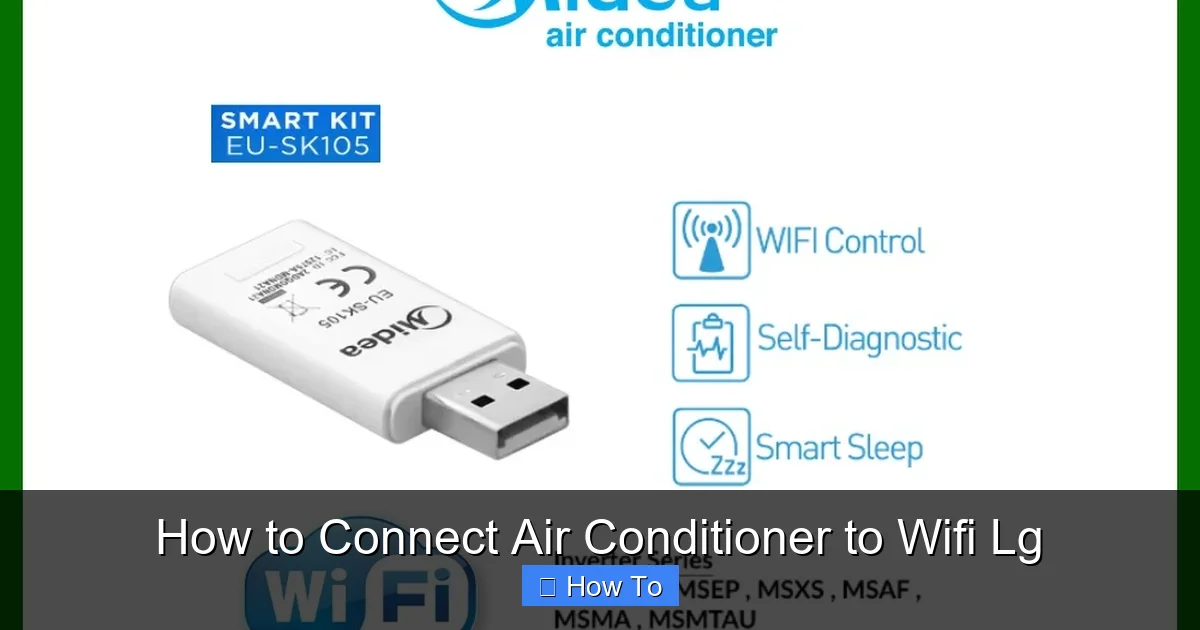
Visual guide about How to Connect Air Conditioner to Wifi Lg
Image source: down-my.img.susercontent.com
- Remote control via smartphone: Use the LG ThinQ app to turn your AC on or off, change temperature settings, switch modes (cool, fan, dry), and more—from anywhere with an internet connection.
- Energy efficiency: Monitor usage patterns, set timers, and receive energy-saving tips to reduce electricity bills.
- Voice control: Pair your AC with Google Assistant or Amazon Alexa for hands-free operation (“Hey Google, set the living room AC to 72°F”).
- Smart scheduling: Program your AC to cool your home before you arrive or turn off when you leave, based on your routine.
- Maintenance alerts: Get notifications when it’s time to clean filters or if the system detects an issue.
With these features, your LG air conditioner becomes more than just a cooling device—it becomes a smart home hub for comfort and efficiency.
Check If Your LG Air Conditioner Supports WiFi
Not all LG air conditioners are WiFi-enabled. Before attempting to connect, confirm your model supports smart features. Here’s how:
Look for Smart Indicators
Check the front panel, remote control, or product label for symbols like “WiFi,” “Smart,” or “ThinQ.” Many newer LG inverter models (such as the Dual Inverter, AI Dual Inverter, and some window units) include built-in WiFi.
Check the Model Number
Visit the LG Support website and enter your model number. Look for “WiFi” or “Smart” in the product description. You can also search your model in the LG ThinQ app—if it appears in the supported devices list, it’s compatible.
Review the User Manual
The manual will specify whether your unit supports network connectivity. If you’ve misplaced it, download a digital copy from LG’s support page using your model number.
Pro Tip: If your AC doesn’t have built-in WiFi, you may still be able to add smart functionality using an external WiFi module (sold separately for certain models). Check compatibility on LG’s website or contact customer support.
Download and Set Up the LG ThinQ App
The LG ThinQ app is your command center for all LG smart appliances, including air conditioners. It’s available for free on both iOS and Android devices.
Step 1: Download the App
Go to the Apple App Store or Google Play Store and search for “LG ThinQ.” Download and install the app.
Step 2: Create an Account
Open the app and tap “Sign Up” if you’re new. Use your email address or sign in with Google or Apple ID. You’ll need to verify your email to complete registration.
Step 3: Allow Permissions
The app may request access to your location, notifications, and Bluetooth. Grant these permissions to ensure smooth setup and functionality.
Step 4: Add a New Device
Once logged in, tap the “+” icon (usually in the top-right corner) and select “Air Conditioner” from the list of appliances. The app will guide you through the next steps.
Note: Make sure your smartphone is connected to the same WiFi network you plan to use for your AC. This ensures seamless communication during setup.
Prepare Your WiFi Network
Your LG air conditioner connects via a 2.4 GHz WiFi network. Here’s what you need to know:
Use a 2.4 GHz Network
Most modern routers broadcast both 2.4 GHz and 5 GHz signals. LG ACs only support 2.4 GHz due to its better range and wall penetration. If your router combines both bands under one name (e.g., “HomeWiFi”), you may need to split them in your router settings.
Check Signal Strength
Place your air conditioner within 30 feet of your router during setup. Weak signals can cause connection failures. Use a WiFi analyzer app to check signal strength in the AC’s location.
Ensure Stable Internet
A reliable internet connection is crucial. Avoid public or guest networks, as they often block device pairing. Use your primary home network with a strong password (WPA2 or WPA3 encryption recommended).
Pro Tip: If your router has a “Guest Network” feature, disable it during setup. Guest networks often restrict device-to-device communication, which can interfere with the pairing process.
Connect Your LG Air Conditioner to WiFi
Now that everything is ready, it’s time to connect your AC to WiFi. Follow these steps carefully:
Step 1: Power On the Air Conditioner
Turn on your LG air conditioner using the remote or power button. Wait for it to fully boot up—this usually takes 30–60 seconds.
Step 2: Enter Pairing Mode
On the remote control, press and hold the “WiFi” or “Smart” button (usually labeled with a WiFi icon) for 3–5 seconds. The indicator light on the AC unit will blink, signaling it’s in pairing mode.
Note: If your remote doesn’t have a WiFi button, check the user manual. Some models require pressing a combination of buttons (e.g., “Mode” + “Fan” for 5 seconds).
Step 3: Open the LG ThinQ App
Return to the LG ThinQ app. If you’ve already started adding a device, it should detect your AC automatically. If not, tap “Add Device” and select “Air Conditioner” again.
Step 4: Follow On-Screen Instructions
The app will search for nearby LG devices. When your AC appears, tap it to proceed. You’ll be prompted to enter your WiFi network name (SSID) and password.
Important: Double-check the network name and password. Typos are a common cause of connection failure. Use copy-paste if possible to avoid errors.
Step 5: Wait for Connection
The app will send the network credentials to your AC. This process takes 1–3 minutes. The indicator light on the AC will stop blinking and stay solid when connected successfully.
Step 6: Confirm Setup
The app will display a confirmation message. You can now rename your AC (e.g., “Living Room AC”) and assign it to a room for better organization.
Success! Your LG air conditioner is now connected to WiFi and ready for remote control.
Using the LG ThinQ App to Control Your AC
Once connected, explore the app’s features to make the most of your smart AC:
Adjust Temperature and Mode
Tap your AC in the app to open the control panel. Use the slider to set the desired temperature. Switch between Cool, Fan, Dry, and Auto modes with a single tap.
Set Schedules
Go to “Schedule” and create custom routines. For example, set your AC to turn on at 6 PM every weekday or cool the bedroom only during sleeping hours.
Enable Energy Monitoring
Some models show real-time energy usage. Use this data to identify peak consumption times and adjust settings for savings.
Use Voice Commands
Link your LG ThinQ account to Google Assistant or Alexa. Say, “Alexa, ask LG to set the AC to 70 degrees,” for hands-free control.
Receive Alerts
Enable notifications for filter cleaning, maintenance reminders, or unexpected power outages.
Pro Tip: Use the “Away Mode” when traveling. It keeps your home at a safe temperature while minimizing energy use.
Troubleshooting Common Connection Issues
Even with careful setup, you might encounter problems. Here’s how to fix the most common issues:
AC Not Detected by the App
- Ensure the AC is in pairing mode (indicator light blinking).
- Move closer to the router during setup.
- Restart the AC and try again.
- Check if your phone’s Bluetooth is on—some models require it for initial pairing.
Incorrect WiFi Password
- Re-enter the password carefully. Avoid special characters if possible.
- Reset the AC’s network settings (see below).
Weak or Unstable WiFi Signal
- Move the router closer or use a WiFi extender.
- Switch to a less congested WiFi channel in your router settings.
App Crashes or Freezes
- Update the LG ThinQ app to the latest version.
- Restart your smartphone.
- Reinstall the app if issues persist.
Reset Network Settings on Your AC
If all else fails, reset the network connection:
- Turn off the AC.
- Press and hold the “WiFi” button for 10 seconds.
- Turn the AC back on and re-enter pairing mode.
- Repeat the setup process in the ThinQ app.
Still stuck? Contact LG Customer Support at 1-800-243-0000 or use the live chat feature in the ThinQ app.
Maintaining Your Smart AC Connection
To keep your LG air conditioner running smoothly on WiFi:
Update Firmware Regularly
LG releases firmware updates to improve performance and security. The ThinQ app will notify you when an update is available. Install it promptly.
Clean Filters Monthly
Dirty filters reduce efficiency and can cause the AC to overwork. The app may send reminders, but manual checks are still important.
Monitor Usage Patterns
Use the app’s energy reports to identify inefficiencies. Adjust settings to save power without sacrificing comfort.
Keep the App Updated
New app versions often include bug fixes and new features. Enable auto-updates in your phone’s app store.
Final Thoughts
Connecting your LG air conditioner to WiFi is a simple process that unlocks powerful smart features. With the LG ThinQ app, you gain remote control, energy insights, and seamless integration with your smart home ecosystem. Whether you’re cooling a single room or managing multiple units, WiFi connectivity makes comfort effortless.
By following this guide—checking compatibility, preparing your network, and carefully completing the setup—you’ll avoid common pitfalls and enjoy reliable performance. And if you run into issues, the troubleshooting tips and support resources are here to help.
So go ahead—connect your LG AC to WiFi, take control of your climate, and experience the future of home cooling today.

