
How to Use Wifi on Lg Air Conditioner
This guide walks you through setting up WiFi on your LG air conditioner using the LG ThinQ app. You’ll learn how to control cooling, schedule timers, and use voice assistants—all from your smartphone.
Key Takeaways
Compatible models only: Ensure your LG AC supports WiFi and the LG ThinQ platform before setup.
Download LG ThinQ app: This free app is essential for connecting and controlling your AC remotely.
Stable 2.4GHz network required: Most LG ACs only connect to 2.4GHz WiFi bands, not 5GHz.
Use voice control: Once connected, integrate with Alexa or Google Assistant for hands-free operation.
Enable energy-saving features: Use smart modes like AI Cool and Away Mode to reduce electricity use.
Troubleshoot connection issues: Restart devices, check network settings, and update firmware if needed.
Remote access anywhere: Control your AC from anywhere with an internet connection via the app.
Introduction: Why Use WiFi on Your LG Air Conditioner?
Imagine coming home on a hot summer afternoon in 2026—your house is already cool and comfortable because your LG air conditioner started cooling an hour ago, all thanks to WiFi connectivity. With smart home technology advancing rapidly, LG has made it easier than ever to control your air conditioner remotely using your smartphone, voice commands, or even AI-driven automation.
Using WiFi on your LG air conditioner isn’t just about convenience—it’s about energy efficiency, comfort, and peace of mind. Whether you’re at work, on vacation, or just lounging on the couch, you can adjust temperature settings, monitor energy usage, and receive maintenance alerts—all from the LG ThinQ app. This guide will walk you through every step of setting up and using WiFi on your LG air conditioner, from initial connection to advanced smart features.
By the end of this guide, you’ll be able to:
- Connect your LG AC to your home WiFi network
- Use the LG ThinQ app to control your unit remotely
- Set up voice commands with Alexa or Google Assistant
- Use smart modes to save energy
- Troubleshoot common connection problems
Let’s get started!
Step 1: Check If Your LG Air Conditioner Supports WiFi
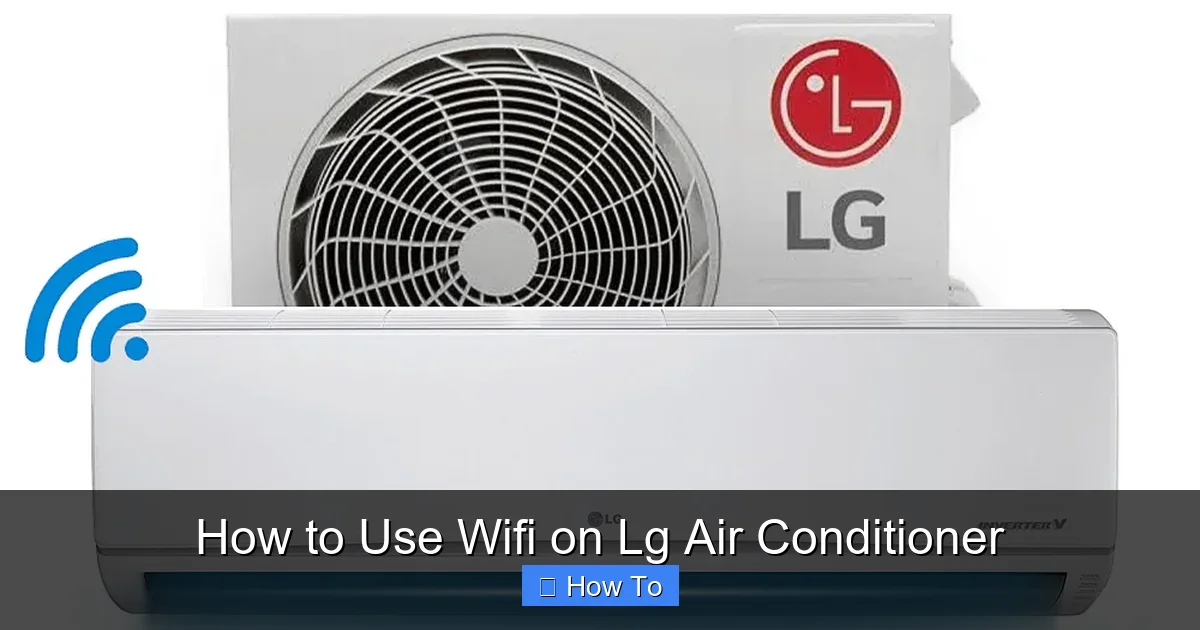 Visual guide showing the LG ThinQ app pairing process with a compatible air conditioner unit
Image source: cdn.shopify.com
Not all LG air conditioners come with built-in WiFi capabilities. Before you begin, confirm that your model is compatible with the LG ThinQ platform. Here’s how:
Look for the ThinQ Logo
Check the front panel, remote control, or user manual for the “LG ThinQ” logo. Most smart-enabled LG ACs from 2020 onward include this branding.
Check the Model Number
Visit the LG official website and enter your model number in the support section. Look for features like “WiFi Connect,” “Smart Diagnosis,” or “ThinQ Compatible.” Popular 2026 models with WiFi include:
- LG Dual Inverter Window AC (LW1824HRSM)
- LG Smart Portable AC (LP1424WNR)
- LG Art Cool Mirror Inverter (S32ETW)
Verify Remote Control Features
Smart LG ACs often come with a remote that has a “WiFi” or “Connect” button. If your remote lacks this, your unit may not support WiFi.
Tip: If your AC doesn’t have built-in WiFi, consider purchasing an LG WiFi module (sold separately for select models). Check compatibility on LG’s website.
Practical note: In practice, the quickest way to verify compatibility is scanning the QR code on the unit’s rating plate with the LG ThinQ app itself — it will instantly confirm support and pull up the correct setup flow. If you’re still researching which unit to buy, our guide on how to choose the right air conditioner for your home covers WiFi-ready models across brands.
Step 2: Download and Set Up the LG ThinQ App
The LG ThinQ app is your command center for all smart LG appliances, including air conditioners. It’s available for free on both iOS and Android.
Download the App
Go to the Apple App Store or Google Play Store and search for “LG ThinQ.” Download and install the app. As of 2026, the app supports over 50 LG appliance types and receives regular updates for improved performance.
Create an LG Account
Open the app and tap “Sign Up” to create a free LG account. You’ll need:
- A valid email address
- A secure password
- Your country and preferred language
Note: Use the same account across all LG smart devices for seamless integration.
Log In and Prepare for Setup
Once logged in, tap the “+” icon in the app to add a new device. Select “Air Conditioner” from the list. The app will guide you through the connection process.
Pro tip: Enable automatic app updates on your phone so you always have the latest ThinQ features — LG pushes meaningful improvements (like refined geofencing logic) several times a year.
Step 3: Connect Your LG AC to WiFi
Now it’s time to link your air conditioner to your home WiFi network. Follow these steps carefully.
Ensure Your AC Is Powered On
Plug in your LG air conditioner and turn it on using the remote or power button. The unit must be in standby mode (not actively cooling) during setup.
Put the AC in WiFi Pairing Mode
Press and hold the “WiFi” or “Connect” button on the remote for 3–5 seconds. You’ll see the WiFi indicator light on the AC unit blink rapidly. This means it’s ready to connect.
If your remote doesn’t have a WiFi button, press and hold the “Filter” and “Temp Down” buttons simultaneously for 3 seconds.
Connect via the LG ThinQ App
- In the app, tap “Add Device” and select “Air Conditioner.”
- Choose “WiFi Setup” and follow the on-screen prompts.
- The app will search for nearby LG devices. Select your AC when it appears.
- Enter your home WiFi network name (SSID) and password.
- Make sure your phone is connected to the same 2.4GHz network (not 5GHz).
Important: Most LG ACs only support 2.4GHz WiFi. If your router broadcasts both 2.4GHz and 5GHz under the same name, temporarily rename the 5GHz network or disable it during setup.
Wait for Confirmation
The app will send the WiFi credentials to your AC. This may take 1–2 minutes. Once connected, the WiFi light on the unit will stay solid, and the app will confirm success.
Router-side tip: Reserve a DHCP address for the AC’s MAC address in your router settings — this prevents IP conflicts after power outages and keeps the ThinQ connection stable long-term. For more on network considerations during HVAC installs, see our split AC installation guide.
Step 4: Name and Organize Your AC in the App
After connection, personalize your device for easier control.
Assign a Name
Tap on your AC in the app and select “Edit Name.” Use something descriptive like “Living Room AC” or “Master Bedroom Cooler.”
Set a Room Location
Assign the AC to a room (e.g., “Kitchen,” “Guest Room”) so you can control multiple LG devices by location.
Enable Notifications
Turn on alerts for filter changes, maintenance reminders, or power outages. This helps keep your AC running efficiently.
Organization hack: If you manage multiple units across a rental property or large home, prefix names with a property code (e.g., “A1-Living Room”) — voice assistants then disambiguate cleanly: “Alexa, turn on A1 Living Room AC.”
Step 5: Control Your AC Remotely Using the App
Once connected, you can control your LG air conditioner from anywhere with an internet connection.
Basic Controls
From the app home screen, tap your AC to access:
- Power on/off
- Temperature adjustment (in 1°F or 1°C increments)
- Fan speed (Low, Medium, High, Auto)
- Mode selection (Cool, Heat, Fan, Dry, Auto)
Advanced Features
Explore these smart functions:
- Schedule Timer: Set your AC to turn on or off at specific times (e.g., cool the house at 5 PM before you arrive).
- Away Mode: Automatically adjusts temperature when you’re not home to save energy.
- AI Cool: Uses sensors and usage patterns to optimize cooling and reduce power consumption.
- Energy Monitoring: View daily, weekly, and monthly energy usage to track efficiency.
Example: Set a schedule to cool your bedroom to 72°F at 10 PM every night. The app will send a notification when the AC turns on.
Energy insight: The energy monitoring dashboard breaks down consumption by mode — use it to spot if “Fan Only” runs longer than needed. Pair those findings with our recommendations on the best air conditioning settings for energy efficiency to fine-tune schedules.
Step 6: Set Up Voice Control with Alexa or Google Assistant
Take convenience to the next level by controlling your AC with your voice.
Link LG ThinQ to Alexa
- Open the Amazon Alexa app.
- Tap “More” > “Skills & Games.”
- Search for “LG ThinQ” and enable the skill.
- Log in with your LG account credentials.
- Discover devices—Alexa will find your AC.
Now say:
- “Alexa, turn on the Living Room AC.”
- “Alexa, set the temperature to 70 degrees.”
- “Alexa, what’s the temperature in the bedroom?”
Link LG ThinQ to Google Assistant
- Open the Google Home app.
- Tap “+” > “Set up device” > “Works with Google.”
- Search for “LG ThinQ” and link your account.
- Authorize access and sync devices.
Now say:
- “Hey Google, turn off the AC.”
- “Hey Google, cool the living room to 68 degrees.”
- “Hey Google, is the air conditioner on?”
Tip: Use voice commands to adjust settings without touching your phone—perfect for when you’re cooking or relaxing.
Voice nuance: Both assistants respond best when you use the exact room + device name you set in Step 4. If you rename a device later, re-run device discovery in the Alexa/Google Home app — a common oversight that causes “device not found” errors.
Step 7: Use Smart Modes for Energy Efficiency
LG’s smart modes help reduce energy use while maintaining comfort.
AI Cool Mode
This feature uses built-in sensors to detect room temperature, humidity, and occupancy. It automatically adjusts cooling intensity and fan speed. In 2026, AI Cool has improved with machine learning, adapting to your habits over time.
Example: If you usually lower the temperature at 8 PM, AI Cool will start cooling earlier to reach your preferred temp on time.
Away Mode
Enable this when you’re traveling. The AC will maintain a moderate temperature (e.g., 80°F in summer) to prevent extreme heat or humidity, saving up to 30% on energy.
Sleep Mode
Gradually increases temperature by 1–2°F per hour while you sleep, reducing energy use and improving comfort.
Geofencing (Location-Based Control)
The app can detect when you’re leaving or approaching home using your phone’s GPS. It can automatically turn the AC off when you leave and start cooling when you’re 10 minutes away.
Note: Enable location permissions for the LG ThinQ app to use geofencing.
Real-world observation: Geofencing radius defaults to ~500 m; in dense urban areas with tall buildings, GPS drift can trigger early/late actions. A practical workaround is pairing geofencing with a fixed schedule as a fallback — the schedule ensures baseline comfort even if location services hiccup. For deeper efficiency strategies across seasons, review our seasonal air conditioning maintenance tips.
Step 8: Update Firmware for Optimal Performance
LG regularly releases firmware updates to improve connectivity, add features, and fix bugs.
Check for Updates
- Open the LG ThinQ app.
- Tap your AC > “Settings” > “Firmware Update.”
- If an update is available, tap “Download and Install.”
The AC must be connected to WiFi and powered on during the update. Do not unplug it.
Enable Auto-Update (Recommended)
Turn on “Automatic Updates” in the app settings to ensure your AC always has the latest software.
Update hygiene: Schedule a monthly “firmware check” calendar reminder — auto-update occasionally stalls if the AC loses WiFi mid-download. A manual check catches those edge cases.
Troubleshooting Common WiFi Issues
Even with perfect setup, you might face connection problems. Here’s how to fix them.
AC Not Connecting to WiFi
- Ensure your router is within 30 feet of the AC.
- Confirm you’re using a 2.4GHz network (not 5GHz).
- Restart your router and AC.
- Reset the AC’s WiFi module: Press and hold the “WiFi” button for 10 seconds until the light blinks rapidly.
App Can’t Find the AC
- Make sure your phone and AC are on the same WiFi network.
- Turn off mobile data on your phone during setup.
- Reinstall the LG ThinQ app and try again.
Intermittent Disconnections
- Check for WiFi interference from microwaves, cordless phones, or thick walls.
- Move the router closer or use a WiFi extender.
- Update your router’s firmware.
Voice Commands Not Working
- Re-link the LG ThinQ skill in Alexa or Google Home.
- Say the exact device name you set in the app.
- Ensure your smart speaker is online and updated.
App Crashes or Freezes
- Close and reopen the app.
- Update the app from the App Store or Play Store.
- Restart your phone.
Pro Tip: If all else fails, perform a factory reset on the AC (see user manual) and reconnect from scratch.
Escalation path: When the AC connects to WiFi but won’t cool, the issue is often refrigerant charge or a stuck reversing valve — not the network. Our troubleshoot AC blowing warm air guide walks through those mechanical diagnostics step by step.
Security and Privacy Tips
Your smart AC collects data to improve performance, but it’s important to protect your privacy.
Use Strong Passwords
Create a unique password for your LG account and WiFi network. Avoid common phrases.
Enable Two-Factor Authentication
In the LG ThinQ app, go to “Account Settings” > “Security” and turn on 2FA for extra protection.
Review App Permissions
Only allow necessary permissions (location, notifications) and disable unused ones.
Log Out on Shared Devices
If using a family tablet or public device, always log out of the app when done.
Network segmentation: For stronger isolation, place all IoT devices (including the AC) on a dedicated VLAN or guest network — this limits lateral movement if any device is compromised. The FCC’s IoT security guidance outlines this approach for home networks.
Comparison: LG ThinQ vs. Other Brand Smart AC Platforms
| Feature | LG ThinQ | Samsung SmartThings | Daikin One+ | Mitsubishi Kumo Cloud |
|---|---|---|---|---|
| Native voice integration | Alexa, Google, Siri (via Shortcuts) | Alexa, Google, Bixby | Alexa, Google | Alexa, Google |
| Energy dashboard granularity | Daily / weekly / monthly | Daily / monthly | Hourly / daily | Daily |
| Geofencing radius control | Fixed (~500 m) | Adjustable | Adjustable | Fixed |
| Firmware auto-update | Yes | Yes | Manual only | Yes |
| Multi-home management | Single account | Multiple locations | Single account | Multiple locations |
| Offline local control | Limited (IR remote only) | Limited | Yes (wired controller) | Yes (wired controller) |
Quick take: ThinQ leads on auto-update reliability and voice ecosystem breadth; SmartThings wins if you already own Samsung appliances; Daikin/Mitsubishi offer better local-control fallback for privacy-focused users.
Frequently Asked Questions
Does my LG air conditioner work with 5GHz WiFi?
No — LG ACs currently only support 2.4 GHz networks. If your router uses a single SSID for both bands, temporarily disable 5 GHz or create a dedicated 2.4 GHz network during setup.
Can I control multiple LG air conditioners from one ThinQ account?
Yes. Add each unit via the “+” button in the app, assign unique names and rooms, then control them individually or as groups from the dashboard.
Will my LG AC still work if the internet goes down?
Basic operation via the physical remote continues normally. App remote access, voice control, geofencing, and energy reports require an active internet connection.
How do I reset the WiFi module on my LG air conditioner?
Press and hold the “WiFi” (or “Connect”) button on the remote for 10 seconds until the unit’s WiFi indicator blinks rapidly. Then re-run the setup flow in the ThinQ app.
Does LG ThinQ share my usage data with third parties?
LG’s privacy policy states data is used for service improvement and may be shared with analytics partners in aggregated form. You can limit sharing in Account Settings > Privacy > Data Sharing Preferences.
What’s the typical power draw of the WiFi module itself?
The module draws under 1 W in standby — negligible on your bill. The real savings come from smart scheduling and Away Mode reducing compressor runtime.
Conclusion: Enjoy Smart Cooling in 2026
Using WiFi on your LG air conditioner transforms it from a simple cooling unit into a smart, energy-efficient home assistant. With the LG ThinQ app, you can control temperature, save energy, and integrate with voice assistants—all from your smartphone.
By following this guide, you’ve learned how to:
- Confirm WiFi compatibility
- Connect your AC to your network
- Use the app for remote control
- Set up voice commands
- Activate smart modes
- Troubleshoot issues
As smart home technology evolves in 2026, LG continues to enhance user experience with AI, better connectivity, and eco-friendly features. Whether you’re cooling a single room or managing multiple units, WiFi-enabled control puts comfort and efficiency at your fingertips.
So go ahead—set your ideal temperature, schedule your cooling, and enjoy a smarter, cooler home. Your LG air conditioner is now as intelligent as it is powerful.
Ready to optimize the rest of your HVAC system? Explore our picks for the best HVAC air conditioning systems for residential use or dive into the latest air conditioning innovations shaping 2026 and beyond.

