
Title: How to Use Lg Air Conditioner with Wifi
Discover how to connect and control your LG air conditioner with WiFi using the LG ThinQ app. This guide walks you through setup, smart features, voice control, and troubleshooting for a seamless 2026 smart home experience.
Key Takeaways
Download the LG ThinQ app: This is the central hub for controlling your LG WiFi-enabled air conditioner from your smartphone or tablet.
Ensure a stable 2.4GHz WiFi network: Most LG AC units require a 2.4GHz band for reliable connection—5GHz networks may not be compatible.
Use voice assistants for hands-free control: Integrate with Amazon Alexa or Google Assistant to adjust temperature, modes, and schedules using voice commands.
Set up energy-saving schedules: Use the app to create custom cooling schedules that reduce energy use and lower utility bills.
Enable remote access for convenience: Control your AC from anywhere—turn it on before you get home or check if you left it running.
Update firmware regularly: Keep your AC’s software up to date for improved performance, security, and new features.
Troubleshoot connection issues quickly: Common problems like failed pairing or app errors can often be fixed with simple reboots or network resets.
How to Use LG Air Conditioner with WiFi in 2026
Welcome to the future of home comfort! In 2026, LG air conditioners with WiFi aren’t just about cooling your space—they’re about smart living. Whether you’re coming home from work on a hot summer day or managing your energy use while on vacation, your LG AC can now work for you, not against you. With built-in WiFi and the powerful LG ThinQ app, you can control temperature, set schedules, monitor energy usage, and even integrate with voice assistants—all from your smartphone.
This comprehensive guide will walk you through every step of using your LG air conditioner with WiFi. From initial setup to advanced features and troubleshooting, we’ve got you covered. By the end, you’ll be a pro at managing your smart AC like a true tech-savvy homeowner.
Let’s dive in.
What You’ll Need Before You Start
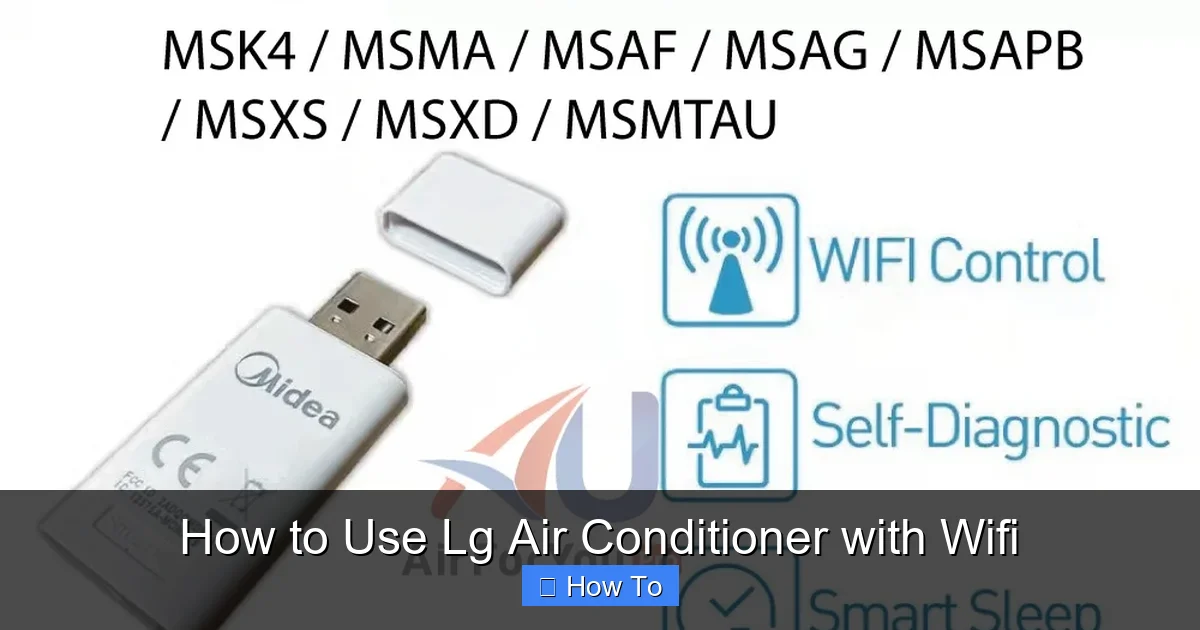
LG ThinQ app screen showing AC pairing steps
Image source: down-my.img.susercontent.com
Before connecting your LG air conditioner to WiFi, make sure you have the following:
A compatible LG air conditioner: Most LG models from 2020 onward support WiFi connectivity. Look for “WiFi,” “Smart,” or “ThinQ” in the product name or specifications.
A smartphone or tablet: You’ll need a device running iOS 13 or later, or Android 8.0 or later.
The LG ThinQ app: Download it for free from the Apple App Store or Google Play Store.
A stable 2.4GHz WiFi network: Most LG AC units do not support 5GHz networks. Check your router settings to ensure the 2.4GHz band is active.
Your WiFi password: Have it ready during setup.
Power source: Make sure your AC is plugged in and powered on.
Having these ready will make the setup process smooth and frustration-free.
Step 1: Download and Install the LG ThinQ App
The LG ThinQ app is your command center for all LG smart appliances, including your air conditioner. It’s free, user-friendly, and packed with features.
How to Download the App
Open your device’s app store—Google Play for Android or the App Store for iPhone. Search for “LG ThinQ.” Download and install the official app by LG Electronics.
Create or Sign In to Your LG Account
Once installed, open the app. If you already have an LG account, sign in. If not, tap “Create Account” and follow the prompts. You’ll need to provide an email address, create a password, and verify your account via email.
Pro Tip: Use the same email across all your LG smart devices for easier management.
Grant Necessary Permissions
The app may ask for access to your location, Bluetooth, and notifications. Allow these for the best experience. Location helps detect your home network, Bluetooth assists in initial pairing, and notifications keep you updated on AC status.
Step 2: Prepare Your Air Conditioner for WiFi Setup
Not all LG AC models connect the same way. Most window units, portable units, and ductless mini-splits use a similar process, but it’s important to prepare your unit correctly.
Power On the AC
Make sure your air conditioner is plugged in and turned on. You should see the display panel light up.
Check for WiFi Indicator
Look for a WiFi or Smart indicator light on the unit. On many models, this light will blink slowly when the AC is ready to connect.
Reset the WiFi Module (If Needed)
If you’ve previously connected the AC to WiFi and are having trouble, you may need to reset the module:
Turn off the AC.
Unplug it for 30 seconds.
Plug it back in and wait for the display to restart.
Press and hold the “WiFi” or “Smart” button (if available) for 3–5 seconds until the light blinks rapidly.
This puts the AC into pairing mode.
Step 3: Connect Your LG AC to WiFi
Now it’s time to link your air conditioner to your home network. Follow these steps carefully.
Open the LG ThinQ App
Launch the app and tap the “+” or “Add Product” button, usually found on the home screen.
Select “Air Conditioner”
The app will scan for nearby LG devices. Choose “Air Conditioner” from the list of appliance types.
Choose Your Connection Method
You’ll typically see two options:
Auto Detection: The app uses Bluetooth to find your AC automatically. This is the easiest method.
Manual Setup: Enter your AC’s model number if auto detection fails.
Select “Auto Detection” if available.
Follow On-Screen Prompts
The app will guide you through the process. It may ask you to:
Confirm the AC is in pairing mode (blinking WiFi light).
Select your home WiFi network from a list.
Enter your WiFi password.
Important: Only select a 2.4GHz network. If you see both 2.4GHz and 5GHz versions of your network (e.g., “HomeWiFi” and “HomeWiFi_5G”), choose the 2.4GHz one.
Wait for Connection
The app will send the network info to your AC. This may take 1–2 minutes. You’ll see a progress bar and status updates.
Confirm Successful Connection
Once connected, the WiFi light on your AC should stop blinking and stay solid. The app will display a success message and show your AC on the home screen.
Step 4: Name and Organize Your AC in the App
Now that your AC is connected, personalize it for easy use.
Assign a Name
Tap on your AC in the app and choose “Edit” or “Settings.” Give it a name like “Living Room AC” or “Master Bedroom Cooler.” This helps if you have multiple units.
Set the Room Location
Select the room where the AC is installed. This helps with energy tracking and automation.
Enable Notifications (Optional)
Turn on alerts for filter reminders, maintenance tips, or when the AC reaches the desired temperature.
Step 5: Explore Smart Features and Controls
Your LG AC with WiFi is now ready to shine. Here’s how to make the most of its smart capabilities.
Remote Control from Anywhere
Open the LG ThinQ app and tap your AC. You’ll see a full control panel with:
Temperature adjustment (up/down arrows)
Mode selection (Cool, Heat, Fan, Dry, Auto)
Fan speed settings (Low, Medium, High, Auto)
Timer and scheduling options
Power on/off button
You can adjust settings from your couch, your office, or even while traveling.
Set Custom Schedules
Save energy and stay comfortable with automated schedules.
Tap “Schedule” in the app.
Choose days of the week.
Set start and end times.
Choose temperature and mode.
For example, set your AC to turn on at 6:00 PM every weekday so your home is cool when you get home from work.
Use Energy Monitoring
The app tracks your AC’s energy usage. View daily, weekly, or monthly reports to see how much power you’re using and identify savings opportunities.
Enable Geofencing (If Supported)
Some LG models support geofencing—automatically adjusting the AC when you leave or arrive home.
Go to AC settings in the app.
Turn on “Location-Based Control.”
Set your home location.
When you’re 10 minutes away, the AC can start cooling. When you leave, it can switch to eco mode or turn off.
The ThinQ app also includes a Smart Diagnosis tool that runs a quick self‑check and can suggest fixes before you call service. For more on new cooling tech, explore our overview of new cooling tech.
Step 6: Integrate with Voice Assistants
Take convenience to the next level with voice control.
Connect to Amazon Alexa
Open the Alexa app.
Go to “Skills & Games” and search for “LG ThinQ.”
Enable the skill and log in with your LG account.
Discover devices.
Now say: “Alexa, turn on the Living Room AC” or “Alexa, set the temperature to 72 degrees.”
Connect to Google Assistant
Open the Google Home app.
Tap “+” > “Set up device” > “Works with Google.”
Search for “LG ThinQ” and link your account.
Sync your devices.
Try: “Hey Google, cool the bedroom to 70 degrees.”
Use Siri Shortcuts (iOS Only)
Create custom voice commands using Siri Shortcuts in the iOS Settings app. For example, say “I’m home” to trigger a scene that turns on the AC and sets it to 72°F.
Step 7: Maintain and Update Your Smart AC
Smart appliances need care too. Keep your LG AC running smoothly with these tips.
Check for Firmware Updates
LG regularly releases updates to improve performance and add features.
Open the LG ThinQ app.
Tap your AC > Settings > Firmware Update.
If an update is available, tap “Update Now.”
Updates usually take 5–10 minutes. Don’t turn off the AC during this time.
Clean the Air Filter Regularly
A dirty filter reduces efficiency and can trigger app alerts.
Turn off and unplug the AC.
Remove the front panel and take out the filter.
Rinse with water or vacuum dust.
Let it dry completely before reinserting.
Do this every 2–4 weeks during heavy use.
Keep the App Updated
Enable automatic updates in your device’s app store to ensure you have the latest version of LG ThinQ with bug fixes and new features.
In practice, the Smart Diagnosis feature can also flag filter‑life issues and refrigerant pressure anomalies before they affect comfort. Learn about cutting‑edge AC features that improve security and diagnostics in our article on cutting‑edge AC features.
Troubleshooting Common WiFi Issues
Even the best tech can have hiccups. Here’s how to fix common problems.
AC Won’t Connect to WiFi
Ensure you’re using a 2.4GHz network.
Move your phone closer to the AC during setup.
Restart your router and AC.
Reset the WiFi module (unplug for 30 seconds).
Try manual setup in the app.
App Shows “Offline” or “Disconnected”
Check your internet connection.
Restart the LG ThinQ app.
Ensure the AC is powered on.
Reconnect the AC via the app’s “Reconnect” option.
Voice Commands Not Working
Confirm the skill is enabled in Alexa or Google Home.
Check that your AC is listed in the voice assistant app.
Say the exact name you assigned in the LG app.
Update the voice assistant app.
Delayed Response or Lag
Move your router closer to the AC or use a WiFi extender.
Reduce interference from microwaves, cordless phones, or thick walls.
Limit the number of devices on your network.
App Crashes or Freezes
Close and reopen the app.
Clear the app cache (Android) or reinstall (iOS).
Update your phone’s operating system.
Tips for Maximizing Efficiency and Comfort
Smart control isn’t just convenient—it’s eco-friendly and cost-effective.
Use Eco Mode
Enable Eco Mode in the app to reduce energy use. The AC will adjust fan speed and temperature to save power without sacrificing comfort.
Set a Comfortable Temperature
The Department of Energy recommends 78°F when you’re home and higher when away. Use the app to automate this.
Avoid Extreme Settings
Setting the AC to 60°F won’t cool your home faster—it just wastes energy. Let the system work at its designed pace.
Use Fans with Your AC
Ceiling or floor fans help circulate cool air, allowing you to raise the thermostat by 4°F without noticing a difference.
Seal Windows and Doors
Prevent cool air from escaping. Use weather stripping or caulk to seal gaps.
Advanced Automation with Scenes and Routines
You can group your LG AC with other ThinQ devices—lights, sensors, or smart plugs—into scenes that activate with a single tap or voice command. For example, a “Movie Night” scene could lower the temperature, dim the lights, and close the blinds automatically. The app’s routine builder lets you set triggers based on time, device state, or geofence events, giving you a truly hands‑free climate experience. For more ideas on seasonal upkeep, see our seasonal upkeep guide.
Multi‑Unit Management for Whole‑Home Comfort
If you have several LG units, the ThinQ dashboard shows each one on a single screen so you can compare runtime, filter status, and energy use side by side. Naming each unit by room (e.g., “Living Room AC”, “Bedroom AC”) keeps the view tidy and makes voice commands unambiguous. When planning a whole‑home upgrade, our guide on choosing the right unit can help you match capacity to each space.
Security, Privacy, and Firmware Best Practices
LG encrypts communication between the AC and the ThinQ cloud, but you should still protect your home network: use WPA3 or at least WPA2‑AES, disable WPS, and keep the router firmware current. The app notifies you when a new AC firmware release is available; install it promptly to patch vulnerabilities and unlock features. For details on the platform’s security model, refer to the LG ThinQ platform.
Estimating Energy Savings with the ThinQ App
The energy‑monitoring tab breaks down consumption by day, week, and month, letting you see the impact of schedule changes instantly. Pair that data with the U.S. Department of Energy recommendations for thermostat set‑points to calculate potential savings. Small adjustments—like raising the set temperature 1 °F during peak hours—can cut cooling costs by 3‑5 % over a season. See the energy‑saving temperature guide for optimal set‑points.
Conclusion
Using your LG air conditioner with WiFi in 2026 is easier than ever. With the LG ThinQ app, you gain remote control, smart scheduling, voice integration, and energy insights—all from your smartphone. Whether you’re cooling your home on a hot day or managing energy use while on vacation, your AC works smarter, not harder.
By following this guide, you’ve learned how to set up, control, and maintain your smart AC for maximum comfort and efficiency. Remember to keep your firmware updated, clean your filters, and use automation to save energy.
Welcome to the future of home cooling. Your LG air conditioner isn’t just an appliance—it’s a smart partner in your daily life.
Looking for a new unit? See our guide on new unit guide.
Frequently Asked Questions
Does my LG AC work with 5 GHz Wi‑Fi?
Most LG Wi‑Fi air conditioners only support the 2.4 GHz band; 5 GHz networks will not appear during pairing. If your router broadcasts both bands under the same SSID, separate them or disable 5 GHz temporarily while you connect the unit.
How do I reset the Wi‑Fi module on my LG air conditioner?
Power off the unit, unplug it for 30 seconds, then plug it back in. Press and hold the Wi‑Fi or Smart button for 3‑5 seconds until the indicator flashes rapidly, putting the AC back into pairing mode.
Can I control multiple LG AC units from one ThinQ account?
Yes. Each unit appears as a separate tile in the app after you add it. Give each a distinct room name so voice assistants and schedules target the correct device.
What should I do if the ThinQ app shows my AC as offline?
First verify the AC has power and your home internet works. Restart the router, then reopen the app and tap the “Reconnect” button on the device card. If it persists, reset the AC’s Wi‑Fi module and add it again.
How often does LG release firmware updates for Wi‑Fi models?
LG typically pushes firmware updates quarterly, though critical security patches may arrive sooner. Enable automatic app updates and check the Firmware Update section in the ThinQ app monthly to stay current.

