
How to Use Lg Heater Air Conditioner Remote Control
This guide walks you through using your LG heater air conditioner remote control with clear, easy steps. Whether you're setting up heating, cooling, or smart features, you’ll master your remote in no time. Perfect for 2026 LG models with updated controls and energy-saving modes.
Key Takeaways
Understand your remote layout: Familiarize yourself with buttons like Power, Mode, Temp, Fan, and Timer to control your LG unit efficiently.
Switch between heating and cooling: Use the Mode button to toggle between Heat, Cool, Auto, Fan, and Dry modes based on your needs.
Set temperature and fan speed: Adjust comfort levels with the up/down arrows and Fan button for personalized airflow.
Use timer and sleep modes: Save energy and sleep better with programmable timers and automatic shut-off features.
Enable smart features: Connect your remote to Wi-Fi via the LG ThinQ app for remote control from your phone.
Troubleshoot common issues: Fix problems like unresponsive buttons, weak signal, or incorrect settings with simple fixes.
Maintain your remote: Keep it clean, replace batteries regularly, and avoid direct sunlight to ensure long-term performance.
How to Use LG Heater Air Conditioner Remote Control
Welcome to your complete guide on using the LG heater air conditioner remote control in 2026! Whether you’ve just installed a new LG dual-function unit or you’re upgrading from an older model, this step-by-step tutorial will help you get the most out of your remote. LG’s 2026 lineup includes advanced features like smart connectivity, energy-saving modes, and intuitive controls—all accessible right from your remote. For more on this, see our guide on mitsubishi wall air conditioner and heater.
In this guide, you’ll learn how to operate your LG remote for both heating and cooling, set timers, adjust fan speeds, and even connect to your smartphone. We’ll also cover troubleshooting tips and maintenance advice to keep your remote working smoothly. By the end, you’ll feel confident controlling your indoor climate with ease.
Let’s dive in and turn your LG remote into your ultimate comfort companion.
Getting Started: Understanding Your LG Remote
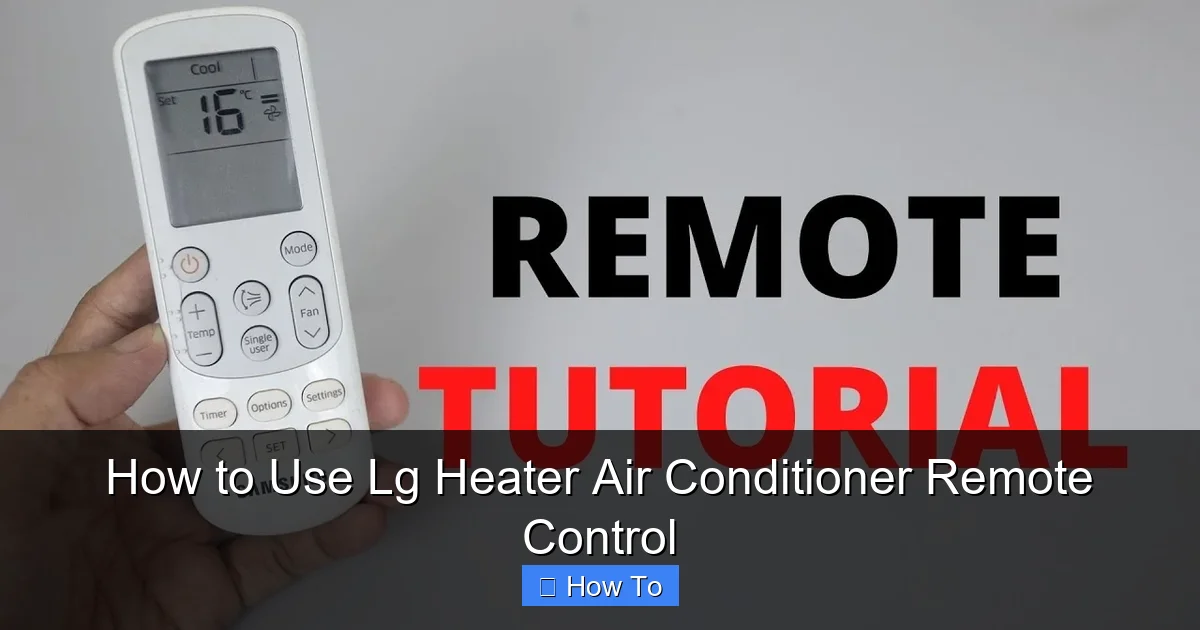
Visual guide showing the LG remote control with all primary buttons labeled for quick reference
Before you start pressing buttons, it’s important to know what each one does. The LG heater air conditioner remote control for 2026 models features a sleek, modern design with clearly labeled buttons and an easy-to-read LCD screen. For more on this, see our guide on what are the best hvac air conditioning systems.
Here’s a quick breakdown of the main buttons:
- Power: Turns the unit on or off.
- Mode: Cycles through operating modes: Cool, Heat, Auto, Fan, and Dry.
- Temperature Up/Down: Adjusts the desired temperature.
- Fan: Changes fan speed (Low, Medium, High, Auto).
- Timer: Sets on/off schedules.
- Sleep: Activates energy-saving sleep mode.
- Turbo: Boosts cooling or heating for rapid temperature change.
- Wi-Fi/Smart: Connects to the LG ThinQ app for remote access.
Most 2026 LG remotes also include a small LED light that blinks when a command is sent. This helps confirm that your remote is working and communicating with the unit.
Inserting Batteries
Your remote comes with two AAA batteries. To install them:
- Flip the remote over and locate the battery compartment on the back.
- Slide the cover open gently.
- Insert the batteries, matching the + and – symbols.
- Close the cover securely.
Tip: Use alkaline batteries for longer life. Replace them every 6–12 months, or when the remote becomes sluggish.
Pairing the Remote with Your Unit
Most LG units are pre-paired with the remote. But if your remote isn’t responding:
- Turn on the air conditioner or heater using the manual button on the unit.
- Point the remote at the indoor unit (within 20 feet).
- Press and hold the Power button for 3 seconds.
- The unit should beep or flash lights to confirm pairing.
If it doesn’t work, check the user manual for model-specific instructions or try resetting the remote.
Operating Modes: Heating, Cooling, and More
One of the best features of your LG remote is the ability to switch between different operating modes. Each mode is designed for specific weather conditions and comfort needs.
Cooling Mode
Use this during hot weather to lower the room temperature.
- Press the Power button to turn on the unit.
- Press the Mode button until “Cool” appears on the screen.
- Use the Temperature Up/Down buttons to set your desired temp (usually between 60°F and 86°F).
- Press the Fan button to choose your preferred speed: Low, Medium, High, or Auto.
Tip: For faster cooling, press the Turbo button. This runs the compressor at maximum power for 30 minutes before returning to normal.
Heating Mode
Perfect for chilly days, especially in winter.
- Turn on the unit with the Power button.
- Press Mode until “Heat” is displayed.
- Set your ideal temperature using the arrow buttons.
- Adjust fan speed as needed.
Note: Some LG heaters use heat pump technology, which is energy-efficient. In very cold climates, the unit may activate auxiliary heat (electric coils) for extra warmth.
Auto Mode
Let the system decide whether to heat or cool based on the room temperature.
- Press Mode until “Auto” appears.
- Set your target temperature.
- The unit will automatically switch between heating and cooling to maintain comfort.
This mode is great for unpredictable weather or if you want a hands-off approach.
Fan Mode
Circulates air without heating or cooling—ideal for mild days.
- Select Fan mode.
- Choose your fan speed.
- The unit will run the fan only, saving energy.
Dry Mode
Reduces humidity without overcooling—perfect for humid climates or rainy seasons.
- Press Mode until “Dry” is shown.
- The unit will run at low fan speed and slightly cool the air to remove moisture.
- Ideal for spring and summer when it’s damp but not hot.
Quick Mode Comparison Table
| Mode | Best For | Energy Use | Typical Temp Range |
|---|---|---|---|
| Cool | Hot summer days | High | 60–78°F |
| Heat | Cold winter days | Medium-High | 68–86°F |
| Auto | Shoulder seasons | Variable | 68–78°F |
| Fan | Mild days, air circulation | Low | N/A (no temp change) |
| Dry | Humid, muggy conditions | Low-Medium | Slight cooling only |
In practice, Auto mode works well for spring and fall when daytime highs and nighttime lows swing widely. A common mistake is leaving the unit in Cool mode overnight during transitional seasons—Auto prevents that wasted energy.
Adjusting Temperature and Fan Speed
Fine-tuning your comfort is easy with the temperature and fan controls.
Setting the Temperature
Use the up and down arrows to adjust the temperature in 1°F increments. Most LG units allow settings from 60°F to 86°F.
- For cooling: Lower the temperature for colder air.
- For heating: Raise it for warmer air.
Tip: Avoid setting extreme temperatures. For example, don’t set cooling to 60°F in summer—it may freeze the unit. A setting between 72°F and 78°F is usually ideal. For more detailed guidance on efficient temperature ranges, see our recommendations for optimal AC settings that balance comfort and savings.
Choosing Fan Speed
Press the Fan button to cycle through speeds:
- Low: Quiet operation, gentle airflow.
- Medium: Balanced noise and airflow.
- High: Strongest airflow, best for quick cooling/heating.
- Auto: The unit adjusts fan speed based on temperature needs.
In Auto mode, the fan slows down as the room reaches the set temperature, saving energy and reducing noise.
Using Timer and Sleep Modes
Save energy and sleep better with these smart features.
Setting the Timer
Program your unit to turn on or off automatically.
To set a timer:
- Press the Timer button.
- Use the arrows to set the number of hours (up to 12).
- Press Timer again to confirm.
Example: Set a 2-hour timer to turn off the AC after you fall asleep.
You can also set a “Start” timer to turn the unit on before you arrive home.
Sleep Mode
This energy-saving feature gradually adjusts the temperature while you sleep.
- Press the Sleep button.
- The unit will increase the temperature by 1–2°F after 30 minutes (in cooling mode) to reduce energy use.
- It turns off automatically after 7–8 hours.
Sleep mode helps you stay comfortable without overcooling or overspending on electricity.
Smart Features: Connecting to Wi-Fi and the LG ThinQ App
In 2026, LG remotes support smart home integration. You can control your heater and air conditioner from anywhere using the LG ThinQ app.
Enabling Wi-Fi on Your Remote
- Make sure your unit is connected to Wi-Fi (check the unit’s display or manual).
- On the remote, press and hold the Wi-Fi or Smart button for 5 seconds.
- The remote will flash lights to indicate it’s searching for the network.
- Follow the on-screen prompts or use the ThinQ app to complete setup.
Using the LG ThinQ App
Download the LG ThinQ app (free on iOS and Android).
Once connected:
- Control your unit from your phone.
- Set schedules (e.g., cool the house at 5 PM).
- Monitor energy usage.
- Receive maintenance alerts.
You can even use voice commands with Alexa or Google Assistant.
Tip: Keep your app updated to access the latest features and security improvements.
Voice Control & Automation Tips
After linking to Alexa or Google Assistant, you can create routines like “Good morning” that start heating at 6:30 AM, or “Movie night” that sets Cool to 72°F with Low fan. In practice, voice control is most reliable when you name each unit clearly in the app (e.g., “Living room AC” vs. “Bedroom AC”) to avoid accidental commands. For a broader look at where smart climate control is heading, see our overview of recent air conditioning innovations shaping home comfort.
Troubleshooting Common Remote Issues
Sometimes your remote might not work as expected. Here’s how to fix the most common problems.
Remote Not Responding
- Check the batteries—replace if weak.
- Make sure the remote is pointed at the unit’s sensor (usually on the front).
- Remove any obstacles between the remote and unit.
- Try resetting the remote by removing batteries for 1 minute, then reinserting.
Buttons Sticking or Unresponsive
- Clean the remote with a soft, dry cloth.
- Avoid using liquids—moisture can damage electronics.
- Check for dust or debris under buttons; use compressed air if needed.
Incorrect Mode or Temperature
- Press the Mode button to cycle back to the correct setting.
- Ensure the unit isn’t in “Auto” mode if you want manual control.
- Reset the remote by turning off the unit, unplugging it for 5 minutes, then restarting.
Wi-Fi Connection Problems
- Restart your router and the air conditioner.
- Make sure your phone and unit are on the same Wi-Fi network.
- Re-pair the remote using the ThinQ app.
Remote Display Blank
- Replace the batteries.
- Check if the remote is damaged—avoid drops or exposure to heat.
- If the problem persists, contact LG support for a replacement.
If the unit itself blows warm air when set to Cool, the issue may be with the indoor coil or refrigerant—see our guide on diagnosing warm-air problems for next steps.
Maintenance Tips for Long-Lasting Performance
A little care goes a long way in keeping your remote working perfectly.
Cleaning the Remote
- Wipe the surface weekly with a dry or slightly damp cloth.
- Never use alcohol or harsh cleaners.
- Keep it away from direct sunlight to prevent fading or warping.
Battery Care
- Replace batteries every 6–12 months.
- Remove batteries if you won’t use the remote for a long time.
- Use high-quality alkaline batteries for best performance.
Storage and Handling
- Store the remote in a cool, dry place.
- Avoid placing heavy objects on it.
- Use a remote holder or hook near your seating area to prevent loss.
Seasonal Maintenance Checklist
- Spring: Test Cool and Dry modes; clean remote; verify Wi-Fi connectivity.
- Summer: Check battery level monthly during heavy use; ensure sensor window is unobstructed.
- Fall: Test Heat mode; re-pair remote if needed; update ThinQ app.
- Winter: Keep remote away from space heaters; replace batteries proactively.
For a comprehensive seasonal plan that covers the whole system, not just the remote, refer to our seasonal air conditioning maintenance tips.
Conclusion
Using your LG heater air conditioner remote control in 2026 is simpler than ever—thanks to intuitive design, smart features, and energy-saving modes. Whether you’re cooling down on a hot summer day or warming up in winter, your remote puts full control at your fingertips.
From switching between heating and cooling to setting timers and connecting to your smartphone, this guide has covered everything you need to know. Remember to keep your remote clean, replace batteries regularly, and explore the LG ThinQ app for even more convenience.
With these tips, you’ll enjoy a comfortable, efficient home all year round. Stay cool, stay warm, and take full advantage of your LG system’s advanced technology.
Frequently Asked Questions
How do I reset my LG air conditioner remote?
Remove the batteries, wait 60 seconds, then reinsert them. Point the remote at the indoor unit and hold Power for 3 seconds to re-pair. The unit should beep or flash to confirm.
Why is my LG remote not changing the temperature?
Ensure you’re not in Auto or Fan mode—both limit manual temperature control. Press Mode until Cool or Heat appears, then adjust with the arrow buttons.
Can I use the LG ThinQ app without the remote?
Yes. Once the unit is connected to Wi-Fi, the app works independently. The remote is only needed for initial pairing or if Wi-Fi drops.
What does the Turbo button do on my LG remote?
Turbo runs the compressor at maximum capacity for 30 minutes to reach the set temperature faster, then reverts to the previous mode and fan speed.
How often should I replace LG remote batteries?
Every 6–12 months with alkaline cells. Replace sooner if the display dims, response lags, or the LED indicator fails to blink when pressing buttons.
Does Sleep mode work in heating mode?
Yes. In Heat mode, Sleep gradually lowers the set temperature by 1–2°F over the first hour, then maintains it for 7–8 hours before shutting off.

