
How to Set Up Lg Air Conditioner Alexa
Setting up your LG air conditioner with Alexa lets you control cooling, temperature, and schedules using simple voice commands. This guide walks you through connecting your LG AC to Alexa via the LG ThinQ and Alexa apps for seamless smart home integration.
Key Takeaways
Ensure Compatibility: Only LG air conditioners with Wi-Fi and LG ThinQ support can work with Alexa. Check your model number before starting.
Use the Right Apps: You’ll need both the LG ThinQ app and the Amazon Alexa app installed on your smartphone or tablet.
Connect to Wi-Fi First: Your LG AC must be connected to your home Wi-Fi network before linking to Alexa.
Enable the LG Skill: In the Alexa app, search for and enable the “LG ThinQ” skill to allow communication between devices.
Discover Devices Automatically: After enabling the skill, ask Alexa to discover new devices to find your LG air conditioner.
Use Clear Voice Commands: Say phrases like “Alexa, turn on the living room AC” or “Alexa, set temperature to 72 degrees” for best results.
Troubleshoot Common Issues: If Alexa doesn’t respond, check Wi-Fi, re-enable the skill, or restart both apps and devices.
How to Set Up LG Air Conditioner with Alexa in 2026
Welcome to the future of home comfort! In 2026, smart home technology has become more intuitive, reliable, and accessible than ever. One of the most convenient upgrades you can make is connecting your LG air conditioner to Amazon Alexa. Imagine walking into your home on a hot summer day and simply saying, “Alexa, cool the living room to 70 degrees” — and watching your AC respond instantly.
This comprehensive guide will walk you through every step of setting up your LG air conditioner with Alexa. Whether you’re a tech enthusiast or just getting started with smart homes, we’ve got you covered. By the end of this guide, you’ll be able to control your AC with voice commands, set schedules, monitor energy usage, and even integrate it with other smart devices like lights and thermostats.
We’ll cover compatibility checks, app setup, Wi-Fi connection, skill activation, device discovery, voice commands, and troubleshooting. Let’s get started!
Step 1: Check Compatibility
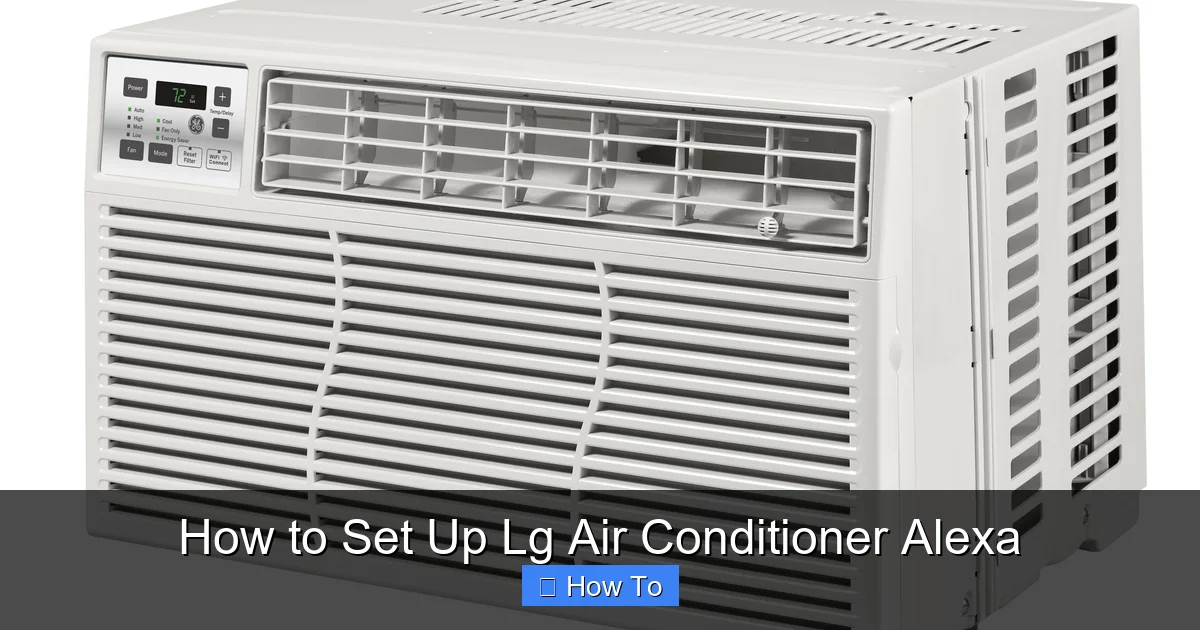
LG ThinQ app showing AC connection steps
Visual guide about How to Set Up Lg Air Conditioner Alexa
Image source: digitaltrends.com
Before you begin, it’s essential to confirm that your LG air conditioner is compatible with Alexa. Not all LG AC units support smart features, so this step saves you time and frustration.
Look for LG ThinQ Support
Only LG air conditioners with built-in Wi-Fi and LG ThinQ technology can connect to Alexa. LG ThinQ is the brand’s smart home platform that enables remote control and integration with voice assistants.
To check compatibility:
- Look at the model number on the back or side of your AC unit.
- Visit the LG official website and search for your model.
- Confirm it lists “LG ThinQ” or “Wi-Fi enabled” in the features.
Common compatible series in 2026 include:
- LG Dual Inverter Window AC (e.g., LW1222IVSM)
- LG Smart Portable AC (e.g., LP1419IVSM)
- LG Art Cool Mirror Inverter AC
- LG DUALCOOL Smart AC Units
If your model is from 2020 or later and has a Wi-Fi symbol on the remote or display, it likely supports ThinQ.
Ensure Alexa Device is Ready
You’ll also need an Amazon Echo device (like Echo Dot, Echo Show, or Echo Studio) or any Alexa-enabled speaker. Make sure it’s set up, connected to Wi-Fi, and functioning properly.
Pro Tip: If you’re using an older Echo device, consider updating its software via the Alexa app to ensure full compatibility with newer smart appliances.
Next step: If you’re still deciding which unit fits your space, you can pick the right unit by reviewing our guide on selecting an air conditioner for your home.
Step 2: Download and Set Up the LG ThinQ App
The LG ThinQ app is your central hub for managing all LG smart appliances, including your air conditioner. It’s available for free on both iOS and Android.
Install the App
- Open the App Store (iPhone) or Google Play Store (Android).
- Search for “LG ThinQ” and download the official app.
- Open the app and create an account if you don’t already have one. Use a valid email and strong password.
Register Your Air Conditioner
- Tap the “+” icon or “Add Product” button.
- Select “Air Conditioner” from the list of appliances.
- Follow the on-screen instructions to scan the QR code on your AC unit or manually enter the model number.
- The app will guide you through connecting the AC to your home Wi-Fi network.
Note: You’ll need your Wi-Fi network name (SSID) and password handy. Make sure your phone is connected to the same Wi-Fi network you want the AC to use.
Test the Connection
Once connected, try turning the AC on and off using the app. Adjust the temperature, change modes (cool, fan, dry), and test the timer function. If everything works, your LG AC is successfully connected to the ThinQ app.
Helpful resource: For detailed troubleshooting during registration, see the LG official support page.
Step 3: Connect Your LG AC to Wi-Fi
A stable Wi-Fi connection is crucial for remote control and Alexa integration. If your AC isn’t already connected, here’s how to do it.
Using the Remote Control
Some LG AC models allow Wi-Fi setup directly from the remote:
- Press and hold the “Wi-Fi” or “Connect” button on the remote for 3–5 seconds.
- The AC display will show a Wi-Fi symbol or “AP” mode.
- On your phone, go to Wi-Fi settings and look for a network named “LG_AC_XXXX” (XXXX is a unique code).
- Connect to this network, then return to the LG ThinQ app to complete setup.
Using the LG ThinQ App
If your remote doesn’t have a Wi-Fi button:
- Open the LG ThinQ app and select your AC.
- Tap “Settings” or “Network Settings.”
- Choose “Wi-Fi Setup” and follow the prompts.
- Select your home Wi-Fi network and enter the password.
- Wait for the app to confirm a successful connection.
Pro Tip: Place your AC within range of your Wi-Fi router. Thick walls, metal objects, or distance can weaken the signal. Consider using a Wi-Fi extender if needed.
Step 4: Set Up the Amazon Alexa App
Now that your LG AC is connected to Wi-Fi and the ThinQ app, it’s time to bring Alexa into the mix.
Install or Update the Alexa App
- Download the Amazon Alexa app from the App Store or Google Play.
- Open the app and sign in with your Amazon account.
- If you already have the app, check for updates to ensure you’re using the latest version.
Link Your LG Account to Alexa
- In the Alexa app, tap the “More” tab (bottom right).
- Select “Skills & Games.”
- Use the search bar to find “LG ThinQ.”
- Tap “Enable to Use.”
- You’ll be redirected to the LG login page. Enter your LG ThinQ account credentials.
- Grant permission for Alexa to access your LG devices.
Once linked, Alexa can communicate with your LG air conditioner through the ThinQ cloud service.
Step 5: Discover Your LG Air Conditioner on Alexa
After enabling the LG ThinQ skill, Alexa needs to “find” your AC. This process is called device discovery.
Manual Discovery
- Say, “Alexa, discover devices.”
- Wait while Alexa scans your network for new smart devices.
- After a few seconds, Alexa will say, “I found a new device: Living Room AC.”
Alternatively, you can do this in the app:
- Open the Alexa app.
- Go to “Devices” > “+” > “Add Device.”
- Select “Air Conditioner” > “LG” > “Discover Devices.”
Verify the Device
Check that your LG AC appears in the Alexa app under “Devices” > “Air Conditioners.” Tap it to confirm you can control it.
If the AC doesn’t appear:
- Make sure it’s powered on and connected to Wi-Fi.
- Restart the LG ThinQ app and try discovery again.
- Disable and re-enable the LG ThinQ skill in Alexa.
Step 6: Control Your AC with Voice Commands
Now for the fun part — using your voice to control your air conditioner!
Basic Voice Commands
Here are some common commands to try:
- “Alexa, turn on the living room AC.”
- “Alexa, turn off the bedroom AC.”
- “Alexa, set the temperature to 72 degrees.”
- “Alexa, increase the temperature by 2 degrees.”
- “Alexa, switch to fan mode.”
- “Alexa, set a timer for the AC to turn off in 2 hours.”
Advanced Commands
In 2026, Alexa supports more natural language processing, so you can say:
- “Alexa, make it cooler in here.”
- “Alexa, I’m too warm.”
- “Alexa, cool the living room to 68 degrees.”
- “Alexa, turn on energy-saving mode.”
Note: The exact commands depend on your AC model and firmware. Some units support “Sleep Mode,” “Turbo Cool,” or “Air Purification.”
Grouping Devices
You can create a “Smart Home Group” in the Alexa app to control multiple devices at once. For example:
- Create a group called “Downstairs.”
- Add your LG AC, smart lights, and thermostat.
- Say, “Alexa, turn on Downstairs,” to activate all devices.
Step 7: Set Up Routines and Schedules
Alexa routines let you automate your AC based on time, location, or other triggers.
Create a Morning Routine
- Open the Alexa app.
- Go to “More” > “Routines” > “+” > “Create Routine.”
- Set the trigger to “At 7:00 AM.”
- Add action: “Smart Home” > “Living Room AC” > “Turn On” > “Set Temperature to 70.”
- Save the routine.
Now, every morning at 7 AM, your AC will turn on and cool the room.
Use Location-Based Triggers
If you have location services enabled:
- Set a routine to turn on the AC when you’re 10 minutes from home.
- Or turn it off when you leave the house.
Pro Tip: Combine with other smart devices. For example, “When I say ‘Goodnight,’ turn off the AC, dim the lights, and lock the door.”
Step 8: Monitor Energy Usage and Maintenance
One advantage of smart ACs is the ability to track energy consumption and receive maintenance alerts.
Check Usage in the LG ThinQ App
- Open the app and select your AC.
- Tap “Energy” or “Usage” to see daily, weekly, and monthly reports.
- Compare usage patterns to optimize settings and save on electricity bills.
Receive Alerts
The app can notify you when:
- The filter needs cleaning (typically every 2–3 months).
- There’s a malfunction or error code.
- Energy usage spikes unexpectedly.
Remote Diagnostics
In 2026, LG offers remote diagnostics through ThinQ. If your AC has an issue, LG support can access diagnostic data (with your permission) to troubleshoot faster.
Want to cut your cooling bill? Check out our energy‑saving AC settings guide.
Understanding LG ThinQ Skill Permissions
When you enable the LG ThinQ skill, Alexa requests permission to view device status, adjust temperature, change modes, and run routines. Granting these permissions lets you use voice commands and automations without re‑authorizing each time. You can review or revoke permissions anytime in the Alexa app under Skills → LG ThinQ → Settings. Keeping permissions minimal (e.g., only temperature control) reduces the attack surface if your Amazon account is ever compromised.
Optimizing Energy Efficiency with Alexa Routines
Pairing routines with the energy‑saving temperature presets from our efficiency guide can shave 10‑15 % off summer cooling costs. For example, create a “Pre‑Cool” routine that sets the AC to 74 °F 30 minutes before you arrive, then a “Night‑Setback” routine that raises it to 78 °F after bedtime. The LG ThinQ app will still log actual consumption, letting you fine‑tune each schedule.
Integrating with Other Smart Home Platforms
LG ThinQ also works with Google Assistant and Apple HomeKit (via Matter bridge), so you can trigger the same AC from a Nest Hub or Siri shortcut. If you’re building a multi‑assistant home, keep device names identical across platforms to avoid confusion. For a look at where cooling tech is heading, see the latest cooling tech overview.
Troubleshooting Common Issues
Even with the best setup, problems can occur. Here’s how to fix the most common ones.
Alexa Can’t Find My LG AC
- Ensure the AC is powered on and connected to Wi-Fi.
- Restart the AC by unplugging it for 30 seconds.
- Re-enable the LG ThinQ skill in the Alexa app.
- Make sure your phone and AC are on the same Wi-Fi network.
Voice Commands Don’t Work
- Check that the device name in Alexa matches what you’re saying (e.g., “Living Room AC” vs. “Bedroom AC”).
- Rephrase your command: “Alexa, set the temperature to 74” instead of “Make it 74.”
- Update the Alexa app and LG ThinQ app to the latest versions.
AC Responds Slowly or Not at All
- Weak Wi-Fi signal? Move your router closer or use a mesh network.
- Too many devices on the network? Limit bandwidth-heavy activities (like streaming) during setup.
- Factory reset the AC and reconfigure it through the ThinQ app.
Skill Linking Fails
- Double-check your LG account email and password.
- Clear the cache in the Alexa app or try linking from a web browser.
- Contact LG or Amazon support if the issue persists.
If a factory reset is needed, follow the professional installation steps to re‑configure the unit correctly.
Tips for the Best Experience in 2026
- Use a Consistent Name: Name your AC something simple like “Living Room AC” to avoid confusion.
- Update Firmware Regularly: LG releases updates that improve performance and add new features. Enable auto-updates in the ThinQ app.
- Secure Your Network: Use a strong Wi-Fi password and enable WPA3 encryption to protect your smart devices.
- Experiment with Routines: Try different combinations to find what works best for your lifestyle.
- Use Multiple Echo Devices: Place Echo speakers in different rooms for hands-free control wherever you are.
Explore the latest cooling innovations to future‑proof your setup.
Conclusion
Setting up your LG air conditioner with Alexa in 2026 is a smart, simple way to enhance your home comfort and energy efficiency. With just a few steps — checking compatibility, connecting to Wi-Fi, enabling the LG ThinQ skill, and discovering devices — you can control your AC with your voice, set automated routines, and monitor usage from anywhere.
This integration not only adds convenience but also helps you save energy and extend the life of your appliance through timely maintenance alerts. Whether you’re cooling a single room or managing multiple zones, Alexa and LG ThinQ make it effortless.
So go ahead — say “Alexa, I’m home,” and let your smart AC welcome you with the perfect temperature. Welcome to the future of cooling!
Frequently Asked Questions
Can I control multiple LG AC units with one Alexa account?
Yes. Each unit appears as a separate device in the Alexa app after discovery. Give each a unique name (e.g., “Bedroom AC”, “Living Room AC”) and address them individually or group them in a Smart Home Group for simultaneous control.
Does the LG ThinQ skill work with Alexa Guard?
The skill does not directly integrate with Alexa Guard’s away‑mode sensors, but you can create a routine that turns the AC off when Guard switches to Away and back on when you return, mimicking the same behavior.
What if my AC loses Wi‑Fi after a power outage?
Most LG ThinQ‑enabled units automatically reconnect once power and internet are restored. If it doesn’t, power‑cycle the AC (unplug 30 seconds) and run “Alexa, discover devices” again; the skill will re‑link without re‑entering credentials.
How do I update the LG ThinQ firmware?
Open the LG ThinQ app, select the AC, tap Settings → Firmware Update, and follow the prompts. Enable “Auto‑update” so future releases install overnight without manual intervention.
Is there a way to set different temperatures for day and night automatically?
Create two Alexa routines: one triggered at your wake‑up time setting the desired daytime temperature, and another at bedtime raising the setpoint. The LG ThinQ app also offers a built‑in schedule that can be synced with Alexa for redundancy.

