
How to Set Timer on Lg Portable Air Conditioner
Setting the timer on your LG portable air conditioner helps you save energy and maintain comfort without constant manual adjustments. This guide walks you through every step —from basic timer functions to advanced scheduling—so you can enjoy smarter cooling in 2026.
Key Takeaways
Timer Basics: The LG portable AC timer lets you schedule when the unit turns on or off, helping you save energy and maintain comfort.
Two Timer Modes: Use the "On Timer" to start cooling at a set time or the "Off Timer" to shut down the unit automatically.
Remote and Control Panel: You can set the timer using either the included remote control or the buttons on the AC unit itself.
24-Hour Range: The timer supports scheduling up to 24 hours in advance, giving you full flexibility for daily routines.
Energy Efficiency: Using the timer reduces unnecessary runtime, lowering electricity bills and extending the unit’s lifespan.
Troubleshooting Tips: If the timer isn’t working, check the remote batteries, ensure the clock is set correctly, and verify timer settings.
2026 Smart Features: Newer LG models may support app-based scheduling via the LG ThinQ app for remote control and automation.
How to Set Timer on LG Portable Air Conditioner: A Complete 2026 Guide
Welcome to your complete, up-to-date guide on how to set the timer on your LG portable air conditioner in 2026. Whether you're trying to cool your room before you get home, avoid running the AC all night, or simply want to save on energy costs, the timer function is one of the most useful features your LG portable AC offers. For more on this, see our guide on portable air conditioner vs hvac.
In this guide, we’ll walk you through everything you need to know—from understanding how the timer works to step-by-step instructions for both the remote control and the unit’s control panel. We’ll also cover troubleshooting tips, energy-saving strategies, and how newer 2026 LG models with smart connectivity can take your timer game to the next level.
By the end of this article, you’ll be able to confidently program your LG portable air conditioner to match your daily routine, reduce energy waste, and enjoy a cooler, more comfortable living space—all with just a few button presses. For more on this, see our guide on portable air conditioner maintenance tips.
Let’s get started!
Why Use the Timer on Your LG Portable Air Conditioner?
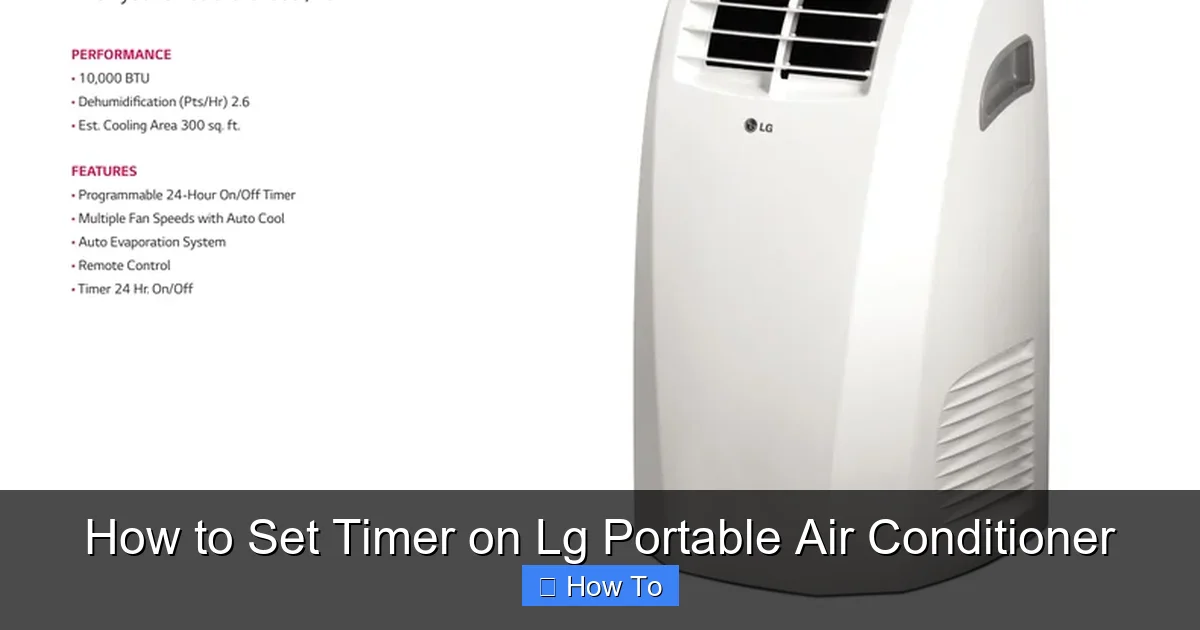
LG portable air conditioner control panel showing timer button location
Visual guide about How to Set Timer on Lg Portable Air Conditioner
Image source: i0.wp.com
Before diving into the how-to steps, it’s worth understanding why the timer feature is so valuable. In 2026, energy efficiency and smart home integration are more important than ever. With rising electricity costs and growing environmental awareness, using your AC wisely isn’t just convenient—it’s responsible.
The timer function allows you to:
Save energy: Avoid running the AC when no one is home or when cooling isn’t needed.
Improve comfort: Cool your room before you arrive home from work or wake up to a refreshing environment.
Extend unit life: Reduce wear and tear by preventing unnecessary operation.
Automate routines: Set it once and forget it—your AC does the rest.
For example, imagine coming home from a hot summer day in July 2026 to a perfectly cooled living room—without leaving the AC running all day. Or picture falling asleep with the AC on, only to have it shut off automatically after two hours to save power. That’s the power of the timer.
Understanding the LG Portable AC Timer: On vs. Off
LG portable air conditioners typically offer two timer modes: the On Timer and the Off Timer . Understanding the difference is key to using the feature effectively.
On Timer
The On Timer lets you schedule when the air conditioner will start cooling. This is perfect if you want the unit to begin working before you get home. For instance, you can set it to turn on at 5:30 PM so your living room is cool by the time you arrive at 6:00 PM.
Off Timer
The Off Timer allows you to set a time when the AC will shut off . This is ideal for nighttime use—set it to turn off after you’ve fallen asleep, so you’re not wasting energy (or money) all night long.
Both timers can be set for up to 24 hours in advance, giving you full control over your cooling schedule. Some newer 2026 LG models even allow you to set both timers simultaneously for round-the-clock automation.
How to Set the Timer Using the Remote Control
Most LG portable air conditioners come with a remote control that makes timer setup quick and easy. Here’s how to do it step by step.
Step 1: Ensure the Remote is Working
Before you begin, make sure your remote has fresh batteries and is functioning properly. Point it at the AC unit and press any button—if the unit responds, you’re good to go. If not, replace the batteries (usually AAA) and try again.
Step 2: Turn On the Air Conditioner
Press the Power button on the remote to turn on the AC. Wait for the unit to start up and display the current temperature and mode (e.g., Cool, Fan, Dry).
Step 3: Access the Timer Function
Look for the Timer button on your remote. It’s usually labeled “Timer” or has a clock icon. Press it once to enter timer mode. The display on the remote or the AC unit will show timer options.
Step 4: Choose On or Off Timer
You’ll typically see two options:
Timer On: Sets when the AC will turn on.
Timer Off: Sets when the AC will turn off.
Use the arrow buttons (▲/▼) to select the desired timer mode, then press OK or Set to confirm.
Step 5: Set the Time
Once you’ve selected the timer type, use the arrow buttons to adjust the hour and minute. Most remotes let you cycle through times in 30-minute or 1-hour increments. For example, to set the Off Timer for 2 hours from now, increase the time accordingly.
Step 6: Confirm and Activate
After setting the time, press OK or Set again to confirm. The timer icon (usually a clock) should appear on the display, indicating the timer is active.
Step 7: Test the Timer
To ensure it’s working, wait a few minutes and observe. If you set an Off Timer, the AC should shut down at the scheduled time. If you set an On Timer, the unit will remain off until the set time arrives.
How to Set the Timer Using the Control Panel
If you don’t have the remote or prefer using the buttons on the AC unit itself, you can still set the timer directly from the control panel. Here’s how.
Step 1: Locate the Timer Button
On most LG portable AC units, the timer function is accessed via a button labeled “Timer” or “Timer On/Off” on the front control panel. It’s usually near the power and mode buttons.
Step 2: Turn On the AC
Press the Power button to turn on the unit. Wait for it to initialize.
Step 3: Enter Timer Mode
Press the Timer button once. The display will show timer options. Use the Mode or Function button (if available) to toggle between On and Off timer modes.
Step 4: Adjust the Time
Use the ▲ and ▼ buttons to set the desired time. Some models require you to hold the buttons to speed up the adjustment. For example, to set a 3-hour Off Timer, press the down arrow until “3:00” appears.
Step 5: Confirm the Setting
Press the Timer button again or wait a few seconds for the setting to save automatically. The timer icon should light up on the display.
Step 6: Verify Operation
Check that the timer is working by monitoring the unit. If you set an Off Timer, the AC should turn off at the scheduled time.
Advanced Timer Tips for 2026 LG Models
In 2026, many LG portable air conditioners come with enhanced smart features that make timer use even more powerful. Here’s how to take advantage of them.
Use the LG ThinQ App for Remote Scheduling
If your LG portable AC is Wi-Fi enabled and compatible with the LG ThinQ app , you can set and adjust timers from your smartphone—anywhere, anytime.
To get started:
Download the LG ThinQ app (available on iOS and Android).
Create an account and log in.
Tap “Add Device” and follow the prompts to connect your AC to your home Wi-Fi.
Once connected, go to the device control screen and look for the “Schedule” or “Timer” option.
Set On and Off times, create daily routines, or use geofencing to trigger cooling when you’re near home.
This is especially useful if your plans change—just open the app and adjust the timer on the go.
Combine Timer with Sleep Mode
Many LG portable ACs have a Sleep Mode that gradually adjusts the temperature overnight for comfort and efficiency. Pair this with the Off Timer to wake up to a naturally comfortable room without the AC running all night.
For example:
Set the AC to Cool at 72°F.
Enable Sleep Mode, which slowly raises the temperature by 1–2°F per hour.
Set the Off Timer for 2:00 AM.
Result: You stay comfortable while saving energy.
Create Weekly Schedules
Some 2026 LG models allow you to program weekly timer schedules. For instance, you can set the AC to turn on at 5:00 PM every weekday and off at 11:00 PM on weekends. Check your user manual or the ThinQ app to see if this feature is available.
Model-Specific Timer Differences
LG’s portable lineup includes several series—such as the Dual Inverter, Standard, and Low‑Profile models—and timer capabilities can vary. Dual Inverter units often support both On and Off timers simultaneously, while some entry‑level models only allow one active timer at a time. The ThinQ app also exposes a “Weekly Schedule” tab on Wi‑Fi models but not on Bluetooth‑only units. Before programming, consult your model’s spec sheet or the LG support page to confirm which timer features are available. LG’s official portable AC support hub provides downloadable manuals for every current model.
| Feature | Dual Inverter (Wi‑Fi) | Standard (Bluetooth) | Low‑Profile (Non‑Smart) |
|---|---|---|---|
| On Timer | ✅ | ✅ | ✅ |
| Off Timer | ✅ | ✅ | ✅ |
| Simultaneous On/Off | ✅ | ❌ | ❌ |
| Weekly Schedule (App) | ✅ | ❌ | ❌ |
| Geofencing Trigger | ✅ | ❌ | ❌ |
Timer feature comparison across common LG portable AC series (2026).
Safety Precautions When Using the Timer
While the timer is a convenience feature, a few safety habits keep operation worry‑free:
- Ensure the exhaust hose is securely vented before activating an On Timer; an unattended start‑up with a blocked vent can overheat the compressor.
- Do not rely on the timer to shut off the unit if you notice unusual noises, smells, or water leakage—power down manually and inspect.
- Keep the area around the AC clear of curtains, furniture, or papers that could be drawn into the intake during an automatic start.
- If you use a smart plug for backup power, choose one rated for the AC’s amperage (typically 10‑12 A) and with a true battery‑backed clock so schedules survive brief outages.
Troubleshooting Common Timer Issues
Even with the best instructions, timer problems can happen. Here’s how to fix the most common issues.
Timer Not Activating
Check the clock: If your AC has a built-in clock, make sure it’s set to the correct time. An incorrect clock will throw off timer schedules.
Verify remote batteries: Weak batteries can prevent the remote from sending signals.
Ensure timer is enabled: Double-check that the timer icon is lit on the display.
AC Turns On/Off at the Wrong Time
Confirm AM/PM: Some models use 12-hour format. Make sure you’re setting the correct period.
Reset the timer: Cancel the current timer and re-enter the correct time.
Update firmware: For smart models, check for firmware updates in the LG ThinQ app.
Remote Not Responding
Replace batteries.
Clean the remote’s infrared sensor.
Ensure there’s no obstruction between the remote and the AC unit.
Timer Resets After Power Outage
Most LG portable ACs lose timer settings during a power outage unless they have a backup battery (rare). After power is restored:
Re-set the current time (if applicable).
Re-program your timer schedules.
Consider using a smart plug with battery backup for uninterrupted scheduling.
Energy-Saving Tips with the Timer
Using the timer wisely can significantly reduce your energy consumption. Here are some smart strategies for 2026:
Set the Off Timer for Night Use
Instead of running the AC all night, set it to turn off after 2–3 hours. Your body adapts to slightly warmer temperatures while sleeping, so you likely won’t notice the difference—but your electricity bill will.
Use the On Timer to Pre-Cool
Program the AC to start cooling 30–60 minutes before you arrive home. This avoids running it during peak electricity hours (usually mid-afternoon) when rates are higher.
Avoid Overcooling
Set your AC to a comfortable temperature (72–76°F) and use the timer to maintain it—not to blast cold air unnecessarily.
Combine with Fans
Use ceiling or portable fans to circulate cool air. This allows you to set the AC timer for shorter periods while still feeling comfortable.
For even deeper savings, pair your timer schedule with the optimal temperature setbacks recommended by ENERGY STAR. The ENERGY STAR guide to efficient cooling suggests raising the setpoint by 4 °F when you’re away and using fans to bridge the comfort gap—exactly what a well‑programmed On/Off timer achieves automatically.
Maintaining Timer Reliability Over Time
Timer accuracy depends on the AC’s internal clock and control board staying healthy. A few simple habits preserve long‑term reliability:
- Clean the control‑panel area monthly; dust buildup can cause button‑press misreads that corrupt timer entries.
- Replace the remote’s AAA batteries at the start of each cooling season—weak cells are the #1 cause of “timer not activating” reports.
- If your model has a user‑replaceable coin cell (CR2032) on the main board for clock backup, swap it every 2‑3 years; consult the service manual or a qualified technician.
- Run a quick “timer self‑test” each spring: set a 5‑minute Off Timer and verify the unit shuts down on schedule. Early detection prevents mid‑summer surprises.
For a broader seasonal checklist that covers filter cleaning, coil inspection, and refrigerant‑level awareness, see our seasonal air conditioning maintenance tips.
Conclusion
Setting the timer on your LG portable air conditioner is a simple yet powerful way to enhance comfort, save energy, and reduce costs in 2026. Whether you’re using the remote, the control panel, or the LG ThinQ app, the process is straightforward and highly customizable.
By mastering the On and Off timer functions, troubleshooting common issues, and leveraging smart features, you can turn your portable AC into a truly intelligent cooling solution.
So go ahead—program that timer, enjoy a cooler home, and feel good about using your appliance efficiently. With this guide, you’re all set to make the most of your LG portable air conditioner’s timer feature. Stay cool!
Ready to fine‑tune your cooling schedule even further? Explore our guide on the best energy‑efficient AC settings to maximize savings.
Frequently Asked Questions
How do I know if my LG portable AC supports the ThinQ app?
Check the model number on the unit’s rating plate; any model with “Wi‑Fi” in its spec sheet or a “SmartThinQ” logo on the box is compatible. The LG support site also lists app‑enabled models.
Can I set both On and Off timers at the same time?
On most 2026 Dual Inverter Wi‑Fi models, yes. On non‑smart or Bluetooth‑only units, only one timer can be active at a time—refer to the comparison table above.
Why does my timer reset after a power outage?
Most portable ACs lack a battery‑backed clock. When power returns, the clock defaults to 12:00 AM and clears timer entries. A UPS or smart plug with battery backup solves this.
Is it safe to run the AC unattended with an On Timer?
Yes, provided the exhaust hose is properly vented, the filter is clean, and the area around the unit is clear. Never use an On Timer if the unit shows any fault codes or leakage.
How accurate is the built‑in 24‑hour timer?
The internal quartz clock typically drifts less than ±30 seconds per day. For tighter accuracy, sync the clock via the ThinQ app (which pulls network time) or manually adjust monthly.
Can I use a third‑party smart plug to control the timer instead?
You can, but the AC’s own timer retains the advantage of graceful shutdown (fan runs briefly to dry the coil). A hard power cut from a smart plug may shorten component life over time.

