
How to Set Lg Air Conditioner to Heat
This guide shows you how to set LG air conditioner to heat using your remote, mobile app, or control panel. Whether you have a window unit, split system, or portable AC, you’ll learn safe, efficient heating setup for 2026.
Key Takeaways
Check model compatibility: Not all LG air conditioners support heating—verify your unit has a heat pump or inverter technology before proceeding.
Use the remote control: The most common method involves pressing the “Mode” button until “Heat” appears on the display.
Set your desired temperature: Choose a comfortable setting between 68°F and 72°F (20°C–22°C) for energy efficiency and comfort.
Leverage smart features: Many 2026 LG models support Wi-Fi and voice control via LG ThinQ or Google Assistant for remote heating adjustments.
Maintain airflow and filters: Clean filters monthly to ensure efficient heating and prevent strain on the system.
Enable eco or sleep mode: These settings reduce energy use while maintaining warmth overnight or when you’re away.
Troubleshoot common issues: If heating doesn’t start, check power, mode settings, or outdoor unit obstructions.
How to Set LG Air Conditioner to Heat: A Complete 2026 Guide
As temperatures drop in 2026, many homeowners are turning to their LG air conditioners not just for cooling, but for efficient, reliable heating. Modern LG units—especially inverter and heat pump models—are designed to double as heaters, offering year-round climate control. Whether you’re using a window-mounted LG AC, a ductless mini-split, or a smart portable unit, knowing how to set your LG air conditioner to heat can save you money, boost comfort, and reduce reliance on space heaters or furnaces.
In this comprehensive guide, you’ll learn step-by-step how to activate heating mode on your LG air conditioner using the remote control, mobile app, or onboard panel. We’ll also cover smart features, energy-saving tips, maintenance advice, and troubleshooting solutions tailored for 2026 models. By the end, you’ll be able to confidently warm your home with your existing LG AC system—no extra equipment needed.
Understanding LG Air Conditioners with Heating Capability
Before diving into the setup process, it’s important to understand which LG air conditioners can actually provide heat. Not all AC units are created equal—some are cooling-only, while others are equipped with heat pump technology that reverses the refrigeration cycle to produce warm air.
LG’s 2026 lineup includes several models with built-in heating functions:
LG Dual Inverter Window ACs: These energy-efficient units use variable-speed compressors to heat and cool quietly and effectively.
LG Art Cool Mirror Mini-Splits: Sleek, wall-mounted systems that offer both heating and cooling with smart connectivity.
LG Portable Air Conditioners with Heat: Compact, mobile units ideal for single rooms or apartments.
LG SmartThinQ-Enabled Models: Wi-Fi-connected units that allow remote control via smartphone or voice assistants.
To confirm your LG AC supports heating, check the product label, user manual, or the display panel. Look for symbols like a snowflake (cooling) and a sun or flame (heating). If you only see a snowflake, your unit is likely cooling-only.
Heat Pump vs. Electric Resistance Heating
LG heat‑pump models move heat rather than generate it, delivering up to three times more heating energy per unit of electricity than traditional resistance heaters. Understanding this difference helps you set realistic expectations for runtime and cost. For a deeper look at system types, see the heat pump operation basics.
Step-by-Step: How to Set LG Air Conditioner to Heat Using the Remote
The most straightforward way to activate heating mode is through the remote control. Here’s how to do it safely and correctly.
Step 1: Power On the Unit
Press the Power button on your LG remote. The unit will beep, and the display should light up. If the unit doesn’t respond, check the batteries in the remote or ensure the AC is plugged in and receiving power.
Step 2: Locate the “Mode” Button
On most LG remotes, the Mode button is clearly labeled and often located near the top. It cycles through different operating modes: Cool, Dry, Fan, Heat, and Auto.
Step 3: Cycle to “Heat” Mode
Press the Mode button repeatedly until the display shows “Heat” or a sun/flame icon appears. On some 2026 models, the screen may show “HEAT” in bold letters or use color coding (e.g., red for heat, blue for cool).
Step 4: Set Your Desired Temperature
Use the Temperature Up/Down buttons to select your preferred heat setting. For optimal comfort and efficiency, experts recommend setting the thermostat between 68°F and 72°F (20°C–22°C) . Avoid setting it too high—this won’t heat the room faster and may waste energy.
Step 5: Adjust Fan Speed (Optional)
Press the Fan Speed button to choose between Auto, Low, Medium, or High. In heating mode, “Auto” is usually best—it lets the system adjust airflow based on room temperature. However, if you want quicker warmth, select “High” initially, then switch to “Low” or “Auto” once the room heats up.
Step 6: Confirm and Monitor
Wait a few minutes for the unit to start blowing warm air. You should feel heat within 5–10 minutes. If cold air continues to blow, double-check that you’re in Heat mode and that the outdoor unit (for split systems) isn’t frozen or obstructed. For split‑system owners, outdoor unit placement tips can prevent common airflow blockages.
Using the LG ThinQ App to Activate Heating (2026 Smart Models)
For LG air conditioners with Wi-Fi and SmartThinQ compatibility, you can control heating remotely using the LG ThinQ app—available for iOS and Android. This is especially useful in 2026, where smart home integration is the norm.
Step 1: Download and Set Up LG ThinQ
If you haven’t already, download the LG ThinQ app from your device’s app store. Create an account or log in, then follow the on-screen instructions to add your air conditioner.
Step 2: Connect Your AC to Wi-Fi
Ensure your LG AC is within range of your home Wi-Fi network. On the unit or remote, press and hold the Wi-Fi or Connect button until the indicator light blinks. In the app, select “Add Device” and follow the pairing process.
Step 3: Select Your AC and Choose “Heat” Mode
Once connected, your AC will appear in the app. Tap on it, then select Mode and choose Heat . You’ll see a real-time temperature display and control options.
Step 4: Set Temperature and Schedule
Use the app to set your desired temperature. You can also create heating schedules—for example, warming your bedroom at 6:30 a.m. before you wake up. The app supports geofencing, so your AC can start heating when you’re 10 minutes from home.
Step 5: Use Voice Commands (Optional)
If you have a Google Assistant or Amazon Alexa device, link it to LG ThinQ. Then say, “Hey Google, set the living room AC to 70 degrees in Heat mode.” Voice control makes adjusting your climate effortless. Keeping firmware current ensures the latest climate tech advances are applied automatically.
Manual Control: Setting Heat Mode on the Unit Itself
If your remote is lost or the batteries are dead, you can still activate heating mode directly on the air conditioner. This method works for window units and some portable models.
Step 1: Locate the Control Panel
Find the buttons on the front or side of your LG AC. Most models have a Mode button, Power button, and temperature controls.
Step 2: Press “Mode” Until “Heat” Appears
Press the Mode button repeatedly. Watch the LED display or indicator lights. When “Heat” or a heat symbol appears, stop pressing.
Step 3: Adjust Temperature
Use the + and – buttons to set your desired temperature. Some models may require you to hold the buttons for a few seconds to confirm.
Step 4: Turn On the Fan
If the fan doesn’t start automatically, press the Fan button to activate airflow. In heating mode, the fan should run after a short delay to prevent blowing cold air.
Energy-Saving Tips for LG Heating in 2026
Heating with your LG air conditioner can be efficient—if used wisely. Here are expert-recommended tips to maximize performance and minimize energy bills.
Use Eco or Energy Saver Mode
Many 2026 LG models include an Eco or Energy Saver mode that reduces power consumption while maintaining comfort. This mode slightly lowers the compressor speed and avoids extreme temperature swings.
Enable Sleep Mode Overnight
Sleep mode gradually adjusts the temperature as you sleep, reducing energy use. For example, it might lower the heat by 2°F after two hours. This prevents overheating and saves up to 30% on nighttime energy.
Seal Windows and Doors
Even the best AC can’t heat a drafty room. Use weather stripping, draft stoppers, or thermal curtains to keep warm air in and cold air out.
Clean Filters Monthly
Dirty filters restrict airflow, forcing the unit to work harder. Remove the front panel, take out the filter, and wash it with mild soap and water. Let it dry completely before reinserting.
Avoid Extreme Temperature Settings
Setting your AC to 80°F won’t heat the room faster—it just runs longer and uses more energy. Stick to 68°F–72°F for balanced comfort and efficiency. The DOE heat pump guide recommends similar setpoints for optimal seasonal performance.
Use a Programmable Schedule
If your model supports it, program your AC to turn on 30 minutes before you arrive home and turn off when you leave. This avoids heating an empty house. For more ideas, review optimal thermostat settings tailored to heat‑pump systems.
Troubleshooting Common Heating Issues
Even with proper setup, you might encounter problems. Here’s how to fix the most common issues with LG heating in 2026.
Issue: AC Blows Cold Air in Heat Mode
This usually means the unit hasn’t fully switched to heating or the outdoor coil is frozen. Turn off the AC for 10–15 minutes to let ice melt. Check for frost on the outdoor unit (for split systems) and ensure vents aren’t blocked. If the problem persists, the reversing valve may be faulty—contact LG support.
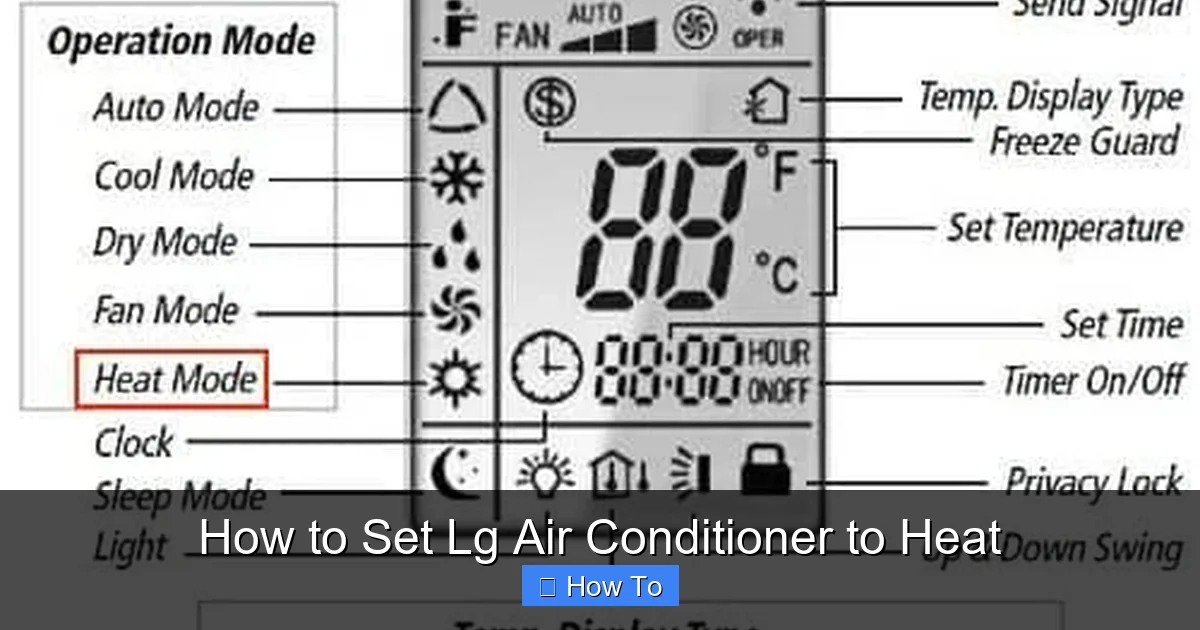
Visual guide showing LG remote heat mode selection
Image source: aircondlounge.com
Issue: No Heat After Setting Mode
First, confirm the unit is in Heat mode and the temperature is set higher than the current room temperature. If it still doesn’t heat, check the circuit breaker—tripped breakers can disable heating functions. Also, ensure the remote has fresh batteries.
Issue: Weak or Inconsistent Heating
This could be due to dirty filters, low refrigerant, or a malfunctioning sensor. Clean the filter and check for obstructions. If heating remains weak, schedule a professional inspection—especially if your unit is over five years old. Warm air troubleshooting steps can help isolate the cause before a service call.
Issue: Smart App Won’t Connect
Restart your router and the AC unit. Make sure your phone and AC are on the same Wi-Fi network. Update the LG ThinQ app and reinstall if necessary. If issues continue, reset the AC’s Wi-Fi module by holding the Connect button for 10 seconds.
Issue: Unit Shuts Off Unexpectedly
This may be due to overheating protection. Ensure vents are clear and the filter is clean. If the unit overheats, it will auto-shutoff for safety. Let it cool down before restarting.
Maintenance Tips to Keep Your LG AC Heating Efficiently
Regular maintenance ensures your LG air conditioner heats reliably all winter. Follow this 2026 maintenance checklist:
Monthly: Clean or replace air filters.
Seasonally: Inspect outdoor unit for debris, snow, or ice buildup.
Annually: Schedule a professional tune-up to check refrigerant levels, electrical connections, and thermostat accuracy.
As Needed: Wipe down the exterior with a damp cloth and check for unusual noises or odors.
For mini-split systems, gently clean the indoor evaporator coils with a soft brush or compressed air. Never use water directly on internal components. A year‑round upkeep checklist keeps performance predictable and extends equipment life.
When to Call a Professional
If you notice persistent error codes, refrigerant leaks, or the compressor cycling excessively, it’s time for a certified technician. Complex issues such as a faulty reversing valve or compressor failure require specialized tools and safety certifications. Condenser performance checks during a service visit can catch early wear before it leads to a breakdown.
Conclusion: Stay Warm with Your LG Air Conditioner in 2026
Setting your LG air conditioner to heat is simple, efficient, and cost-effective—especially with the advanced features available in 2026 models. Whether you’re using the remote, the LG ThinQ app, or manual controls, activating heating mode takes just a few taps. By following the steps in this guide, you’ll enjoy consistent warmth, lower energy bills, and peace of mind all winter long.
Remember to maintain your unit regularly, use energy-saving modes, and troubleshoot issues early. With the right setup, your LG AC can be your go-to heating solution—no furnace required. Stay cozy, stay smart, and make the most of your climate control system this year. Ready to optimize your LG AC heating? Explore our seasonal maintenance checklist.
Frequently Asked Questions
How do I know if my LG AC has a heat pump?
Check the model label or user manual for a sun/flame icon and “Heat” mode. Only units with inverter or heat‑pump technology can reverse the refrigeration cycle to produce warm air.
Why does my LG AC blow cold air after selecting Heat?
The outdoor coil may be frosted or the reversing valve stuck. Power the unit off for 10–15 minutes to defrost, then restart. Persistent cold air usually means a service call is needed.
Can I schedule heating with the LG ThinQ app?
Yes. After pairing the unit, use the app’s scheduling feature to set start/stop times and target temperatures. Geofencing can also trigger heating based on your phone’s location.
What temperature setting saves the most energy while heating?
The U.S. Department of Energy suggests 68 °F (20 °C) when you’re home and lowering it 7–10 °F while asleep or away. Each degree lower can cut heating costs by about 1‑3 %.
How often should I clean the filters during heating season?
Monthly cleaning is recommended. Heavy use or dusty environments may require checking every two weeks to maintain airflow and efficiency.

