Resetting your LG wall air conditioner can solve common issues like unresponsive controls, error codes, or poor cooling. This guide walks you through simple, effective reset methods to restore optimal performance in minutes.
Key Takeaways
- Power cycling is the easiest reset method: Simply unplug your unit for 5–10 minutes to clear temporary glitches and restore normal operation.
- Use the remote control for a soft reset: Press and hold the Power and Mode buttons simultaneously for 3 seconds to restart the system without losing settings.
- Hard resets restore factory defaults: Useful for persistent errors, this method clears all custom settings and should be used only when necessary.
- Check for error codes before resetting: LG units display specific codes (like CH24 or CH35) that help identify underlying issues—don’t ignore them.
- Regular maintenance prevents frequent resets: Clean filters, check airflow, and inspect outdoor units monthly to keep your AC running smoothly.
- Wi-Fi and smart features may require app resets: If your LG ThinQ-enabled AC loses connectivity, re-pair it through the app after a power cycle.
- Contact LG support if problems persist: If resets don’t resolve the issue, there may be a hardware problem requiring professional service.
How to Reset LG Wall Air Conditioner: A Complete 2026 Guide
If your LG wall air conditioner is acting up—freezing up, showing error codes, or refusing to turn on—you’re not alone. In 2026, LG continues to lead the HVAC market with smart, energy-efficient wall-mounted units, but even the most advanced systems can experience glitches. The good news? Most issues can be fixed with a simple reset.
This comprehensive guide will walk you through every method to reset your LG wall air conditioner, from basic power cycling to advanced factory resets. Whether you’re dealing with a frozen display, connectivity problems with the LG ThinQ app, or just want to refresh your unit’s performance, you’ll find clear, step-by-step instructions here. We’ll also cover troubleshooting tips, maintenance advice, and when to call in a professional.
By the end of this guide, you’ll know exactly how to reset your LG wall AC safely and effectively—without losing your favorite settings or risking damage to your unit.
Why Reset Your LG Wall Air Conditioner?
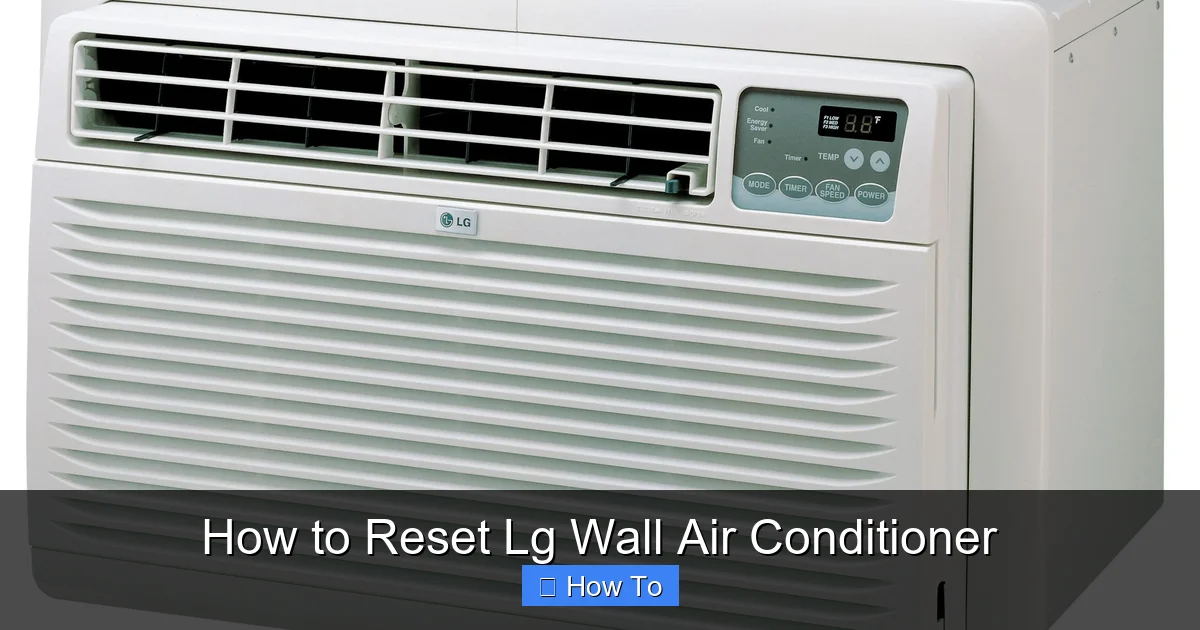
Visual guide about How to Reset Lg Wall Air Conditioner
Image source: d31b49yfcjur21.cloudfront.net
Before diving into the how-to, let’s talk about why you might need to reset your LG wall air conditioner in the first place. Modern LG units are packed with smart sensors, Wi-Fi connectivity, and advanced climate control algorithms. While these features improve comfort and efficiency, they can sometimes cause the system to “lock up” or behave unpredictably.
Common reasons to reset your LG wall AC include:
- Unresponsive remote or control panel: The display is blank, buttons don’t work, or the unit ignores commands.
- Error codes on the display: Codes like CH24 (communication error), CH35 (fan motor issue), or CH05 (sensor fault) often require a reset to clear.
- Poor cooling or heating performance: The unit runs but doesn’t reach the set temperature—sometimes a reset recalibrates internal sensors.
- Wi-Fi or app connectivity issues: Your LG ThinQ app can’t connect to the AC, or commands sent via the app are ignored.
- After a power outage or surge: Electrical interruptions can cause temporary system errors that a reset can fix.
- Routine maintenance or troubleshooting: Technicians often recommend a reset after cleaning filters or inspecting components.
Resetting your LG wall air conditioner is like restarting your smartphone—it clears temporary bugs and gives the system a fresh start. It’s safe, quick, and often all you need to get back to cool, comfortable air.
Method 1: Power Cycling (The Simple Reset)
The most basic and effective way to reset your LG wall air conditioner is power cycling—also known as a “soft reset.” This method doesn’t erase your settings, but it reboots the system’s internal electronics, which can resolve many common issues.
Step-by-Step Power Cycling Instructions
- Turn off the air conditioner: Use the remote control to power down the unit. Make sure it’s completely off—no lights or fans running.
- Unplug the unit from the wall: Locate the power cord behind or beside the indoor unit. Gently pull the plug from the electrical outlet. If your unit is hardwired, turn off the circuit breaker that powers the AC.
- Wait 5 to 10 minutes: This gives the internal capacitors time to fully discharge and the system memory to reset. Don’t rush this step—waiting less than 5 minutes may not be effective.
- Plug the unit back in: Reconnect the power cord to the outlet or turn the circuit breaker back on.
- Turn the AC back on: Use the remote to power up the unit. Wait a minute or two for the system to initialize.
- Test the operation: Set the temperature and mode (cool, heat, fan, etc.) to ensure everything is working properly.
Tips for Effective Power Cycling
- Use a dedicated outlet: Avoid power strips or surge protectors, which can interfere with the reset process. Plug directly into a wall outlet.
- Check for tripped breakers: If the unit doesn’t turn back on, inspect your home’s electrical panel. A tripped breaker could indicate a power surge or overload.
- Don’t repeat too quickly: If the first power cycle doesn’t work, wait at least 15 minutes before trying again. Repeated rapid resets can stress the system.
- Ideal for minor glitches: This method works best for temporary issues like frozen displays, unresponsive remotes, or minor sensor errors.
Power cycling is the go-to reset method for most homeowners. It’s safe, requires no tools, and takes less than 15 minutes. Try this first before moving on to more advanced techniques.
Method 2: Remote Control Reset (Soft System Reboot)
Many LG wall air conditioners support a built-in reset function using the remote control. This method performs a soft reboot of the system without disconnecting power, making it convenient and quick.
How to Perform a Remote Control Reset
- Ensure the AC is on: The unit should be powered and operational. If it’s completely unresponsive, skip to the power cycling method.
- Press and hold the Power and Mode buttons: On most LG remotes, these are clearly labeled. Hold both buttons down simultaneously.
- Wait for 3 seconds: Keep holding until you see the display blink or hear a beep. This indicates the reset has been triggered.
- Release the buttons: The unit will automatically restart. The display may go blank briefly before returning to normal.
- Test the system: Use the remote to adjust temperature and mode. Confirm that the issue is resolved.
Important Notes About Remote Resets
- Not all models support this feature: Check your user manual or LG’s 2026 support page to confirm compatibility. Newer models like the LG Dual Inverter and LG ArtCool series typically include this function.
- Preserves user settings: Unlike a factory reset, this method keeps your temperature preferences, fan speed, and schedule intact.
- Works best for software glitches: Ideal for issues like unresponsive controls, mode switching errors, or display freezes.
- Try fresh batteries: If the remote doesn’t respond, replace the batteries. Weak batteries can prevent the reset signal from being sent.
This method is perfect for quick fixes when your AC is acting up but still partially functional. It’s especially useful if you can’t easily access the power outlet or breaker.
Method 3: Factory Reset (Hard Reset)
When power cycling and remote resets don’t solve the problem, a factory reset may be necessary. This method restores your LG wall air conditioner to its original factory settings, erasing all custom configurations. Use it only when other methods fail or when instructed by LG support.
When to Use a Factory Reset
- The unit displays persistent error codes that won’t clear.
- Wi-Fi and app connectivity cannot be restored.
- The system behaves erratically after a software update.
- You’re preparing to sell or relocate the unit.
- LG customer service recommends it during troubleshooting.
How to Perform a Factory Reset
- Turn off the air conditioner: Use the remote to power down the unit completely.
- Locate the reset button: On most LG wall units, this is a small, recessed button on the indoor unit’s control panel. You may need a paperclip or pen tip to press it.
- Press and hold the reset button: Hold it for 5–10 seconds until the display flashes or beeps. Some models may require you to press it three times in quick succession.
- Wait for the system to reboot: The unit will power off and then restart automatically. This may take 1–2 minutes.
- Reconfigure your settings: After the reset, you’ll need to re-enter your preferred temperature, mode, fan speed, and Wi-Fi settings.
- Reconnect to the LG ThinQ app (if applicable): Open the app, remove the old device, and follow the setup process to pair it again.
What a Factory Reset Erases
- Temperature and mode preferences
- Scheduled on/off times
- Wi-Fi network credentials
- Smart app pairings (LG ThinQ, Google Assistant, Alexa)
- Filter change reminders and usage logs
Important Warnings
- Backup your settings: If you have custom schedules or smart home integrations, note them down before resetting.
- Not a substitute for repairs: A factory reset won’t fix hardware problems like a faulty compressor or refrigerant leak.
- Use sparingly: Frequent factory resets can indicate a deeper issue—monitor your unit’s performance afterward.
A factory reset is a powerful tool, but it should be your last resort. Always try power cycling and remote resets first.
Method 4: Resetting Wi-Fi and Smart Features
In 2026, most LG wall air conditioners come with built-in Wi-Fi and compatibility with the LG ThinQ app. If your AC is connected to your home network but the app can’t control it, a smart reset may be needed.
Common Smart AC Issues
- The LG ThinQ app shows “offline” or “connection failed.”
- Voice commands via Alexa or Google Assistant don’t work.
- The unit responds to the remote but not the app.
- You’ve changed your Wi-Fi password or router settings.
How to Reset Wi-Fi on Your LG Wall AC
- Power cycle the unit: Unplug the AC for 5 minutes, then plug it back in. This refreshes the network connection.
- Open the LG ThinQ app: Go to the device list and select your air conditioner.
- Remove the device: Tap the settings icon (usually three dots) and choose “Remove Device” or “Forget Device.”
- Re-add the AC: Tap the “+” icon in the app and follow the on-screen instructions to reconnect your unit.
- Re-enter Wi-Fi credentials: Make sure you’re connecting to the correct network (2.4 GHz is usually required—5 GHz may not be supported).
- Test the connection: Use the app to adjust temperature and mode. Confirm voice commands work if linked to a smart speaker.
Tips for Stable Smart Connectivity
- Use a strong Wi-Fi signal: Place your router closer to the AC or use a Wi-Fi extender if the signal is weak.
- Keep the app updated: LG releases regular updates for the ThinQ app—check the App Store or Google Play.
- Restart your router: Sometimes the issue is with the network, not the AC. Reboot your router and try again.
- Check for firmware updates: In the LG ThinQ app, go to device settings and look for “Firmware Update.” Install any available updates.
Smart resets are essential for maintaining seamless control of your LG wall AC in 2026’s connected homes. With a few taps, you can restore full functionality.
Troubleshooting Common Reset Issues
Even with the right steps, you might run into problems when resetting your LG wall air conditioner. Here’s how to handle the most common issues.
The Unit Won’t Turn Back On After a Reset
- Check the power source: Ensure the outlet is working—try plugging in another device.
- Inspect the circuit breaker: A tripped breaker could indicate an electrical fault. Reset it and monitor for repeated trips.
- Look for blown fuses: Some LG units have internal fuses. Consult your manual or contact LG support.
- Wait longer: If the unit was overheating, it may have a thermal cutoff that requires 15–30 minutes to reset.
Error Codes Keep Reappearing
If error codes like CH24 or CH35 return after a reset, the issue may be hardware-related.
- CH24 (Communication Error): Check wiring between indoor and outdoor units. Loose or damaged cables can cause this.
- CH35 (Fan Motor Fault): The indoor or outdoor fan motor may be failing. Listen for unusual noises or lack of airflow.
- CH05 (Sensor Error): Temperature sensors may be dirty or misaligned. Clean the indoor unit and ensure sensors are unobstructed.
- Contact LG support: Persistent error codes often require professional diagnosis and repair.
The Remote Doesn’t Work After a Reset
- Replace the batteries: Weak batteries are the most common cause of remote failure.
- Re-pair the remote: Some models require re-syncing after a factory reset. Hold the Power and Timer buttons for 5 seconds.
- Check for obstructions: Make sure nothing is blocking the infrared signal between the remote and the AC.
- Use the app as a backup: The LG ThinQ app can often control the AC even if the remote fails.
The AC Resets But Still Doesn’t Cool Properly
A reset won’t fix mechanical or refrigerant issues.
- Clean the air filters: Dirty filters restrict airflow and reduce cooling. Wash them monthly.
- Check the outdoor unit: Ensure it’s not blocked by debris, plants, or snow.
- Inspect for ice buildup: Frost on the coils may indicate low refrigerant or airflow problems.
- Schedule a professional inspection: If cooling remains poor, a technician should check refrigerant levels and compressor function.
Preventing the Need for Frequent Resets
While resets are helpful, the best approach is to prevent problems before they start. Here’s how to keep your LG wall air conditioner running smoothly in 2026.
Monthly Maintenance Checklist
- Clean or replace air filters: Dirty filters are the #1 cause of AC inefficiency. Wash reusable filters with mild soap and water.
- Wipe down the indoor unit: Use a damp cloth to clean the front panel and vents. Avoid harsh chemicals.
- Check the outdoor unit: Remove leaves, dirt, and debris from around the condenser. Keep at least 2 feet of clearance.
- Inspect drainage: Ensure the condensate drain line is clear to prevent water buildup and mold.
- Test the remote and app: Make sure controls are responsive and the Wi-Fi connection is stable.
Seasonal Tips
- Before summer: Schedule a professional tune-up. Technicians can check refrigerant, tighten connections, and test performance.
- After winter: Clear snow and ice from the outdoor unit. Cover it during off-seasons if recommended by LG.
- During extreme weather: Avoid setting extreme temperatures (e.g., 60°F in summer). This reduces strain on the system.
Smart Habits for 2026
- Use scheduling: Set your AC to run only when needed. This reduces wear and saves energy.
- Enable energy-saving modes: LG’s Dual Inverter and AI Cool features optimize performance and reduce errors.
- Update firmware regularly: LG releases updates to improve stability and add features. Check the ThinQ app monthly.
- Monitor usage: Use the app to track energy consumption and detect anomalies early.
When to Call a Professional
While most reset issues can be handled at home, some problems require expert help. Contact LG customer support or a licensed HVAC technician if:
- The unit makes loud grinding, clicking, or banging noises.
- You smell burning or see smoke.
- There’s water leaking indoors or refrigerant dripping outside.
- Error codes persist after multiple resets.
- The AC trips the circuit breaker repeatedly.
- You suspect a refrigerant leak or electrical fault.
In 2026, LG offers extended warranties and remote diagnostics for many models. Use the LG ThinQ app to request service or chat with support directly.
Conclusion
Resetting your LG wall air conditioner doesn’t have to be complicated. Whether you’re dealing with a frozen display, Wi-Fi issues, or persistent error codes, the methods in this guide—power cycling, remote resets, factory resets, and smart reconnects—will help you restore normal operation quickly and safely.
Remember: Start simple. Try power cycling first, then move to more advanced steps only if needed. Regular maintenance is your best defense against future problems, so keep those filters clean and your units clear.
By following this 2026 guide, you’ll keep your LG wall air conditioner running efficiently, quietly, and reliably—all summer long and beyond.