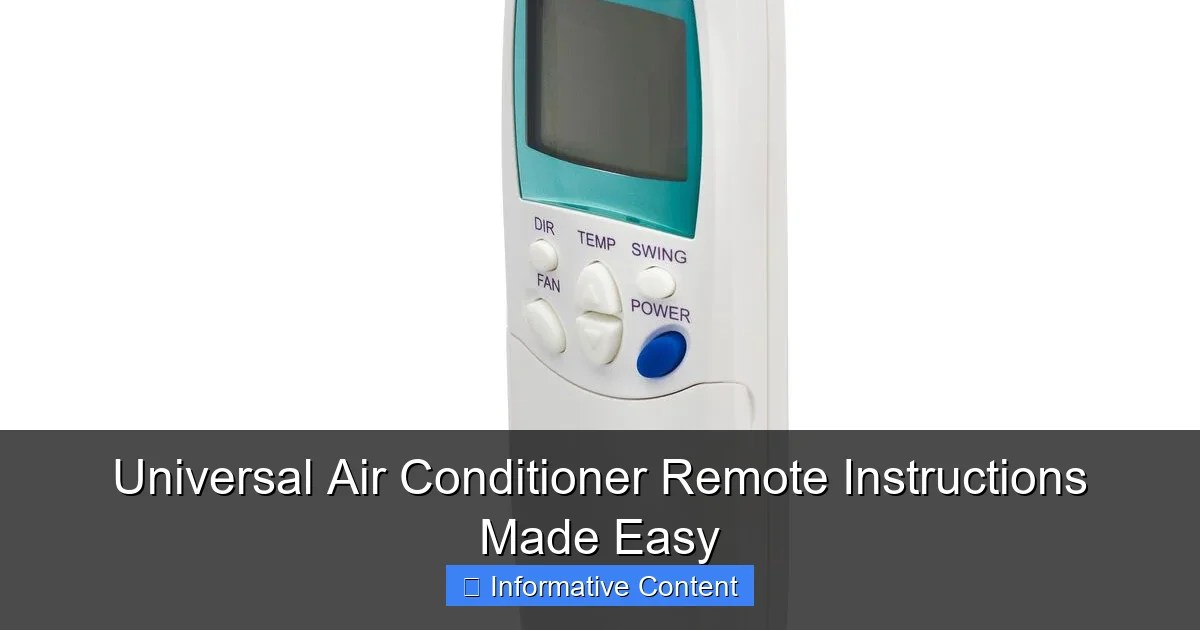
Featured image for universal air conditioner remote instructions
Image source: digitalassets.reecegroup.com.au
Mastering your universal air conditioner remote has never been simpler—this guide breaks down setup, programming, and troubleshooting in clear, step-by-step instructions. Whether you’ve lost your original remote or upgraded your unit, you’ll quickly sync and control your AC with confidence, enjoying seamless comfort without the hassle.
Key Takeaways
- Check compatibility first: Ensure the universal remote supports your AC brand and model.
- Use the code search method: Enter setup mode and test codes until the AC responds.
- Try auto-scan for faster setup: Let the remote automatically find the correct code.
- Keep the manual handy: Refer to it for model-specific codes and troubleshooting tips.
- Test all functions after pairing: Confirm cooling, heating, fan, and timer work properly.
- Reset if issues occur: Power cycle the remote and AC to clear glitches.
📑 Table of Contents
- Why You Need a Universal Air Conditioner Remote (And How to Use It)
- What Is a Universal Air Conditioner Remote?
- How to Choose the Right Universal Remote for Your AC
- Step-by-Step Universal Air Conditioner Remote Instructions
- Troubleshooting Common Universal Remote Issues
- Advanced Tips to Get the Most Out of Your Universal Remote
- Final Thoughts: Make Your Universal Remote Work for You
Why You Need a Universal Air Conditioner Remote (And How to Use It)
Let’s be honest—nothing’s more frustrating than losing your air conditioner remote. One minute it’s on the coffee table, the next it’s vanished into the void (probably under the couch with the missing socks). You’re sweating, your AC is stuck on full blast, and you’re ready to give up on modern life altogether. That’s where a universal air conditioner remote comes in. It’s not just a replacement—it’s a lifesaver. Whether your original remote broke, got lost, or your AC brand isn’t supported by standard remotes, a universal remote can save the day.
But here’s the thing: universal remotes aren’t always plug-and-play. Some require a bit of setup, and if you’ve never used one before, it can feel like you’re decoding a secret message. I remember the first time I tried to pair a universal remote with my old LG unit. I spent 20 minutes pressing every button, only to realize I had to enter a code from a 40-page manual. Not fun. The good news? It doesn’t have to be this way. With the right instructions, a universal air conditioner remote can be easy to set up, reliable, and even more convenient than the original. In this guide, we’ll walk you through everything—from choosing the right remote to programming it, troubleshooting, and getting the most out of its features.
What Is a Universal Air Conditioner Remote?
Understanding the Basics
A universal air conditioner remote is a single remote control that can operate multiple AC brands and models. Unlike your original remote, which is designed specifically for one unit, a universal remote uses a library of infrared (IR) codes to communicate with different brands like Daikin, Carrier, Samsung, Mitsubishi, and more. Think of it as a “one remote to rule them all” situation—but for your cooling needs.
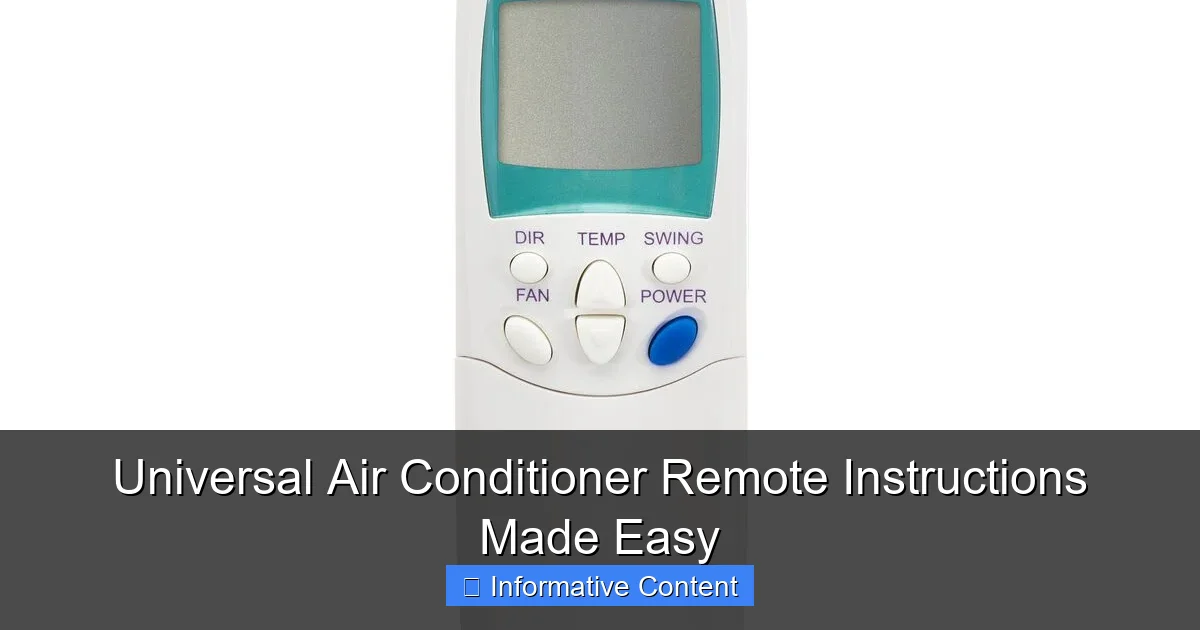
Visual guide about universal air conditioner remote instructions
Image source: digitalassets.reecegroup.com.au
The magic lies in its code database. When you program the remote, it matches your AC’s brand and model with the correct IR signal. This means you can control temperature, fan speed, timer, sleep mode, and other features just like the original remote. Some advanced models even support Wi-Fi or Bluetooth, allowing you to control your AC from your phone (but we’ll get to that later).
Who Should Use One?
- Lost or broken remotes: If your original remote is MIA or the buttons stopped working, a universal remote is a cost-effective fix.
- Multiple AC units: Got a split system with different brands? One universal remote can control all of them.
- Renters or travelers: Instead of carrying multiple remotes, pack one universal remote for different ACs in hotels or rental homes.
- Tech-savvy users: Want smart features like scheduling or app control? Some universal remotes offer that too.
Pro tip: Not all universal remotes are created equal. Some work with 100+ brands, while others support only a handful. Always check compatibility before buying. Look for remotes that explicitly list your AC brand and model in the product description.
How to Choose the Right Universal Remote for Your AC
Step 1: Check Compatibility
This is the golden rule. Before buying, verify that the remote supports your AC brand. For example:
- Popular brands: LG, Samsung, Panasonic, Mitsubishi, Daikin, Carrier, York, Fujitsu, etc.
- Less common brands: Some remotes may not support niche or older models (e.g., a 1990s Carrier unit).
Most universal remotes list compatible brands on the packaging or product page. If you’re unsure, contact the seller. Better safe than sorry!
Step 2: Decide on Features
Universal remotes come in different “flavors.” Here’s what to consider:
- Basic remotes: Simple, affordable, and great for basic functions (temperature, fan speed, power). Ideal if you just need a replacement.
- Advanced remotes: Include extras like timer, sleep mode, turbo cooling, and even humidity control. Perfect for users who want more control.
- Smart remotes: Connect to Wi-Fi or Bluetooth. Use a smartphone app to control your AC remotely (e.g., turn it on before you get home). Great for tech lovers, but pricier.
Example: I once bought a basic remote for my dad’s old AC. It worked fine—but when his unit’s timer feature broke, he had to manually turn it off at night. A remote with a built-in timer would’ve been a better choice.
Step 3: Read Reviews (and Watch Videos)
Real-world feedback is invaluable. Look for reviews that mention:
- Ease of setup: “Took 5 minutes to program” vs. “Spent an hour troubleshooting.”
- Build quality: Are the buttons sturdy? Is the screen readable in sunlight?
- Battery life: Some remotes drain batteries fast. Opt for models with energy-saving features.
Bonus: Search YouTube for setup videos. Seeing someone else program the remote can save you hours of frustration.
Step-by-Step Universal Air Conditioner Remote Instructions
Method 1: Auto-Search Programming (The Easy Way)
This method is the most user-friendly. The remote automatically scans through its code library until it finds the right one for your AC. Here’s how:
- Insert batteries: Use fresh AA or AAA batteries. Weak batteries can cause programming issues.
- Turn on your AC: Use the unit’s manual power button (not the remote).
- Point the remote at the AC: Hold it about 3–6 feet away.
- Press and hold the “SET” or “CODE SEARCH” button: On most remotes, this is labeled clearly.
- Wait for the remote to cycle through codes: You’ll see the AC’s power light blink or hear a beep. When the AC turns off, release the button immediately.
- Test the remote: Press the power button. If the AC turns on, you’re done! If not, repeat the process.
Tip: If the AC doesn’t respond, try moving closer or farther away. Obstructions (like a TV) can block the IR signal.
Method 2: Manual Code Entry (For Specific Models)
If auto-search doesn’t work (or you know your AC’s code), try manual entry:
- Find your AC’s code: Check the remote’s manual. Codes are often listed by brand (e.g., “LG: 001, 002, 003”).
- Enter the code: Press the “SET” button, then type the 3- or 4-digit code using the number pad.
- Press “POWER” to test: If the AC responds, save the code. If not, try the next code in the list.
Example: My Samsung AC uses code “005.” I entered it, pressed “POWER,” and the unit turned on instantly. Easy!
Method 3: Brand-Specific Shortcuts
Some remotes have dedicated buttons for popular brands. For instance:
- Press “LG” → “SET” → “POWER” to program for LG units.
- Press “SAMSUNG” → “SET” → “POWER” for Samsung.
This skips the code search and is perfect if your brand is listed. Just check your remote’s manual for these shortcuts.
Troubleshooting Common Universal Remote Issues
“My Remote Isn’t Responding!”
Don’t panic—this is fixable. Here are the most common causes and solutions:
- Weak batteries: Replace them with fresh ones. Even if the remote lights up, low battery power can weaken the IR signal.
- Obstructed IR sensor: Make sure nothing is blocking the AC’s sensor (e.g., furniture, curtains). The remote’s IR beam needs a clear path.
- Wrong code: If auto-search failed, try manual entry with a different code. Some brands have multiple codes for the same model.
- Distance: Stay within 15–20 feet of the AC. IR signals don’t work through walls or long distances.
“Buttons Work, But Features Are Missing”
Universal remotes don’t always support every feature of your AC. For example:
- Your AC has a “Jet Cool” mode, but the remote lacks that button.
- The remote has a timer, but it’s not programmable.
Solution: Check your remote’s manual for feature limitations. If a feature is missing, you might need to:
- Use the AC’s manual controls for that feature.
- Upgrade to a remote with more advanced functionality.
“The Remote Works, But It’s Unresponsive Sometimes”
This usually happens due to:
- Interference: Other IR devices (TV, soundbar) can “steal” the signal. Point the remote directly at the AC and avoid aiming it at other electronics.
- Sunlight: Bright sunlight can overwhelm the AC’s IR sensor. Try programming at night or cover the sensor temporarily.
- Worn-out buttons: If a button feels “mushy,” the remote might be old. Time for a replacement.
Advanced Tips to Get the Most Out of Your Universal Remote
Use the Timer for Energy Savings
Most universal remotes have a timer function. Use it to:
- Auto-shutoff: Set the AC to turn off after 1–8 hours. No more waking up to a freezing room!
- Auto-on: Program the AC to turn on 30 minutes before you get home. Walk into a cool house every time.
Example: I set my remote to turn off the AC at 2 AM (I’m a light sleeper). It saves energy and keeps me comfortable.
Customize Button Layouts (If Supported)
Some advanced remotes let you reprogram buttons. For instance:
- Assign the “TURBO” button to “FAN SPEED HIGH.”
- Turn the “SWING” button into a “MODE” toggle.
Check your manual for customization options. It’s a small tweak that can make a big difference in usability.
Pair with a Smart Hub (Optional)
If your remote supports Wi-Fi or Bluetooth:
- Use an app to control your AC from anywhere.
- Set schedules based on weather forecasts.
- Integrate with voice assistants (e.g., “Alexa, turn on the AC”).
Note: Smart features require a stable internet connection. They’re great for convenience but add complexity (and cost).
Data Table: Universal Remote Comparison
| Remote Model | Compatible Brands | Key Features | Price Range | Best For |
|---|---|---|---|---|
| One For All URC-7960 | LG, Samsung, Panasonic, Daikin, 100+ more | Auto-search, timer, sleep mode | $15–$25 | Budget replacement |
| Logitech Harmony 665 | All major brands + smart home devices | Customizable buttons, app control | $50–$70 | Tech enthusiasts |
| GE 33709 | Carrier, York, Mitsubishi, 50+ brands | Backlit buttons, turbo cooling | $20–$30 | Night use |
| Broadlink RM4 Mini | Universal + Wi-Fi/Bluetooth | App control, voice assistants | $30–$40 | Smart home integration |
Final Thoughts: Make Your Universal Remote Work for You
A universal air conditioner remote isn’t just a replacement—it’s an upgrade. It solves the pain of lost or broken remotes, simplifies control of multiple ACs, and even adds smart features you might not have had before. The key is choosing the right remote for your needs and following the universal air conditioner remote instructions carefully. Whether you use auto-search, manual codes, or brand shortcuts, the process is easier than you think.
Remember: patience is your friend. If the first method doesn’t work, try another. And if you’re still stuck, reach out to the manufacturer. Most offer online support or phone help. With the right approach, you’ll be back to cool, comfortable living in no time. So next time your remote goes missing, don’t sweat it—grab a universal remote and get back in control. After all, staying cool should be simple, not stressful.
Frequently Asked Questions
How do I program my universal air conditioner remote?
To program your universal air conditioner remote, first identify your AC brand’s code from the included manual. Enter the code manually or use the auto-scan feature to sync the remote with your unit. Test basic functions like power and temperature to confirm success.
Why isn’t my universal remote working with my AC unit?
Ensure the remote is set to the correct brand code and has fresh batteries. If issues persist, re-pair the remote using the “reset” button or consult the universal air conditioner remote instructions for troubleshooting steps specific to your model.
Can I use one universal remote for multiple AC units?
Yes, most universal remotes can control multiple ACs, but you’ll need to program each unit separately using its brand code. Switch between units by selecting the correct device mode (e.g., “AC1” or “AC2”) on the remote.
What do I do if my remote’s display is blank?
Replace the batteries first, as a blank screen often indicates power issues. If the problem continues, check for physical damage or reset the remote using the small pinhole button, as outlined in your universal air conditioner remote instructions.
How do I adjust the timer or sleep mode on my universal remote?
Press the “Timer” or “Sleep” button (often labeled with a clock or moon icon) and use the arrow keys to set the duration. Refer to your model’s instructions for exact steps, as button layouts vary.
Where can I find replacement codes for my universal remote?
Check the manufacturer’s website or contact customer support for a full list of AC brand codes. Some remotes also auto-generate codes—hold the “Set” button until the AC responds to discover the correct one.