Nest Thermostat Installation 2 Wire
Installing a Nest Thermostat with two wires can be easy. This guide will help you understand how to do it. We will explain everything step by step. You will learn about tools, preparation, and the installation process. Let’s get started!
What is a Nest Thermostat?
A Nest Thermostat is a smart device. It helps you control your home temperature. You can adjust it from your phone or tablet. It can save energy and keep your home comfortable.
Why Use a 2-Wire System?
Many older heating systems use a 2-wire setup. This type of system is simple. It uses two wires to connect the thermostat to the heating system. This is often the best choice for basic heating systems.
Tools You Will Need
Before you start, gather these tools:
Screwdriver (flat and Phillips)
Drill (if needed)
Wire strippers
Level
Tape measure
Pencil
Smartphone or tablet
Compatibility Check
Before wiring, verify that your heating system is compatible with a 2‑wire Nest installation. Most gas‑forced‑air furnaces and boiler zones work, but heat‑pump or multi‑stage systems may require a C‑wire or additional adapters. Consult the Nest compatibility tool or your furnace manual for confirmation.
Learn how HVAC systems differ from standard AC to understand when a C‑wire becomes necessary.
Preparing for Installation
Now that you have your tools, let’s prepare for installation:
Turn off the power to your heating system. This is very important.
Remove the old thermostat. Take a picture of the wires connected to it. This helps you remember.
Label the wires. Use tape to mark each wire with its letter. This makes it easier later.
Safety Precautions
Always double‑check that the breaker is off with a non‑contact voltage tester before touching any wires. Wear insulated gloves if the wiring is old or brittle. Keep a flashlight handy for dimly lit utility closets.
https://www.youtube.com/watch?v=FodDVX2VDGo
Understanding the Wires
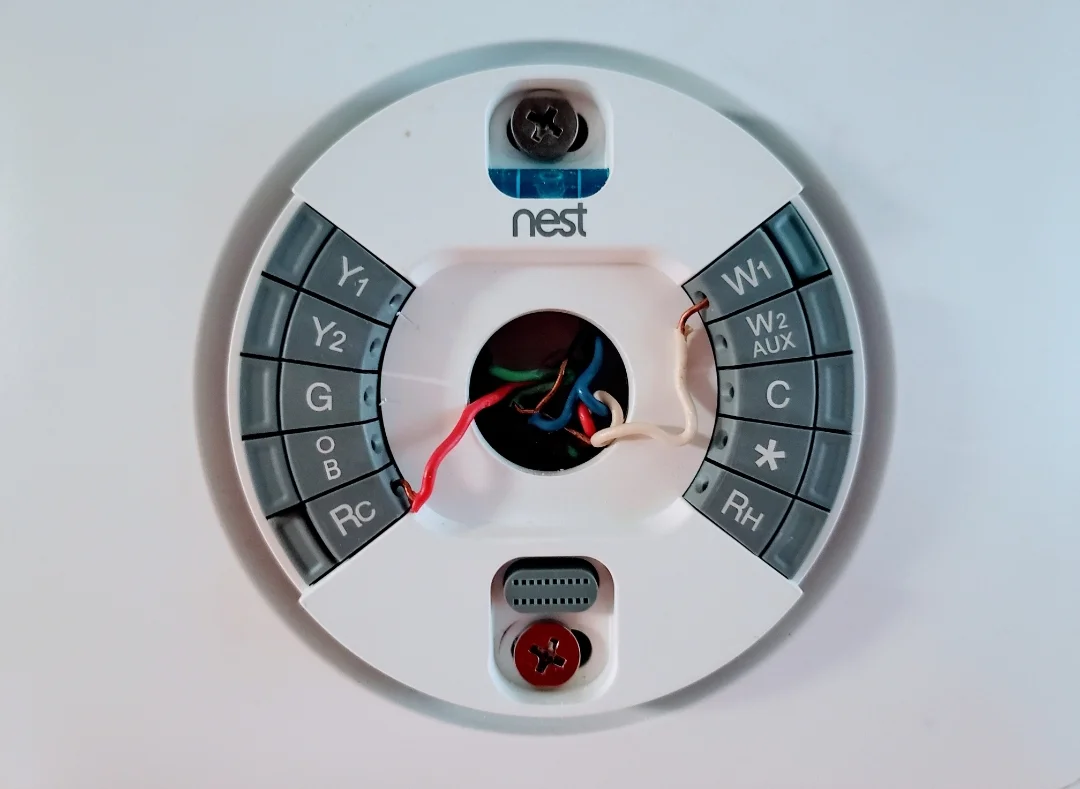
In a 2-wire system, you will usually find two wires:
R wire (Red) – This is the power wire.
W wire (White) – This is the heating wire.
Make sure you identify these wires correctly. Knowing which wire is which will help during installation.
Wiring Diagram Reference
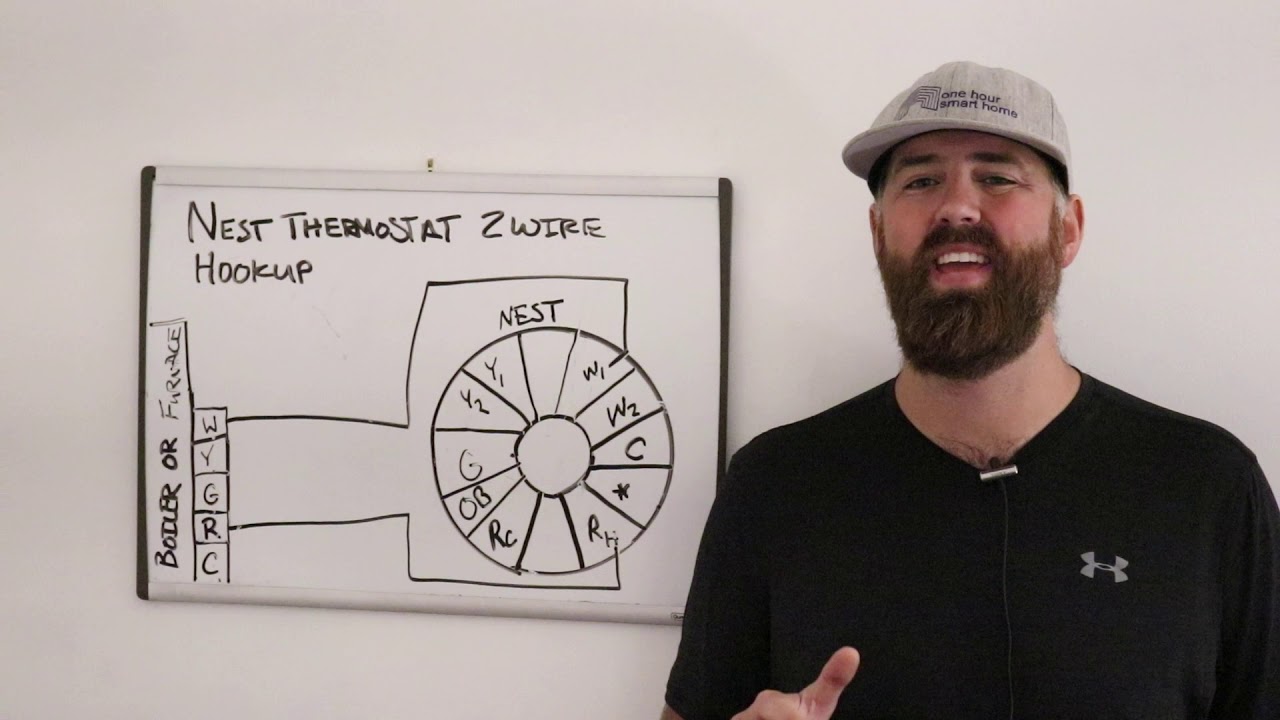
A simple schematic: R → R terminal, W → W terminal. No C‑wire, no Y or G wires. If your system includes a fan‑only wire (G), you’ll need a different Nest model or a professional install.
See a full split‑AC installation guide for comparison.
Installing the Nest Thermostat
Now it is time to install the Nest Thermostat:
Take the Nest Thermostat out of the box. Look at the back of the thermostat.
Push the wires through the back plate of the thermostat.
Connect the wires to the correct terminals:
Connect the R wire to the R terminal.
Connect the W wire to the W terminal.
Make sure the connections are tight. This helps the thermostat work well.
Attach the back plate to the wall. Use screws to secure it.
Push the thermostat onto the back plate. It should click into place.
Securing the Base Plate
Use the included level to ensure the base plate is perfectly horizontal; a tilted plate can cause the display to sit crooked. Tighten screws just enough to hold firmly — overtightening can crack the plastic housing.
Review central AC installation steps for similar mounting tips.
Powering On
Now, it is time to turn the power back on:
Go to your circuit breaker.
Turn the power back on for your heating system.
Once the power is on, the Nest Thermostat should light up. If it does not, check the connections again.
Verifying Power
After the breaker is flipped, the Nest ring should pulse white, then transition to the language‑selection screen. If the ring stays dark, re‑check the R and W terminals for a solid copper‑to‑copper contact.
Explore AC installation best practices for power verification.
Setting Up the Nest Thermostat
After the thermostat powers on, it will guide you through setup:
Select your language. Use the dial to scroll through options.
Connect the thermostat to your Wi‑Fi. This allows you to control it from your phone.
Follow the on-screen instructions. The thermostat will ask questions about your heating system.
 Screenshot of the initial Nest setup wizard on the device display.
Configuring Advanced Settings
Once basic setup finishes, open the Nest app → Settings → Heat Pump Balance, Early‑On, and Safety Temperature to tailor performance. Enabling Eco Temperatures can cut heating bills by up to 10 % in typical homes (per Energy Star guidance).
Check seasonal maintenance tips to keep the system efficient year‑round.
Testing the Thermostat
After setup, it is important to test the thermostat:
Adjust the temperature using the dial.
Wait a few minutes to see if the heating turns on.
If it works, you are done!
Fine‑Tuning Temperature Schedules
Create a weekly schedule in the app: lower the setpoint 2‑3 °F during sleep hours and raise it 30 minutes before wake‑up. The Nest “Learning” mode will adapt after a few days, but a manual schedule gives immediate savings.
Ready to optimize your heating schedule? Set up your Nest app today.
Common Issues and Fixes
Sometimes, you may face issues. Here are some common problems and their solutions:
Thermostat does not turn on: Check if the power is on.
Wires are loose: Make sure all connections are tight.
Wi‑Fi connection fails: Check your Wi‑Fi settings.
Advanced Troubleshooting
- Short‑cycling furnace – verify the W wire isn’t touching the R terminal; a stray strand can cause rapid on/off cycles.
- No heat after power‑cycle – ensure the furnace’s limit switch isn’t tripped; reset per manufacturer instructions.
- App shows “Offline” – reboot the router, then restart the Nest by holding the ring for 10 seconds.
Reference official Nest support for firmware updates.
Tips for Using Your Nest Thermostat
Here are some tips to help you use your Nest Thermostat:
Set a schedule for your heating. This can save energy.
Use the app on your phone to control the thermostat.
Check the energy history. This shows you how much energy you use.
Energy‑Saving Strategies
- Enable Home/Away Assist so the thermostat lowers temperature when phones leave the geo‑fence.
- Use Seasonal Savings (auto‑adjusts setpoints by 1 °F each week).
- Pair with a smart vent or zone controller for room‑level control.
Discover innovative air‑conditioning systems that complement smart thermostats.
Conclusion
Installing a Nest Thermostat with a 2-wire system is simple. By following these steps, you can do it yourself. Remember to take your time and check your work. A properly installed thermostat can keep your home comfortable. It can also save you money. Enjoy your new Nest Thermostat!
Frequently Asked Questions
Can I install a Nest Thermostat on a 2‑wire system without a C‑wire?
Yes. The Nest Thermostat E and 3rd‑gen Nest Learning Thermostat can power‑steal from the R/W loop on most single‑stage heating systems. If the battery drains, add a 24 V transformer or a Nest Power Connector.
What if my furnace has a fan (G) wire but I only have two wires?
A 2‑wire Nest cannot control the fan independently. You would need a thermostat that supports a G wire or run a new cable. Consult an HVAC pro for a proper 3‑wire or 4‑wire install.
Does the Nest work with high‑voltage (120 V) baseboard heaters?
No. Nest thermostats are designed for low‑voltage (24 V) control circuits. High‑voltage line‑voltage thermostats are required for electric baseboards.
How do I reset the Nest if it freezes during setup?
Press and hold the outer ring for about 10 seconds until the screen goes black, then release. The device will reboot and restart the setup wizard.
Will a 2‑wire Nest still provide energy‑history reports?
Absolutely. Energy History and Home Report rely on runtime data from the heating call (W wire), which is captured even on a 2‑wire connection.
Can I use the Nest app to control multiple zones each with a 2‑wire thermostat?
Yes. Each zone gets its own Nest; the app manages them independently. Ensure each zone’s wiring matches the 2‑wire pattern described here.