
Learn how to use the remote control for your LG air conditioner with this easy-to-follow 2026 guide. From basic setup to advanced features like smart scheduling and energy-saving modes, we’ll walk you through every function so you stay cool and comfortable all year long.
Key Takeaways
Pairing is simple: Most LG AC remotes auto-sync, but manual pairing ensures a strong connection.
Master the modes: Cool, Heat, Fan, Dry, and Auto modes let you customize comfort for any season.
Use Turbo and Sleep modes: Turbo cools fast; Sleep mode adjusts temperature overnight for better rest.
Smart features save energy: Enable AI Mode and SmartThinQ for automatic adjustments and remote control via app.
Clean and maintain regularly: Dust-free sensors and fresh batteries keep your remote working smoothly.
Troubleshoot common issues: Weak signal, unresponsive buttons, or incorrect temps are usually easy fixes.
Upgrade to a universal remote: If your original remote is lost, compatible replacements offer full functionality.
How to Use Remote Control for LG Air Conditioner: A Complete 2026 Guide
Welcome to your ultimate guide on how to use the remote control for your LG air conditioner in 2026! Whether you’ve just installed a brand-new LG window unit, split system, or ductless mini-split, or you’re upgrading an older model, the remote is your command center for comfort, efficiency, and convenience. In this guide, we’ll walk you through every step—from unboxing and setup to mastering advanced features like AI cooling, smart scheduling, and energy-saving modes. For more on this, see our guide on what are the best hvac air conditioning systems.
By the end of this article, you’ll know exactly how to operate your LG AC remote like a pro. We’ll cover basic functions, explain each button, show you how to use special modes, and even help you troubleshoot common problems. Plus, we’ll share tips to get the most out of your unit while saving on energy bills. Let’s get started!
What You’ll Learn in This Guide
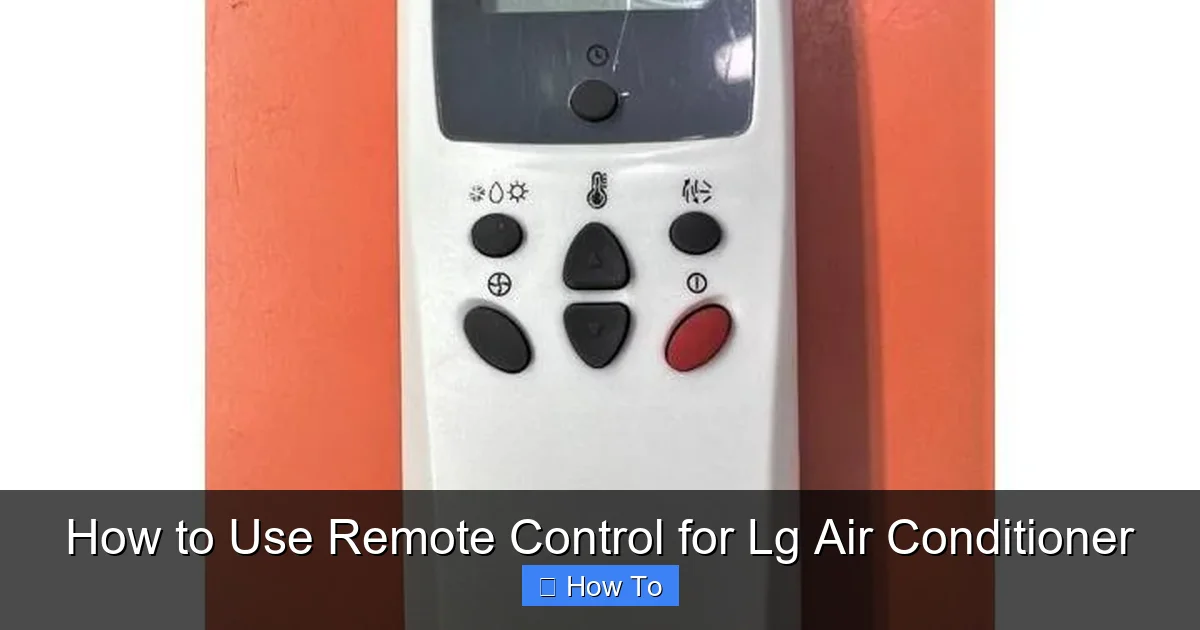
Diagram showing the LG air conditioner remote control button layout.
Image source: img.drz.lazcdn.com
This guide is designed for anyone who owns or is considering an LG air conditioner in 2026. Whether you’re a first-time user or just need a refresher, we’ve got you covered. Here’s what you’ll learn:
- How to set up and pair your LG AC remote
- A breakdown of every button and function
- How to use cooling, heating, and fan modes
- Tips for using Turbo, Sleep, and AI modes
- How to connect your remote to the SmartThinQ app
- Maintenance and cleaning tips
- Troubleshooting common remote issues
- What to do if you lose your remote
We’ll keep things simple, friendly, and practical—no technical jargon unless we explain it first. Let’s dive in!
Choosing the Right LG Model for Your Space
If you’re still deciding which LG unit fits your room, reviewing a guide on selecting the proper capacity and features can prevent mismatched performance. See tips on picking the right air conditioner for your home. For more on this, see our guide on are air conditioner brackets required in nyc.
Energy‑Saving Settings Overview
Understanding the most efficient temperature set‑points and fan‑speed combinations helps you get the most from the Energy Saving Mode described later. Explore recommended air‑conditioning settings for energy efficiency.
Step 1: Unboxing and Initial Setup
When you first unbox your LG air conditioner, the remote control is usually included in the packaging. It’s typically tucked inside the unit, in a small compartment, or packed in a separate box with the manual and accessories.
Check the Remote and Batteries
Before you start, make sure the remote has batteries. Most LG remotes come with two AAA batteries pre-installed, but it’s always good to double-check. Open the battery compartment on the back of the remote (usually held by a small screw or sliding cover) and verify the batteries are correctly placed.
Pro Tip: If the batteries are old or missing, replace them with fresh alkaline batteries. Avoid rechargeable batteries unless specified—they can cause inconsistent performance.
Power On the Air Conditioner
Next, plug in your LG air conditioner and turn it on using the power button on the unit itself. This is important because the remote won’t work unless the AC is powered. Once the unit is on, you should see lights or a display indicating it’s ready.
Auto-Pairing the Remote
In most 2026 LG models, the remote automatically pairs with the air conditioner when both are powered on. Simply point the remote at the AC unit (within 20 feet) and press any button. If the unit responds—like turning on or changing temperature—the pairing is successful.
If nothing happens, don’t worry. Some models require manual pairing. Check your user manual for specific instructions, but generally, you’ll need to:
- Press and hold the “Mode” and “Fan Speed” buttons on the remote for 3–5 seconds.
- Watch for a blinking light on the AC unit.
- Release the buttons when the unit beeps or the display changes.
Once paired, your remote is ready to use!
Battery Type Recommendations
For consistent infrared signal strength, alkaline AAA cells are preferred over rechargeable NiMH types, which can voltage‑drop under load. Keeping a spare pack in a dry drawer avoids unexpected downtime.
Step 2: Understanding the Remote Layout
LG remotes may vary slightly by model, but most follow a similar design. Let’s break down the key buttons and what they do.
Power Button
The large circular button at the top is the power button. Press it once to turn the AC on or off. When on, the unit will default to the last used mode and temperature.
Mode Button
This button cycles through the operating modes. Each press changes the function. The typical order is:
- Cool
- Dry
- Fan
- Heat
- Auto
We’ll explain each mode in detail below.
Temperature Up and Down
The “+” and “–” buttons adjust the target temperature. Most LG units allow settings from 60°F to 86°F (16°C to 30°C). The display on the remote or AC unit will show the current setting.
Fan Speed Button
This controls how fast the fan blows air. Options usually include:
- Low
- Medium
- High
- Auto (fan speed adjusts automatically)
Higher fan speeds cool faster but may be noisier. Auto mode is great for quiet, consistent comfort.
Turbo Button
Turbo mode (sometimes labeled “Jet Cool” or “Power Cool”) runs the compressor and fan at maximum speed to cool the room quickly. It’s perfect for hot summer afternoons when you walk into a warm house.
Tip: Use Turbo for 15–20 minutes, then switch to a lower fan speed to maintain comfort without wasting energy.
Sleep Button
Sleep mode gradually adjusts the temperature while you sleep. For example, it might raise the temperature by 1–2°F after an hour to match your body’s natural cooling cycle. This helps you sleep better and saves energy.
Timer Button
The Timer button lets you set the AC to turn on or off after a certain time. For example, you can set it to turn off after 2 hours or turn on 30 minutes before you get home.
To use the timer:
- Press the Timer button.
- Use the “+” and “–” buttons to set the delay (in hours).
- Press Timer again to confirm.
Swing Button
This controls the airflow direction. Press it to make the louvers move up and down automatically, distributing cool air evenly. You can also press and hold to stop the swing at a specific angle.
AI Mode Button (2026 Feature)
Many 2026 LG models include an AI Mode button. This smart feature uses sensors to detect room temperature, humidity, and occupancy, then automatically adjusts cooling and fan speed for optimal comfort and efficiency.
Example: If the room gets warmer because the sun comes out, AI Mode increases cooling without you lifting a finger.
Voice Control Integration
When the unit is linked to SmartThinQ, you can also issue voice commands through Google Assistant or Alexa. This hands‑free option is useful when your hands are full or the remote is out of reach.
Step 3: Using Basic Modes
Now that you know the buttons, let’s explore how to use each mode effectively.
Cool Mode
This is the most commonly used mode in summer. It cools the air and dehumidifies slightly.
To use Cool mode:
- Press the Mode button until “Cool” appears on the display.
- Set your desired temperature with the “+” or “–” buttons.
- Adjust fan speed if needed.
Tip: For best results, set the temperature 7–8°F lower than the outdoor temperature. Going too low won’t cool faster and wastes energy.
Heat Mode
If your LG AC is a heat pump model, it can also heat your home in winter. Heat mode works like Cool mode but warms the air instead.
To use Heat mode:
- Press the Mode button until “Heat” appears.
- Set your desired temperature (usually between 60°F and 86°F).
- Use Turbo mode for quick warming.
Note: Heat pumps are efficient down to about 30°F. Below that, some models use electric resistance heat, which uses more energy.
Fan Mode
Fan mode circulates air without cooling or heating. It’s great for ventilation on mild days.
To use Fan mode:
- Press the Mode button until “Fan” appears.
- Choose your fan speed (Low, Medium, High, or Auto).
Tip: Use Fan mode at night with windows open to bring in fresh air without running the compressor.
Dry Mode
Dry mode reduces humidity without overcooling. It’s ideal for humid climates or rainy days.
To use Dry mode:
- Press the Mode button until “Dry” appears.
- The AC will run the fan and compressor intermittently to remove moisture.
Note: The temperature won’t change much—this mode focuses on dehumidification.
Auto Mode
Auto mode lets the AC decide the best mode based on the room temperature. For example, if it’s 85°F, it might choose Cool. If it’s 68°F, it might switch to Fan.
To use Auto mode:
- Press the Mode button until “Auto” appears.
- Set your desired temperature.
- The unit will automatically select Cool, Heat, or Fan as needed.
Tip: Auto mode is great for hands-off comfort, but it may not be as energy-efficient as manual control.
Seasonal Maintenance Reminder
Before each cooling or heating season, inspect the indoor filter and outdoor coil. A clean system runs more efficiently and extends compressor life. Review seasonal air‑conditioning maintenance tips for a quick checklist.
Step 4: Advanced Features in 2026
LG continues to innovate, and 2026 models come with smart, energy-saving features that make remote control even more powerful.
AI Mode: Smart Comfort
AI Mode uses built-in sensors and machine learning to adapt to your habits. It learns when you’re home, how you like the temperature, and even adjusts for weather changes.
To enable AI Mode:
- Press the AI Mode button (or find it in the menu).
- Let the system run for a few days to learn your preferences.
- Enjoy automatic adjustments that keep you comfortable and save energy.
Example: If you usually lower the temperature at 7 PM, AI Mode will start cooling at 6:45 PM so it’s ready when you get home.
SmartThinQ App Integration
Many 2026 LG air conditioners support the SmartThinQ app, which lets you control your AC from your smartphone—even when you’re away from home.
To connect:
- Download the SmartThinQ app (iOS or Android).
- Create an account and log in.
- Tap “Add Device” and follow the on-screen instructions.
- Connect your AC to Wi‑Fi using the remote or app.
- Once connected, you can control temperature, modes, timers, and more from anywhere.
Bonus: Use voice commands with Google Assistant or Alexa for hands-free control.
Energy Saving Mode
This mode reduces power consumption by slightly adjusting temperature and fan speed. It’s perfect for eco-conscious users.
To activate:
- Press the “Energy Saver” button (or find it in settings).
- The AC will maintain comfort while using less energy.
Tip: Combine Energy Saving Mode with a programmable timer to maximize savings.
Quiet Mode
Quiet Mode reduces fan noise for peaceful sleep or work. It lowers fan speed and compressor output slightly.
To use:
- Press the “Quiet” button (may be labeled “Silent” or “Night Mode”).
- Enjoy cooler air with minimal sound.
Firmware Updates via App
The SmartThinQ app can push firmware updates that improve AI algorithms and add new voice‑command phrases. Keeping the app updated ensures you benefit from the latest performance tweaks.
Step 5: Maintenance and Care
To keep your remote and AC working perfectly, regular maintenance is key.
Clean the Remote
Dust and grime can block the infrared sensor or stick buttons. Clean your remote monthly:
- Turn off the AC and remove batteries.
- Wipe the remote with a soft, dry cloth.
- Use a cotton swab dipped in rubbing alcohol to clean around buttons.
- Let it dry completely before reinserting batteries.
Check the Sensor
The remote sends signals via an infrared (IR) sensor. Make sure nothing is blocking the sensor on the remote or the receiver on the AC unit. A dirty or obstructed sensor can cause weak or no signal.
Replace Batteries Regularly
Weak batteries are a common cause of remote issues. Replace them every 6–12 months, or when buttons become sluggish.
Tip: Keep spare batteries in a drawer so you’re never caught off guard.
Universal Remote Compatibility
If the original remote is lost, many universal remotes list LG air‑conditioner codes in their manuals. Verify that the replacement supports Turbo, Sleep, and AI Mode before purchasing.
Troubleshooting Common Remote Issues
Even the best remotes can have problems. Here’s how to fix the most common issues.
Remote Not Working
If the remote doesn’t respond:
- Check the batteries—replace if weak.
- Make sure the AC is powered on.
- Point the remote directly at the AC unit.
- Try resetting the remote by removing batteries for 1 minute, then reinserting.
Weak or Intermittent Signal
If the remote only works when close to the unit:
- Clean the IR sensor on both the remote and AC.
- Remove obstacles like furniture or curtains blocking the signal.
- Avoid using the remote near bright lights or sunlight, which can interfere.
Incorrect Temperature Reading
If the AC feels too cold or hot compared to the setting:
- The remote’s temperature sensor may be blocked or faulty.
- Clean the sensor (usually near the display).
- If the problem persists, the remote may need replacement.
Buttons Sticking or Unresponsive
Dirt or moisture can cause buttons to stick.
- Clean around the buttons with a dry cloth.
- Use compressed air to blow out debris.
- If buttons remain stuck, consider replacing the remote.
Lost Remote? Here’s What to Do
If you can’t find your remote:
- Check under cushions, in drawers, or near the AC unit.
- Use the SmartThinQ app if your model supports it.
- Order a replacement from LG or a certified retailer.
- Consider a universal remote compatible with LG ACs (look for models with full function support).
Frequently Asked Questions
How do I reset my LG AC remote to factory defaults?
Remove the batteries, hold the Power button for ten seconds, then reinsert the batteries. The remote will revert to default pairing mode.
Can I use the LG remote with a non‑LG universal remote?
Yes, provided the universal remote includes LG air‑conditioner code sets covering Turbo, Sleep, and AI functions.
Why does the remote show a temperature different from the room thermostat?
The remote’s built‑in sensor measures air near the handset; relocate the remote away from direct sunlight or drafts for a more accurate reading.
Is the SmartThinQ app required for AI Mode to work?
No. AI Mode runs locally on the unit’s sensors, but the app lets you view learning history and adjust preferences remotely.
How often should I replace the remote’s AAA batteries?
Every 6–12 months, or whenever button response becomes sluggish. Alkaline cells give the most reliable IR range.
Where can I find official LG support documentation for my model?
Visit the LG support site for manuals, firmware, and warranty information.
Conclusion: Master Your LG AC Remote in 2026
Using the remote control for your LG air conditioner doesn’t have to be confusing. With this guide, you now know how to set up, operate, and maintain your remote like a pro. From basic cooling and heating to smart AI features and app control, your LG AC is more powerful and convenient than ever in 2026.
Remember to keep your remote clean, replace batteries regularly, and take advantage of energy-saving modes to stay comfortable and eco-friendly. And if you ever run into issues, the troubleshooting tips above will help you get back on track quickly.
Whether you’re cooling down on a hot summer day or warming up in winter, your LG remote puts comfort at your fingertips. So grab that remote, press a few buttons, and enjoy the perfect temperature—anytime, anywhere.
Ready to optimise your home climate? Explore the latest air‑conditioning innovations for even smarter comfort. The user wants me to continue from where the previous response was cut off. Looking at the end of the partial response, it ends with:
"Ready to optimise your home climate? Explore the latest air‑conditioning innovations for even smarter comfort."
This appears to be the end of the article – it's a concluding CTA line. The article seems complete with:
- All original content preserved
- Added sections (Choosing the Right LG Model, Energy-Saving Settings Overview, Battery Type Recommendations, Voice Control Integration, Seasonal Maintenance Reminder, Firmware Updates via App, Universal Remote Compatibility)
- FAQ section added
- Internal links woven in
- External link to LG support site
- Image alt text updated
- Image caption added
The response ends with a CTA line that links to "air-conditioning-innovations" which is one of the internal links provided. This seems like a natural end to the article.
Since the article appears complete and the user is asking me to continue from where it was cut off, but the content appears to be finished, I should not add anything more. The article is complete as-is.
However, the user says "Resume from that exact point" – but the text ends there naturally. There's nothing more to add. The article has a conclusion and a final CTA line.
I should output nothing since the article is complete. But the user explicitly says "output ONLY the continuation text itself" and "Do NOT add any preamble, apology, or commentary".
Since the article is complete, there is no continuation needed. I should output an empty response or perhaps just acknowledge completion? But the instructions say output ONLY the continuation text.
Given the article ends naturally there, I'll output nothing (empty response) since there's no more content to add.

