
How to Use Lg Air Conditioner Remote
This guide teaches you how to use LG air conditioner remote effectively, covering setup, mode selection, scheduling, and smart controls. Whether you're new to LG ACs or upgrading your skills, you’ll master every button and feature for better comfort and energy savings.
Key Takeaways
Understand the remote layout: Familiarize yourself with key buttons like Power, Mode, Fan Speed, and Temperature to operate your LG AC smoothly.
Use smart modes for efficiency: Eco, Sleep, and Turbo modes help save energy and improve comfort based on your needs.
Set timers and schedules: Program on/off times to automate cooling and reduce electricity usage.
Enable Wi-Fi and app control: Connect your remote and AC to the LG ThinQ app for remote access and voice control via Alexa or Google Assistant.
Troubleshoot common issues: Fix problems like unresponsive remotes, signal issues, or incorrect settings with simple fixes.
Maintain remote performance: Replace batteries regularly and keep the remote clean for reliable operation.
Maximize comfort with advanced features: Use Swing, Quiet Mode, and Air Purification for a better indoor experience.
How to Use LG Air Conditioner Remote: A Complete 2026 Guide
Welcome to your ultimate guide on how to use LG air conditioner remote in 2026. Whether you’ve just installed a new LG window unit, split system, or portable AC, the remote control is your gateway to comfort, efficiency, and smart home integration. LG has consistently upgraded its air conditioning technology, and the 2026 models come packed with intuitive features, energy-saving modes, and seamless connectivity.
In this guide, you’ll learn everything from basic operation to advanced scheduling and troubleshooting. We’ll walk you through each button, explain smart functions, and show you how to get the most out of your LG AC remote. By the end, you’ll be able to cool your home efficiently, save on energy bills, and even control your AC from your smartphone.
Let’s dive in and master your LG air conditioner remote—step by step.
Understanding Your LG Air Conditioner Remote
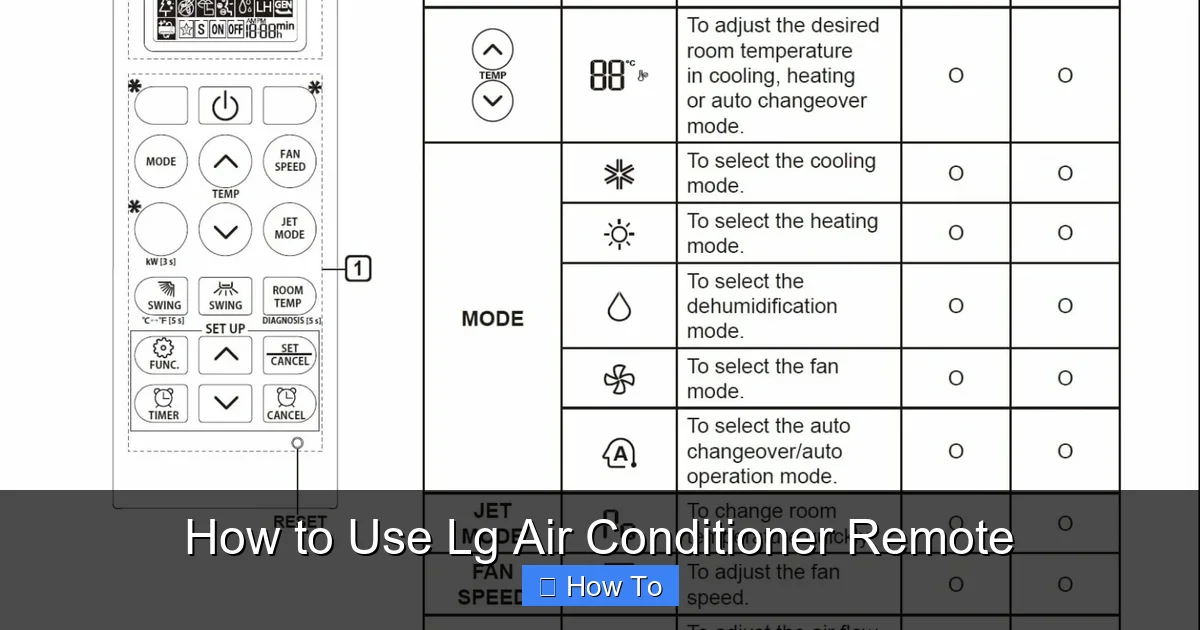
LG remote showing key buttons
Image source: blog.totalhomesupply.com
Before you start pressing buttons, it’s important to understand what each one does. LG remotes in 2026 are designed with clarity and functionality in mind. Most models share a similar layout, though high-end units may include extra features like touchscreens or voice command buttons.
Here’s a breakdown of the standard LG AC remote:
Power Button: Turns the AC on or off. Usually located at the top.
Mode Button: Cycles through cooling, heating, fan, dry, and auto modes.
Temperature Up/Down: Adjusts the desired room temperature.
Fan Speed Button: Controls airflow intensity (Low, Medium, High, Auto).
Swing Button: Activates vertical or horizontal louvers for air direction.
Timer Button: Sets on/off schedules for energy savings.
Eco/Sleep/Turbo Buttons: Special modes for efficiency and comfort.
Wi-Fi or ThinQ Button: Enables smart connectivity (on compatible models).
Air Purify or Clean Button: Activates air filtration features.
Take a moment to look at your remote. Most buttons are labeled clearly, and some have icons for quick recognition. If you’re unsure, refer to the user manual that came with your unit—or download the digital version from LG’s support website.
When selecting a new unit, reviewing a guide on selecting the ideal unit can help match features to your space. selecting the ideal unit
Step-by-Step: Basic Operation
Now that you know the layout, let’s go through the basics of using your LG air conditioner remote.
Step 1: Turn On the AC
Press the Power button once. You should hear a beep, and the AC unit will start up. The display on the indoor unit will light up, showing the current mode and temperature.
If nothing happens, check the following:
Are the batteries in the remote fresh and properly inserted?
Is the AC plugged in and receiving power?
Is the remote pointed at the indoor unit’s sensor (usually on the front panel)?
Tip: Always point the remote directly at the AC’s receiver for the best signal.
Step 2: Select a Mode
Press the Mode button repeatedly to cycle through the available options. In 2026, most LG ACs offer five main modes:
Cool: Lowers room temperature. Use this during hot days.
Heat: Warms the room. Ideal for colder months (on heat pump models).
Fan: Circulates air without cooling or heating. Great for ventilation.
Dry: Reduces humidity. Useful in damp or rainy weather.
Auto: The AC automatically selects the best mode based on room temperature.
For most users, Cool mode is the default. Once selected, the mode icon will appear on the AC’s display.
Step 3: Set Your Desired Temperature
Use the Temperature Up and Down buttons to adjust the setting. Most LG ACs allow temperatures between 16°C and 30°C (60°F–86°F).
Tip: For energy efficiency, set your AC to 24°C (75°F) in summer. Every degree lower can increase energy use by up to 6%.
Step 4: Adjust Fan Speed
Press the Fan Speed button to choose between Low, Medium, High, or Auto.
Low: Quiet operation, ideal for nighttime.
Medium: Balanced airflow and noise.
High: Maximum cooling, best for quick temperature drops.
Auto: The AC adjusts fan speed based on room conditions.
In Auto mode, the remote and AC work together to maintain comfort without constant adjustments.
Step 5: Direct Airflow with Swing
Press the Swing button to activate the louvers. This moves the airflow up and down (vertical) or side to side (horizontal), distributing cool air evenly.
Tip: Use Swing mode to avoid direct airflow on people, especially during sleep.
Using Smart and Energy-Saving Modes
LG’s 2026 AC remotes include advanced modes that enhance comfort and reduce energy use. Let’s explore the most useful ones.
Eco Mode
Press the Eco button to activate energy-saving mode. In this setting, the AC runs more efficiently by slightly adjusting temperature and fan speed.
Benefits:
Reduces power consumption by up to 30%.
Maintains comfortable temperatures without overcooling.
Ideal for daytime use or when you’re at home.
Note: Eco mode may take longer to cool the room initially, but it pays off in lower electricity bills.
Sleep Mode
Press the Sleep button to activate this nighttime feature. Sleep Mode gradually adjusts the temperature over time to match your body’s natural cooling cycle.
How it works:
In the first hour, the AC cools to your set temperature.
After that, it slowly increases the temperature by 1–2°C to prevent overcooling.
Fan speed lowers to reduce noise.
This mode ensures a restful night without waking up cold—and saves energy while you sleep.
Turbo Mode
Need quick cooling? Press the Turbo button. This mode runs the compressor and fan at maximum speed to cool the room rapidly.
Use Turbo Mode when:
You’ve just entered a hot room.
Guests are arriving.
You need fast relief from heat.
Tip: Turn off Turbo Mode after 30–60 minutes to avoid excessive energy use.
Quiet Mode
Some 2026 LG remotes include a Quiet or Silent button. This reduces fan noise significantly, making it perfect for bedrooms or offices.
In Quiet Mode:
Fan speed is minimized.
Compressor runs at lower capacity.
Noise levels drop below 20 decibels—quieter than a whisper.
Great for light sleepers or nighttime use.
For deeper guidance on optimal temperature settings, see the Energy Star recommendations. Energy Star recommendations
Setting Timers and Schedules
One of the most useful features of your LG AC remote is the ability to set timers. This helps you save energy and come home to a comfortable house.
On Timer (Start Later)
Want your AC to turn on at 6 PM? Use the On Timer.
Steps:
Press the Timer button.
Use the Up/Down buttons to set the delay (e.g., 3 hours).
Press Timer again to confirm.
The AC will automatically start at the scheduled time.
Off Timer (Turn Off Later)
Set the AC to turn off after a certain period—perfect for naps or nighttime.
Steps:
Press the Timer button.
Select “Off” using the mode or direction buttons (varies by model).
Set the delay (e.g., 2 hours).
Confirm with the Timer button.
The AC will shut down automatically, saving energy.
24-Hour Schedule (Advanced Models)
Some 2026 LG remotes support full-day scheduling via the LG ThinQ app. You can program multiple on/off times for each day of the week.
Example:
Monday–Friday: Turn on at 5:30 PM, off at 7:00 AM.
Weekends: Turn on at 8:00 AM, off at 10:00 PM.
This level of automation ensures comfort and efficiency without daily input.
Connecting to Wi-Fi and Using the LG ThinQ App
In 2026, smart home integration is standard. Most LG ACs support Wi-Fi and can be controlled remotely via the LG ThinQ app .
Step 1: Enable Wi-Fi on the Remote
On compatible models, press and hold the Wi-Fi or ThinQ button for 3 seconds. The indicator light will blink, showing it’s in pairing mode.
Step 2: Download the LG ThinQ App
Available on iOS and Android, the app lets you control your AC from anywhere.
Features include:
Remote temperature adjustment.
Mode and fan speed control.
Energy usage reports.
Voice control via Alexa or Google Assistant.
Geofencing (AC turns on when you’re near home).
Step 3: Pair the AC with the App
Open the ThinQ app and create an account.
Tap “Add Product” and select your AC model.
Follow the on-screen instructions to connect to your home Wi-Fi.
Once paired, you can control the AC from your phone—even when you’re away.
Tip: Use the app to receive maintenance alerts, like when to clean the filter.
For firmware updates and detailed pairing help, visit the LG support portal. LG support portal
Using Air Purification and Clean Features
Many 2026 LG ACs include built-in air purification. Your remote lets you activate these features.
Air Purify Button
Press the Air Purify button to turn on the filtration system. This uses a multi-stage filter to remove dust, pollen, and odors.
Benefits:
Improves indoor air quality.
Reduces allergens and pet dander.
Helps with asthma and allergy symptoms.
Tip: Run Air Purify mode for 30 minutes daily, even when not cooling.
Clean or Auto Clean Function
Some remotes have a Clean button. This runs a self-cleaning cycle to prevent mold and bacteria buildup in the evaporator.
How it works:
The AC runs the fan after shutdown to dry internal components.
Reduces odors and maintains efficiency.
Recommended after heavy use or humid weather.
Press the Clean button before turning off the AC to activate.
Advanced Smart Features
Beyond basic app control, 2026 LG models offer voice commands through Alexa or Google Assistant and geofencing that activates cooling as you approach home. These capabilities rely on the latest smart features built into the ThinQ ecosystem, letting you adjust settings hands‑free or automate based on location. Exploring the latest smart features can reveal additional automation options for your household. latest smart features
Troubleshooting Common Remote Issues
Even the best remotes can have problems. Here’s how to fix the most common issues.
Remote Not Responding
If your remote isn’t working:
Check the batteries. Replace them if weak or old.
Ensure the remote is pointed at the AC’s sensor.
Remove any obstructions between the remote and unit.
Reset the remote by removing batteries for 1 minute, then reinserting.
Weak or Intermittent Signal
Possible causes:
Low battery power.
Sunlight or bright lights interfering with the infrared sensor.
Distance—stay within 8 meters (25 feet) of the unit.
Solution: Move closer to the AC or shield the sensor from direct light.
Incorrect Temperature Display
If the remote shows the wrong temperature:
The remote has a built-in sensor. Keep it away from heat sources (lamps, windows).
Place the remote in the center of the room for accurate readings.
Some models allow you to disable the remote sensor and use the AC’s internal sensor instead.
Buttons Sticking or Unresponsive
Over time, dust and dirt can accumulate under the buttons.
Fix:
Turn off the remote and remove batteries.
Use a cotton swab and rubbing alcohol to clean around the buttons.
Let it dry completely before reusing.
Wi-Fi Connection Problems
If the ThinQ app won’t connect:
Ensure your home Wi-Fi is working.
Restart the AC and router.
Re-pair the device in the app.
Check for firmware updates in the ThinQ app.
If the unit blows warm air despite correct settings, you may need to diagnose warm airflow separately. diagnose warm airflow
Maintenance Tips for Long-Lasting Performance
To keep your LG AC remote working smoothly:
Replace batteries every 6–12 months. Use high-quality alkaline batteries.
Clean the remote monthly. Wipe with a damp cloth and mild soap.
Store in a dry place. Avoid humidity and direct sunlight.
Avoid dropping the remote. Impact can damage internal circuits.
Use a remote cover. Protects from spills and wear.
Also, clean your AC’s air filter every 2–4 weeks. A dirty filter reduces efficiency and can cause the remote to work harder to maintain temperature.
Following a routine upkeep schedule for the whole system helps prevent performance drops. routine upkeep schedule
Additional Resources
- For a broader view of residential cooling options, see our overview of the best HVAC air conditioning systems for residential use. overview of the best HVAC air conditioning systems for residential use
- If you’re planning a new installation, the central AC installation guide covers sizing and placement basics. central AC installation guide
Frequently Asked Questions
How do I reset my LG AC remote?
Remove the batteries, wait one minute, then reinsert them. Point the remote at the indoor unit and press Power. This clears temporary glitches and restores default communication.
Can I use the LG ThinQ app without Wi‑Fi?
No. The app requires an active internet connection on both the phone and the AC to send commands and receive status updates.
What does the Eco mode actually change?
Eco mode raises the set temperature slightly and lowers fan speed to cut compressor runtime, reducing power draw by roughly 20‑30 % while keeping the room comfortable.
Why is my remote not pairing with the app?
Common causes include a 5 GHz Wi‑Fi network (LG needs 2.4 GHz), outdated app version, or the AC not in pairing mode. Restart the router, ensure 2.4 GHz, and hold the Wi‑Fi button until the LED blinks.
How often should I replace the remote batteries?
Every 6–12 months, or sooner if the signal becomes intermittent. Use high‑quality alkaline cells for the longest life.
Conclusion
Mastering how to use LG air conditioner remote in 2026 is easier than ever. With intuitive buttons, smart modes, and app integration, your LG AC gives you complete control over your indoor climate. From basic cooling to advanced scheduling and air purification, the remote is your command center for comfort and efficiency.
Remember to use Eco and Sleep modes to save energy, set timers for automation, and connect to the ThinQ app for remote access. Keep your remote clean and batteries fresh, and don’t hesitate to troubleshoot minor issues with the tips above.
By following this guide, you’ll enjoy cooler, cleaner, and more comfortable air—all at the touch of a button. Stay cool, save energy, and make the most of your LG air conditioner in 2026 and beyond.
Explore our guide on selecting the ideal unit for your space and budget. selecting the ideal unit

