
Master your LG air conditioner remote control with this complete 2026 guide. Discover how to set modes, adjust temperature, use smart features, and fix common issues—all in simple, easy-to-follow steps.
Key Takeaways
Understand Remote Layout: Familiarize yourself with buttons like Power, Mode, Fan Speed, and Timer to operate your LG AC efficiently.
Use Smart Features: Leverage Wi-Fi connectivity and voice control via LG ThinQ app for remote access and automation.
Set Accurate Temperature: Adjust temperature in 1°F increments and use Eco Mode to save energy without sacrificing comfort.
Schedule with Timer: Program on/off times to match your routine and reduce electricity usage.
Troubleshoot Common Issues: Fix unresponsive remotes, signal problems, or battery issues with simple DIY solutions.
Maintain Remote Performance: Clean regularly and replace batteries to ensure long-term reliability.
Optimize Airflow: Use Swing and Fan Speed settings to distribute cool air evenly throughout the room.
Introduction: Take Full Control of Your LG Air Conditioner in 2026
Welcome to the ultimate guide on how to use LG air conditioner remote control in 2026. Whether you’ve just installed a new LG window unit, split system, or portable AC, mastering the remote is the first step toward comfort, convenience, and energy efficiency. LG’s air conditioners are packed with smart technology, intuitive controls, and eco-friendly features—but only if you know how to use them. For more on this, see our guide on what are the best hvac air conditioning systems.
This guide walks you through every button, feature, and function on your LG remote. You’ll learn how to cool your room quickly, set timers, connect to Wi-Fi, and even control your AC with your voice. We’ll also cover troubleshooting tips to keep your remote working smoothly. By the end, you’ll feel confident using your LG AC like a pro—no manual required.
Whether you're a first-time user or upgrading to a newer model, this guide is designed for simplicity and clarity. Let’s get started! For more on this, see our guide on are air conditioner brackets required in nyc.
Understanding Your LG Air Conditioner Remote Control
Before diving into functions, it’s important to know what each button does. LG remotes vary slightly by model, but most follow a standard layout. Here’s a breakdown of the key components you’ll find on most 2026 LG AC remotes:
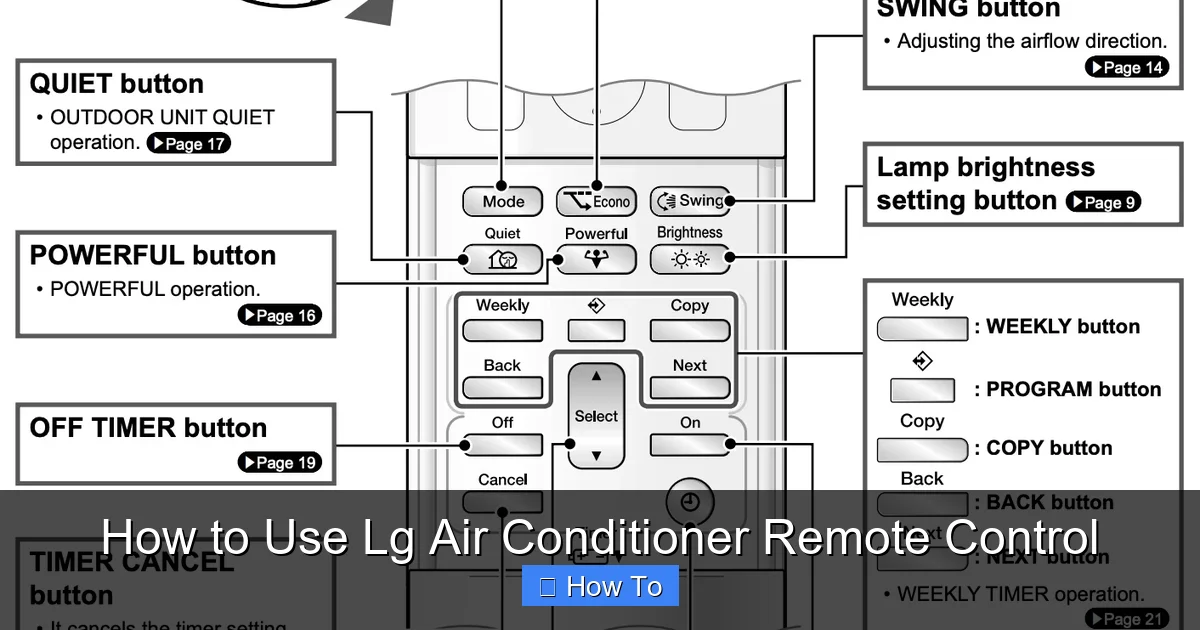
Diagram showing the button layout of a typical 2026 LG AC remote
LG remote designs can differ between window, split, and portable models, so verify the exact button arrangement for your unit. If you’re still deciding which LG system fits your space, reviewing a guide on picking the right unit can help you match features to room size and layout. For official energy‑efficiency benchmarks, the ENERGY STAR program provides trusted performance data.
Power Button
The large circular button at the top is your Power button. Press it once to turn the AC on or off. When the unit is on, the display will light up, and you’ll hear a beep (if sound is enabled). Hold it for 3 seconds to force a restart if the remote becomes unresponsive.
Mode Button
This button cycles through operating modes: Cool, Dry, Fan, Heat (if supported), and Auto. Press it repeatedly to select your desired mode. A small icon on the remote’s screen will show the current mode. For example, a snowflake means Cool, a water droplet means Dry, and a fan symbol means Fan-only mode.
Temperature Control Buttons
Located below the Mode button, the up and down arrows let you adjust the temperature. Most LG ACs allow settings from 60°F to 86°F (16°C to 30°C). Each press changes the temperature by 1°F. The display shows your selected temperature in real time.
Fan Speed Button
This button controls how fast the internal fan spins. Options typically include Low, Medium, High, and Auto. In Auto mode, the AC adjusts fan speed based on room temperature. Higher speeds cool faster but may be noisier.
Swing Button
The Swing button activates the louver movement on split and window units. When pressed, the air vents move up and down (and sometimes side to side) to distribute air more evenly. Press again to stop the movement and lock the vents in place.
Timer Button
Use this to schedule when your AC turns on or off. You can set a delay of up to 24 hours. For example, program it to turn off after you fall asleep or turn on 30 minutes before you get home.
Eco Mode Button
Eco Mode reduces energy consumption by optimizing cooling performance. It slightly raises the target temperature and adjusts fan speed to save power. Ideal for daytime use or when you’re trying to lower your electricity bill.
Wi-Fi / Smart Button
On newer models, this button connects your AC to your home Wi-Fi network. Once connected, you can control the unit via the LG ThinQ app on your smartphone or through voice assistants like Alexa or Google Assistant.
Display Screen
The small LCD screen shows the current mode, temperature, fan speed, timer status, and Wi-Fi connection. Some models also display error codes if something goes wrong.
Step-by-Step: How to Use Basic Functions
Now that you know the buttons, let’s walk through everyday operations. These steps work for most LG AC models in 2026.
Turning On Your LG Air Conditioner
Point the remote at the AC unit (within 20 feet).
Press the Power button once.
Wait for the unit to beep and the display to light up.
The default mode is usually Cool, with a temperature of 72°F.
Tip: If nothing happens, check the batteries or ensure the AC is plugged in.
Setting the Cooling Mode
Press the Mode button until the Cool icon (snowflake) appears.
Use the Temperature arrows to set your desired cooling level (e.g., 68°F).
The AC will start cooling immediately.
Example: On a hot summer afternoon, set the mode to Cool and temperature to 68°F for maximum comfort.
Adjusting Fan Speed
Press the Fan Speed button.
Cycle through Low, Medium, High, or Auto.
Choose High for quick cooling, Low for quiet nighttime use, or Auto for balanced performance.
Tip: In Auto mode, the fan slows down as the room approaches the target temperature, saving energy.
Using the Swing Feature
Press the Swing button once to activate louver movement.
The vents will move up and down automatically.
Press again to stop and lock the vents in a fixed position.
This helps prevent direct airflow on people and ensures even cooling across the room.
Activating Eco Mode
Press the Eco Mode button.
The display will show an Eco icon.
The AC will run more efficiently, using less power while maintaining comfort.
Great for daytime use or when you’re trying to reduce energy costs.
Using Advanced Features in 2026
LG’s 2026 air conditioners come with smart technology that goes beyond basic cooling. Here’s how to use these advanced features.
Connecting to Wi-Fi and the LG ThinQ App
With Wi-Fi, you can control your AC from anywhere using your phone. Here’s how to set it up:
Download the LG ThinQ app from the App Store or Google Play.
Create an account or log in.
Turn on your AC and press the Wi-Fi button on the remote for 3 seconds.
The Wi-Fi icon will blink, indicating pairing mode.
Open the ThinQ app and follow the on-screen instructions to add your AC.
Once connected, you can control temperature, mode, and timer from your phone.
Tip: Ensure your home Wi-Fi is 2.4 GHz (most LG ACs don’t support 5 GHz).
Try the LG ThinQ app today to unlock full smart control from your phone.
Using Voice Control with Alexa or Google Assistant
Once connected to Wi-Fi, you can use voice commands:
“Alexa, set the living room AC to 70 degrees.”
“Hey Google, turn on the bedroom air conditioner.”
“Alexa, enable Eco Mode on the LG AC.”
Make sure your smart speaker is linked to the same LG ThinQ account.
Setting the Timer
The Timer function helps you save energy and wake up or come home to a cool room.
To Set a Turn-Off Timer:
Press the Timer button.
Use the arrows to set the number of hours (up to 24).
Press Timer again to confirm.
The AC will turn off automatically after the set time.
To Set a Turn-On Timer:
Press and hold the Timer button for 3 seconds.
Set the delay time using the arrows.
Press Timer to confirm.
The AC will turn on at the scheduled time.
Example: Set a 2-hour turn-off timer before bed, or a 30-minute turn-on timer before arriving home.
Using Sleep Mode
Sleep Mode gradually adjusts the temperature to match your body’s natural cooling during sleep.
Press the Mode button until Cool is selected.
Press the Sleep button (or hold Fan Speed for 3 seconds on some models).
The temperature will rise by 1–2°F after 1 hour, then stabilize.
The fan will run quietly to avoid disturbance.
This helps you sleep comfortably while saving energy.
Firmware updates delivered through the ThinQ app can add new voice commands and improve scheduling reliability; checking for updates monthly keeps your system running with the latest cooling tech.
Troubleshooting Common Remote Issues
Even the best remotes can have problems. Here’s how to fix the most common issues in 2026.
Remote Not Responding
Check batteries: Replace with fresh AA or AAA batteries. Make sure they’re inserted correctly.
Clean the sensor: Wipe the infrared sensor on the remote and the receiver on the AC with a dry cloth.
Remove obstacles: Ensure nothing is blocking the signal path between remote and unit.
Reset the remote: Remove batteries, press all buttons for 10 seconds, then reinsert batteries.
Weak or Intermittent Signal
Move closer to the AC (within 15–20 feet).
Avoid using the remote near bright lights or TVs, which can interfere with infrared signals.
Replace batteries—low power reduces signal strength.
Wi-Fi Connection Problems
Ensure your router is on and working.
Restart the AC and router.
Reconnect via the ThinQ app: Remove the device and add it again.
Check for firmware updates in the app.
Incorrect Temperature Display
The remote shows the set temperature, not the room temperature.
Use a separate thermometer to verify actual room conditions.
If the AC isn’t cooling properly, check filters and airflow.
Buttons Sticking or Not Working
Clean around the buttons with a cotton swab and rubbing alcohol.
Avoid using the remote with wet hands.
If damage is severe, contact LG support for a replacement.
If the unit blows warm air despite correct remote settings, reviewing steps for fixing warm‑air issues can pinpoint whether the problem lies in the remote or the AC itself.
Maintenance Tips for Long-Term Use
Keep your remote and AC in top shape with these simple habits.
Clean the Remote Regularly
Wipe the remote with a damp cloth weekly. Avoid harsh chemicals. Dry thoroughly before use.
Replace Batteries Every 6–12 Months
Even if the remote still works, weak batteries can cause signal issues. Use high-quality alkaline batteries.
Store Properly When Not in Use
If you turn off your AC for the season, remove the batteries to prevent leakage. Store the remote in a dry place.
Update Firmware via ThinQ App
LG releases updates to improve performance and add features. Check the app monthly for updates.
Keep the AC Filter Clean
A dirty filter reduces efficiency and can cause the AC to overwork. Clean or replace it every 1–2 months.
A seasonal upkeep checklist that includes filter cleaning, coil inspection, and refrigerant level checks helps maintain peak efficiency year‑round.
Conclusion: Master Your LG AC Remote with Confidence
Using your LG air conditioner remote control doesn’t have to be confusing. With this guide, you now know how to operate every feature—from basic cooling to smart home integration. Whether you’re adjusting the temperature, setting a timer, or controlling your AC with your voice, you’re in full command.
Remember to keep your remote clean, batteries fresh, and firmware updated. And if you run into issues, the troubleshooting tips here will help you resolve them quickly. In 2026, LG continues to lead in smart, energy-efficient cooling—and now, you’re ready to make the most of it.
Stay cool, save energy, and enjoy the comfort of a perfectly controlled climate—all at the touch of a button.
Frequently Asked Questions
How do I reset my LG AC remote if it stops working?
Remove the batteries, press every button for about ten seconds, then reinstall fresh batteries. This clears any stuck commands and restores communication with the unit.
Can I use the LG ThinQ app without a Wi‑Fi button on the remote?
Yes. On models without a dedicated Wi‑Fi button, put the AC into pairing mode by holding the Power and Mode buttons together for three seconds, then follow the app instructions.
Why does the remote show a temperature different from the room feel?
The display reflects the set point, not the actual room temperature. Use a standalone thermometer to verify comfort levels and adjust the set point accordingly.
What battery type is recommended for the LG remote?
Standard AA or AAA alkaline batteries work best. Avoid rechargeable cells, as their lower voltage can weaken the infrared signal.
How often should I update the firmware on my LG air conditioner?
Check the ThinQ app at least once a month. LG releases updates that improve connectivity, add voice commands, and fix bugs.
Can I control multiple LG AC units with one ThinQ account?
Absolutely. Add each unit in the app; they appear as separate devices, allowing individual or group control from a single dashboard.

