
How to Set Up Wifi on Lg Window Air Conditioner
This guide walks you through how to set up WiFi on an LG window air conditioner using the LG ThinQ app. You’ll learn to connect your unit to your home network, troubleshoot common issues, and enjoy smart climate control from anywhere.
Key Takeaways
Check Compatibility: Only select LG window AC models from 2020 onward support WiFi. Verify your model number before starting.
Download the LG ThinQ App: This free app is essential for setup, control, and scheduling your air conditioner remotely.
Ensure Strong WiFi Signal: Place your AC within range of your router to avoid connection drops during setup and use.
Use 2.4 GHz Network Only: LG window ACs do not support 5 GHz WiFi bands—connect to a 2.4 GHz network for successful pairing.
Follow On-Screen Prompts Carefully: The app guides you through each step; skipping or rushing can cause setup failure.
Reset if Needed: If connection fails, use the reset button or power cycle the unit to restart the process.
Enjoy Smart Features: Once connected, use voice commands, energy tracking, and remote control via smartphone or smart speaker.
How to Set Up WiFi on LG Window Air Conditioner: A Complete 2026 Guide
Welcome to the future of home comfort! In 2026, smart air conditioning isn’t just a luxury—it’s a standard. If you’ve recently purchased an LG window air conditioner with WiFi capabilities, you’re in for a treat. With the right setup, you can cool your space from your smartphone, schedule cooling times, monitor energy usage, and even control your AC with voice commands using Alexa or Google Assistant.
This comprehensive guide will walk you through how to set up WiFi on an LG window air conditioner step by step. Whether you're a tech-savvy homeowner or just getting started with smart appliances, we’ve got you covered. By the end of this guide, you’ll have your LG window AC connected to your home network and ready to deliver cool, convenient comfort—anytime, anywhere.
What You’ll Need Before You Begin
Before diving into the setup process, make sure you have the following items ready. Having everything prepared will save you time and prevent frustration during the connection process.
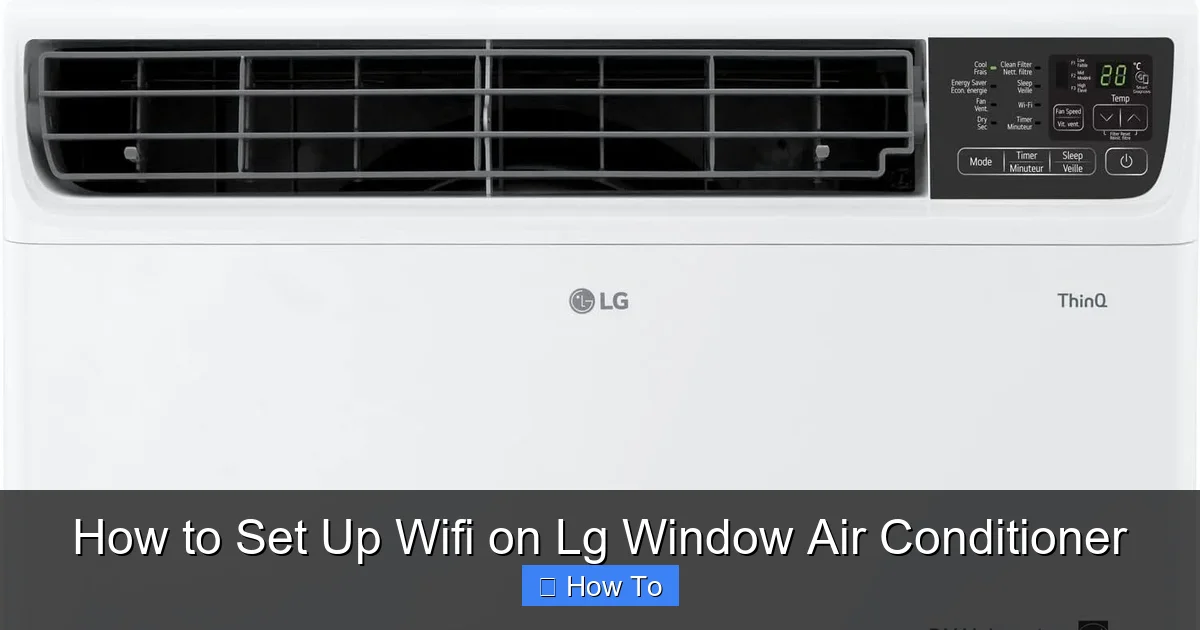
LG window AC showing WiFi pairing mode on control panel
1. Compatible LG Window Air Conditioner
Not all LG window AC units support WiFi. Only models manufactured from 2020 onward with built-in smart features are compatible. Look for labels like “Smart,” “WiFi Enabled,” or “ThinQ” on the unit or packaging. You can also check your model number—most smart models start with “LW” followed by numbers (e.g., LW8016ER, LW1019IVSM).
2. Smartphone or Tablet
You’ll need a mobile device running iOS 14 or later, or Android 8.0 or later. Make sure your device is connected to the same WiFi network you plan to use for the AC unit.
3. LG ThinQ App Installed
The LG ThinQ app is the official platform for managing LG smart appliances. Download it for free from the Apple App Store or Google Play Store. Create an account if you don’t already have one—this is required for device registration and remote access.
4. Stable 2.4 GHz WiFi Network
LG window air conditioners only support 2.4 GHz WiFi networks. They do not work with 5 GHz bands. If your router broadcasts both frequencies, ensure your phone is connected to the 2.4 GHz network during setup. You can usually identify this by looking for “2.4G” or “_2.4” in the network name (SSID).
5. Power and Location
Your AC should be installed in the window and plugged into a working outlet. It must be within 30 feet of your WiFi router for a strong signal. Avoid placing it behind thick walls or metal obstructions, which can weaken the connection.
If you’re still deciding which unit fits your space, our guide on selecting the right model can help.
Step-by-Step: How to Set Up WiFi on LG Window Air Conditioner
Now that you’re prepared, let’s begin the setup process. Follow these steps carefully to ensure a smooth and successful connection.
Step 1: Power On the Air Conditioner
Plug in your LG window AC and turn it on using the remote or the control panel on the unit. Wait for the display to light up and the unit to initialize. You should see the current temperature and mode settings appear on the screen.
Pro Tip: If the unit doesn’t power on, check the circuit breaker and ensure the outlet is functioning. Some LG models have a safety lock that prevents operation if the window isn’t fully secured—make sure the AC is properly installed.
Step 2: Open the LG ThinQ App
Launch the LG ThinQ app on your smartphone. If you’re a new user, tap “Sign Up” and create an account using your email address. Existing users can log in with their credentials.
Once logged in, you’ll see a home screen with options to add new devices. Tap the “+” icon or “Add Product” button to begin the setup process.
Step 3: Select Your Appliance Type
The app will ask you to choose the type of appliance you’re setting up. Scroll through the list and select “Air Conditioner.” Then, choose “Window Air Conditioner” from the subcategories.
The app may prompt you to scan a QR code on the unit or enter the model number manually. Locate the label on the side or back of your AC—it contains the model and serial number. Enter it exactly as shown.
Step 4: Put the AC in WiFi Pairing Mode
This is a critical step. To connect your AC to WiFi, it must enter pairing mode. Here’s how:
Press and hold the “WiFi” or “Connect” button on the AC’s control panel for 3–5 seconds. On some models, this button may be labeled “Smart” or have a WiFi icon.
The WiFi indicator light (usually a blinking blue or green LED) should start flashing rapidly. This means the unit is searching for a network.
If your model doesn’t have a physical WiFi button, try pressing and holding the “Mode” and “Fan” buttons simultaneously for 5 seconds.
Note: If the light doesn’t blink, power cycle the unit by unplugging it for 30 seconds, then plug it back in and try again.
Step 5: Connect Your Phone to the AC’s Temporary Network
Once the AC is in pairing mode, it will broadcast its own temporary WiFi network (often named something like “LG_AC_XXXX”). Go to your phone’s WiFi settings and look for this network.
Tap to connect. You may be prompted to enter a password—this is usually “12345678” or “admin,” but check your user manual for the exact default.
Important: Your phone will temporarily disconnect from your home WiFi. This is normal. The app will use this direct connection to send your home network credentials to the AC.
Step 6: Return to the LG ThinQ App
After connecting to the AC’s network, return to the LG ThinQ app. The app should detect that you’re connected to the unit and prompt you to select your home WiFi network from a list.
Choose your 2.4 GHz network and enter the password when prompted. Double-check for typos—incorrect passwords are a common cause of setup failure.
The app will then send the network information to the AC. This may take 30–60 seconds. Do not close the app or disconnect during this time.
Step 7: Confirm Successful Connection
Once the transfer is complete, the app will notify you that the setup was successful. The WiFi light on your AC should stop blinking and remain solid (usually green or blue), indicating a stable connection.
Your phone will automatically reconnect to your home WiFi network. You can now control the AC remotely through the app.
Step 8: Name and Customize Your AC
The app will ask you to name your air conditioner (e.g., “Living Room AC” or “Bedroom Cooler”). Choose a name that makes it easy to identify, especially if you have multiple LG smart devices.
You can also assign it to a room, set up energy-saving modes, and enable notifications for filter changes or maintenance alerts.
Using Your LG Window AC with WiFi
Congratulations! Your LG window air conditioner is now connected to WiFi and ready for smart control. Here’s how to make the most of its features in 2026.
Remote Control via Smartphone
Open the LG ThinQ app anytime to adjust temperature, change modes (Cool, Fan, Dry, Auto), set fan speed, or turn the unit on/off—even when you’re away from home. Perfect for cooling your room before you arrive.
Schedule Cooling Times
Use the app’s scheduling feature to program your AC to turn on at specific times. For example, set it to start cooling at 5:30 PM so your home is comfortable when you get back from work. You can create daily or weekly schedules.
Voice Control with Smart Assistants
Link your LG ThinQ account to Amazon Alexa or Google Assistant. Once connected, say commands like:
“Alexa, turn on the Living Room AC.”
“Hey Google, set the bedroom AC to 72 degrees.”
“Alexa, is the AC on?”
This hands-free control is ideal for when you’re relaxing on the couch or cooking in the kitchen.
Energy Monitoring and Tips
The app tracks your AC’s energy usage and provides insights to help you save money. It may suggest optimal temperature settings or remind you to clean the filter for better efficiency. For more ideas on reducing consumption, see our article on optimal temperature settings.
Firmware Updates
LG periodically releases firmware updates to improve performance and add new features. The app will notify you when an update is available. Simply tap “Update” to install it over WiFi—no need to unplug or reset the unit. Details on the latest improvements are covered in our piece on latest firmware improvements. You can also review official release notes on the LG support site.
Troubleshooting Common WiFi Setup Issues
Even with careful preparation, you might run into problems. Here are solutions to the most common issues when setting up WiFi on an LG window air conditioner.
Issue 1: AC Won’t Enter Pairing Mode
If the WiFi light doesn’t blink when you press the button, try these fixes:
Ensure the unit is powered on and not in sleep or timer mode.
Hold the button for at least 5 seconds—some models require a longer press.
Power cycle the AC: unplug for 30 seconds, then plug back in.
Check the user manual for model-specific instructions.
Issue 2: Phone Can’t Find the AC’s Network
If you don’t see “LG_AC_XXXX” in your WiFi list:
Make sure the AC is in pairing mode (light should be blinking).
Move your phone closer to the unit—signal strength matters.
Restart your phone’s WiFi or toggle airplane mode on and off.
Try using a different device (e.g., a tablet) to complete the setup.
Issue 3: App Says “Connection Failed”
This usually means the password was entered incorrectly or the network is incompatible.
Double-check your WiFi password—case-sensitive and no extra spaces.
Confirm you’re using a 2.4 GHz network, not 5 GHz.
Restart the router and try again.
Reset the AC’s WiFi settings by holding the WiFi button for 10 seconds until the light turns off, then restart the process.
Issue 4: AC Disconnects Frequently
If your unit keeps losing connection:
Move the router closer or use a WiFi extender to boost signal in the room.
Avoid placing the AC near microwaves, cordless phones, or other devices that interfere with 2.4 GHz signals.
Update your router’s firmware—older routers may have compatibility issues.
Check for physical obstructions like metal window frames or thick walls.
Issue 5: App Doesn’t Recognize the AC
If the ThinQ app can’t detect your unit:
Ensure your AC model is on LG’s list of supported devices.
Update the LG ThinQ app to the latest version.
Re-register the device by removing it from the app and starting over.
Contact LG customer support with your model number for assistance.
If you experience warm air instead of cooling, our warm air troubleshooting guide may help.
Tips for Maintaining a Stable WiFi Connection
Once your LG window AC is connected, follow these best practices to keep it running smoothly:
Keep the App Updated: Enable automatic updates on your phone to ensure you have the latest features and bug fixes.
Clean the Filter Regularly: A dirty filter can cause the AC to work harder, potentially affecting performance and connectivity.
Restart the Unit Monthly: Power cycle your AC once a month to refresh the system and prevent glitches.
Secure Your Network: Use a strong WiFi password and enable WPA3 encryption to protect your smart devices from unauthorized access.
Monitor Data Usage: While minimal, smart ACs use a small amount of data. If you have a limited plan, keep an eye on usage through your router’s admin panel.
For a deeper dive into seasonal upkeep, see our seasonal upkeep checklist.
Conclusion
Setting up WiFi on your LG window air conditioner in 2026 is easier than ever—thanks to the intuitive LG ThinQ app and improved smart technology. By following this guide, you’ve not only connected your AC to your home network but also unlocked a world of convenience, energy savings, and remote control.
From scheduling cool-downs before you get home to adjusting the temperature with a voice command, your LG window AC is now a true smart home device. And with regular maintenance and troubleshooting know-how, you’ll enjoy reliable performance all summer long.
So go ahead—relax, stay cool, and let your LG window air conditioner do the work. Welcome to the future of home comfort.
Frequently Asked Questions
Does my LG window AC work with 5 GHz Wi‑Fi?
No. LG window air conditioners only support 2.4 GHz networks. Connect your phone to the 2.4 GHz SSID during setup and keep the unit on that band for stable operation.
How do I reset the Wi‑Fi settings on the unit?
Press and hold the WiFi (or Connect) button for about 10 seconds until the indicator light turns off. Then power‑cycle the unit and start the pairing process again from the ThinQ app.
Can I control multiple LG ACs from one ThinQ account?
Yes. Each unit is added as a separate device in the app. Give each a unique name (e.g., “Living Room AC”) and you can control them individually or group them for simultaneous commands.
Why does the app lose connection after a power outage?
A power loss forces the AC to reboot and re‑associate with the router. If the router hasn’t fully restarted, the AC may fail to reconnect. Restart the router first, then power‑cycle the AC.
Is there a way to schedule different temperatures for weekdays and weekends?
The ThinQ scheduler lets you create separate daily programs. Set a weekday schedule (e.g., 72 °F at 5 PM) and a weekend schedule (e.g., 74 °F at 9 AM) for each device.
Explore more smart‑home cooling tips on our blog.

