
How to Set Lg Air Conditioner to Cold
Struggling to cool your room with your LG air conditioner? This guide walks you through setting your LG AC to cold mode using the remote, mobile app, or manual controls. Get fast, effective cooling with expert tips and 2026-ready features.
Key Takeaways
Use the correct mode: Select "Cool" mode on your LG AC remote or app to activate cold air output.
Set the right temperature: For comfort and efficiency, aim for 72–76°F (22–24°C) in summer months.
Leverage smart features: LG’s 2026 models support voice control and app-based scheduling for automated cooling.
Clean filters regularly: Dirty filters reduce cooling efficiency—clean them every 2–4 weeks.
Check airflow and vents: Ensure vents are unobstructed and fans are set to high for maximum cold air distribution.
Troubleshoot common issues: If the AC isn’t cooling, check power, mode settings, and refrigerant levels.
Use energy-saving modes: Enable "Energy Saver" or "Smart Cool" to reduce power use without sacrificing comfort.
For a deeper dive on temperature settings that balance comfort and savings, see our guide on optimal cooling setpoints.
How to Set LG Air Conditioner to Cold in 2026: A Complete Guide
As temperatures rise in 2026, staying cool and comfortable at home is more important than ever. Whether you’ve just installed a new LG air conditioner or you’re reacquainting yourself with an older model, knowing how to set your LG air conditioner to cold is essential for beating the heat. LG’s 2026 lineup includes advanced smart features, energy-efficient cooling, and intuitive controls—making it easier than ever to enjoy a refreshing indoor climate.
In this comprehensive guide, you’ll learn how to set your LG air conditioner to cold using the remote control, the LG ThinQ app, or manual buttons. We’ll also cover best practices for optimal cooling, energy-saving tips, and troubleshooting common issues. By the end, you’ll be able to cool your space efficiently, reduce energy bills, and enjoy a comfortable home all summer long.
Understanding Your LG Air Conditioner in 2026
Before diving into the setup process, it’s helpful to understand how modern LG air conditioners work. LG has continued to innovate in 2026, integrating AI-driven climate control, Wi-Fi connectivity, and eco-friendly refrigerants into their latest models. Whether you have a window unit, split system, or portable AC, the core principles of cooling remain the same.
LG air conditioners use a refrigeration cycle to remove heat from indoor air and release it outside. The unit pulls in warm air, passes it over cold evaporator coils, and blows the cooled air back into the room. To activate this process, you must select the correct mode and temperature.
Most LG ACs in 2026 come with multiple operating modes:
- Cool Mode: Actively cools the room by lowering the temperature.
- Fan Mode: Circulates air without cooling—useful for ventilation.
- Dry Mode: Reduces humidity without significant cooling.
- Heat Mode: Reverses the cycle to warm the room (on heat pump models).
- Auto Mode: Automatically selects the best mode based on room temperature.
For cold air, you’ll want to use Cool Mode . This is the default setting when you want to lower the indoor temperature.
If you’re curious how LG’s approach compares with traditional HVAC systems, read our breakdown of HVAC vs. standard air conditioning.
Step-by-Step: Setting Your LG Air Conditioner to Cold Using the Remote
The most common and convenient way to set your LG air conditioner to cold is by using the included remote control. Here’s how to do it in just a few simple steps.
Step 1: Power On the Air Conditioner
Press the Power button on the remote control. You should see the display light up, and the unit will emit a soft beep or click, indicating it’s turning on. If the remote doesn’t work, check the batteries or try using the manual power button on the unit itself.
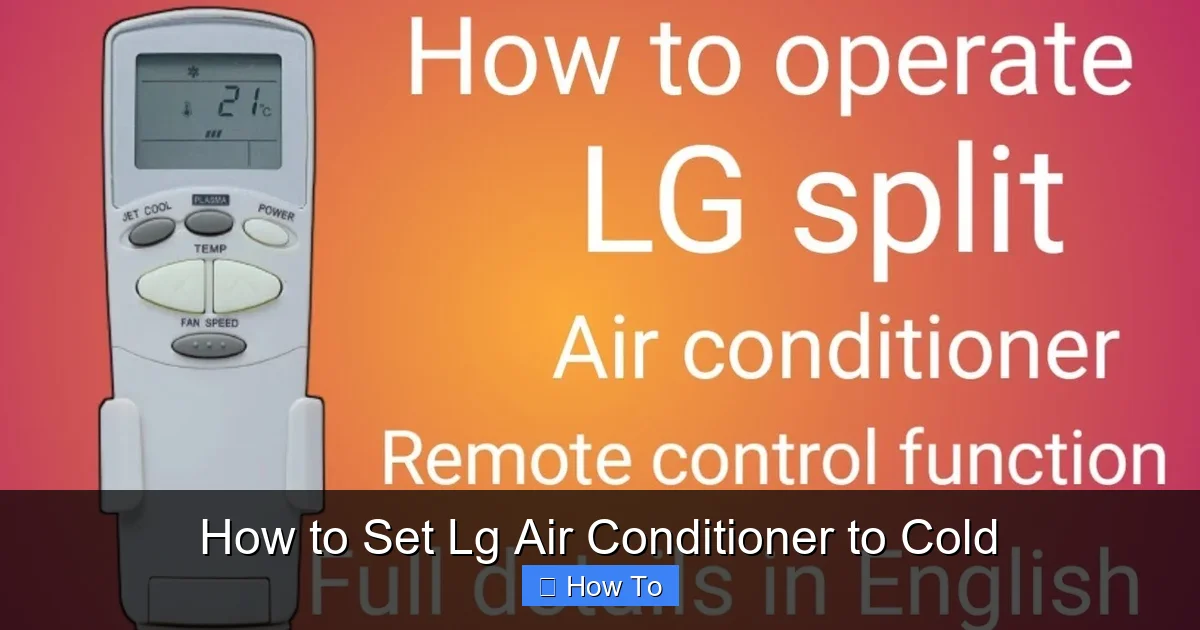
Figure: LG AC remote showing the Cool mode selection screen.
Step 2: Select Cool Mode
Look for the Mode button on your remote. It’s usually labeled with icons representing different functions. Press it repeatedly until the display shows “Cool” or a snowflake symbol. On some 2026 models, the screen will clearly display “COOL” in bold letters.
Step 3: Set Your Desired Temperature
Use the Temperature Up/Down buttons (often marked with + and –) to adjust the thermostat. For most people, a setting between 72°F and 76°F (22°C–24°C) provides a comfortable balance of coolness and energy efficiency. Avoid setting it too low (below 68°F), as this can overwork the system and increase energy costs.
Step 4: Adjust the Fan Speed
Press the Fan Speed button to choose between Low, Medium, High, or Auto. For faster cooling, select High . Once the room reaches the desired temperature, you can switch to Auto or Low to maintain comfort quietly.
Step 5: Use Additional Cooling Features (Optional)
Many 2026 LG models include advanced features to enhance cooling:
Turbo Cool: Press the Turbo or Jet Cool button for rapid cooling—ideal on extremely hot days.
Sleep Mode: Gradually increases the temperature over time to save energy while you sleep.
Swing: Activates louvers to distribute cold air evenly across the room.
These features can be accessed via dedicated buttons or through the menu on the remote.
When the remote fails to respond, the troubleshooting steps for warm‑air output can help pinpoint the issue — see our AC blowing warm air guide.
Setting Your LG Air Conditioner to Cold Using the LG ThinQ App
In 2026, LG continues to lead in smart home integration with the LG ThinQ app , available for iOS and Android. This app allows you to control your air conditioner from anywhere—perfect for cooling your home before you arrive or adjusting settings while lounging on the couch.
Step 1: Download and Set Up the LG ThinQ App
If you haven’t already, download the LG ThinQ app from the App Store or Google Play. Create an account or sign in with your existing LG ID. Make sure your smartphone is connected to the same Wi-Fi network as your air conditioner.
Step 2: Add Your Air Conditioner to the App
Open the app and tap the “+” or “Add Device” button. Follow the on-screen instructions to scan the QR code on your AC unit or manually select your model. The app will guide you through connecting the unit to your Wi-Fi network. This may involve pressing a Wi-Fi or pairing button on the remote or unit.
Step 3: Access Cooling Controls
Once connected, your air conditioner will appear in the app’s home screen. Tap on it to open the control panel. You’ll see options to turn the unit on/off, select modes, adjust temperature, and change fan speed—just like the remote.
Step 4: Set to Cool Mode and Adjust Settings
Tap the Mode button and select “Cool.” Then, use the temperature slider to set your preferred level. You can also enable Smart Cool , which uses AI to learn your schedule and preferences, automatically adjusting the temperature for comfort and efficiency.
Step 5: Schedule Cooling Times (Optional)
Use the Schedule feature to program when your AC turns on or off. For example, set it to start cooling at 5:00 PM so your home is comfortable when you get home from work. This helps save energy and ensures consistent comfort.
LG’s latest AI‑driven climate features are part of a broader wave of innovation — explore more on air‑conditioning innovations.
Manual Control: Setting Your LG AC to Cold Without the Remote
What if your remote is lost, broken, or out of batteries? Don’t worry—most LG air conditioners have manual control buttons on the unit itself.
Step 1: Locate the Control Panel
Look for a small panel on the front or side of your air conditioner. It usually has buttons labeled Power, Mode, Temperature, and Fan.
Step 2: Turn On the Unit
Press the Power button. The display should light up, and the unit will start up.
Step 3: Change to Cool Mode
Press the Mode button repeatedly until the display shows “Cool” or the snowflake icon appears.
Step 4: Adjust Temperature and Fan
Use the Temperature buttons to set your desired level. Then, press the Fan button to select your preferred speed. Note that manual controls may not offer all the features available on the remote or app.
Tip: Use a Universal Remote
If your original remote is missing, consider purchasing a universal remote compatible with LG air conditioners. Many support full functionality and can be programmed easily.
For installation‑level details that also apply to manual‑control units, check our split‑AC installation guide.
Optimizing Cooling Performance in 2026
Setting your LG air conditioner to cold is just the first step. To get the best performance, comfort, and energy efficiency, follow these expert tips.
Set the Right Temperature
The U.S. Department of Energy recommends setting your AC to 78°F (26°C) when you’re home and higher when away. However, personal comfort varies. In 2026, many LG models include AI Comfort technology that learns your preferences and adjusts automatically. Start at 74°F and tweak as needed.
Official guidance on thermostat settings can be found at the U.S. Department of Energy.
Use Energy-Saving Modes
Enable Energy Saver or Eco Mode to reduce power consumption. These modes cycle the compressor on and off to maintain temperature without constant running. On hot days, use Turbo Cool for quick relief, then switch back to Eco.
Keep Filters Clean
Dirty air filters restrict airflow and reduce cooling efficiency. LG recommends cleaning or replacing filters every 2–4 weeks during peak usage. Simply remove the front panel, take out the filter, rinse it with water, and let it dry before reinserting.
Ensure Proper Airflow
Make sure furniture, curtains, or rugs aren’t blocking the air vents. Keep the indoor unit’s intake and outlet clear. For window units, ensure the exterior vent isn’t obstructed by plants or debris.
Use Fans to Circulate Cold Air
Ceiling or floor fans help distribute cool air more evenly, allowing you to raise the thermostat by 4°F without sacrificing comfort. This can save up to 30% on cooling costs.
Seal Windows and Doors
Prevent cool air from escaping by sealing gaps around windows and doors. Use weatherstripping or caulk to close leaks. In 2026, smart thermostats can detect open windows and pause cooling automatically.
Schedule Regular Maintenance
Even the best ACs need professional checkups. Schedule annual maintenance to clean coils, check refrigerant levels, and ensure all components are working properly. LG offers service plans for 2026 models with extended warranties.
Seasonal upkeep is essential — see our maintenance checklist for a step‑by‑step plan.
Troubleshooting: Why Isn’t My LG Air Conditioner Getting Cold?
Sometimes, even after setting your LG AC to cold, it may not cool effectively. Here are common issues and how to fix them.
Issue 1: AC Is On but Not Cooling
Possible Causes:
Incorrect mode selected (e.g., Fan or Dry mode)
Temperature set too high
Dirty air filter
Blocked airflow
Solution: Double-check that Cool mode is selected and the temperature is set below room temperature. Clean the filter and ensure vents are unobstructed.
Issue 2: Weak Airflow
Possible Causes:
Clogged filter
Fan speed set too low
Frozen evaporator coils
Solution: Clean the filter, increase fan speed, and turn off the AC for a few hours if coils are frozen. Avoid running the unit continuously in high humidity.
Issue 3: AC Turns On and Off Frequently
Possible Causes:
Thermostat set too low
Dirty condenser coils
Refrigerant leak
Solution: Raise the temperature setting slightly. If the problem persists, contact an LG-certified technician to inspect refrigerant levels and coils.
Issue 4: Strange Noises or Odors
Possible Causes:
Debris in the unit
Mold or mildew in the drain line
Loose parts
Solution: Turn off the AC and inspect for visible debris. Clean the drain line with a mixture of water and vinegar. If noises continue, schedule a service call.
Issue 5: Remote or App Not Working
Possible Causes:
Dead batteries
Wi-Fi connection issues
App needs update
Solution: Replace remote batteries, restart your router, or update the LG ThinQ app. Re-pair the device if necessary.
If the unit still blows warm air after these checks, our dedicated warm‑air troubleshooting guide walks through deeper diagnostics.
Common Mistakes to Avoid
- Setting the temperature far below 68°F, which forces the compressor to run continuously and spikes electricity use.
- Forgetting to clean the filter for more than a month during peak season.
- Blocking the indoor unit’s intake with furniture or curtains.
- Relying solely on “Auto” fan speed when rapid cooling is needed.
- Ignoring the annual professional service, which can catch refrigerant leaks early.
When to Call a Professional
If you notice persistent short‑cycling, ice buildup on the evaporator coil, a hissing sound indicating a refrigerant leak, or the LG ThinQ app reports a sensor error that doesn’t clear after a reboot, schedule a visit from an LG‑certified technician. Attempting refrigerant handling or sealed‑system repairs yourself voids warranties and can be unsafe.
Advanced Features in 2026 LG Air Conditioners
LG’s 2026 models come packed with smart and sustainable features designed to enhance comfort and reduce environmental impact.
AI-Powered Climate Control
Using machine learning, your AC analyzes usage patterns, weather forecasts, and room occupancy to optimize cooling. For example, it might pre-cool your home before a heatwave or adjust settings when you’re away.
Voice Control with Google Assistant and Alexa
Simply say, “Hey Google, set the living room AC to 72 degrees,” and your LG unit will respond. Voice control makes adjusting settings hands-free and convenient.
Solar Sync Technology
Some 2026 models can integrate with home solar systems, prioritizing solar energy for cooling during peak sun hours. This reduces grid dependence and lowers electricity bills.
Air Quality Monitoring
Built-in sensors detect pollutants, allergens, and humidity levels. The AC automatically activates purification modes or adjusts fan speed to improve indoor air quality.
Remote Diagnostics
If a problem arises, the LG ThinQ app can run a diagnostic check and alert you to issues like low refrigerant or sensor errors—sometimes before you even notice a performance drop.
LG’s official product page outlines the full spec sheet for these features — visit LG.com for the latest details.
Comparison of Control Methods
| Method | Convenience | Feature Access | Best For |
|---|---|---|---|
| Remote | High | Full | Everyday use, quick adjustments |
| LG ThinQ App | Very High | Full + Scheduling, AI Smart Cool | Remote pre‑cooling, automation |
| Manual Buttons | Low | Basic | Lost/broken remote, simple on/off |
Conclusion: Stay Cool and Comfortable with Your LG Air Conditioner
Setting your LG air conditioner to cold in 2026 is simple, whether you’re using the remote, the LG ThinQ app, or manual controls. By selecting Cool mode, adjusting the temperature, and using smart features, you can enjoy a refreshing indoor environment all summer long.
Remember to maintain your unit with regular filter cleaning, proper airflow, and annual servicing. Take advantage of energy-saving modes and AI-driven features to maximize efficiency and comfort. And if you run into issues, use the troubleshooting tips above to get back on track quickly.
With the right setup and care, your LG air conditioner will keep you cool, save energy, and provide reliable performance for years to come. Stay comfortable, stay smart, and beat the heat in style.
Ready to pick the perfect unit for your space? Explore our guide on choosing the right air conditioner.
Frequently Asked Questions
What temperature should I set my LG AC for optimal sleep?
Set the thermostat between 72°F and 76°F (22°C–24°C) and enable Sleep Mode; the unit will raise the temperature gradually overnight for comfort and energy savings.
Can I use the LG ThinQ app without Wi‑Fi?
No — the app requires a stable Wi‑Fi connection to communicate with the air conditioner; offline control is limited to the physical remote or manual buttons.
How often should I clean the air filter in 2026?
LG recommends cleaning or replacing the filter every 2–4 weeks during heavy use; more frequent cleaning may be needed in dusty environments.
Why does my LG AC switch to Fan mode automatically?
Auto mode selects Fan when the room temperature reaches the set point; if you want continuous cooling, manually lock the unit in Cool mode.
Is voice control available on all 2026 LG models?
Voice integration with Google Assistant and Alexa is standard on most 2026 Wi‑Fi‑enabled models, but entry‑level window units may lack this feature.

