Resetting your LG window air conditioner can resolve common issues like unresponsive controls, cooling problems, or error codes. This guide walks you through simple reset methods, including power cycling and factory resets, to restore your unit’s functionality quickly and safely.
Key Takeaways
Power cycling is the first step: Turn off the unit, unplug it for 5–10 minutes, then plug it back in to reset the system.
Use the reset button if available: Some LG window AC models have a physical reset button—press and hold it for 3–5 seconds.
Check for error codes: LED indicators or flashing lights often signal specific issues—refer to your manual for code meanings.
Ensure proper installation: A loose or poorly sealed window unit can cause performance issues that mimic system errors.
Regular maintenance prevents resets: Clean filters and coils monthly to avoid overheating and system lockouts.
Factory reset restores default settings: Use this method if software glitches persist after basic resets.
Contact LG support if problems continue: Persistent issues may indicate hardware failure requiring professional service.
How to Reset a LG Window Air Conditioner
If your LG window air conditioner isn’t cooling properly, the remote isn’t responding, or it’s showing an error code, a reset might be exactly what it needs. In 2026, LG continues to design reliable and energy-efficient window units, but like any electronic device, they can occasionally experience glitches. The good news? Most issues can be fixed with a simple reset—no tools or technical expertise required.
This comprehensive guide will walk you through every method to reset your LG window air conditioner, from basic power cycling to advanced factory resets. Whether you’re dealing with a frozen display, unresponsive buttons, or a unit that won’t turn on at all, we’ve got you covered. By the end of this guide, you’ll know exactly how to troubleshoot and restore your AC to peak performance.
Let’s dive in and get your cool air flowing again—quickly and safely.
Why Reset Your LG Window Air Conditioner?
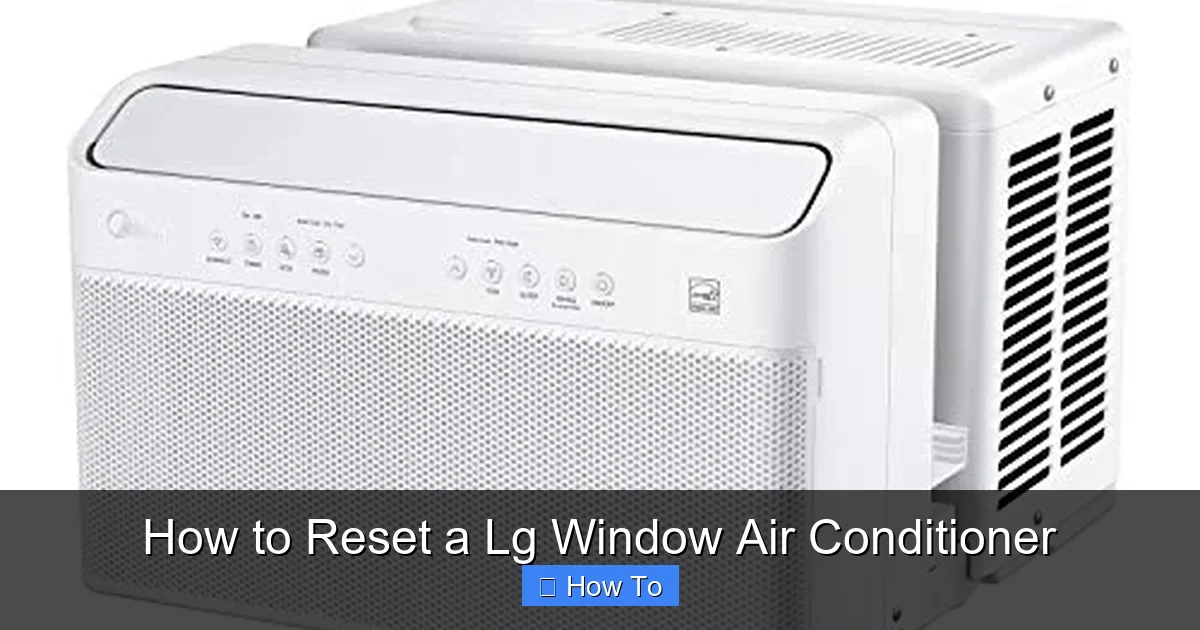 Visual guide showing LG window AC reset button location
Image source: smartacsolutions.com
Before we get into the how-to, it’s important to understand why resetting your LG window AC can solve so many problems. Modern air conditioners, including LG’s 2026 models, rely on microprocessors to manage temperature, fan speed, timers, and remote connectivity. Just like your smartphone or laptop, these systems can freeze, crash, or miscommunicate with sensors.
Common signs that your unit needs a reset include:
The remote control doesn’t work, even with new batteries
The display is blank or frozen
The unit turns on but doesn’t cool
Error codes appear on the display (like E1, CH, or CL)
The fan runs continuously without cooling
The unit shuts off unexpectedly
Resetting clears temporary software errors, reinitializes the control board, and restores communication between components. It’s often the fastest and most effective fix before calling a technician.
Safety Precautions Before Resetting
Before attempting any reset, ensure your safety and protect the unit. Always unplug the air conditioner from the wall outlet before cleaning or inspecting internal components. Avoid touching the metal fins on the evaporator or condenser coils—they can be sharp and may carry residual charge. If you notice any frayed wiring, burnt smells, or visible damage to the power cord, do not proceed; contact a qualified technician instead. Keep the area around the unit dry, and never operate the AC with the front panel removed. These simple steps reduce the risk of electric shock and prevent accidental damage to sensitive electronics. For a broader safety checklist, review our year-round upkeep routine.
Method 1: Power Cycling (The Universal Reset)
Power cycling—also known as a “hard reset”—is the most common and effective way to reset your LG window air conditioner. It’s simple, safe, and works on nearly all models. This method cuts power to the internal electronics, allowing them to fully reboot.
Step 1: Turn Off the Air Conditioner
Start by using the remote or the control panel on the unit to turn off the air conditioner. Make sure it’s completely powered down—don’t just switch it to “fan only” or “energy saver” mode. You want the system fully off.
Step 2: Unplug the Unit
Locate the power cord and unplug it from the wall outlet. This is a critical step—simply turning off the unit isn’t enough. The internal capacitors and control board may still hold a charge, so unplugging ensures a complete power drain.
Step 3: Wait 5 to 10 Minutes
This waiting period is essential. Give the system at least 5 minutes—10 is even better—to fully discharge. During this time, the microprocessor resets, and any temporary errors are cleared. Think of it like restarting your computer after a crash.
Step 4: Plug the Unit Back In
After the wait, plug the air conditioner back into the same outlet. Make sure the outlet is working—test it with another device if you’re unsure. Avoid using extension cords or power strips, as they can cause voltage issues.
Step 5: Turn the Unit Back On
Use the remote or control panel to power on the unit. Set your desired temperature and mode (cool, fan, dry, etc.). The system should now operate normally. If the problem was a temporary glitch, this reset should have fixed it.
Pro Tip: If your LG window AC has a built-in timer or smart features (like Wi-Fi connectivity), power cycling will also reset those functions. You may need to reconnect to your home network afterward.
Quick next step: After power cycling, clean the filter to maximize airflow—this often prevents the issue from recurring.
Method 2: Using the Reset Button (If Available)
Some LG window air conditioner models come with a physical reset button, usually located on the control panel or behind a small access panel. This button allows you to reset the system without unplugging the unit—convenient if you can’t easily reach the outlet.
Step 1: Locate the Reset Button
Check your user manual to find the exact location of the reset button. On many 2026 LG models, it’s a small, recessed button near the power switch or display. You may need a paperclip or pen tip to press it.
Step 2: Press and Hold the Button
With the unit powered on, press and hold the reset button for 3 to 5 seconds. You should see the display flash or hear a beep, indicating the reset is in progress.
Step 3: Wait for the System to Reboot
Release the button and wait for the unit to restart. The display may go blank briefly before returning to normal operation. Once it’s back on, test the controls and cooling function.
Note: Not all LG window ACs have a reset button. If you can’t find one, skip to the next method.
Method 3: Factory Reset (For Persistent Issues)
If power cycling and the reset button don’t solve the problem, a factory reset may be necessary. This method restores the air conditioner to its original factory settings, clearing all custom configurations, Wi-Fi connections, and saved preferences.
Use this method only if other resets fail or if you’re experiencing recurring software glitches.
Step 1: Access the Control Panel
Make sure the unit is powered on and the display is active. You’ll need to use the buttons on the unit itself—remote controls may not work during this process.
Step 2: Enter Factory Reset Mode
The exact steps vary by model, but most 2026 LG window ACs use a combination of button presses. Here’s a common sequence:
Press and hold the “Mode” and “Fan Speed” buttons simultaneously for 5 seconds.
The display will show “INIT” or “FACTORY” to confirm.
Release the buttons.
Refer to your user manual for model-specific instructions, as button layouts differ.
Step 3: Confirm the Reset
Once the reset mode is activated, the unit will automatically restore default settings. This may take 10–30 seconds. The display will return to normal, and all custom settings (like timers, sleep mode, or Wi-Fi) will be erased.
Step 4: Reconfigure Your Settings
After the reset, you’ll need to set your preferred temperature, mode, and fan speed again. If your unit has smart features, reconnect it to your Wi-Fi network using the LG ThinQ app.
Warning: A factory reset erases all data. Only use it as a last resort.
Need to reconnect Wi-Fi? The LG ThinQ app walks you through pairing step by step—open the app and follow the on-screen prompts.
Using the LG ThinQ App for Diagnostics
Many 2026 LG window air conditioners connect to the LG ThinQ app, which can read error codes, run self-diagnostics, and even initiate a remote reset from your phone. After pairing the unit, open the app and navigate to the “Smart Diagnosis” or “Troubleshooting” section. The app will communicate with the AC’s control board and display any active fault codes with plain-language descriptions. In practice, this often pinpoints whether the issue is a sensor fault, a communication error, or a refrigerant-pressure problem before you even touch the hardware. You can also use the app to check filter-life reminders and schedule maintenance alerts. For official pairing instructions and firmware updates, visit the LG support hub.
Troubleshooting Common Reset Issues
Even after a reset, some problems may persist. Here’s how to diagnose and fix common issues.
Unit Won’t Turn On After Reset
If your LG window AC doesn’t power on after a reset, check the following:
Power source: Test the outlet with another device. If it’s not working, check your circuit breaker.
Thermal overload protector: If the unit overheated, this safety feature may have tripped. Wait 30 minutes for it to cool, then try again.
Faulty power cord: Inspect the cord for damage. If frayed or burnt, replace it or contact LG support.
Remote Control Still Not Working
If the remote remains unresponsive after a reset:
Replace the batteries with fresh ones.
Ensure there’s no obstruction between the remote and the unit’s sensor.
Clean the remote’s infrared emitter with a soft cloth.
Try using the buttons on the unit itself to confirm the AC is functioning.
Error Codes Appear After Reset
LG window ACs display error codes to indicate specific problems. Here are a few common ones in 2026 models:
E1: Temperature sensor error. Check if the sensor is loose or dirty.
CH: High-pressure protection triggered. Clean the filters and coils.
CL: Child lock is activated. Press and hold the “Lock” button for 3 seconds to disable.
F1: Communication error between indoor and outdoor units (if applicable).
Refer to your user manual for a full list of error codes and solutions.
Unit Runs But Doesn’t Cool
If the fan runs but no cold air comes out:
Check the temperature setting—make sure it’s below room temperature.
Clean or replace the air filter. A clogged filter restricts airflow.
Inspect the evaporator and condenser coils for dirt or frost buildup.
Ensure the unit is properly sized for the room. An undersized AC will struggle to cool.
Common LG Window AC Models and Reset Variations
LG’s current window lineup includes the LW, LP, and Dual Inverter series. While the core reset methods are similar, button combinations for factory reset can differ. For example, some Dual Inverter models require holding “Temp Up” and “Temp Down” together, while older LW models use “Mode” + “Fan Speed.” Always consult the model-specific manual—usually found on the rating plate behind the front grille. If you’re unsure which series you own, our guide on selecting the proper unit includes a quick identification chart.
Comparison of Reset Methods
| Method | When to Use | Time Required | Data Loss | Difficulty |
|---|---|---|---|---|
| Power Cycling | First attempt for any glitch | 5–10 min | None | Very Easy |
| Reset Button | Quick reboot without unplugging | 30 sec | None | Easy |
| Factory Reset | Persistent software errors, Wi-Fi issues | 1–2 min | All custom settings | Moderate |
Choosing the right method saves time: start with power cycling, escalate only if needed. For tips on optimizing settings after a reset, see our recommendations for optimal efficiency settings.
Preventing Future Resets: Maintenance Tips
The best way to avoid frequent resets is regular maintenance. A well-maintained LG window air conditioner runs efficiently and experiences fewer glitches.
Clean the Air Filter Monthly
A dirty filter is the #1 cause of AC problems. Remove the filter every month, rinse it with warm water, and let it dry completely before reinstalling. If it’s damaged, replace it with a genuine LG filter.
Inspect and Clean the Coils
Over time, dust and debris accumulate on the evaporator and condenser coils, reducing efficiency and causing overheating. Use a soft brush or vacuum with a brush attachment to clean them gently. For heavy buildup, use a coil cleaner spray.
Check the Drainage System
Ensure the drain hole at the back of the unit is clear. A clogged drain can cause water leakage and trigger safety shutoffs. Use a pipe cleaner or compressed air to remove blockages.
Secure the Unit Properly
A loose or poorly installed window AC can vibrate excessively, damaging internal components. Make sure the unit is level, securely fastened, and sealed with weatherstripping to prevent air leaks.
Schedule Annual Professional Service
Even with regular DIY maintenance, have a certified technician inspect your unit once a year. They can check refrigerant levels, test electrical connections, and identify potential issues before they cause problems.
Proactive habit: Log each cleaning in a phone note or the ThinQ app—consistent records help spot trends early. For deeper coil-care guidance, refer to condenser problem diagnosis. The Energy Star maintenance checklist also outlines seasonal tasks that keep efficiency high.
When to Call LG Support
While most issues can be resolved with a reset or basic troubleshooting, some problems require professional help. Contact LG customer support if:
The unit trips the circuit breaker repeatedly
You smell burning or see smoke
There’s a refrigerant leak (hissing sound, oily residue)
The compressor won’t start despite multiple resets
Error codes persist after troubleshooting
LG offers 24/7 support via phone, chat, and the LG ThinQ app. Have your model number and serial number ready—they’re usually found on a label inside the front panel.
Frequently Asked Questions
How often should I reset my LG window air conditioner?
Only reset when you notice a specific issue like an error code, frozen display, or loss of cooling. Routine resets are unnecessary and may mask underlying problems.
Will a factory reset delete my Wi-Fi network settings?
Yes. A factory reset erases all saved Wi-Fi credentials and ThinQ app pairings. You’ll need to set up the connection again afterward.
Can I reset the unit without unplugging it if there’s no reset button?
No. Without a physical reset button, power cycling (unplugging for 5–10 minutes) is the only way to fully reboot the control board.
Why does my LG window AC show error code CH after a reset?
CH indicates high-pressure protection, usually caused by dirty filters or blocked coils. Clean both thoroughly and ensure the outdoor vent isn’t obstructed.
Is it safe to use an extension cord with my LG window AC?
LG strongly advises against extension cords or power strips—they can cause voltage drop, overheating, and fire risk. Plug directly into a dedicated wall outlet.
How do I find my LG window AC model number?
Open the front grille; the rating plate on the side of the chassis lists the model and serial numbers. You’ll need these for support or manual lookup.
Final Thoughts
Resetting your LG window air conditioner is a simple yet powerful way to restore performance and resolve common issues. Whether you use power cycling, a reset button, or a factory reset, these methods can save you time, money, and frustration.
Remember, regular maintenance is key to preventing problems before they start. Clean your filters, check for blockages, and keep the unit secure. And if all else fails, don’t hesitate to reach out to LG’s expert support team.
With the tips and steps in this guide, you’re equipped to keep your LG window AC running smoothly all summer long—and beyond.