
This guide walks you through how to factory reset LG air conditioner units across various models. Whether you’re fixing errors, preparing for resale, or improving performance, you’ll find clear, easy-to-follow instructions and expert tips.
Key Takeaways
- Factory resetting restores default settings: It clears custom configurations, Wi-Fi connections, and error logs, returning your LG AC to its original state.
- Use the remote control or buttons on the unit: Most LG air conditioners can be reset using the remote, while window or portable units may require physical buttons.
- Power cycling is not the same as a factory reset: Simply turning the unit off and on won’t erase settings—only a full reset will.
- Reset before selling or moving the unit: This protects your personal data and ensures the next user starts fresh.
- Check your model number first: Reset steps vary slightly between window, split, portable, and smart inverter models.
- Wi-Fi and smart features will disconnect: After a reset, you’ll need to reconnect to the LG ThinQ app and reconfigure smart settings.
- Consult the manual if unsure: If standard steps don’t work, your user manual or LG support can provide model-specific guidance.
How to Factory Reset LG Air Conditioner: A Complete Step-by-Step Guide
Is your LG air conditioner acting up? Maybe it’s not cooling properly, the remote isn’t responding, or you’re preparing to sell or move the unit. Whatever the reason, a factory reset can often solve the problem by restoring your AC to its original factory settings. This guide will walk you through how to factory reset LG air conditioner models—whether you have a window unit, split system, portable AC, or a smart inverter model with Wi-Fi capabilities.
In this comprehensive how-to guide, you’ll learn:
- The exact steps to perform a factory reset on different LG AC models
- Why and when you should reset your air conditioner
- What to expect after the reset
- Troubleshooting tips if the reset doesn’t work
- How to reconnect smart features like the LG ThinQ app
By the end, you’ll feel confident resetting your LG air conditioner safely and effectively—no technical expertise required.
Why Factory Reset Your LG Air Conditioner?
Before diving into the steps, it’s helpful to understand why you might need to reset your LG air conditioner. A factory reset isn’t just a quick fix—it’s a powerful tool for resolving persistent issues and preparing your unit for a fresh start.
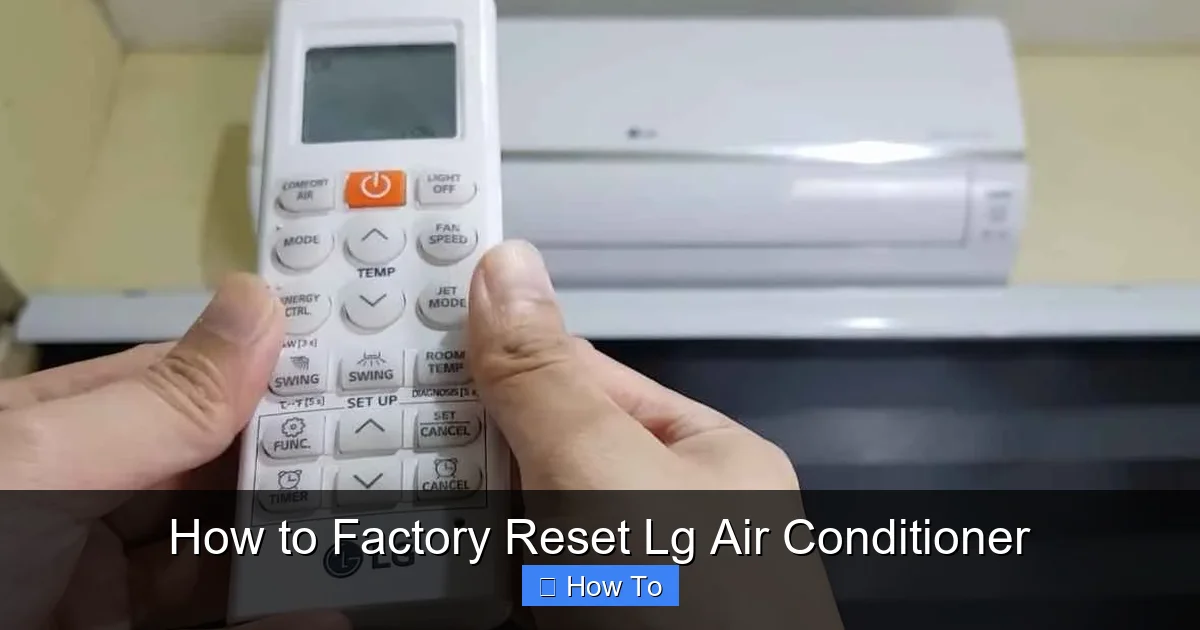
Visual guide about How to Factory Reset Lg Air Conditioner
Image source: smartacsolutions.com
Here are the most common reasons to perform a factory reset:
1. Fixing Performance Issues
If your AC is running but not cooling, freezing up, or cycling on and off unexpectedly, a reset can clear software glitches or corrupted settings. Over time, internal memory can store incorrect data, leading to malfunctions. A factory reset wipes this data and restores optimal operation.
2. Remote Control Problems
Is your remote not responding or sending incorrect commands? Sometimes, the remote and AC lose sync. A factory reset re-establishes communication between the two devices, especially if you’ve replaced the remote or changed batteries recently.
3. Preparing for Resale or Relocation
If you’re selling your home or moving, resetting the AC ensures the next user starts with clean settings. It also removes any personal data, such as Wi-Fi passwords or custom schedules stored in smart models.
4. Reconnecting to Wi-Fi or Smart Features
Smart LG air conditioners connect to the LG ThinQ app for remote control and scheduling. If you’re having trouble connecting or the app shows errors, a factory reset often resolves connectivity issues by clearing old network configurations.
5. After a Power Surge or Outage
Power fluctuations can corrupt the AC’s internal settings. A reset helps the unit recover and operate normally after such events.
Now that you know why a reset is useful, let’s move on to how to do it.
Before You Begin: Important Preparations
Performing a factory reset is simple, but it’s important to prepare properly to avoid frustration or damage.
Check Your Model Type
LG makes several types of air conditioners, and the reset method varies slightly depending on the model:
- Window units: Typically have physical buttons on the front or side.
- Split systems (wall-mounted): Usually controlled by a remote, with reset options in the menu.
- Portable ACs: May have a reset button or require a combination of button presses.
- Smart inverter models: Often support Wi-Fi and app control, requiring a digital reset.
To find your model type, check the label on the back or side of the indoor unit, or look at the remote control. The model number usually starts with “LW” (window), “LP” (portable), or “LS” (split system).
Gather What You Need
You’ll need:
- The original remote control (if applicable)
- A working power source
- Access to the AC unit (no tools required for most resets)
Back Up Important Settings (If Possible)
A factory reset will erase all custom settings, including:
- Temperature preferences
- Timer schedules
- Fan speed settings
- Wi-Fi network details
- Smart app connections
If you rely on specific schedules or settings, write them down before resetting. You’ll need to reconfigure them afterward.
Ensure the Unit Is Powered On
The AC must be plugged in and powered on (even if it’s not cooling) for the reset to work. If the unit is completely dead, check the circuit breaker or power outlet first.
How to Factory Reset LG Window Air Conditioner
Window units are among the most common LG models. Here’s how to reset them using the remote or physical buttons.
Method 1: Using the Remote Control
This is the easiest method if your remote is working.
- Turn on the AC: Press the Power button on the remote to ensure the unit is on.
- Press and hold the “Reset” button: On most LG window AC remotes, there’s a small “Reset” button (sometimes labeled “RST”) near the bottom. Press and hold it for 3–5 seconds.
- Wait for confirmation: The display should blink or turn off briefly, then return to default settings. Some models may beep or flash lights.
- Test the unit: Try adjusting the temperature or fan speed to confirm the reset worked.
Tip: If you don’t see a “Reset” button, look for a “Mode” or “Function” button. On some models, holding “Mode” + “Fan” for 5 seconds triggers a reset.
Method 2: Using Physical Buttons on the Unit
If the remote is lost or not working, you can reset the AC using buttons on the front panel.
- Locate the control panel: On most LG window units, there’s a small panel with buttons like “Power,” “Mode,” “Fan,” and “Temp.”
- Press and hold “Mode” and “Fan” together: Hold both buttons for 5–10 seconds until the display blinks or resets.
- Release and wait: The unit should restart with default settings.
Note: Button combinations vary by model. If this doesn’t work, try “Power” + “Mode” or consult your user manual.
How to Factory Reset LG Split System Air Conditioner
Split systems (also called ductless mini-splits) are popular for their quiet operation and efficiency. Resetting them is slightly different due to their advanced controls.
Step-by-Step Reset Using the Remote
- Ensure the AC is on: Press the Power button to turn it on.
- Press “Menu” or “Function”: Look for a button labeled “Menu,” “Function,” or “Settings” on the remote.
- Navigate to “Reset” or “Factory Reset”: Use the arrow keys to scroll through the menu. Look for options like “Reset,” “Initialize,” or “Restore Defaults.”
- Confirm the reset: Select “Yes” or “OK” when prompted. The unit may beep or display a confirmation message.
- Wait for reboot: The AC will turn off and restart automatically. This may take 1–2 minutes.
Tip: On some LG split models, you can reset by pressing “Timer” + “Sleep” for 5 seconds. Try this if the menu method doesn’t work.
Alternative: Hard Reset via Power Cycle
If the remote isn’t responding, you can perform a hard reset by cutting power:
- Turn off the AC: Use the remote or wall switch.
- Unplug the unit: Disconnect it from the power outlet.
- Wait 10 minutes: This allows capacitors to discharge and memory to clear.
- Plug it back in: Reconnect power and turn the AC on.
While this isn’t a true factory reset, it can resolve minor glitches. For a full reset, use the remote method above.
How to Factory Reset LG Portable Air Conditioner
Portable ACs are convenient but can be tricky to reset due to limited controls. Here’s how to do it.
Method 1: Using the Control Panel
- Turn on the unit: Press the Power button.
- Press and hold “Mode” and “Fan”: Hold both buttons for 5–10 seconds until the display changes.
- Look for a reset indicator: The screen may show “RST” or flash all icons.
- Release and test: The unit should restart with default settings.
Method 2: Using the Reset Button (If Available)
Some LG portable models have a small reset button on the back or side.
- Locate the reset button: It’s usually a tiny pinhole labeled “Reset.”
- Use a paperclip: Gently press and hold the button for 3–5 seconds.
- Wait for response: The unit may beep or restart.
Note: Not all portable models have this button. Check your user manual if unsure.
How to Factory Reset LG Smart Air Conditioner (Wi-Fi Enabled)
Smart LG air conditioners connect to the LG ThinQ app for remote control. Resetting them also clears Wi-Fi settings.
Step-by-Step Smart Reset
- Open the LG ThinQ app: Make sure you’re logged in.
- Select your AC unit: Tap on the device you want to reset.
- Go to “Settings” or “Device Info”: Look for a gear icon or menu option.
- Find “Reset” or “Factory Reset”: This may be under “Advanced Settings” or “Troubleshooting.”
- Confirm the reset: Tap “Yes” or “Reset.” The app will notify you when complete.
- Reconnect to Wi-Fi: After the reset, you’ll need to re-add the AC to the app and reconnect to your network.
Tip: If the app isn’t working, you can still reset using the remote or physical buttons as described earlier. The Wi-Fi connection will be removed regardless.
What Happens After a Factory Reset?
Once the reset is complete, your LG air conditioner will behave like it’s brand new. Here’s what to expect:
- Default temperature setting: Usually 72°F (22°C) or 74°F (23°C).
- Fan speed reset to auto: The fan will adjust based on cooling needs.
- Timer and sleep mode disabled: Any scheduled operations will be cleared.
- Wi-Fi disconnected: You’ll need to reconnect to your home network via the LG ThinQ app.
- Remote re-synced: The remote should work normally again.
Take a moment to test basic functions like cooling, fan, and mode switching. If everything works, you’re all set!
Troubleshooting: What If the Reset Doesn’t Work?
Sometimes, a factory reset doesn’t solve the problem—or the reset itself fails. Here’s how to troubleshoot.
1. The AC Doesn’t Respond to Reset Commands
Possible causes:
- The remote batteries are dead.
- The unit is in a protective mode (e.g., freeze protection).
- The control board is faulty.
Solutions:
- Replace remote batteries.
- Wait 10–15 minutes for the unit to thaw if frozen.
- Try the physical button method instead of the remote.
- Contact LG support if the issue persists.
2. The Unit Resets But Still Doesn’t Cool
A reset fixes software issues, but not hardware problems.
Check for:
- Dirty air filters (clean or replace them).
- Blocked vents or airflow.
- Low refrigerant (requires professional service).
- Faulty compressor or fan motor.
If cleaning and basic checks don’t help, call a certified technician.
3. Wi-Fi Won’t Reconnect After Reset
This is common with smart models.
Try:
- Reinstalling the LG ThinQ app.
- Ensuring your Wi-Fi network is 2.4 GHz (most LG ACs don’t support 5 GHz).
- Moving the router closer to the AC.
- Resetting your router.
4. The Display Shows an Error Code
After a reset, some models display codes like “CH 01” or “CL.” These usually clear on their own. If not, refer to your manual or LG’s error code guide online.
Tips for Maintaining Your LG Air Conditioner
To avoid frequent resets and keep your AC running smoothly:
- Clean filters monthly: Dirty filters reduce efficiency and can cause freezing.
- Schedule annual maintenance: Have a technician check refrigerant levels and electrical connections.
- Use a surge protector: Protects against power spikes that can damage electronics.
- Avoid frequent power cycling: Turn the AC off only when necessary.
- Keep the area around the unit clear: Ensure proper airflow for optimal performance.
Conclusion
Knowing how to factory reset LG air conditioner units is a valuable skill that can save you time, money, and frustration. Whether you’re fixing a glitch, preparing for a move, or reconnecting smart features, a factory reset is often the quickest solution.
Remember to check your model type, use the correct reset method, and reconfigure your settings afterward. And if problems persist, don’t hesitate to contact LG customer support or a licensed HVAC technician.
With this guide, you’re equipped to handle any reset situation with confidence. Stay cool!

