
This guide walks you through how to enable WiFi on an LG air conditioner, from checking compatibility to connecting via the LG ThinQ app. You’ll learn setup tips, troubleshooting advice, and how to enjoy remote control of your AC from anywhere.
Key Takeaways
- Check compatibility first: Only select LG air conditioner models support WiFi connectivity. Look for “WiFi” or “Smart” in the model name or check the user manual.
- Download the LG ThinQ app: This free app is essential for connecting and controlling your AC remotely. Available on iOS and Android.
- Ensure a stable 2.4GHz Wi-Fi network: Most LG AC units only work with 2.4GHz networks, not 5GHz. Make sure your router broadcasts this band.
- Follow the setup process carefully: Use the app’s guided setup to pair your AC. Keep your phone close to the unit during pairing.
- Use the correct WiFi password: Typos are a common cause of connection failure. Double-check your network password before entering it.
- Restart devices if needed: If connection fails, restart your AC, router, and phone to refresh network settings.
- Enjoy remote control features: Once connected, you can adjust temperature, set schedules, and monitor energy use from anywhere.
How to Enable WiFi on LG Air Conditioner: A Complete Step-by-Step Guide
Imagine coming home on a hot summer day and walking into a perfectly cooled living room—without touching a single button. Thanks to smart technology, this is now possible with LG air conditioners that support WiFi connectivity. By enabling WiFi on your LG AC, you can control your unit remotely using your smartphone, set cooling schedules, monitor energy usage, and even receive maintenance alerts—all from the palm of your hand.
In this comprehensive guide, we’ll walk you through everything you need to know about how to enable WiFi on an LG air conditioner. Whether you’ve just unboxed a new LG Smart AC or you’re upgrading an older compatible model, this step-by-step tutorial will help you get connected quickly and easily. We’ll cover compatibility checks, app setup, network requirements, troubleshooting tips, and how to make the most of your smart cooling experience.
By the end of this guide, you’ll be able to confidently connect your LG air conditioner to your home WiFi network and start enjoying the convenience of remote control. Let’s get started!
Why Enable WiFi on Your LG Air Conditioner?
Before diving into the technical steps, it’s helpful to understand the benefits of enabling WiFi on your LG air conditioner. Smart ACs aren’t just a luxury—they offer real value in comfort, convenience, and energy efficiency.
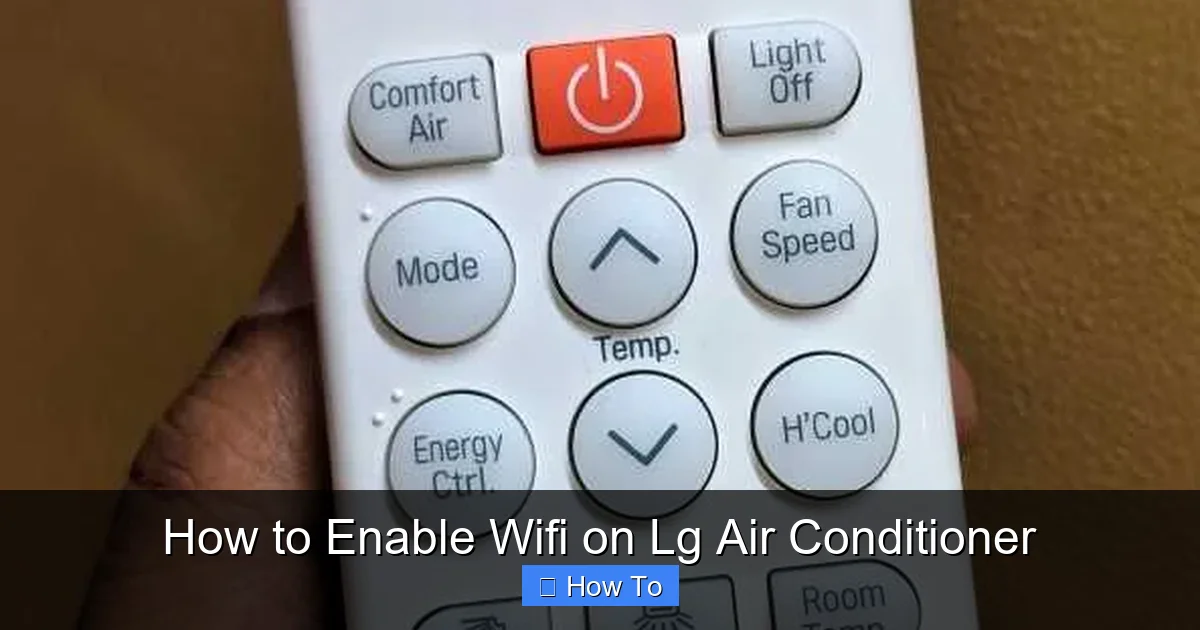
Visual guide about How to Enable Wifi on Lg Air Conditioner
Image source: reviewcenter.in
With WiFi enabled, you can:
- Control your AC from anywhere: Turn on your AC before you leave work so your home is cool when you arrive.
- Adjust settings remotely: Change the temperature, fan speed, or mode (cool, fan, dry, heat) using your phone.
- Set custom schedules: Program your AC to turn on or off at specific times, helping you save energy and money.
- Receive alerts and notifications: Get reminders for filter cleaning, maintenance, or if the unit malfunctions.
- Monitor energy usage: Track how much power your AC is using and make adjustments to reduce your electricity bill.
- Use voice commands: If you have a smart speaker like Amazon Alexa or Google Assistant, you can control your AC with simple voice commands.
These features make WiFi-enabled LG air conditioners a smart investment for modern homes. Now, let’s walk through how to get yours connected.
Step 1: Check If Your LG Air Conditioner Supports WiFi
Not all LG air conditioners come with built-in WiFi capabilities. Before you begin, you need to confirm that your model is compatible with smart features.
How to Identify a WiFi-Enabled LG AC
Look for the following indicators:
- Model name includes “WiFi” or “Smart”: Models like the LG LW1216HR, LP1419IVSM, or LS1019IVSM often have “WiFi” or “Smart” in their names.
- Check the product label: Find the model number on the back or side of the unit. Visit LG’s official website and search for your model to see if it supports WiFi.
- Look for a WiFi or Smart button: Some LG ACs have a physical button labeled “WiFi” or “Smart” on the remote or unit.
- Review the user manual: The manual will clearly state whether the unit supports WiFi connectivity and remote control via the LG ThinQ app.
If your model isn’t WiFi-enabled, you may still be able to add smart functionality using an external device like the LG Smart AC WiFi Adapter (sold separately). This small plug-in module connects to your AC’s control panel and enables WiFi control. Check compatibility before purchasing.
Compatible LG Air Conditioner Series
As of 2024, the following LG AC series typically support WiFi:
- LG Dual Inverter Window ACs (e.g., LW1216HR, LW1517IVSM)
- LG Smart Portable ACs (e.g., LP1419IVSM, LP0821WSR)
- LG Art Cool Mirror and Art Cool Gallery models
- LG DUALCOOL and Super Inverter models with “Smart” in the name
If you’re unsure, visit LG’s official website and use their product finder tool to confirm compatibility.
Step 2: Download and Set Up the LG ThinQ App
The LG ThinQ app is the central hub for controlling your smart appliances, including your air conditioner. It’s available for free on both iOS and Android devices.
How to Download the LG ThinQ App
- Open the App Store (iPhone) or Google Play Store (Android).
- Search for “LG ThinQ”.
- Download and install the official app by LG Electronics.
- Launch the app once installed.
Create an LG Account
To use the app, you’ll need an LG account. If you don’t already have one:
- Open the LG ThinQ app.
- Tap “Sign Up” or “Create Account”.
- Enter your email address, create a password, and verify your email.
- Complete your profile with basic information.
Having an account allows you to save settings, receive updates, and manage multiple LG devices from one place.
Log In to the App
After creating your account:
- Open the app and tap “Sign In”.
- Enter your email and password.
- Grant necessary permissions (like location access) if prompted.
You’re now ready to add your air conditioner.
Step 3: Prepare Your Wi-Fi Network
Your LG air conditioner needs a stable Wi-Fi connection to function properly. Here’s how to ensure your network is ready.
Use a 2.4GHz Wi-Fi Network
Most LG AC units only support 2.4GHz Wi-Fi networks, not 5GHz. Here’s why this matters:
- The 2.4GHz band has a longer range and better wall penetration, which is ideal for appliances.
- The 5GHz band is faster but has shorter range and may not reach your AC unit.
To check your network:
- Open your phone’s Wi-Fi settings.
- Look at the network name (SSID). If it ends in “_5G” or “5GHz”, it’s a 5GHz network.
- If your router broadcasts both bands, make sure your phone is connected to the 2.4GHz network during setup.
Tip: Some routers combine both bands under one name. In this case, you may need to temporarily separate them or use a network scanner app to identify the 2.4GHz signal.
Ensure Strong Signal Strength
Your AC should be within range of your Wi-Fi router. If the signal is weak:
- Move your router closer to the AC unit.
- Use a Wi-Fi extender or mesh system to boost coverage.
- Avoid placing the AC behind thick walls or metal objects.
Know Your Wi-Fi Password
You’ll need to enter your Wi-Fi password during setup. Make sure you know it and that it’s correct. Common issues include:
- Using uppercase letters when the password is lowercase.
- Including special characters incorrectly.
- Confusing similar-looking characters (e.g., “0” vs. “O”).
Tip: Test your password by connecting another device to ensure it works.
Step 4: Connect Your LG Air Conditioner to WiFi
Now it’s time to pair your AC with the LG ThinQ app. Follow these steps carefully.
Turn On Your Air Conditioner
Make sure your AC is plugged in and powered on. Use the remote or control panel to turn it on. The unit should be in normal operating mode (not in setup or demo mode).
Put the AC in WiFi Pairing Mode
Different LG models enter pairing mode in slightly different ways. Here are the most common methods:
- Using the remote: Press and hold the “WiFi” or “Smart” button for 3–5 seconds until the WiFi light blinks.
- Using the control panel: On some models, press and hold the “Mode” and “Fan” buttons simultaneously for 3 seconds.
- Using the app: Open the LG ThinQ app, tap the “+” icon, select “Air Conditioner,” and follow the on-screen prompts.
When in pairing mode, the WiFi indicator light on the AC unit will blink rapidly. This means it’s ready to connect.
Add the AC in the LG ThinQ App
- Open the LG ThinQ app.
- Tap the “+” icon in the top-right corner.
- Select “Air Conditioner” from the list of devices.
- Choose your AC model from the options (or select “Auto Detect”).
- The app will search for nearby devices. Make sure your phone is close to the AC (within 3–5 feet).
- When your AC appears, tap it to select it.
- Enter your Wi-Fi network name (SSID) and password when prompted.
- Tap “Connect” or “Next”.
The app will send the network information to your AC. This may take 30–60 seconds. Do not turn off the AC or close the app during this process.
Confirm Successful Connection
Once connected:
- The WiFi light on the AC will stop blinking and stay solid.
- The app will display your AC and show its current status (e.g., “Cooling,” “Off”).
- You can now control the AC from the app.
Congratulations! Your LG air conditioner is now WiFi-enabled.
Step 5: Use the LG ThinQ App to Control Your AC
Now that your AC is connected, explore the app’s features to get the most out of your smart unit.
Basic Controls
From the app home screen:
- Tap your AC to open the control panel.
- Adjust the temperature using the slider or +/- buttons.
- Change the mode (Cool, Heat, Fan, Dry, Auto).
- Set the fan speed (Low, Medium, High, Auto).
- Turn the unit on or off.
Advanced Features
- Schedule Timer: Set your AC to turn on or off at specific times. For example, program it to cool your bedroom at 7 PM every night.
- Energy Monitoring: View daily, weekly, or monthly energy usage to track efficiency.
- Maintenance Alerts: Receive notifications when it’s time to clean the filter or service the unit.
- Remote Access: Control your AC from anywhere with an internet connection—perfect for vacation homes or unexpected heatwaves.
Voice Control Setup
To use voice commands:
- Link your LG ThinQ account to Amazon Alexa or Google Assistant.
- Say, “Alexa, discover devices” or “Hey Google, sync my devices.”
- Use commands like “Turn on the living room AC” or “Set the temperature to 72 degrees.”
Voice control adds another layer of convenience, especially when your hands are full.
Troubleshooting Common WiFi Connection Issues
Even with careful setup, you might run into problems. Here’s how to fix the most common issues.
AC Not Appearing in the App
If your AC doesn’t show up during pairing:
- Make sure the AC is in pairing mode (WiFi light blinking).
- Move your phone closer to the AC (within 3–5 feet).
- Restart the AC by unplugging it for 30 seconds, then plugging it back in.
- Close and reopen the LG ThinQ app.
- Try the setup process again.
Connection Fails After Entering Password
If the app says “Connection failed”:
- Double-check your Wi-Fi password for typos.
- Ensure you’re connected to the 2.4GHz network, not 5GHz.
- Restart your router by unplugging it for 30 seconds.
- Forget the network on your phone and reconnect to it.
- Try using a different phone or tablet to run the setup.
WiFi Light Stays Off or Blinks Slowly
This usually means the AC isn’t connected to WiFi:
- Re-enter pairing mode and try the setup again.
- Check if your router’s firewall or security settings are blocking the connection.
- Ensure your AC’s firmware is up to date (check via the app or LG website).
App Shows “Offline” or “Disconnected”
If your AC appears offline in the app:
- Check if your home Wi-Fi is working (test with another device).
- Restart your AC and router.
- Reconnect the AC through the app by removing and re-adding it.
- Ensure the AC is within Wi-Fi range.
Still Having Trouble?
If none of the above solutions work:
- Contact LG Customer Support at 1-800-243-0000 or visit LG Support.
- Have your model number and purchase date ready.
- They may guide you through a factory reset or firmware update.
Tips for Maintaining Your WiFi-Enabled LG AC
To keep your smart AC running smoothly:
- Update the app regularly: New versions often include bug fixes and new features.
- Clean the air filter monthly: A dirty filter reduces efficiency and can trigger maintenance alerts.
- Keep the unit firmware updated: Check for updates in the LG ThinQ app under “Device Care.”
- Use strong Wi-Fi passwords: Avoid simple passwords that could be hacked.
- Reconnect after network changes: If you change your Wi-Fi name or password, you’ll need to reconnect your AC.
Conclusion
Enabling WiFi on your LG air conditioner opens up a world of smart cooling possibilities. With just a few simple steps—checking compatibility, downloading the LG ThinQ app, and connecting to your network—you can control your AC from anywhere, save energy, and enjoy a more comfortable home.
Whether you’re cooling a single room or managing multiple units, the convenience of remote access, scheduling, and voice control makes WiFi connectivity a worthwhile upgrade. And if you run into any issues, the troubleshooting tips in this guide will help you get back on track quickly.
So go ahead—turn on your AC before you leave work, set a cooling schedule for bedtime, or check in on your vacation home from across the country. With your LG air conditioner connected to WiFi, smart comfort is always within reach.

