
Connecting your LG air conditioner to Alexa lets you control temperature, fan speed, and modes using simple voice commands. This guide walks you through setup using the LG ThinQ app and Amazon Alexa, ensuring seamless smart home integration.
Key Takeaways
- Ensure compatibility: Your LG air conditioner must support Wi-Fi and the LG ThinQ app to work with Alexa.
- Download the right apps: You’ll need both the LG ThinQ app and the Amazon Alexa app installed on your smartphone.
- Connect to Wi-Fi first: Your AC unit must be connected to your home Wi-Fi network before linking to Alexa.
- Enable the LG SmartThinQ skill: This skill allows Alexa to communicate with your LG appliances.
- Use clear voice commands: Say phrases like “Alexa, turn on the living room AC” for best results.
- Troubleshoot connection issues: Restart devices, check Wi-Fi, and re-link accounts if needed.
- Enjoy hands-free control: Once connected, manage your AC from anywhere using voice or the Alexa app.
Introduction: Why Connect Your LG Air Conditioner to Alexa?
Imagine walking into your home on a hot summer day and saying, “Alexa, cool the living room to 72 degrees” — and your LG air conditioner instantly responds. That’s the power of smart home integration. By connecting your LG air conditioner to Alexa, you can control your cooling system using simple voice commands, set schedules, monitor energy usage, and even adjust settings remotely from your phone.
This guide will walk you through the entire process of connecting your LG air conditioner to Alexa, step by step. Whether you have a window unit, portable AC, or a ductless mini-split system, as long as it’s Wi-Fi enabled and compatible with the LG ThinQ app, you can make it work with Alexa. We’ll cover everything from checking compatibility to troubleshooting common issues, so you can enjoy a smarter, more convenient cooling experience.
Step 1: Check Compatibility
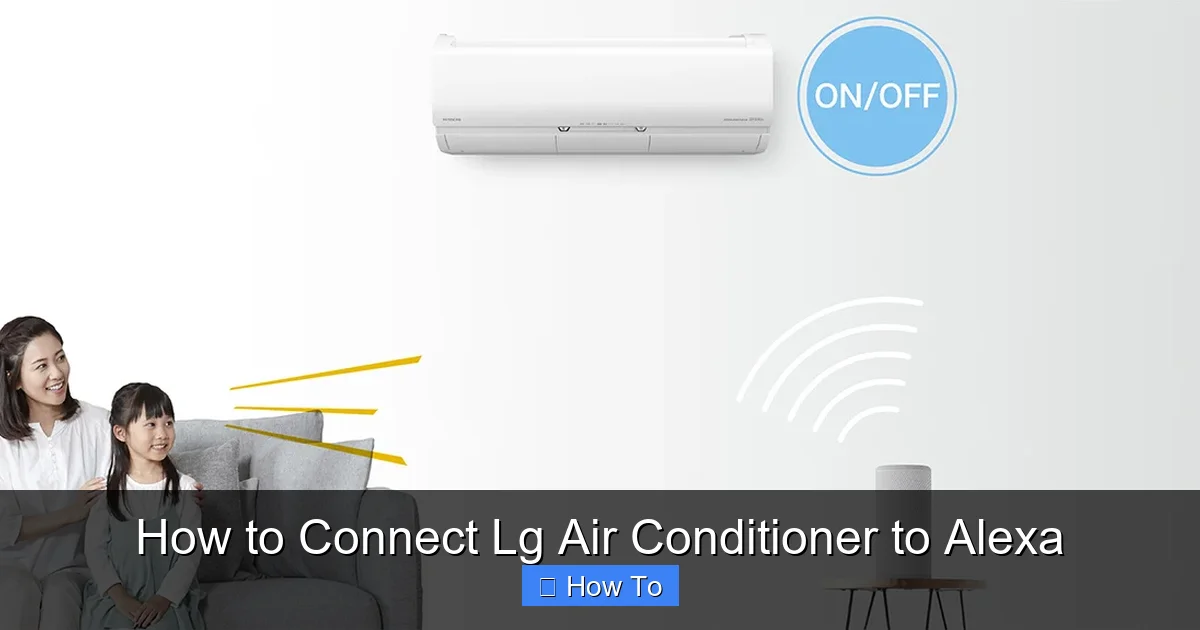
Visual guide about How to Connect Lg Air Conditioner to Alexa
Image source: freelifetech.com
Before you begin, it’s important to confirm that your LG air conditioner is compatible with Alexa. Not all LG AC units support smart features, so this step is crucial.
Look for Wi-Fi and ThinQ Support
Your LG air conditioner must have built-in Wi-Fi capability and support the LG ThinQ platform. Most LG smart air conditioners made in 2017 or later include this feature. You can check your model number — usually found on a label inside the front panel or on the back of the unit — and visit the LG website to verify compatibility.
Check the Model Number
Common LG smart AC models include the LG Dual Inverter Window AC (like the LW1517IVSM), LG Portable AC (such as the LP1419IVSM), and LG Art Cool Mirror mini-splits. If your model number includes “IVSM” or “SM” at the end, it likely supports Wi-Fi and ThinQ.
Verify App Support
Download the LG ThinQ app (available on iOS and Android) and search for your model. If it appears in the app’s list of supported devices, you’re good to go. You can also check the product manual or LG’s official support page for confirmation.
Step 2: Download and Set Up the LG ThinQ App
The LG ThinQ app is the bridge between your air conditioner and Alexa. It’s where you’ll register your device, connect it to Wi-Fi, and manage settings.
Install the App
Go to the Apple App Store or Google Play Store and search for “LG ThinQ.” Download and install the app on your smartphone or tablet.
Create an LG Account
Open the app and tap “Sign Up” to create a free LG account. You’ll need to provide an email address, create a password, and verify your email. If you already have an account, simply log in.
Add Your Air Conditioner
Once logged in, tap the “+” icon or “Add Product” button. Select “Air Conditioner” from the list of device categories. The app will guide you through the setup process.
Connect to Wi-Fi
Turn on your LG air conditioner and make sure it’s in pairing mode (usually indicated by a blinking Wi-Fi light). Follow the on-screen prompts to connect the AC to your home Wi-Fi network. You’ll need to enter your Wi-Fi password. Ensure your phone is connected to the same 2.4 GHz network — most LG ACs don’t support 5 GHz.
Complete Setup
After connecting, the app will assign a name to your AC (like “Living Room AC”). You can customize this name for easier identification later. Test the connection by turning the AC on and off from the app.
Step 3: Set Up Amazon Alexa
Now that your LG air conditioner is connected to the ThinQ app, it’s time to link it to Alexa.
Download the Alexa App
If you don’t already have it, download the Amazon Alexa app from the App Store or Google Play. Log in with your Amazon account.
Ensure Alexa Device is Ready
Make sure your Alexa-enabled device (like an Echo Dot, Echo Show, or Echo Studio) is set up, connected to Wi-Fi, and working properly. You should be able to say “Alexa” and get a response.
Enable the LG SmartThinQ Skill
Open the Alexa app and tap the “More” tab (three lines in the bottom right). Select “Skills & Games.” Search for “LG SmartThinQ.” Tap on the skill and then select “Enable to Use.”
Link Your LG Account
You’ll be prompted to sign in with your LG account credentials (the same ones you used in the ThinQ app). Allow Alexa to access your LG devices. This links your AC to Alexa.
Discover Devices
After linking, say, “Alexa, discover devices” or go to the Alexa app, tap “Devices,” then “+” and “Add Device.” Alexa will scan for new devices. Your LG air conditioner should appear in the list. If it doesn’t, wait a minute and try again.
Step 4: Name and Organize Your AC in Alexa
Once your AC is discovered, give it a clear, easy-to-say name so Alexa can understand your commands.
Assign a Room
In the Alexa app, go to “Devices” > “All Devices” and find your AC. Tap on it and select “Edit.” Assign it to a room (like “Living Room” or “Bedroom”). This helps when you have multiple smart devices.
Choose a Simple Name
Avoid complicated names. Use “Living Room AC,” “Bedroom Cooler,” or “Main AC.” Avoid names that sound like other devices (e.g., don’t call it “Fan” if you have a smart fan).
Test the Name
Say, “Alexa, turn on the Living Room AC” to test if Alexa recognizes the name. If it doesn’t work, go back and adjust the name or room assignment.
Step 5: Use Voice Commands to Control Your AC
Now for the fun part — using your voice to control your air conditioner.
Basic Commands
Here are some common voice commands you can use:
– “Alexa, turn on the Living Room AC.”
– “Alexa, turn off the Bedroom AC.”
– “Alexa, set the temperature to 70 degrees.”
– “Alexa, increase the temperature by 2 degrees.”
– “Alexa, set the fan speed to high.”
Advanced Commands
You can also control modes and settings:
– “Alexa, switch to Cool mode.”
– “Alexa, switch to Energy Saver mode.”
– “Alexa, set the AC to 74 degrees in Cool mode.”
Use Routines for Automation
Create Alexa Routines to automate your AC. For example:
– “Alexa, good night” → Turns off all lights and sets AC to 72°F.
– “Alexa, I’m home” → Turns on the AC and adjusts to your preferred temperature.
To set up a routine, go to the Alexa app > More > Routines > Create Routine. Add a trigger (like a voice command) and an action (like setting the AC temperature).
Step 6: Control Your AC Remotely via the Alexa App
Even when you’re not home, you can manage your LG air conditioner through the Alexa app.
Open the Alexa App
Tap “Devices” > “All Devices” and select your AC. You’ll see controls for power, temperature, mode, and fan speed.
Adjust Settings
Use the on-screen buttons to turn the AC on or off, change the temperature, or switch modes. Changes happen in real time.
Monitor Usage
Some LG models show energy usage in the ThinQ app. While Alexa doesn’t display this, you can still use the ThinQ app to track efficiency and set schedules.
Step 7: Troubleshooting Common Issues
Sometimes, things don’t go as planned. Here’s how to fix the most common problems.
AC Not Discovered by Alexa
If Alexa doesn’t find your AC:
– Make sure both the ThinQ app and Alexa app are updated.
– Confirm your AC is connected to Wi-Fi (check the ThinQ app).
– Restart your AC and Alexa device.
– Disable and re-enable the LG SmartThinQ skill.
– Say “Alexa, discover devices” again.
Voice Commands Not Working
If Alexa doesn’t respond:
– Check the device name — say it clearly and slowly.
– Ensure your AC is assigned to the correct room.
– Test with a simple command like “Alexa, turn on the AC.”
– Re-link your LG account in the Alexa app.
Wi-Fi Connection Problems
If your AC keeps disconnecting:
– Move your router closer to the AC or use a Wi-Fi extender.
– Ensure you’re using a 2.4 GHz network (not 5 GHz).
– Restart your router and AC.
– Reconnect the AC to Wi-Fi via the ThinQ app.
App Crashes or Freezes
If the ThinQ or Alexa app isn’t working:
– Force close and reopen the app.
– Clear the app cache (in phone settings).
– Reinstall the app if needed.
– Check for app updates.
Skill Not Linking
If you can’t link the LG SmartThinQ skill:
– Log out and back into your LG account in the ThinQ app.
– Ensure your LG account email matches the one used in Alexa.
– Disable the skill, wait 5 minutes, then re-enable it.
Tips for Best Performance
To get the most out of your smart AC setup, follow these tips.
Use a Strong Wi-Fi Signal
Place your router centrally or use a mesh network to ensure strong coverage where your AC is located. Weak signals cause disconnections.
Keep Apps Updated
Regularly update the LG ThinQ and Alexa apps to access new features and bug fixes.
Name Devices Clearly
Use simple, unique names for each device. Avoid homophones (e.g., “AC” vs. “A.C.”).
Use Routines Wisely
Create routines for common scenarios like bedtime, leaving home, or returning. This saves time and energy.
Monitor Energy Use
Use the ThinQ app to track how much energy your AC uses. Adjust settings to save on bills.
Conclusion: Enjoy Smart Cooling with Alexa
Connecting your LG air conditioner to Alexa is a simple process that unlocks powerful smart home benefits. From voice control to remote access and automation, you’ll enjoy greater convenience, comfort, and energy efficiency. By following this guide — checking compatibility, setting up the ThinQ app, enabling the Alexa skill, and troubleshooting issues — you can seamlessly integrate your AC into your smart home ecosystem.
Once connected, you’ll wonder how you ever lived without it. Whether you’re cooling down after work, setting the perfect temperature for sleep, or saving energy while away, Alexa and your LG AC work together to keep your home comfortable. So go ahead — say “Alexa, it’s hot in here” — and let your smart AC do the rest.

