Featured image for acson air conditioner remote control instructions
Image source: img.lazcdn.com
Master your Acson air conditioner with ease using the simple, step-by-step remote control instructions outlined in this guide. From adjusting temperature and fan speed to setting timers and modes, this article breaks down every function for quick, hassle-free operation—perfect for both new users and those needing a refresher.
Key Takeaways
- Master basic functions first: Learn power, mode, and temperature controls for everyday use.
- Use the timer wisely: Set on/off times to save energy and maintain comfort.
- Adjust fan speed for efficiency: Choose lower speeds for quiet operation and better dehumidification.
- Enable sleep mode at night: Automatically adjusts temperature for comfort and energy savings.
- Clean the remote regularly: Wipe with a dry cloth to ensure responsive button function.
- Replace batteries promptly: Weak batteries cause unresponsiveness or erratic behavior.
📑 Table of Contents
- Acson Air Conditioner Remote Control Instructions Made Easy
- Understanding Your Acson Air Conditioner Remote: A Quick Overview
- Step-by-Step Guide to Using Your Acson Remote Control
- Advanced Features and Hidden Functions
- Troubleshooting Common Remote Control Issues
- Maintenance Tips to Keep Your Remote Working Like New
- Comparison of Common Acson Remote Models
- Final Thoughts: Mastering Your Acson Remote for Comfort and Efficiency
Acson Air Conditioner Remote Control Instructions Made Easy
Let’s be honest—nothing ruins a perfectly comfortable evening quite like fumbling with an air conditioner remote that seems to have a mind of its own. You’re sweating, the room feels like a sauna, and the remote? It’s either unresponsive, confusing, or worse—missing. I’ve been there. Just last summer, I spent 20 minutes trying to figure out why my Acson AC wasn’t cooling, only to realize I’d accidentally switched it to “fan-only” mode. Sound familiar?
If you own an Acson air conditioner, you know how powerful and efficient these units can be—but only if you know how to use them properly. The remote control is your gateway to comfort, energy savings, and convenience. Yet, many users struggle with even the most basic functions, let alone advanced features like timer settings, sleep mode, or energy-saving modes. That’s why understanding your Acson air conditioner remote control instructions isn’t just helpful—it’s essential.
In this guide, I’ll walk you through everything you need to know about your Acson AC remote, from basic setup to troubleshooting common issues. Whether you’re a first-time user or just need a refresher, this post will make using your remote feel as easy as pressing a button. No technical jargon, no confusing manuals—just clear, practical advice you can use right away.
Understanding Your Acson Air Conditioner Remote: A Quick Overview
Before diving into specific functions, it’s important to get familiar with the layout and design of your Acson remote. Most Acson remotes follow a similar design pattern, with intuitive buttons and clear labeling. But don’t let the simplicity fool you—there’s a lot going on under the surface.
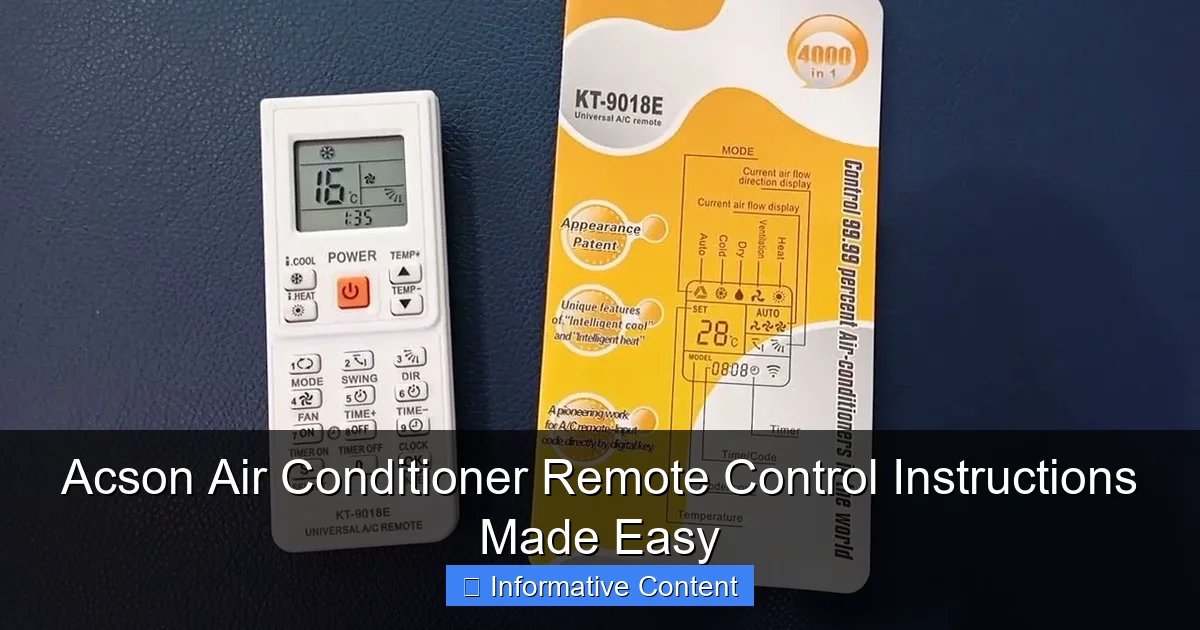
Visual guide about acson air conditioner remote control instructions
Image source: i.ytimg.com
Remote Layout and Key Components
Your Acson remote typically features a compact, ergonomic design with a backlit LCD screen for easy visibility in low light. The buttons are arranged logically, with the most frequently used functions—like power, temperature, and mode—easily accessible at the top.
- Power Button: Located at the top center, this turns your AC on or off.
- Mode Button: Cycles through cooling, heating, fan, dry, and auto modes.
- Temperature Up/Down: Adjusts the desired room temperature.
- Fan Speed: Controls airflow intensity (low, medium, high, auto).
- Timer: Sets automatic on/off schedules.
- Sleep Mode: Gradually adjusts temperature for comfort during sleep.
- Turbo/Quick Cool: Rapidly cools the room at maximum power.
- Swing: Adjusts the direction of airflow from the vents.
Some models may also include additional features like iFeel (remote temperature sensing), Eco Mode (energy-saving), or Filter Reset reminders. Always check your specific model number—usually printed on the back of the remote or inside the AC unit—to confirm which features are available.
How the Remote Communicates with Your AC Unit
Your Acson remote uses infrared (IR) signals to communicate with the air conditioner. This means it needs a clear line of sight to the receiver on the AC unit—usually located on the front panel. If the remote isn’t working, one of the first things to check is whether something is blocking the signal, like furniture, curtains, or even dust on the sensor.
Also, keep in mind that IR signals have a limited range—typically around 20 to 25 feet. If you’re standing too far away or at an extreme angle, the signal might not reach. And yes, that means you can’t control your AC from the next room unless you have a smart upgrade or Wi-Fi-enabled model.
Step-by-Step Guide to Using Your Acson Remote Control
Now that you know what each button does, let’s walk through how to use them effectively. Whether you’re cooling your bedroom on a hot night or setting a timer to save energy, these step-by-step instructions will help you get the most out of your Acson AC.
Turning On and Setting the Mode
Start by pressing the Power button. You should see the display light up and hear a soft beep from the AC unit. Next, press the Mode button to select your desired operation. Each press cycles through the available modes:
- Cool: Cools the room to your set temperature.
- Heat: Warms the room (available on heat pump models).
- Fan: Circulates air without cooling or heating.
- Dry: Reduces humidity—great for rainy or humid days.
- Auto: The AC automatically selects the best mode based on room temperature.
For most people, Cool mode is the go-to during hot weather. But don’t overlook Dry mode—it’s perfect for muggy afternoons when you don’t need full cooling but want to feel more comfortable.
Adjusting Temperature and Fan Speed
Once your mode is set, use the Temperature Up/Down buttons to set your ideal comfort level. Most Acson units allow settings between 16°C and 30°C (60°F–86°F). A good rule of thumb? Set it to 24°C–26°C (75°F–78°F) for a balance of comfort and energy efficiency.
Next, press the Fan Speed button to choose how fast the air flows. Options usually include:
- Low: Quiet operation, ideal for nighttime.
- Medium: Balanced airflow and noise.
- High: Maximum cooling power—great for quick降温.
- Auto: The AC adjusts fan speed based on temperature needs.
For example, if you’re trying to cool a room quickly after coming home from work, set the fan to High and use Turbo mode. Once the room is comfortable, switch to Auto or Low to save energy and reduce noise.
Using Timer and Sleep Mode for Convenience
One of the most useful—and underused—features of your Acson remote is the Timer function. This lets you schedule when your AC turns on or off, so you’re not wasting energy when no one’s home.
To set the timer:
- Press the Timer button. The display will show “ON” or “OFF” timer options.
- Use the Timer +/- buttons to set the desired time (in hours).
- Press Timer again to confirm.
For instance, set the timer to turn off after 3 hours if you’re watching a movie and don’t want the AC running all night. Or program it to turn on 30 minutes before you wake up, so your room is cool and fresh in the morning.
Then there’s Sleep Mode—a game-changer for nighttime comfort. When activated, the AC gradually increases the temperature by 1–2°C over the first hour or two, mimicking your body’s natural cooling process during sleep. This prevents you from waking up shivering while saving energy.
To activate Sleep Mode, press the Sleep button. The icon will appear on the display, and the temperature will adjust automatically. Most models run Sleep Mode for 7–8 hours before returning to normal operation.
Advanced Features and Hidden Functions
Beyond the basics, your Acson remote may include several advanced features designed to enhance comfort, efficiency, and convenience. Let’s explore a few that can make a big difference in your daily use.
Turbo Mode: Fast Cooling When You Need It
Stuck in a heatwave? Hit the Turbo button (sometimes labeled “Quick Cool” or “Max Cool”) to blast cold air at maximum power. This mode runs the compressor and fan at full capacity for 15–30 minutes, rapidly lowering the room temperature.
It’s perfect for situations like:
- Coming home to a hot house.
- Hosting guests on a sweltering day.
- Cooling a room before bedtime.
Just remember: Turbo mode uses more energy, so use it sparingly. Once the room is cool, switch back to normal mode or use the timer to avoid overcooling.
Swing Function: Direct Airflow Where You Want It
The Swing button controls the louvers (flaps) on your AC unit, directing airflow up, down, left, or right. This helps distribute cool air evenly throughout the room and prevents cold spots.
Press the Swing button once to start automatic oscillation. Press it again to stop the louvers at a fixed angle. For example, if you’re sitting on the couch, you might angle the airflow slightly downward to hit you directly. Or, if you’re sleeping, set it to blow upward to avoid drafts.
Some remotes also have a Manual Swing option, allowing you to fine-tune the direction using the up/down or left/right arrows.
Eco Mode and Energy-Saving Tips
If your model supports it, Eco Mode (or “Energy Saver”) reduces power consumption by limiting compressor speed and adjusting fan operation. It’s ideal for mild weather or when you want to keep costs down.
To activate Eco Mode, look for a button labeled “Eco,” “Green,” or a leaf icon. When enabled, the AC will maintain comfort while using up to 30% less energy compared to standard cooling.
Other energy-saving tips:
- Keep doors and windows closed while the AC is running.
- Use curtains or blinds to block direct sunlight.
- Set the temperature no lower than 24°C (75°F).
- Clean or replace filters every 1–2 months.
- Use the timer to avoid running the AC unnecessarily.
Troubleshooting Common Remote Control Issues
Even the best remotes can act up from time to time. If your Acson remote isn’t working as expected, don’t panic—most issues are easy to fix with a few simple steps.
Remote Not Responding: What to Check First
If pressing buttons does nothing, start with these basics:
- Check the batteries: Weak or dead batteries are the #1 cause of remote failure. Replace them with fresh AA or AAA batteries (depending on your model).
- Clean the remote: Dust, dirt, or sticky residue can block button contacts. Wipe the remote with a dry cloth and use a cotton swab dipped in rubbing alcohol to clean around the buttons.
- Ensure line of sight: Make sure nothing is blocking the infrared signal between the remote and the AC unit.
- Restart the AC: Turn off the power at the circuit breaker for 30 seconds, then turn it back on. This resets the system and often resolves communication issues.
Buttons Sticking or Unresponsive
If certain buttons feel sticky or don’t respond, it’s likely due to dirt or moisture buildup. Turn the remote upside down and gently tap it to dislodge debris. For stubborn grime, use a soft brush or compressed air.
Avoid using water or harsh cleaners—these can damage the internal circuitry. If the problem persists, consider replacing the remote or contacting Acson support.
Display Flickering or Blank Screen
A flickering or blank display usually points to a battery issue or loose internal connection. Try replacing the batteries first. If that doesn’t work, open the battery compartment and check for corrosion or loose contacts.
In rare cases, the LCD screen itself may be damaged. If the remote is still under warranty, contact Acson for a replacement.
Remote Loses Settings or Resets Itself
If your remote keeps losing timer settings or reverting to default modes, it could be due to a weak battery or electromagnetic interference from nearby devices (like microwaves or cordless phones).
Move the remote away from potential sources of interference and replace the batteries. If the issue continues, try resetting the remote by removing the batteries for 10 minutes, then reinserting them.
Maintenance Tips to Keep Your Remote Working Like New
A little care goes a long way in extending the life of your Acson remote. With regular maintenance, you can avoid common problems and ensure reliable performance for years.
Cleaning and Storage Best Practices
Clean your remote every few months to prevent buildup:
- Use a soft, dry cloth to wipe the surface.
- For stubborn stains, lightly dampen the cloth with water or isopropyl alcohol.
- Never spray liquid directly onto the remote.
- Store the remote in a dry, cool place when not in use.
Avoid placing it near heat sources, in direct sunlight, or in humid areas like bathrooms.
Battery Care and Replacement
Use high-quality alkaline batteries and replace them as soon as the display dims or buttons become sluggish. Remove batteries if you won’t be using the remote for an extended period—this prevents leakage and corrosion.
Pro tip: Write the installation date on the battery with a marker. This helps you track when it’s time for a replacement.
When to Replace Your Remote
Even with proper care, remotes don’t last forever. Consider replacing yours if:
- Buttons are permanently unresponsive.
- The display is cracked or unreadable.
- It frequently loses signal or resets.
- You’ve tried all troubleshooting steps with no success.
Replacement remotes are available through Acson authorized dealers or online retailers. Make sure to match the model number for compatibility.
Comparison of Common Acson Remote Models
Acson offers several remote models across its air conditioner lineup. While the core functions are similar, some remotes include additional features or slight design variations. Here’s a quick comparison to help you identify your model and understand its capabilities:
| Remote Model | Key Features | Compatible AC Series | Special Notes |
|---|---|---|---|
| RC-102 | Basic cooling, heating, timer, sleep mode | Classic Series | No backlight; simple design |
| RC-205 | Backlit display, turbo mode, swing control | SmartCool Series | Includes iFeel temperature sensing |
| RC-300 | Eco mode, filter reset, 24-hour timer | EcoSilent Series | Energy-saving focused |
| RC-400 | Wi-Fi enabled, app control, voice assistant support | SmartHome Series | Requires smartphone app setup |
Always refer to your AC unit’s user manual or the label on the remote to confirm your model. If you’re unsure, take a photo of the remote and contact Acson customer support for assistance.
Final Thoughts: Mastering Your Acson Remote for Comfort and Efficiency
Your Acson air conditioner remote is more than just a gadget—it’s your personal climate control center. With the right knowledge, you can turn your home into a cool, comfortable oasis while saving energy and avoiding frustration.
From basic temperature adjustments to advanced features like sleep mode and timer scheduling, mastering your remote takes just a little practice. And when issues arise—like unresponsive buttons or signal problems—most can be resolved with simple troubleshooting steps.
Remember, the key to long-term satisfaction is regular maintenance and understanding how each function works. Don’t be afraid to experiment with different settings to find what works best for your lifestyle. Whether you’re cooling a small bedroom or managing a whole-house system, your Acson remote puts comfort at your fingertips.
So the next time you reach for that remote, you’ll know exactly what to do—no guessing, no frustration, just cool, refreshing air when you need it most.
Frequently Asked Questions
How do I use the Acson air conditioner remote control for the first time?
To use your Acson air conditioner remote control for the first time, insert two AAA batteries and point the remote at the AC unit. Press the power button to turn on the system and ensure the display lights up on both the remote and the unit.
What should I do if my Acson remote control is not working?
If your Acson remote control isn’t working, check the battery orientation and replace them if needed. Make sure there are no obstructions between the remote and the AC unit, and that the infrared sensor is clean and unobstructed.
How do I set the temperature using the Acson air conditioner remote?
Use the up and down arrow buttons on the remote to adjust the temperature to your desired level. The current setting will display on the remote screen, and the AC will begin cooling or heating accordingly.
Can I use the Acson remote to switch between cooling and fan modes?
Yes, press the “Mode” button on your Acson remote control to cycle through cooling, fan, dry, and heat modes. Each press changes the operation mode, and the selected mode will appear on the display.
How do I activate the timer function on my Acson air conditioner remote?
Press the “Timer” button on the remote and use the up/down arrows to set the desired on or off time. Confirm your selection, and the AC will automatically turn on or off at the scheduled time.
Is there a reset button on the Acson remote control?
There is no physical reset button, but you can reset the remote by removing the batteries for 30 seconds and reinserting them. This often resolves unresponsive or glitchy behavior in the Acson remote control.