
Discover how to use the Auto Clean feature on your LG air conditioner to prevent mold, bacteria, and odors. This guide walks you through setup, maintenance, and troubleshooting for optimal performance.
Key Takeaways
- Auto Clean prevents mold and bacteria: The feature dries the evaporator coils after cooling, reducing moisture buildup that leads to mold and unpleasant smells.
- Improves air quality and efficiency: Regular use keeps your AC cleaner, enhances airflow, and helps maintain energy efficiency.
- Works on most LG inverter models: Auto Clean is available on many LG Dual Inverter, AI Convertible, and standard inverter ACs with smart features.
- Easy to activate via remote or app: You can turn it on manually or set it to run automatically after each cooling cycle.
- Complement with manual cleaning: Auto Clean helps, but you should still clean filters and coils every 2–4 weeks for best results.
- Saves time and extends AC lifespan: Reduces the need for frequent deep cleaning and helps prevent long-term damage from dirt and moisture.
- Troubleshooting tips included: If Auto Clean doesn’t work, check power, settings, or filter blockages—simple fixes often solve the issue.
How to Auto Clean LG Air Conditioner: A Complete Step-by-Step Guide
Keeping your LG air conditioner clean isn’t just about comfort—it’s about health, efficiency, and longevity. Over time, dust, moisture, and mold can build up inside your AC unit, especially in the evaporator coils and drain pan. This not only leads to foul odors but can also reduce cooling performance and increase energy bills.
Luckily, LG has designed a smart solution: the Auto Clean feature. This built-in function helps dry out the internal components after each cooling cycle, preventing the growth of mold, bacteria, and mildew. It’s a simple yet powerful tool that keeps your air conditioner running smoothly and your indoor air fresher.
In this guide, you’ll learn exactly how to use the Auto Clean feature on your LG air conditioner. Whether you’re a first-time user or just need a refresher, we’ll walk you through activation, scheduling, maintenance, and troubleshooting. By the end, you’ll be able to keep your AC in top condition with minimal effort.
Let’s dive in!
What Is Auto Clean on LG Air Conditioners?
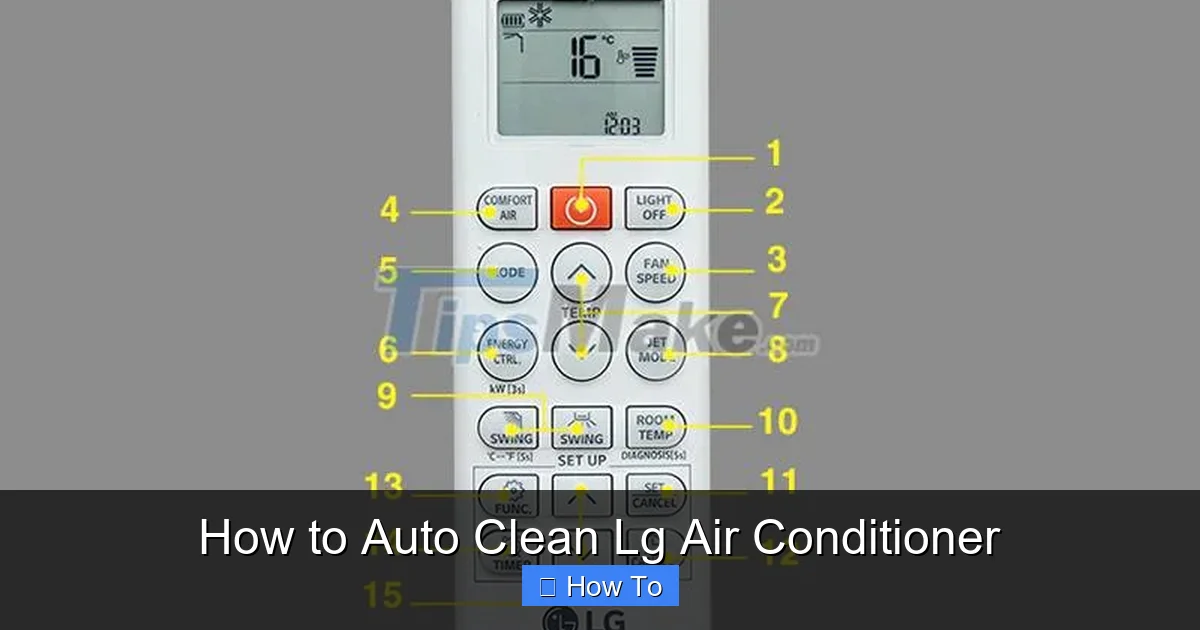
Visual guide about How to Auto Clean Lg Air Conditioner
Image source: tipsmake.com
The Auto Clean feature is a smart maintenance function found on many modern LG air conditioners, especially inverter models. When activated, it runs the indoor fan at low speed for a set period (usually 20–30 minutes) after the compressor turns off. This helps evaporate any moisture left on the evaporator coils and drain pan, which are common breeding grounds for mold and bacteria.
Think of it like drying a wet towel after use—instead of letting it sit damp and grow mildew, you hang it up to air dry. Auto Clean does the same for your AC’s internal parts.
This process not only prevents unpleasant odors but also:
- Reduces the risk of mold and bacterial growth
- Improves indoor air quality
- Maintains cooling efficiency
- Extends the lifespan of internal components
Auto Clean is especially useful in humid climates or during rainy seasons when moisture levels are high. It’s also helpful if you use your AC frequently, as repeated cooling cycles can leave behind condensation.
Which LG Air Conditioners Have Auto Clean?
Not all LG air conditioners come with the Auto Clean feature, but it’s widely available on newer models. Here’s how to check if your unit supports it:
Look for These Model Types
- LG Dual Inverter Compressor ACs – Most models from 2018 onward include Auto Clean.
- LG AI Convertible ACs – These smart units often have Auto Clean as a standard feature.
- LG Standard Inverter ACs – Many mid-to-high-end models include it.
- LG Window and Split ACs with Smart Features – Check the remote or user manual for the Auto Clean button or menu option.
How to Confirm Auto Clean Is Available
- Check your remote control for a button labeled “Auto Clean” or “Clean”.
- Look in the user manual under “Special Features” or “Maintenance.”
- Open the LG ThinQ app (if your AC is Wi-Fi enabled) and see if Auto Clean appears in the settings.
- Turn on the AC and navigate the remote’s menu—Auto Clean is often under “Settings” or “Function.”
If your model doesn’t have Auto Clean, don’t worry—you can still maintain your AC with regular manual cleaning. But if it does, make sure to use it regularly for the best results.
How to Activate Auto Clean on Your LG Air Conditioner
Activating Auto Clean is simple and can be done in just a few steps. Here’s how to do it using the remote control or the LG ThinQ app.
Method 1: Using the Remote Control
- Turn on your air conditioner. Make sure it’s in cooling mode and running normally.
- Press the “Auto Clean” button. This is usually a dedicated button on the remote, often labeled with a fan or droplet icon. If you don’t see it, check the “Function” or “Mode” menu.
- Wait for confirmation. The display may show “Auto Clean ON” or a similar message. The fan may run briefly to signal activation.
- Let it run after cooling. After you turn off the AC, the fan will automatically run for 20–30 minutes to dry the coils.
Pro Tip: You can activate Auto Clean at any time—even if the AC isn’t cooling. Just press the button, and the fan will run to dry the unit.
Method 2: Using the LG ThinQ App (Wi-Fi Models)
If your LG air conditioner is Wi-Fi enabled and connected to the LG ThinQ app, you can control Auto Clean from your smartphone.
- Open the LG ThinQ app on your phone and log in.
- Select your air conditioner from the device list.
- Tap “Settings” or “More Options.”
- Find “Auto Clean” and toggle it ON.
- Set a schedule (optional). Some models let you schedule Auto Clean to run daily or after every use.
Using the app gives you more control and lets you monitor your AC remotely. You’ll also get notifications if the feature runs or if there’s an issue.
Method 3: Automatic Activation (If Enabled)
Some LG models are set to run Auto Clean automatically after each cooling cycle. To check or enable this:
- Go to the remote’s “Settings” menu.
- Look for “Auto Clean Mode” or “Auto Dry.”
- Select “On” or “Auto.”
With this setting, you don’t need to press any buttons—Auto Clean will run every time you turn off the AC. It’s the most convenient option if you want hands-free maintenance.
How Auto Clean Works: The Science Behind It
Understanding how Auto Clean works can help you appreciate its benefits and use it more effectively.
When your air conditioner cools your room, it pulls in warm air and passes it over cold evaporator coils. This causes moisture in the air to condense into water droplets, which collect in a drain pan and exit through a drain line. However, not all moisture is removed—some remains on the coils and inside the unit.
If this moisture sits too long, it creates a perfect environment for mold, mildew, and bacteria to grow. These can then be blown back into your room, causing odors and potentially affecting your health.
Auto Clean prevents this by:
- Running the fan after cooling stops: The fan continues to spin at low speed, circulating air over the damp coils.
- Evaporating residual moisture: The moving air helps dry the coils and drain pan.
- Reducing humidity inside the unit: This inhibits mold and bacterial growth.
The entire process typically takes 20–30 minutes, depending on humidity levels and how long the AC was running. Once complete, the fan shuts off automatically.
Best Practices for Using Auto Clean
To get the most out of Auto Clean, follow these best practices:
1. Use It Regularly
Activate Auto Clean after every cooling session, especially during humid weather or heavy usage. If your model supports automatic mode, enable it for hassle-free operation.
2. Don’t Skip Manual Cleaning
Auto Clean dries the coils but doesn’t remove dust or debris. You should still:
- Clean or replace air filters every 2–4 weeks.
- Wipe down the front grille and vents.
- Check the drain line for clogs.
3. Keep the Area Around the Unit Clear
Ensure there’s at least 2 feet of space around the indoor unit for proper airflow. Blocked vents can reduce drying efficiency.
4. Run Auto Clean Before Long Shutdowns
If you’re turning off your AC for a week or more (e.g., during travel), run Auto Clean first. This ensures the unit is dry before storage, preventing mold buildup.
5. Monitor for Odors or Issues
Even with Auto Clean, you might notice a musty smell or reduced cooling. This could mean:
- The filter is dirty.
- The drain line is clogged.
- There’s mold deep inside the unit.
In these cases, a deeper cleaning or professional service may be needed.
Troubleshooting Auto Clean Issues
Sometimes, Auto Clean may not work as expected. Here are common problems and how to fix them:
Auto Clean Won’t Turn On
- Check the power: Make sure the AC is plugged in and the circuit breaker hasn’t tripped.
- Verify the mode: Auto Clean only works in cooling or fan mode. It won’t activate in heating or dry mode.
- Look for error codes: If the display shows an error (like E1 or CH), consult the manual or contact LG support.
Fan Doesn’t Run After Turning Off AC
- Auto Clean may already be off: Double-check that the feature is enabled in settings.
- The unit may be too dry: In low-humidity environments, there may not be enough moisture to trigger drying.
- Timer may be set incorrectly: Some models let you adjust the Auto Clean duration—ensure it’s not set to “Off.”
Unpleasant Odors Persist
- Clean the air filter: A dirty filter can trap odors and reduce airflow.
- Check the drain pan: If water is stagnant, it may need to be cleaned manually.
- Run a deep clean cycle: Some LG models have a “Deep Clean” or “Sterilization” mode that uses UV light or heat to kill bacteria.
Auto Clean Runs Too Long or Too Short
- Adjust the timer: In the settings menu, you can often set the duration (e.g., 20, 30, or 40 minutes).
- High humidity may extend drying time: This is normal—just let it finish.
If problems persist, consult your user manual or contact LG customer support.
Manual Cleaning Tips to Complement Auto Clean
While Auto Clean is a great tool, it’s not a replacement for regular maintenance. Here’s how to keep your LG AC in peak condition:
1. Clean the Air Filter
- Turn off the AC and unplug it.
- Open the front panel and remove the filter.
- Rinse it under lukewarm water or use a vacuum to remove dust.
- Let it dry completely before reinstalling.
Frequency: Every 2–4 weeks during heavy use.
2. Wipe Down the Exterior
Use a soft, damp cloth to clean the front grille, vents, and remote control. Avoid harsh chemicals that could damage the surface.
3. Check the Drain Line
Locate the drain pipe (usually outside or in the wall) and ensure it’s not clogged. You can use a pipe cleaner or mild vinegar solution to clear blockages.
4. Inspect the Outdoor Unit
Keep the outdoor condenser unit free of leaves, dirt, and debris. Trim plants around it to ensure proper airflow.
5. Schedule Professional Maintenance
Once a year, have a technician inspect refrigerant levels, clean internal coils, and check electrical connections.
Benefits of Using Auto Clean Regularly
Making Auto Clean a habit offers several long-term advantages:
- Healthier Air: Reduces allergens, mold spores, and bacteria in your home.
- Energy Savings: A clean, dry unit runs more efficiently, lowering electricity bills.
- Longer Lifespan: Prevents corrosion and wear on internal parts.
- Fewer Repairs: Less buildup means fewer clogs and malfunctions.
- Peace of Mind: You’ll know your AC is always in good working order.
Conclusion
The Auto Clean feature on your LG air conditioner is a simple yet powerful tool for maintaining clean, efficient, and odor-free cooling. By activating it after each use—either manually or automatically—you can prevent mold, improve air quality, and extend the life of your unit.
Remember, Auto Clean works best when combined with regular filter cleaning and annual professional maintenance. Follow the steps in this guide to get started, and don’t hesitate to troubleshoot if issues arise.
With a little attention, your LG air conditioner will keep you cool and comfortable for years to come.

