Featured image for airwell air conditioner remote control instructions
Image source: cdn.shopify.com
Master your Airwell air conditioner effortlessly with this clear, step-by-step remote control guide designed to help you navigate every function—from temperature adjustment to timer settings and mode selection. Whether you’re troubleshooting connectivity or discovering advanced features, this concise guide ensures quick, reliable control for optimal comfort and energy efficiency.
Key Takeaways
- Power on/off: Press the power button to start or stop your Airwell unit.
- Adjust temperature: Use up/down arrows to set your desired comfort level.
- Select mode: Choose cooling, heating, fan, or auto with the mode button.
- Control fan speed: Tap fan button to cycle through low, medium, high, or auto.
- Use timer: Set on/off schedules for energy savings and convenience.
- Reset remote: Remove batteries, wait 10 seconds, then reinsert to troubleshoot issues.
📑 Table of Contents
Understanding Your Airwell Air Conditioner Remote Control
Let’s be honest—nothing is more frustrating than staring at a remote control with a dozen tiny buttons, none of which seem to do what you want. I’ve been there. One summer, after a long day at work, I came home to a stuffy apartment and my Airwell air conditioner remote looked like an alien device. I pressed buttons blindly, hoping for a cool breeze. Instead, I got a loud beep, a flashing light, and a room that somehow felt even warmer. That’s when I realized: understanding your Airwell air conditioner remote control isn’t just helpful—it’s essential.
Whether you’re a first-time AC owner or you’ve been using your unit for years, the remote is your command center. It’s not just about turning the air conditioner on and off. It’s about temperature control, energy efficiency, airflow direction, and even sleep modes that keep you comfortable all night. This guide will walk you through every button, every mode, and every hidden trick your Airwell remote offers. No tech degree required. Just clear, practical advice so you can finally master that little black box and keep your home perfectly cool.
Getting Started: Remote Control Basics
Unboxing and Setup
When you first get your Airwell air conditioner, the remote usually comes in a small plastic bag tucked inside the unit or in the box. Before you start pressing buttons, make sure the remote has batteries. Most models use two AAA batteries. Pop them in, and you should see a small LED flash—this means it’s powered and ready.
Visual guide about airwell air conditioner remote control instructions
Image source: cdn.shopify.com
Pro tip: Always keep spare batteries on hand. Nothing’s worse than your AC shutting off mid-summer because the remote died. I learned this the hard way when my remote went dark during a heatwave. I had to manually adjust the unit, which meant crawling behind furniture. Not fun.
Remote Layout and Button Overview
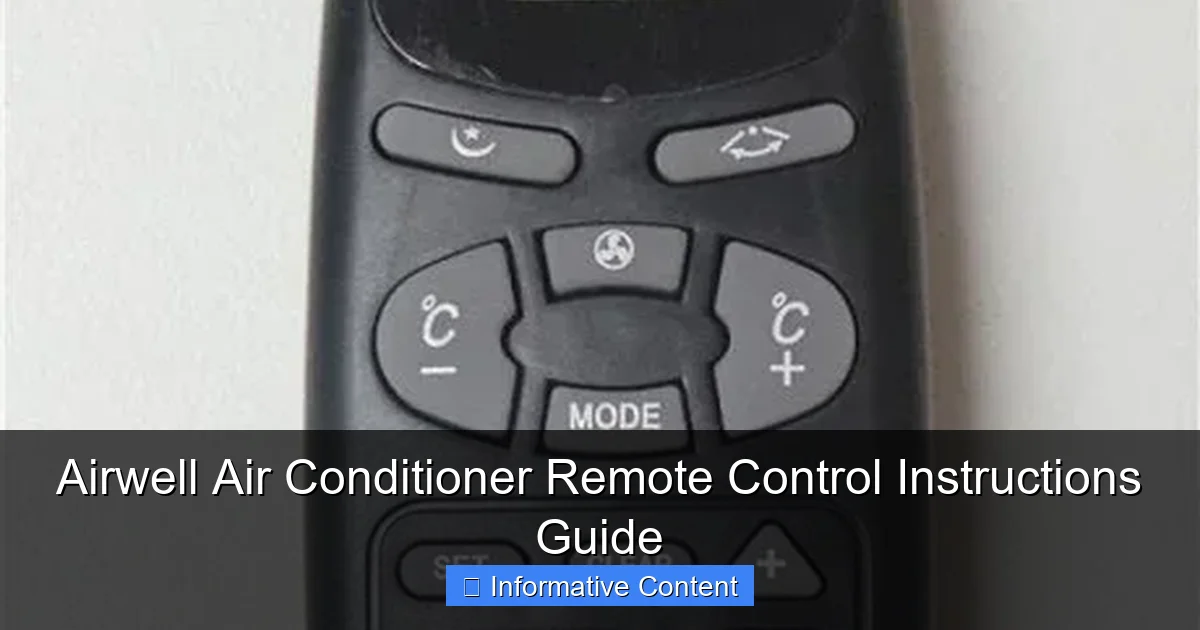
Most Airwell remotes follow a standard design. Here’s a quick rundown of the common buttons you’ll see:
- Power (ON/OFF): The big red or green button at the top. Press once to turn on, again to turn off.
- Mode: Cycles through Cool, Heat (if heat pump), Fan, Dry, and Auto modes.
- Temperature Up/Down: Usually marked with “+” and “-”. Adjusts your desired temperature.
- Fan Speed: Lets you choose between Low, Medium, High, and Auto fan settings.
- Swing: Controls vertical and horizontal airflow direction.
- Timer: Sets on/off schedules. Super useful for saving energy.
- Sleep Mode: Gradually adjusts temperature for nighttime comfort.
- Turbo/Cool Boost: Speeds up cooling for quick relief.
- Eco/Smart Mode: Helps save energy by optimizing performance.
Some models may have extra features like Air Purification, Quiet Mode, or Wi-Fi connectivity. Don’t worry if yours doesn’t have all of these—every remote is slightly different. The key is to know what yours has and how to use it.
Pairing the Remote (If Needed)
Most Airwell remotes are pre-paired with the indoor unit. But if you’re replacing a lost remote or installing a new unit, you might need to sync it. Here’s how:
- Turn on the air conditioner using the manual button on the unit (usually behind a small panel).
- Press and hold the Reset or Pair button on the remote for 5–10 seconds.
- Look for a blinking light on the indoor unit or a confirmation beep.
- Test by pressing the Power button. The unit should respond.
I once helped a neighbor pair a replacement remote. It took three tries, but once it synced, the AC responded instantly. Patience is key here. If it doesn’t work the first time, don’t panic. Just try again.
Mastering the Key Functions
Power and Mode Settings
Let’s start with the basics. Press the Power button to turn on your Airwell unit. The default mode is usually Auto, which means the AC will decide whether to cool, heat, or dehumidify based on the room temperature. But you can change that using the Mode button.
Here’s what each mode does:
- Cool: Cools the room to your set temperature. Best for hot days.
- Heat: Available on heat pump models. Warms the room. Great for mild winters.
- Fan: Circulates air without cooling or heating. Useful for fresh air on cool evenings.
- Dry: Reduces humidity without cooling much. Ideal for muggy, not-too-hot days.
- Auto: Lets the unit choose the best mode. Convenient, but not always the most efficient.
Example: On a humid 75°F (24°C) day, I use Dry mode. The room feels less sticky without getting too cold. It’s perfect for spring or fall when you don’t need full cooling.
Temperature and Fan Speed Control
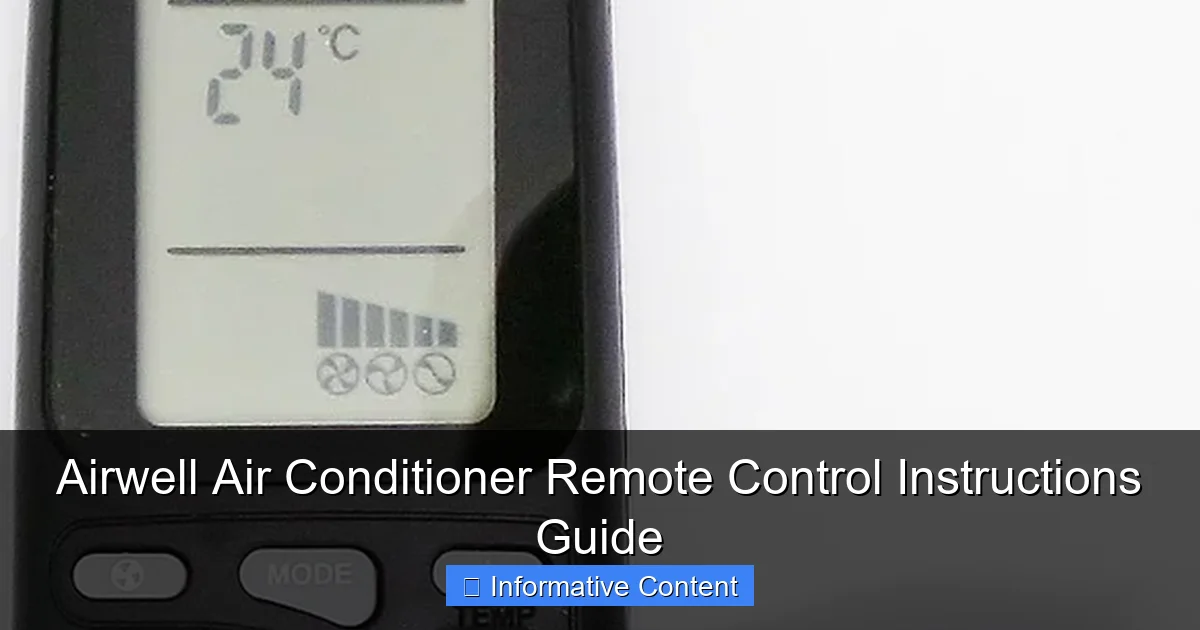
Use the + and – buttons to set your ideal temperature. Most Airwell units allow settings from 62°F to 86°F (17°C to 30°C). A good rule of thumb? Set it to 78°F (26°C) for energy efficiency and comfort.
Now, the Fan Speed button. This controls how fast the indoor fan blows air. You’ll see options like:
- Low: Quiet, gentle airflow. Best for sleeping.
- Medium: Balanced performance. Good for daytime.
- High: Maximum airflow. Use when you need quick cooling.
- Auto: The unit adjusts fan speed based on how hard it’s working.
Tip: In Auto fan mode, the AC runs quieter when it doesn’t need to work hard. But if you’re in a rush to cool down, switch to High for faster results. Just remember—higher fan speed uses more energy.
Swing and Airflow Direction
Ever notice how sometimes the air hits you directly, and other times it feels like it’s blowing sideways? That’s the Swing function in action.
Press the Swing button to control the louvers (those horizontal and vertical flaps inside the unit). You can:
- Turn on Vertical Swing for up-and-down airflow.
- Turn on Horizontal Swing for side-to-side airflow.
- Turn both on for full oscillation—great for large rooms.
- Turn it off to keep the air blowing in one direction.
Why does this matter? If you’re sitting on the couch, you don’t want cold air hitting your face all night. Use the remote to aim the airflow away from you, or use swing mode to circulate air evenly. I use Vertical Swing during the day to cool the whole room, then turn it off at night to avoid drafts while sleeping.
Advanced Features for Comfort and Efficiency
Timer and Schedule Settings
One of the most useful features? The Timer. It lets you set your AC to turn on or off automatically. Perfect for saving energy and coming home to a cool house.
To set the timer:
- Press the Timer button. You’ll see “On” or “Off” flash.
- Use the + and – buttons to set the time (in hours).
- Press Timer again to confirm.
Example: I set my AC to turn on 30 minutes before I get home from work. That way, the apartment is cool when I walk in, but I’m not running the unit all day while I’m gone. I also use the Timer Off function to shut it down after 4 hours at night—no more waking up shivering at 2 a.m.
Pro tip: Some Airwell models have a Weekly Timer or Clock Sync feature. If yours does, take the time to set the clock. It makes scheduling much easier.
Sleep Mode: Cool All Night, Quietly
Ever wake up freezing in the middle of the night? Or sweating because the AC shut off? Sleep Mode solves both problems.
When you activate Sleep Mode (usually with a dedicated button or under a “Special” menu), the AC does two things:
- It gradually raises the temperature by 1–2°F (0.5–1°C) every hour for 2–3 hours.
- It lowers the fan speed to reduce noise.
This mimics your body’s natural temperature drop during sleep. You stay comfortable without overcooling. I use Sleep Mode every night. My room starts at 72°F (22°C), then gently warms to 74°F (23°C) by morning. I sleep better, and I save energy.
Note: Not all Airwell models have Sleep Mode. Check your remote or user manual. If yours doesn’t, you can manually set the timer to increase the temperature after a few hours.
Turbo and Eco Modes: Speed vs. Savings
Need to cool down fast? Hit the Turbo or Cool Boost button. This temporarily increases the compressor and fan speed to deliver maximum cooling in 10–15 minutes. Great for when you come home to a hot house.
But here’s the catch: Turbo uses more energy. Use it sparingly—maybe 15–20 minutes max. Then switch back to normal mode.
On the flip side, Eco or Smart Mode does the opposite. It optimizes performance to save energy. The AC runs longer but at lower power, reducing electricity use by up to 20%. I use Eco Mode during the day when I’m home but don’t need instant cooling.
Balance is key. Use Turbo for quick relief, Eco for long-term savings, and Auto for everyday convenience.
Troubleshooting Common Remote Issues
Remote Not Responding
Nothing’s more annoying than a remote that won’t work. Here’s what to check:
- Batteries: Are they fresh? Are they inserted correctly?
- Obstruction: Is there something blocking the signal? Move closer to the unit.
- LED Light: When you press a button, does the remote’s LED flash? If not, it’s not sending a signal.
- Distance: Most remotes work up to 20–30 feet (6–9 meters). Stay within range.
One time, my remote stopped working. I replaced the batteries, but still nothing. Then I realized—my toddler had covered the infrared sensor with a sticker. Once I peeled it off, it worked perfectly.
Incorrect Temperature Readings
Sometimes the AC feels too cold or too hot, even though the remote says it’s set to 75°F. Why? The remote has a built-in temperature sensor, but it might not match the room’s actual temperature.
For example, if the remote is sitting in direct sunlight or near a heat source, it will read a higher temperature and keep cooling longer than needed. Solution? Keep the remote in the center of the room, away from drafts, sunlight, or electronics.
Better yet—some Airwell models let you use the indoor unit’s sensor instead. Look for a Remote Sensor or Follow Me mode in your settings. When enabled, the AC uses the temperature near you, not just near the remote.
Buttons Not Working or Sticking
Over time, buttons can wear out or get sticky from dust or spills. If a button feels stiff or doesn’t respond:
- Use a cotton swab and isopropyl alcohol to clean around the button.
- Don’t use water—it can damage the circuit board.
- If a button is completely unresponsive, it might be time for a replacement remote.
I once spilled coffee on my remote. I wiped it down quickly, but the “Mode” button got sticky. A quick clean with alcohol fixed it. Prevention tip: Keep drinks away from the remote!
Maximizing Comfort and Energy Efficiency
Smart Habits for Better Performance
Your remote is powerful, but how you use it makes all the difference. Here are my top tips:
- Set the right temperature: 78°F (26°C) is ideal for cooling and savings.
- Use timers wisely: Schedule on/off times to match your routine.
- Close doors and curtains: Keep cool air in and hot sun out.
- Clean the filter monthly: A dirty filter makes your AC work harder.
- Use fans with your AC: Ceiling or floor fans help circulate air, so you can set the AC 2–3°F warmer.
Example: I run a small fan on my desk during the day. It helps spread the cool air, so I keep the AC at 76°F instead of 72°F. That small change saves me about $15 a month on electricity.
Seasonal Adjustments
Your AC needs different settings depending on the season:
- Summer: Use Cool mode, set to 76–78°F. Use Timer and Sleep Mode.
- Spring/Fall: Use Dry or Fan mode to reduce humidity without overcooling.
- Winter (if you have heat): Use Heat mode at 68–70°F. Use Timer to warm the house before you wake up.
In spring, I often use Fan mode with the windows open. It’s like having a natural breeze—fresh air without the energy cost.
Data Table: Recommended Settings by Season
| Season | Mode | Temp Setting (°F) | Fan Speed | Timer Use | Special Features |
|---|---|---|---|---|---|
| Summer | Cool | 76–78 | Auto | On: 30 min before home Off: 4 hrs after bedtime |
Sleep Mode, Turbo (short use) |
| Spring/Fall | Dry or Fan | 78–80 | Low/Medium | Off after 2–3 hrs | Swing Mode |
| Winter (Heat Pump) | Heat | 68–70 | Auto | On: 1 hr before wake-up Off: When leaving |
Eco Mode |
This table isn’t one-size-fits-all, but it’s a great starting point. Adjust based on your comfort and climate.
Final Thoughts: Become a Remote Control Pro
Look, your Airwell air conditioner remote control might seem like a simple gadget, but it’s actually a powerful tool. Once you understand how to use it, you’ll save energy, sleep better, and keep your home at the perfect temperature all year round.
I remember the first summer I really mastered my remote. I wasn’t just pressing buttons—I was in control. I used timers to save money. I used Sleep Mode to avoid waking up cold. I used Swing to cool the whole room without drafts. And when my friends complained about their AC bills, I just smiled. Because I knew the secret: it’s not the air conditioner that’s smart. It’s the person using the remote.
So take the time to learn your remote. Try different modes. Experiment with settings. Keep it clean and charged. And if something doesn’t work? Don’t stress. Most issues are fixable with a few simple steps.
Your Airwell remote isn’t just a device. It’s your key to comfort, efficiency, and peace of mind. Use it well, and you’ll never have to suffer through a hot, sticky night—or a sky-high electricity bill—again.
Frequently Asked Questions
How do I pair my Airwell air conditioner remote control with the unit?
To pair your Airwell air conditioner remote control, ensure the unit is powered on, then press and hold the “Reset” or “Pair” button on the remote for 3–5 seconds until the LED blinks. Refer to your model’s manual for specific pairing steps.
Why is my Airwell remote control not working with the AC unit?
First, replace the batteries and ensure there are no obstructions between the remote and the AC sensor. If issues persist, try resetting the remote or re-pairing it using the Airwell air conditioner remote control instructions in your user manual.
How do I adjust the temperature and fan speed using the remote?
Use the “Temp +/–” buttons to set your desired temperature and the “Fan Speed” button to toggle between low, medium, high, or auto modes. The display on the remote will show the current settings.
What do the symbols on my Airwell remote control mean?
Symbols vary by model, but common ones include a snowflake (cooling), sun (heating), and fan icon (fan-only mode). Consult the Airwell air conditioner remote control instructions for a full legend specific to your remote.
How do I activate the timer or sleep mode on my Airwell AC?
Press the “Timer” button to set a delay for the AC to turn on/off, or press “Sleep” to enable energy-saving mode. Adjust the timer duration using the “Hour +/–” buttons.
Can I use a universal remote with my Airwell air conditioner?
Yes, but ensure the universal remote supports Airwell’s infrared codes. Program it using the AC’s model number or auto-scan function, then test basic functions like power and temperature adjustment.