
This guide walks you through how to change your LG air conditioner to Celsius with easy, model-specific instructions. Whether you’re using a remote, wall unit, or smart AC, we’ve got you covered with clear steps and helpful tips.
Key Takeaways
- Most LG air conditioners can switch between Fahrenheit and Celsius using the remote control or control panel.
- The process varies slightly by model, so identifying your AC type is the first step.
- Remote controls with a “Temp” or “Mode” button often allow quick temperature unit changes.
- Wall-mounted and window units may require holding buttons for a few seconds to toggle units.
- Smart LG ACs connected to the LG ThinQ app let you change settings remotely from your phone.
- If the display doesn’t change, check the user manual or try a power reset to resolve glitches.
- Always test the setting after changing to ensure the temperature displays correctly.
How to Change LG Air Conditioner to Celsius: A Complete Guide
If you’ve recently moved to a country that uses Celsius or simply prefer metric temperature readings, you might be wondering how to change your LG air conditioner to Celsius. The good news? Most LG air conditioners—whether window units, split systems, or smart models—support both Fahrenheit and Celsius. Switching between them is usually quick and easy, but the exact steps depend on your model and control type.
In this comprehensive guide, we’ll walk you through every method to convert your LG AC’s temperature display from Fahrenheit to Celsius. You’ll learn how to use the remote control, navigate wall-mounted panels, and even adjust settings via the LG ThinQ app for smart units. We’ll also cover troubleshooting tips in case the change doesn’t stick, and explain why some models behave differently.
By the end of this article, you’ll be able to confidently switch your LG air conditioner to Celsius—no matter which model you own. Let’s get started!
Why Change Your LG AC to Celsius?
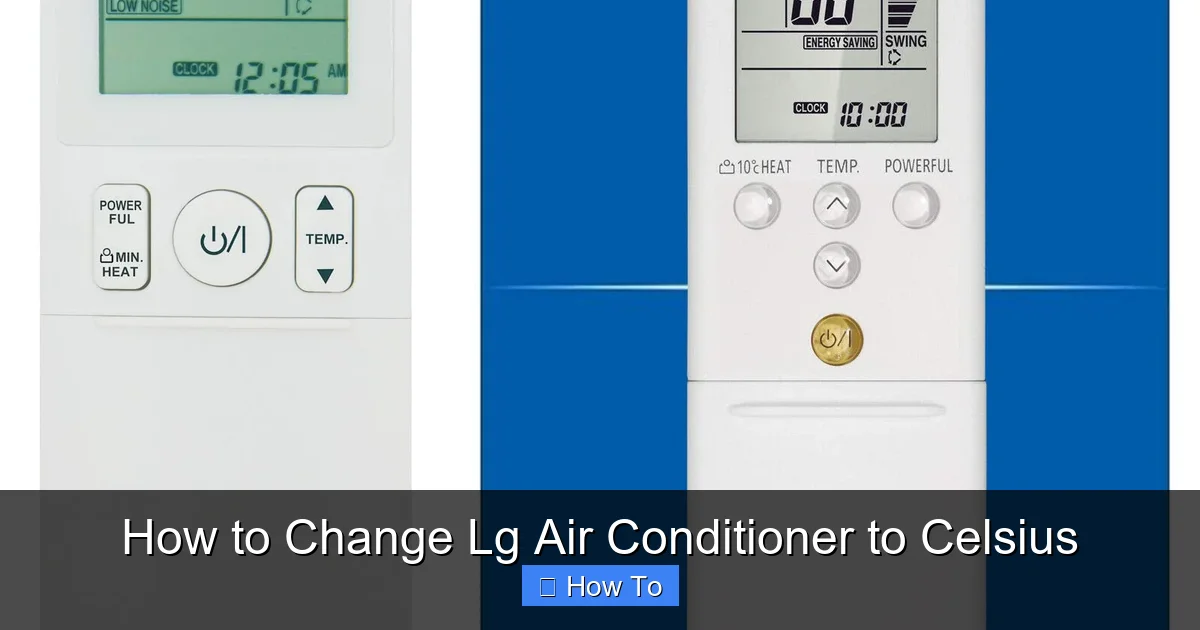
Visual guide about How to Change Lg Air Conditioner to Celsius
Image source: m.media-amazon.com
Before diving into the steps, it’s worth understanding why you might want to switch to Celsius. While the U.S. primarily uses Fahrenheit, most of the world relies on the Celsius scale. If you’re traveling, living abroad, or simply more comfortable with metric units, seeing temperatures in Celsius can make your AC easier to use.
For example, knowing that 22°C is a comfortable room temperature is more intuitive than trying to remember that 72°F is ideal. Celsius also aligns better with weather forecasts in many countries, making it easier to coordinate indoor and outdoor comfort.
Additionally, if you’re sharing your home with international guests or family members who prefer Celsius, switching the display can improve usability for everyone. It’s a small change that makes a big difference in daily comfort.
Identify Your LG Air Conditioner Model
The first step in changing your LG AC to Celsius is identifying your model type. LG offers several types of air conditioners, and the method to switch temperature units varies slightly between them. Here are the most common types:
- Window Units: Self-contained units that fit in a window frame. They usually have a control panel on the front and a remote.
- Split Systems (Wall-Mounted): Consist of an indoor unit mounted on the wall and an outdoor compressor. Controlled via remote or wall panel.
- Portable Air Conditioners: Mobile units on wheels with a hose that vents through a window. Often include a remote and digital display.
- Smart Air Conditioners: Wi-Fi-enabled models that connect to the LG ThinQ app for remote control and scheduling.
To find your model number, check the label on the side or back of the indoor unit, or look in the user manual. You can also often find it printed on the remote control. Knowing your model helps ensure you follow the correct steps.
Method 1: Using the Remote Control (Most Common)
The easiest and most common way to change your LG air conditioner to Celsius is through the remote control. Most LG remotes have a dedicated button or combination that toggles between Fahrenheit and Celsius.
Step 1: Turn On the Air Conditioner
Make sure your AC is powered on. If it’s off, press the Power button on the remote or the unit itself. Wait a few seconds for the display to activate.
Step 2: Locate the Temperature Button
Look for a button labeled “Temp”, “Mode”, or “°F/°C” on your remote. On many LG remotes, this button is near the temperature up/down arrows.
Step 3: Press and Hold the Temperature Button
Press and hold the “Temp” or “°F/°C” button for 3 to 5 seconds. You should see the temperature display on the remote or the AC unit change from °F to °C (or vice versa).
Step 4: Confirm the Change
Check the display on both the remote and the AC unit. The temperature should now show in Celsius (e.g., 24°C instead of 75°F). If it doesn’t change, try repeating the step or check if your model uses a different method.
Example: LG Dual Inverter Window Unit
For an LG Dual Inverter window AC (like the LW1216HR), press and hold the “Temp” button for 5 seconds. The display will switch from Fahrenheit to Celsius. This method works for most 2016 and newer LG window units.
Tip: Use the Remote Close to the Unit
If the remote isn’t responding, make sure you’re within range (usually 20 feet) and that the signal isn’t blocked. Also, check the remote batteries—low power can cause unresponsiveness.
Method 2: Using the Control Panel on Wall-Mounted Units
If your LG air conditioner is a wall-mounted split system, it may not have a remote or the remote might be missing. In that case, you can change the temperature unit directly from the control panel on the indoor unit.
Step 1: Access the Control Panel
Locate the small control panel on the front or side of the indoor unit. It usually has buttons for Power, Mode, Fan Speed, and Temperature.
Step 2: Enter Setup Mode
Press and hold the “Mode” and “Fan” buttons simultaneously for 3 to 5 seconds. Some models require holding “Power” and “Temp Down” instead. Watch for a blinking light or change in the display.
Step 3: Toggle the Temperature Unit
Once in setup mode, press the “Temp Up” or “Temp Down” button to cycle through options until you see °C appear on the display.
Step 4: Save and Exit
Press the “Power” button or wait 10 seconds without pressing anything to save the setting and exit setup mode.
Example: LG Art Cool Mirror Split System
On the LG Art Cool Mirror model, press and hold “Mode” and “Fan” for 5 seconds. The display will flash. Use the temperature buttons to select °C, then press “Power” to confirm.
Tip: Refer to the User Manual
If the above steps don’t work, your model may use a different button combination. Always check the user manual for model-specific instructions.
Method 3: Using the LG ThinQ App (Smart ACs)
If you have a smart LG air conditioner with Wi-Fi capabilities, you can change the temperature unit directly from your smartphone using the LG ThinQ app. This is especially convenient if you’re away from home or prefer digital control.
Step 1: Download and Open the LG ThinQ App
If you haven’t already, download the LG ThinQ app from the Apple App Store or Google Play. Open the app and log in to your account.
Step 2: Add Your Air Conditioner
Tap the “+” icon to add a new device. Follow the on-screen instructions to connect your LG AC to your home Wi-Fi network. Make sure your phone and AC are on the same network.
Step 3: Access AC Settings
Once connected, tap on your air conditioner from the home screen. This will open the control interface.
Step 4: Change Temperature Unit
Look for a gear icon or “Settings” option. Tap it, then find the “Temperature Unit” or “°F/°C” setting. Toggle it to Celsius.
Step 5: Confirm the Change
The app will send the command to your AC. Check the display on the unit or in the app to confirm it now shows °C.
Example: LG Smart Window AC (LW1019IVSM)
In the ThinQ app, go to Settings > Temperature Unit and select Celsius. The change takes effect immediately.
Tip: Ensure Stable Wi-Fi Connection
A weak or unstable Wi-Fi signal can prevent the app from communicating with your AC. Move closer to your router or restart your network if needed.
Method 4: Using the Timer or Sleep Mode Button (Alternative Method)
Some older or less common LG models use the Timer or Sleep button to toggle temperature units. This method is less intuitive but works on certain units.
Step 1: Turn On the AC
Power on your air conditioner using the remote or control panel.
Step 2: Press and Hold the Timer Button
Press and hold the “Timer” button for 5 to 10 seconds. Watch the display for a change from °F to °C.
Step 3: Check the Display
If the temperature unit changes, you’re done. If not, try the “Sleep” button instead, using the same method.
Example: LG Portable AC (LP1419IVSM)
On this model, press and hold the “Timer” button for 7 seconds. The display will switch to Celsius.
Tip: Try Multiple Buttons
If one button doesn’t work, try holding combinations like “Timer + Power” or “Sleep + Mode” for a few seconds.
Troubleshooting: What If the Change Doesn’t Work?
Sometimes, despite following the steps correctly, your LG air conditioner won’t switch to Celsius. Here are common issues and how to fix them.
Issue 1: Remote Not Responding
If the remote doesn’t change the setting, replace the batteries. Weak batteries can cause partial functionality. Also, clean the infrared sensor on the remote and the receiver on the AC unit with a soft cloth.
Issue 2: Display Shows Both °F and °C
Some models show both units simultaneously (e.g., 75°F / 24°C). This is normal and doesn’t mean the setting failed. The primary unit is usually the one you last selected.
Issue 3: Setting Reverts After Power Off
If the AC switches back to Fahrenheit after turning off, it may be a firmware issue. Try a full power reset: unplug the unit for 10 minutes, then plug it back in and repeat the Celsius change process.
Issue 4: No °C Option Available
Rarely, very old LG models may not support Celsius. Check the user manual or contact LG customer support to confirm compatibility.
Issue 5: App Won’t Connect
If the LG ThinQ app can’t connect to your AC, ensure your Wi-Fi is working, the AC is online (check the indicator light), and your app is updated to the latest version.
Tips for a Smooth Temperature Unit Change
To make the process as easy as possible, keep these tips in mind:
- Have the user manual handy. It’s the best source for model-specific instructions.
- Try the remote first. It’s the most common and reliable method.
- Be patient with button holds. Some models require exact timing (e.g., 5 seconds).
- Test the setting immediately. Set the AC to a known temperature (like 22°C) to confirm it’s working.
- Update your LG ThinQ app. Newer versions fix bugs and improve compatibility.
Why Some LG Models Behave Differently
You might notice that your friend’s LG AC switches to Celsius with one button press, while yours requires a combination. This is because LG uses different control systems across product lines and years.
For example:
– 2015–2018 models often use the “Temp” button method.
– 2019–2022 models may require “Mode + Fan” on the unit.
– 2023 and newer smart models prioritize app-based control.
Regional differences also play a role. Units sold in Europe or Asia often default to Celsius, while U.S. models default to Fahrenheit. However, most support both.
Final Thoughts: Enjoy Comfort in Your Preferred Units
Changing your LG air conditioner to Celsius is a simple but impactful adjustment. Whether you’re using a remote, control panel, or smartphone app, the process usually takes less than a minute. Once set, you’ll enjoy a more intuitive temperature display that matches your lifestyle and location.
Remember, the key is identifying your model and using the right method. When in doubt, consult the user manual or reach out to LG support. With this guide, you’re equipped to make the switch confidently—and enjoy cooler, more comfortable air on your terms.

