
The Panasonic Air Conditioners App turns your AC into a smart device you can control from your phone or tablet. With features like remote on/off, temperature scheduling, and energy monitoring, it’s perfect for comfort and savings. Whether you’re at work or on vacation, this app makes managing your indoor climate effortless.
Key Takeaways
- Remote Control: Turn your AC on or off, adjust settings, and monitor performance from anywhere using the Panasonic Air Conditioners App.
- Energy Efficiency: Schedule cooling times and track usage to reduce electricity bills and support eco-friendly living.
- Smart Scheduling: Set timers, create routines, and automate temperature changes based on your daily habits.
- Real-Time Monitoring: View current room temperature, humidity levels, and filter status directly in the app.
- Voice Assistant Compatibility: Connect with Google Assistant and Amazon Alexa for hands-free control.
- Filter Alerts: Get notified when it’s time to clean or replace your AC filters for optimal performance.
- Multi-Room Support: Manage multiple Panasonic air conditioners across different rooms from a single interface.
Quick Answers to Common Questions
Can I use the Panasonic Air Conditioners App without Wi-Fi?
No, the app requires a stable Wi-Fi connection to communicate with your AC unit. Without internet access, you’ll need to use the physical remote control.
Which Panasonic AC models work with the app?
Only models with built-in Wi-Fi or those using a Panasonic Smart Controller module are compatible. Check your model number in the app’s “Supported Devices” list or consult the user manual.
How do I reset my AC connection in the app?
Go to the device settings in the app, tap “Forget Device,” then follow the setup steps again to reconnect. You may need to restart your AC during this process.
Is voice control available worldwide?
Voice integration with Google Assistant and Alexa is available in most regions, but availability may vary. Check your local Panasonic support page for specifics.
Can I control my AC while traveling internationally?
Yes, as long as your AC is connected to Wi-Fi and you have an internet connection on your phone, you can control it from anywhere in the world—no roaming charges apply to the app itself.
📑 Table of Contents
- Introduction: Welcome to the Future of Climate Control
- Getting Started: Setting Up Your Panasonic Air Conditioner App
- Core Features of the Panasonic Air Conditioners App
- Smart Scheduling and Automation
- Energy Saving Tips Using the Panasonic App
- Voice Control and Integration with Smart Home Ecosystems
- Managing Multiple Units and Rooms
- Privacy, Security, and Data Usage
- Common Issues and How to Fix Them
Introduction: Welcome to the Future of Climate Control
Imagine this: It’s a hot summer afternoon, and you’re stuck in traffic on your way home. You’re sweating, frustrated, and dreading stepping into a sweltering living room. But what if you could cool your house down before you even arrive? That’s where the Panasonic Air Conditioners App comes in. This powerful mobile tool transforms your traditional air conditioner into a smart, responsive system that works for you—not the other way around.
Whether you’re at work, running errands, or simply relaxing at home, the Panasonic Air Conditioners App puts full control of your indoor climate right in the palm of your hand. No more coming home to an uncomfortably warm (or cold) space. No more wasting energy by keeping the AC running all day. With just a few taps, you can adjust temperature, set schedules, monitor usage, and even get alerts about maintenance—all from your smartphone or tablet.
In this guide, we’ll walk through everything you need to know about using the Panasonic Air Conditioners App. From setup and basic controls to advanced scheduling and energy-saving tips, you’ll learn how to make the most of this smart technology. So grab your phone, open the app, and let’s dive into the world of intelligent climate control.
Getting Started: Setting Up Your Panasonic Air Conditioner App
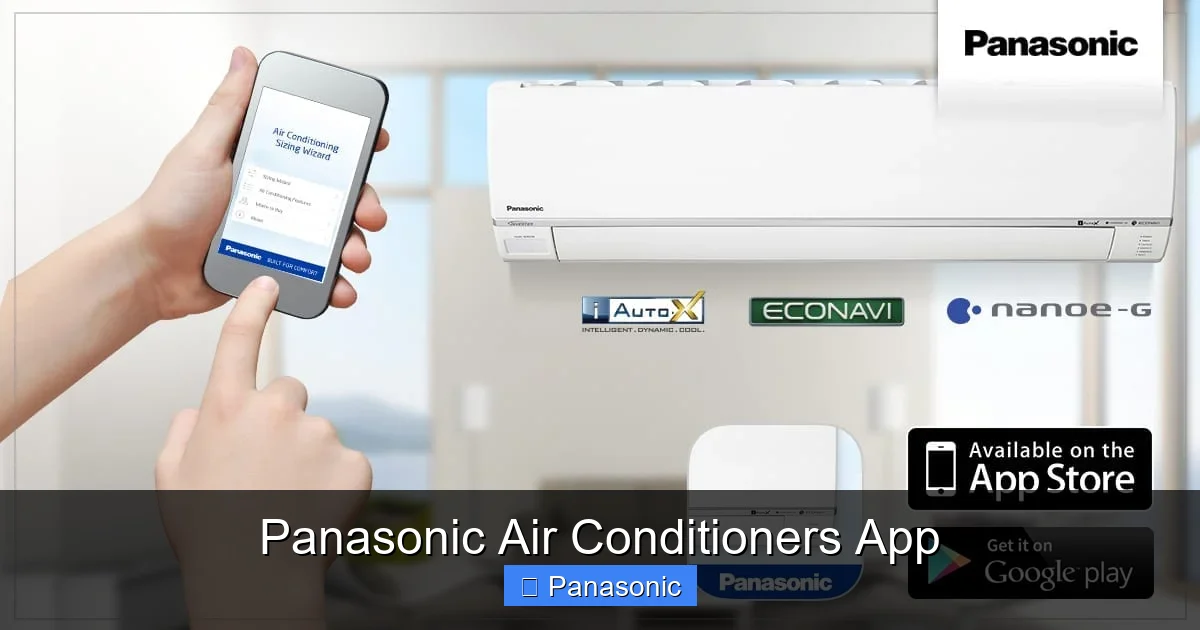
Visual guide about Panasonic Air Conditioners App
Image source: blogs.panasonic.com.au
Before you can start enjoying the benefits of remote control, you’ll need to set up the app properly. The process is simple, but there are a few important steps to follow to ensure everything works smoothly.
Download and Install the App
The first step is to download the official Panasonic Air Conditioners App from either the Apple App Store or Google Play Store. Make sure you’re downloading the correct version—search for “Panasonic Smart AC Controller” or look for the Panasonic logo to avoid fake apps.
Once downloaded, open the app and create an account using your email address. If you already have a Panasonic account, simply log in. This account will sync all your devices, so you can manage multiple air conditioners from one place.
Connecting Your AC Unit
Not every Panasonic air conditioner supports the app—only models with built-in Wi-Fi or those equipped with a compatible controller. Check your unit’s manual or look for the Wi-Fi symbol on the front panel. If your model isn’t listed in the app, it may not be compatible.
To connect, power on your AC and ensure it’s within range of your Wi-Fi network. In the app, tap “Add Device” and follow the on-screen instructions. The app will search for nearby units and prompt you to enter your Wi-Fi password. Once connected, your AC will appear in the app dashboard.
Troubleshooting Tips
If your AC doesn’t show up, try these quick fixes:
– Make sure your router is working and broadcasting a 2.4 GHz signal (most smart devices don’t support 5 GHz).
– Restart both your AC and the app.
– Ensure your phone is close to the AC during setup.
– Update the app to the latest version.
Once connected, test the remote control feature by turning the AC on and adjusting the temperature. You should see real-time changes reflected in the app.
Core Features of the Panasonic Air Conditioners App
Now that your system is online, let’s explore the main features that make this app so useful.
Remote On/Off and Temperature Control
One of the most obvious—and most appreciated—features is the ability to turn your AC on or off from anywhere. Want to cool your bedroom while you’re still at work? Just open the app, select your room, and press “On.” You can also adjust the temperature in half-degree increments, giving you precise control over your comfort.
Unlike older remotes that only work within line-of-sight, the Panasonic app uses Wi-Fi to communicate directly with your unit. This means you can control your AC from across town—as long as it’s powered and connected.
Real-Time Monitoring
The app displays live data about your AC’s performance. You’ll see the current room temperature, target temperature, fan speed, mode (cooling, heating, dry, etc.), and even humidity levels. This information helps you understand how your system is operating and whether adjustments are needed.
For example, if the humidity feels high, you might switch to “Dry Mode” to remove excess moisture without overcooling the room. The app makes it easy to experiment with different settings safely.
Filter Maintenance Alerts
Your AC’s efficiency drops when filters get clogged with dust and debris. The Panasonic app tracks filter usage and sends push notifications when it’s time to clean or replace them. Some models even show how much longer the filter will last based on usage patterns.
Regular maintenance not only improves air quality but also saves energy and extends the life of your unit. These gentle reminders help you stay on top of care without extra effort.
Smart Scheduling and Automation
One of the biggest advantages of the Panasonic Air Conditioners App is its scheduling capabilities. Instead of manually turning your AC on and off, you can program it to follow your routine.
Setting Daily Timers
You can set your AC to turn on at specific times each day. For example, schedule it to start cooling your office at 7:30 AM so it’s comfortable when you arrive. Or set it to shut off automatically at 10 PM to save energy overnight.
These timers are customizable and can be adjusted anytime through the app. You can also create different schedules for weekdays and weekends.
Creating Custom Routines
Beyond basic timers, the app allows you to build custom routines. For instance, you could create a “Morning Cool Down” routine that lowers the temperature by 2 degrees, increases fan speed, and switches to “Cool Mode” at 6:00 AM.
Routines can include multiple actions and be triggered by time, location (using geofencing), or voice commands. This level of automation makes your home feel smarter and more responsive.
Geofencing: Coming Home Comfortably
Geofencing uses your phone’s GPS to detect when you’re near home. When you leave work, the app can automatically turn off your AC. When you’re five minutes away, it can start cooling the house so it’s ready when you walk in.
This feature saves energy and ensures perfect comfort without lifting a finger. Just make sure your phone’s location services are enabled and your Wi-Fi is stable.
Energy Saving Tips Using the Panasonic App
Smart tech is useless unless it helps you save money. The Panasonic Air Conditioners App includes several tools to reduce your energy consumption and lower utility bills.
Usage Reports and Insights
Every month, the app generates a detailed report showing how much energy your AC used, how often it ran, and which settings consumed the most power. This data helps you spot waste and adjust behavior accordingly.
For example, if you see that your AC runs constantly between 2 PM and 4 PM, you might consider raising the thermostat slightly or using fans to circulate air.
Eco Mode Activation
Many Panasonic models support “Eco Mode,” which reduces power use by optimizing compressor operation and fan speed. You can activate Eco Mode manually or set it to run automatically during peak hours.
The app also suggests energy-saving settings based on weather forecasts. If it’s going to be cooler tomorrow, it might recommend delaying cooling until evening.
Scheduling Off-Peak Hours
Electricity rates vary throughout the day. By scheduling your AC to run during off-peak hours (usually late night or early morning), you can take advantage of lower rates and reduce strain on the grid.
The app makes this easy—just set your timer during cheaper hours, and you’ll save money without sacrificing comfort.
Voice Control and Integration with Smart Home Ecosystems
Modern homes aren’t just about appliances—they’re about ecosystems. The Panasonic Air Conditioners App integrates seamlessly with popular voice assistants and smart home platforms.
Google Assistant and Amazon Alexa
Want to say, “Hey Google, cool the living room to 72 degrees”? With voice control, you can. Link your Panasonic account to Google Assistant or Alexa through the app’s integration settings.
Once connected, you can control your AC using natural language. You can also create routines that involve multiple devices—like turning on lights, playing music, and adjusting the AC when you say “Good Morning.”
Siri Shortcuts (iOS Users)
iPhone users can add Siri shortcuts to control their AC. For example, create a shortcut called “Cool Down” that lowers the temperature and turns on the fan with one voice command or tap.
Integration with Smart Thermostats and Hubs
Some versions of the app work with third-party hubs like Samsung SmartThings or Apple HomeKit. This allows even deeper automation and compatibility with a wider range of devices.
While not all features are available in every region, the core functionality remains consistent. Always check your local support page for the latest integration options.
Managing Multiple Units and Rooms
Do you have more than one Panasonic air conditioner? The app lets you manage them all from one place—perfect for families, offices, or large homes.
Adding Devices to Your Account
In the app, go to “Devices” and tap “Add New.” Follow the same setup process as before. Each AC will appear with its own icon and name (e.g., “Living Room,” “Master Bedroom”).
You can rename devices, change icons, or group them by floor or room type for easier navigation.
Group Controls and Scenes
Create groups like “Upstairs” or “Office” and control all devices in that group at once. For example, tap one button to turn off all ACs in the house when you leave.
You can also create “scenes”—like “Movie Night”—that lower the temperature, dim the lights, and play ambient sound. While some scenes require additional smart devices, basic AC control is fully supported.
Sharing Access with Family Members
Want your spouse or roommate to adjust the AC settings? You can share access by sending them your login credentials or using the “Family Sharing” feature (if available). Each person can have their own profile with personalized settings.
This is especially helpful for households with different preferences—one person likes it cool, another prefers warmth.
Privacy, Security, and Data Usage
With any connected device, privacy is a concern. Panasonic takes security seriously and implements several measures to protect your data.
Data Encryption
All communication between your phone, the app, and your AC is encrypted using industry-standard protocols. This prevents hackers from intercepting your commands or accessing personal information.
Local vs. Cloud Control
By default, commands are sent directly to your AC via Wi-Fi. Only usage data (like energy reports) is stored in the cloud. You can disable cloud features if you prefer all processing to happen locally.
Account Security
Use strong passwords and enable two-factor authentication (2FA) if the app supports it. Avoid sharing login details, and log out when using public devices.
Panasonic does not sell user data and complies with global privacy regulations like GDPR and CCPA. Review their privacy policy in the app settings for full transparency.
Common Issues and How to Fix Them
Even the best apps have hiccups. Here are some frequent problems and their solutions.
App Won’t Connect to AC
– Ensure your AC is powered on and within range.
– Restart your router and modem.
– Reboot your phone and reopen the app.
– Try connecting again with a 2.4 GHz Wi-Fi network.
Commands Don’t Work
– Check that your AC is in standby mode (not completely off).
– Verify the unit is connected to Wi-Fi (look for a blinking LED).
– Update the app and firmware.
Notifications Stopped Working
Go to your phone’s notification settings and make sure the Panasonic app is allowed to send alerts. Also check the app’s notification preferences.
Slow Response Time
Wi-Fi interference or distance can cause delays. Move closer to the router or remove obstacles between your phone and AC.
App Crashes or Freezes
Clear the app cache, restart your phone, or reinstall the app. Make sure you’re using the latest version.
Frequently Asked Questions
Do I need a new Panasonic AC to use the app?
If your model has Wi-Fi built-in or supports the Panasonic Smart Controller, yes. Older units without connectivity won’t work with the app. You can check compatibility on Panasonic’s official website.
How accurate is the temperature reading in the app?
The app reflects the actual room temperature measured by your AC’s internal sensor, which is typically accurate within ±1°F (±0.5°C). For best results, avoid placing the unit near heat sources like direct sunlight.
Can I schedule different temperatures for different days?
Yes, you can create custom weekly schedules. Set unique temperatures for Monday mornings, weekend nights, or any combination that fits your lifestyle. The app remembers your preferences.
Will using the app increase my electricity bill?
Not if used wisely. The app helps optimize usage and prevent unnecessary runtime. Combined with smart scheduling and Eco Mode, it actually reduces energy consumption over time.
What happens if my internet goes down?
Your AC will continue to operate normally using its last known settings. The app won’t work until Wi-Fi is restored, but your unit remains functional.
Can I share control with family members securely?
Yes, you can invite others to join your account via email. They’ll receive login credentials and can manage devices, though you retain admin rights to revoke access anytime.
