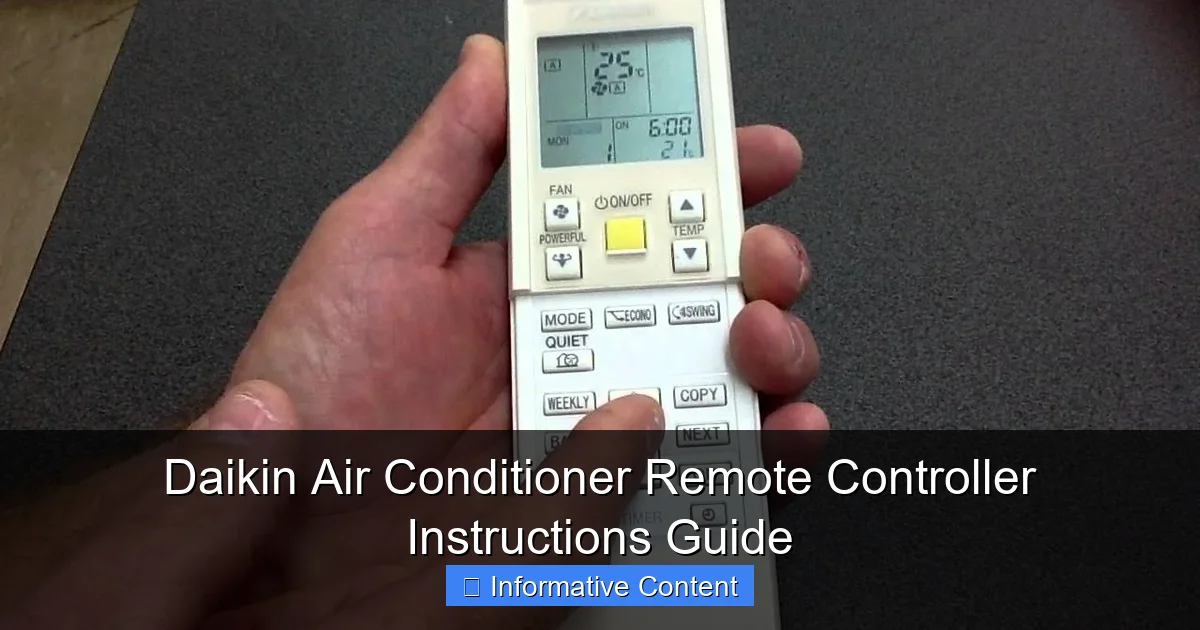
Featured image for daikin air conditioner remote controller instructions
Image source: i.ytimg.com
Master your Daikin air conditioner with ease using the remote controller instructions guide, designed to help you quickly navigate settings like temperature, mode, and fan speed. Whether you’re setting a timer, activating eco mode, or troubleshooting display issues, this guide ensures optimal comfort and energy efficiency with clear, step-by-step directions.
Key Takeaways
- Master the mode button: Switch between cool, heat, fan, and auto for optimal comfort.
- Adjust temperature precisely: Use up/down arrows to set your ideal climate quickly.
- Set timers for efficiency: Schedule on/off times to save energy and automate cooling.
- Use fan speed control: Choose low, medium, high, or auto for balanced airflow and noise.
- Activate eco mode: Reduce power consumption without sacrificing comfort.
- Reset the remote easily: Remove batteries and hold power to troubleshoot issues.
📑 Table of Contents
- Daikin Air Conditioner Remote Controller Instructions Guide
- Understanding Your Daikin Remote: Layout and Key Functions
- Step-by-Step: How to Use Your Daikin Remote Effectively
- Advanced Features and Hidden Gems
- Troubleshooting Common Remote Issues
- Tips for Maximizing Efficiency and Comfort
- Final Thoughts: Master Your Climate, One Button at a Time
Daikin Air Conditioner Remote Controller Instructions Guide
Let’s be honest—nothing feels better on a sweltering summer afternoon than walking into a cool, refreshing home. And if you’ve got a Daikin air conditioner, you know that comfort is just a button press away. But what happens when you pick up the remote and suddenly feel like you’re decoding a secret message? You’re not alone. Many Daikin users—myself included—have stared at that sleek little remote, wondering what half the symbols even mean.
I remember the first time I tried to use my Daikin AC remote. I wanted to switch from cooling to fan-only mode, but ended up blasting cold air at full power instead. Frustrating? Absolutely. But once I took the time to really understand how the remote worked, everything clicked. That’s exactly why I’m writing this guide—to help you skip the confusion and get the most out of your Daikin air conditioner remote controller. Whether you’re a new owner or just need a refresher, this step-by-step breakdown will turn that tiny device into your home’s climate command center.
Understanding Your Daikin Remote: Layout and Key Functions
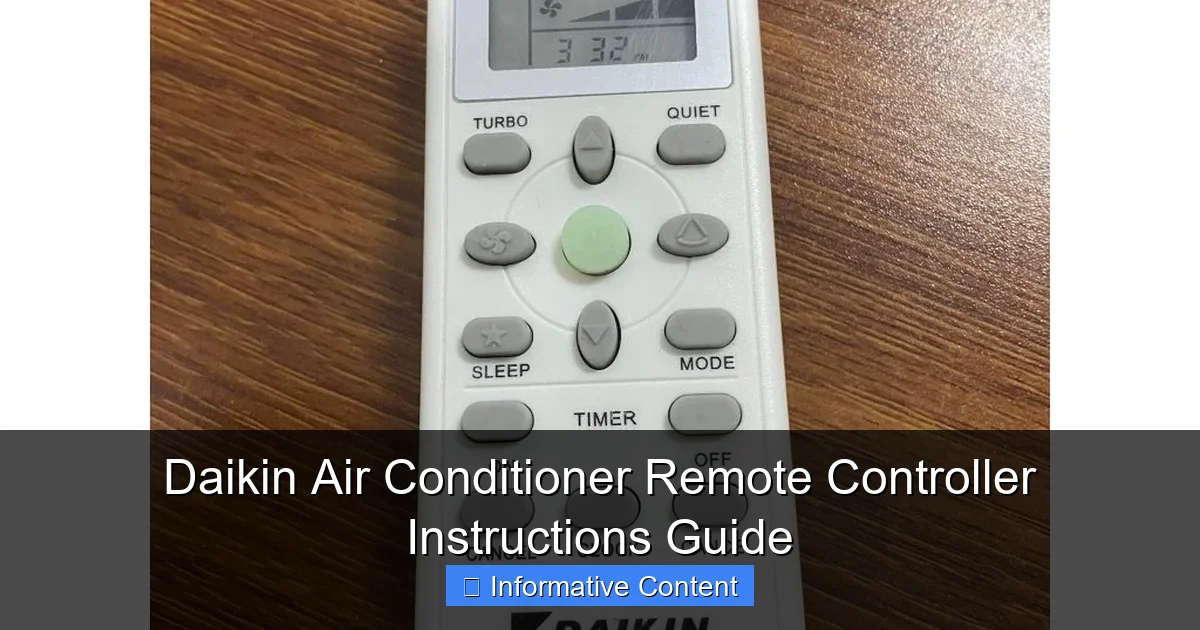
Before diving into specific settings, it’s important to get familiar with the physical layout of your Daikin remote. While designs may vary slightly depending on your model (like the ARC452A or ARC466A series), most remotes share a consistent structure. Think of it like learning the dashboard of a car—once you know where everything is, driving becomes second nature.
Visual guide about daikin air conditioner remote controller instructions
Image source: down-my.img.susercontent.com
Main Buttons and Their Roles
The front of your remote typically features a central display screen surrounded by labeled buttons. Here’s a quick rundown of the most common ones:
- Power (On/Off): The most important button—press it once to turn the AC on or off. A small light or icon on the display usually confirms the status.
- Mode: Cycles through operating modes like Cool, Heat, Fan, Dry, and Auto. Each press changes the function, and the display updates accordingly.
- Temperature Up/Down: Adjusts your desired room temperature. Most models allow settings between 16°C and 30°C (60°F–86°F).
- Fan Speed: Controls how fast the internal fan runs. Options often include Low, Medium, High, and Auto.
- Swing: Activates or deactivates the vertical and horizontal louvers (flaps) on the indoor unit, helping distribute air more evenly.
- Timer: Sets automatic on/off schedules so your AC turns on before you get home or shuts off while you sleep.
- Quiet/Silent Mode: Reduces fan noise for nighttime use—perfect for light sleepers.
- Econo Mode: Limits power consumption by slightly reducing performance, ideal for energy savings.
Some remotes also include a “Clean” or “Filter Reset” button, which reminds you when it’s time to clean or replace the air filter—a small but crucial feature for maintaining efficiency.
Display Screen Symbols Explained
The LCD screen is your window into what the AC is doing. You’ll see icons representing current mode, temperature, fan speed, timer status, and more. For example:
- A snowflake means Cool Mode.
- A sun icon indicates Heat Mode.
- A droplet symbol stands for Dry Mode, which removes humidity without overcooling.
- An arrow pointing up/down shows Air Swing is active.
- A clock icon means the Timer is set.
Don’t worry if you don’t recognize every symbol at first. Most Daikin remotes include a small legend on the back or in the user manual. Over time, these visuals become intuitive—like reading emojis!
Step-by-Step: How to Use Your Daikin Remote Effectively
Now that you know what each button does, let’s walk through everyday scenarios so you can use your remote like a pro. These practical examples mirror real-life situations you’ll likely encounter.
Setting Your Ideal Temperature
Let’s say it’s a hot afternoon and you want to cool your living room to a comfortable 24°C (75°F). Here’s how:
- Press the Power button to turn on the AC.
- Press Mode until the display shows the snowflake (Cool Mode).
- Use the Temperature Up/Down buttons to set 24°C.
- Press Fan Speed to choose your preferred airflow—Auto is usually best for balanced comfort and efficiency.
Pro tip: Avoid setting the temperature too low (like 16°C) just because it’s hot outside. Your AC works harder to reach extreme temps, which wastes energy and may not make you feel significantly cooler. A difference of 7–10°C from the outdoor temperature is usually ideal.
Switching Between Modes: Cool, Heat, Fan, and Dry
Daikin ACs are versatile—they can cool in summer, heat in winter, dehumidify during rainy seasons, or just circulate air. Here’s how to switch modes:
- Cool Mode: Best for hot days. Press Mode until the snowflake appears.
- Heat Mode: Perfect for chilly mornings. Press Mode until the sun icon shows up. Note: Not all Daikin models include heating—check your specs.
- Fan Mode: Circulates air without cooling or heating. Great for mild weather when you just want a breeze. Look for the fan icon.
- Dry Mode: Reduces humidity without overcooling. Ideal during humid summer nights or rainy seasons. Symbolized by a water droplet.
One common mistake? Using Cool Mode when Dry Mode would be more efficient. If it’s not extremely hot but feels sticky, Dry Mode uses less energy and still makes the room feel more comfortable.
Using the Timer Function
The timer is one of the most underused—and useful—features. Imagine coming home to a cool house without leaving the AC running all day. Here’s how to set it:
- Press the Timer button. The display will show “Timer On” or “Timer Off.”
- Use the Time Adjust buttons (often labeled “Hour” and “Minute”) to set when you want the AC to turn on or off.
- Press Timer again to confirm.
Example: It’s 5 PM, and you’ll be home at 7 PM. Set the timer to turn on at 6:45 PM so the room is cool by the time you arrive. Similarly, set a morning timer to turn off at 7 AM so you’re not wasting power while you’re at work.
Bonus: Some models allow separate “On” and “Off” timers—perfect for overnight use. Set it to turn off at 11 PM if you tend to fall asleep with the AC on.
Advanced Features and Hidden Gems
Beyond the basics, your Daikin remote packs some smart features that can enhance comfort, save energy, and even improve air quality. Let’s explore a few you might not know about.
Quiet/Silent Mode for Peaceful Nights
If you’re sensitive to noise—or share a room with a light sleeper—this mode is a game-changer. When activated, the indoor unit reduces fan speed and compressor activity to minimize sound. You’ll still get cooling or heating, just more gently.
To activate: Look for a button labeled “Quiet,” “Silent,” or sometimes a moon icon. Press it once, and the display may show a “Q” or speaker-with-slash symbol. Ideal for bedrooms or late-night movie sessions.
Econo Mode: Save Energy Without Sacrificing Comfort
Econo Mode limits the AC’s maximum power output, preventing it from going into overdrive. This doesn’t mean it stops working—it just operates more efficiently. Great for mild weather or when you’re trying to cut electricity bills.
How to use: Press the “Econo” button (sometimes labeled “Powerful” with a toggle). The display will show an eco-leaf or similar icon. Combine this with a reasonable temperature setting (like 26°C in summer) for maximum savings.
Air Swing and Airflow Direction
Ever notice how air can feel drafty if it blows directly on you? The swing function solves that. By moving the louvers up and down (and sometimes side to side), it spreads air more evenly throughout the room.
To activate: Press the Swing button. You’ll see arrows or a louver icon on the screen. Some remotes let you lock the louvers in a fixed position—useful if you want air directed toward a specific area, like away from your bed.
Pro tip: In heating mode, set the louvers to point downward so warm air reaches the floor. In cooling mode, angle them slightly upward to let cold air rise and circulate naturally.
Filter Reset and Maintenance Alerts
Daikin units often track how long the filter has been in use. When it’s time for a clean, the remote may display a “Clean Filter” message or flash a light.
To reset the filter timer after cleaning:
- Press and hold the Filter Reset button (or sometimes the “Clean” button) for 3–5 seconds.
- The alert should disappear from the screen.
Regular filter cleaning (every 2–4 weeks during heavy use) improves airflow, efficiency, and indoor air quality. Think of it like changing the oil in your car—small effort, big payoff.
Troubleshooting Common Remote Issues
Even the best remotes can act up. Here are some common problems and how to fix them—no technician required.
Remote Not Responding
If your AC isn’t reacting to button presses, start with these steps:
- Check the batteries: Weak batteries are the #1 culprit. Replace them with fresh AA or AAA cells (depending on your model).
- Clean the infrared sensor: Dust or grime on the remote’s front or the AC’s receiver can block signals. Wipe both with a dry cloth.
- Ensure line of sight: The remote uses infrared light, so it needs a clear path to the indoor unit. Don’t point it from another room or behind furniture.
- Reset the remote: Remove batteries, wait 30 seconds, then reinsert. This often clears temporary glitches.
Buttons Feel Sticky or Unresponsive
Over time, dust and oils from your fingers can build up under the buttons. Try this:
- Use a cotton swab lightly dampened with isopropyl alcohol to clean around the edges of each button.
- Avoid spraying liquid directly into the remote.
- If a button is physically damaged, consider contacting Daikin support—some remotes are replaceable.
Display Shows Error Codes
Occasionally, you might see codes like “E1,” “F3,” or “P8” on the screen. These aren’t random—they’re diagnostic messages. While the full list varies by model, here are a few common ones:
| Error Code | Likely Cause | Suggested Action |
|---|---|---|
| E1 | Remote communication issue | Replace batteries, check line of sight |
| F3 | Indoor unit fan problem | Turn off AC, wait 10 minutes, restart. If persists, call technician |
| P8 | Frozen evaporator coil | Turn off AC, let it defrost. Check filter and airflow |
| U4 | Communication error between indoor and outdoor units | Power cycle the system. If unresolved, professional help needed |
Always refer to your user manual for model-specific codes. When in doubt, Daikin’s customer support is generally responsive and helpful.
Tips for Maximizing Efficiency and Comfort
Using your remote correctly isn’t just about convenience—it’s also about getting the best performance and longest life from your AC. Here are some expert-backed tips to keep in mind.
Set Smart Temperatures
According to energy experts, setting your AC to 24–26°C (75–78°F) in summer and 20–22°C (68–72°F) in winter strikes the perfect balance between comfort and efficiency. Every degree lower in summer can increase energy use by 6–8%.
Use the remote’s temperature display to find your sweet spot. You might be surprised how comfortable 25°C feels with a ceiling fan running.
Use Timer and Sleep Mode Together
Many Daikin remotes have a “Sleep” mode that gradually adjusts the temperature over time. Combine this with the timer for ultimate comfort. For example:
- At 10 PM, set the AC to 24°C and activate Sleep Mode.
- The remote will slowly raise the temperature to 26°C by 6 AM, matching your body’s natural cooling during sleep.
- Set the timer to turn off at 7 AM.
Result? A cool room when you fall asleep, warmer (and quieter) air later, and no wasted energy.
Keep the Remote Clean and Accessible
A dusty remote is a frustrating remote. Wipe it down weekly with a microfiber cloth. Store it in a consistent spot—like a charging dock or designated drawer—so you’re not hunting for it when you need it most.
Also, avoid placing it near heat sources (like radiators) or in direct sunlight, which can damage internal components over time.
Know When to Call a Professional
While the remote handles daily operation, some issues require expert attention. If your AC:
- Turns on but doesn’t cool or heat
- Makes unusual noises
- Leaks water
- Shuts off unexpectedly
…it’s time to call a certified technician. The remote can’t fix refrigerant leaks or electrical faults—but it can help you communicate the problem clearly to the repair person.
Final Thoughts: Master Your Climate, One Button at a Time
Your Daikin air conditioner remote controller is more than just a gadget—it’s the key to personalized comfort, energy savings, and peace of mind. From setting the perfect temperature to using advanced modes like Quiet and Econo, every button serves a purpose. And now, armed with this guide, you can use them all with confidence.
Remember, the best AC experience isn’t about blasting cold air at maximum power. It’s about smart, thoughtful use that keeps your home comfortable without wasting energy or money. So the next time you pick up that remote, don’t just press buttons randomly. Take a moment to choose the right mode, set a sensible temperature, and maybe even schedule a timer. Your future self—and your electricity bill—will thank you.
Whether you’re cooling down on a hot day, staying warm in winter, or just enjoying a quiet night with the fan gently circulating air, your Daikin remote puts control in your hands. Use it wisely, keep it clean, and enjoy the comfort you deserve.
Frequently Asked Questions
How do I turn on my Daikin air conditioner using the remote controller?
To turn on your Daikin air conditioner, press the “Power” button (usually labeled with a power symbol) on the remote. The unit will start, and the display will show the current operating mode and temperature setting.
What do the different symbols on the Daikin remote controller mean?
The symbols on your Daikin remote represent various functions like cooling, heating, fan speed, and timer settings. Refer to the user manual or the guide on the remote itself for a detailed explanation of each icon.
How do I set the temperature on my Daikin air conditioner remote?
Use the up and down arrow buttons on the remote to adjust the temperature. The display will update to show the new setting, and the unit will begin working toward the selected temperature.
Why isn’t my Daikin remote controller working with the air conditioner?
Check if the remote’s batteries need replacing or if there’s an obstruction blocking the signal. Ensure the remote is pointed at the receiver on the indoor unit and that no bright light is interfering with the infrared signal.
How do I activate the timer function on my Daikin air conditioner remote?
Press the “Timer” button on the remote and use the arrow keys to set the desired on or off time. Confirm your selection, and the unit will automatically start or stop at the scheduled time.
Can I use the Daikin remote controller to control fan speed?
Yes, press the “Fan Speed” button (often labeled with fan icons) to cycle through different speed settings. Choose from low, medium, high, or auto mode depending on your comfort and cooling needs.