
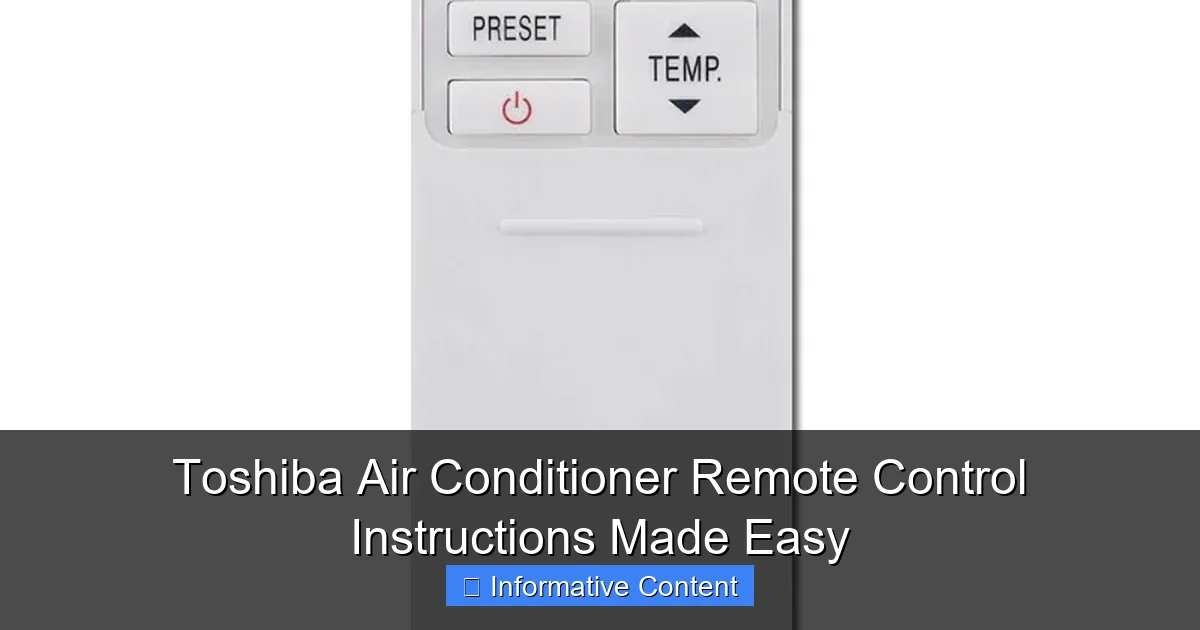
Featured image for toshiba air conditioner remote control instructions
Image source: remoteoz.com
Master your Toshiba air conditioner with ease using the intuitive remote control instructions designed for quick setup and daily use. From adjusting temperature and fan speed to activating energy-saving modes, every function is clearly explained to maximize comfort and efficiency. No tech skills needed—just clear, step-by-step guidance to get the most out of your remote.
Key Takeaways
- Power on/off: Press the ON/OFF button to start or stop the AC.
- Adjust temperature: Use + and – buttons to set your desired temperature.
- Select mode: Press MODE to toggle between cooling, heating, or fan modes.
- Set timer: Use TIMER to schedule automatic on/off times for efficiency.
- Control fan speed: Press FAN to adjust airflow between low, medium, or high.
- Use sleep mode: Activate SLEEP for energy-saving nighttime operation.
📑 Table of Contents
Why Your Toshiba Air Conditioner Remote Matters
You’ve just returned home after a long, hot day. The sun has turned your apartment into a sauna, and all you want is to cool down with a simple click. You reach for your Toshiba air conditioner remote—only to realize you can’t remember how to activate the sleep mode, or why the temperature keeps fluctuating. Sound familiar? You’re not alone. For many of us, the remote control is the unsung hero of home comfort, yet its buttons and features often feel like a secret code we never learned.
Whether you’ve just unboxed your first Toshiba AC or have been using one for years, mastering the remote can make a world of difference. It’s not just about turning the unit on or off. It’s about customizing your cooling experience—setting timers, adjusting fan speeds, activating eco modes, and even using advanced features like swing control or air purification. The good news? Toshiba remotes are designed with user-friendliness in mind. Once you know what each button does and how to navigate the settings, you’ll wonder why you ever felt confused.
Getting to Know Your Toshiba Remote Control
Before we dive into the nitty-gritty, let’s get familiar with the layout and design of the Toshiba air conditioner remote control. While models may vary slightly—especially between split systems, window units, and portable ACs—most share a similar interface. Think of it as your AC’s command center, packed with intuitive features that help you stay cool, save energy, and sleep better.
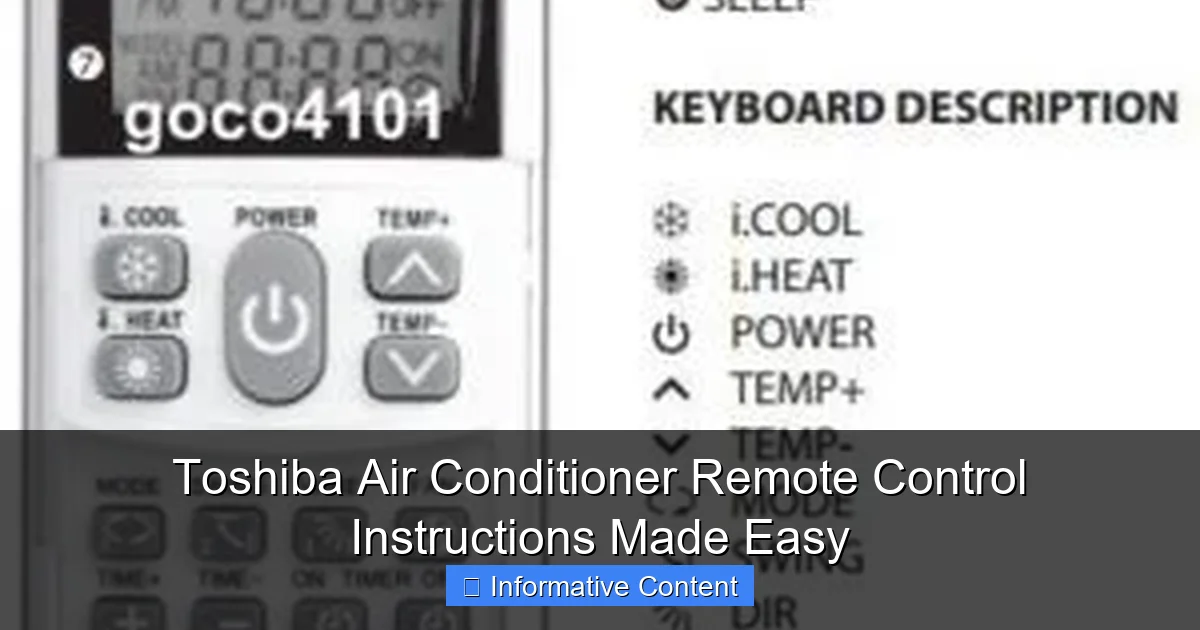
Visual guide about toshiba air conditioner remote control instructions
Image source: tvremotes.com.au
Standard Button Layout and Functions
Most Toshiba remotes follow a consistent design. Here’s a breakdown of the common buttons and what they do:
- Power Button: The large, often green or red button at the top. Press once to turn the unit on or off. A quick double-press may trigger an emergency stop on some models.
- Mode Button: Cycles through operation modes—Cool, Heat, Fan, Dry, and Auto. The selected mode lights up on the display.
- Temperature Up/Down (▲/▼): Adjusts the set temperature. In Cool mode, lower numbers mean colder air. In Heat mode, higher numbers mean warmer air.
- Fan Speed Button: Toggles between Low, Medium, High, and Auto fan settings. Auto adjusts fan speed based on room temperature.
- Swing Button: Controls the vertical or horizontal movement of the air louvers. Great for even air distribution.
- Timer Button: Sets on/off schedules. You can program the AC to turn on before you wake up or shut off after you fall asleep.
- Sleep Button: Gradually adjusts temperature over time to mimic natural body temperature changes during sleep. Saves energy and improves comfort.
- Turbo/Quick Cool Button: Activates a high-speed cooling cycle for rapid temperature drop—perfect for those scorching afternoons.
- Eco Button: Enables energy-saving mode, which slightly raises the set temperature (in Cool mode) to reduce power usage.
- LED Display: Shows current settings—temperature, mode, timer, fan speed, and error codes if something’s wrong.
Pro Tip: If your remote has a Reset or Lock button (often a small hole or recessed button), use a paperclip to press it if the remote freezes or behaves oddly. This often resolves minor glitches.
Understanding the Display Screen
The LCD or LED screen is your feedback hub. It tells you everything you need to know—what mode you’re in, the current temperature, whether the timer is active, and if the swing function is on. Some models even show humidity levels or filter status.
For example, if you see “8H” on the screen, it means the timer is set to turn off in 8 hours. A “F1” or “E5” code? That’s an error message—don’t panic. We’ll cover troubleshooting later. For now, just know that the display is your friend. Take a moment to glance at it when you press buttons. You’ll start to notice patterns and understand what each icon means.
One thing I learned the hard way: if the display is dim or unreadable, it might not be a remote issue. Check the AC unit’s control panel. Sometimes, the remote is fine, but the AC’s internal sensor isn’t receiving signals properly. Try standing closer to the unit or pointing the remote directly at the sensor window (usually near the front grille).
Step-by-Step Guide to Operating Your Toshiba AC Remote
Now that you know the buttons, let’s walk through how to use them in real-life scenarios. Whether you’re cooling down a living room, prepping for bedtime, or saving on your electricity bill, these step-by-step instructions will help you get the most out of your Toshiba air conditioner remote control.
Turning On and Setting the Mode
1. Press the Power button to turn on the AC. The unit should emit a soft beep, and the display will light up.
2. Press the Mode button repeatedly until you reach your desired setting:
- Cool: For cooling the room (most common in summer).
- Heat: For heating (available on heat pump models).
- Dry: Reduces humidity without cooling too much—ideal for muggy days.
- Fan: Circulates air without cooling or heating. Good for ventilation.
- Auto: The AC decides the best mode based on room temperature.
Example: It’s a hot summer day. You press Power, then Mode until “Cool” appears. The AC starts blowing cold air within seconds. Simple, right?
Adjusting Temperature and Fan Speed
3. Use the ▲ and ▼ buttons to set your desired temperature. Most Toshiba ACs allow settings from 16°C (61°F) to 30°C (86°F).
4. Press the Fan Speed button to choose your airflow level:
- Low: Quiet, gentle airflow—great for nighttime.
- Medium: Balanced noise and cooling.
- High: Strong airflow for quick cooling.
- Auto: The AC adjusts fan speed based on how far the room is from the set temperature.
Tip: In Auto fan mode, the AC will run the fan at high speed when the room is much hotter than the set temperature, then slow down as it gets closer. This saves energy and keeps noise levels low.
Using the Timer for On/Off Scheduling
One of my favorite features: the Timer. It lets you automate your AC without leaving it on all night or day.
To set a timer:
- Press the Timer button once. The display will show “ON” or “OFF” depending on current state.
- Use ▲/▼ to set the number of hours until the action (e.g., 2 hours until it turns off).
- Press Timer again to confirm. The display will show “2H” or similar.
- To set both on and off times, press Timer twice—once for off, once for on (if supported).
Real-life use: I set the AC to turn off at 2 a.m. so it doesn’t cool me into a freezer, then turn back on at 6:30 a.m. before I wake up. No more waking up shivering or coming home to a hot house!
Activating Sleep and Eco Modes
The Sleep button is a game-changer for night comfort. When pressed, it gradually increases the set temperature (in Cool mode) by 1–2°C over 2–3 hours. This mimics your body’s natural drop in core temperature during sleep, so you stay comfortable without overcooling.
To use it:
- Set your desired starting temperature (e.g., 24°C).
- Press the Sleep button. The display may show “SL” or “Sleep.”
- After 1–2 hours, the AC will raise the temp slightly. You’ll sleep better and save energy.
The Eco button works similarly but focuses on energy savings. It slightly raises the set temperature (e.g., from 24°C to 25.5°C) to reduce compressor runtime. Ideal for daytime use when you’re not in the room.
Pro Tip: You can use Sleep and Eco modes together on some models. Just press both. But test it first—some combinations may override each other.
Advanced Features and Hidden Functions
Once you’ve mastered the basics, it’s time to unlock the remote’s full potential. Toshiba air conditioner remote controls come with a few “hidden” features that aren’t always obvious but can make a big difference in comfort and efficiency.
Swing and Airflow Control
The Swing button controls the movement of the air louvers—the flaps on the front of your AC unit. When activated, they move up and down (and sometimes side to side) to spread air evenly across the room.
To use it:
- Press the Swing button once to turn on vertical swing (up/down).
- Press again to add horizontal swing (left/right), if supported.
- Press a third time to stop all movement.
Why it matters: Without swing, cold air tends to pool in one spot, leaving other areas warm. With swing, you get balanced cooling. I use it in my home office to avoid the “cold shoulder” effect—where one side of my body gets too cold while the other sweats.
Note: Some models allow you to lock the louvers in a specific position. Press and hold the Swing button for 3–5 seconds to fix the angle manually.
Turbo Mode for Rapid Cooling
The Turbo or Quick Cool button is your best friend on 90°F days. It forces the AC to run at maximum capacity for 30–60 minutes, cooling the room faster than normal.
To activate:
- Press the Turbo button. The display may show “Turbo” or a lightning bolt icon.
- The fan and compressor will run at high speed. You’ll feel a blast of cold air within minutes.
- After the cycle ends, the AC returns to your previous settings.
Use it wisely: Turbo mode uses more energy, so it’s best for short-term relief. I use it when guests arrive on a hot day—within 10 minutes, the room feels livable again.
Air Purification and Ionizer Functions
Some high-end Toshiba models include air purification features like ionizers or filters. The remote may have a dedicated Purify or Ion button.
When pressed, it releases negatively charged ions that bind to dust, allergens, and odors, making them easier to trap in the filter. It’s not a substitute for HEPA filters, but it helps reduce airborne particles.
To use:
- Press the Purify button. The display may show “ION” or “Purify On.”
- Use it in combination with Cool or Fan mode for best results.
- Note: Ionizers can produce a small amount of ozone, so avoid prolonged use in poorly ventilated rooms.
Personal note: I have allergies, and I’ve noticed a difference since using the ionizer. Less sneezing, fewer dust bunnies. But I only run it during the day, not while sleeping.
Troubleshooting Common Remote and AC Issues
Even the best remotes can act up. If your Toshiba air conditioner remote control isn’t working as expected, don’t rush to call a technician. Most issues are easy to fix with a little patience and know-how.
Remote Not Responding: Quick Fixes
If pressing buttons does nothing:
- Check the batteries: Replace them with fresh AA or AAA batteries. I’ve lost count of how many times weak batteries were the culprit.
- Clean the infrared lens: Wipe the front of the remote with a soft cloth. Dust or grime can block signals.
- Point directly at the AC: The remote uses infrared light, which can’t go through walls or furniture. Stand within 5–7 meters and aim straight at the unit.
- Reset the remote: Use a paperclip to press the small Reset button (if present) for 3 seconds.
Pro Tip: If the AC responds to manual buttons on the unit but not the remote, the remote is likely the problem. If neither works, check the power supply and circuit breaker.
Display Shows Error Codes
Here are some common Toshiba error codes and what they mean:
| Code | Meaning | What to Do |
|---|---|---|
| E1 | Communication error between indoor and outdoor units | Turn off AC, wait 5 minutes, restart. If persists, call technician. |
| E5 | High pressure protection | Check for blocked vents or dirty filters. Clean and restart. |
| F1 | Room temperature sensor issue | Ensure nothing is blocking the sensor (usually near the front grille). |
| H3 | Compressor overheating | Let AC cool for 30 minutes. Avoid running in extreme heat. |
| F8 | Low refrigerant (gas leak) | Requires professional repair. Do not attempt to fix yourself. |
Note: If the error code flashes repeatedly, turn off the AC and unplug it for 10 minutes. This often clears temporary glitches.
AC Not Cooling Properly
Even with the right settings, your AC might not cool well. Try these steps:
- Check the filter: A dirty filter restricts airflow. Clean it monthly.
- Ensure proper mode: Make sure it’s set to Cool, not Fan or Dry.
- Close windows and doors: Heat sneaks in fast. Seal the room for best results.
- Check outdoor unit: Clear leaves, debris, or snow. It needs airflow to release heat.
One time, my AC was blowing lukewarm air. I checked the filter—it was packed with dust. After cleaning it, the cooling was back to normal. Lesson learned: clean the filter!
Maintenance Tips to Keep Your Remote and AC Running Smoothly
Your Toshiba air conditioner remote control is durable, but it still needs care. A little maintenance goes a long way in preventing issues and extending the life of both the remote and the AC unit.
Cleaning and Storing the Remote
- Wipe weekly: Use a damp cloth with mild soap to clean the buttons and screen. Avoid harsh chemicals.
- Keep it dry: Never submerge the remote. Water damage kills circuits fast.
- Store in a cool, dry place: Avoid leaving it in direct sunlight or near heat sources (like radiators).
- Use a protective case: A silicone sleeve or remote cover prevents drops and scratches.
I keep my remote in a small basket on the side table. It’s always there when I need it, and the case keeps it safe from my cat’s curious paws.
Replacing Batteries and Updating Firmware
- Replace batteries every 6–12 months: Even if they seem fine, old batteries leak and corrode contacts.
- Use alkaline batteries: They last longer than zinc-carbon ones.
- Check for firmware updates: Some smart Toshiba remotes (with Wi-Fi) can receive updates. Visit the Toshiba website or use the companion app to check.
Note: Most basic remotes don’t need updates, but it’s worth checking if you have a newer model with app connectivity.
Scheduling Regular AC Maintenance
- Clean filters monthly: Rinse with water or vacuum. Let dry completely before reinstalling.
- Inspect outdoor unit quarterly: Remove debris and ensure vents are clear.
- Professional servicing yearly: A technician can check refrigerant levels, electrical connections, and compressor health.
Think of it like a car tune-up. A little effort now prevents big problems later.
Remember: your Toshiba air conditioner remote control isn’t just a gadget. It’s the key to a comfortable, energy-efficient home. By understanding its features and taking care of it, you’ll stay cool—literally and figuratively—all year round.
Frequently Asked Questions
How do I use the Toshiba air conditioner remote control for basic functions?
To use the Toshiba air conditioner remote control, point it at the unit and press the power button. Use the mode button to switch between cooling, heating, fan, and dry modes, and adjust the temperature with the up/down arrows.
Why is my Toshiba AC remote control not responding?
If your Toshiba AC remote control isn’t responding, check the batteries and replace them if needed. Ensure there are no obstructions between the remote and the unit, and try resetting the remote by removing the batteries for 30 seconds.
How do I set the timer on my Toshiba air conditioner remote?
Press the “Timer” button on the remote, then use the up/down arrows to set the desired on/off time. Confirm by pressing the “Set” button, and the Toshiba air conditioner will follow your schedule automatically.
What do the symbols on my Toshiba AC remote mean?
The symbols on your Toshiba AC remote represent modes (cool, heat, fan), fan speed, swing, and timer settings. Refer to your user manual for a detailed guide to all icons and their functions.
Can I control my Toshiba air conditioner without the remote?
Yes, most Toshiba AC units have manual controls on the indoor unit. However, using the Toshiba air conditioner remote control provides full access to all features, including precise temperature and timer settings.
How do I activate the sleep mode on my Toshiba AC remote?
Press the “Sleep” button on the remote to activate sleep mode, which adjusts the temperature gradually for comfort during the night. The mode automatically turns off after 8 hours or as programmed.