
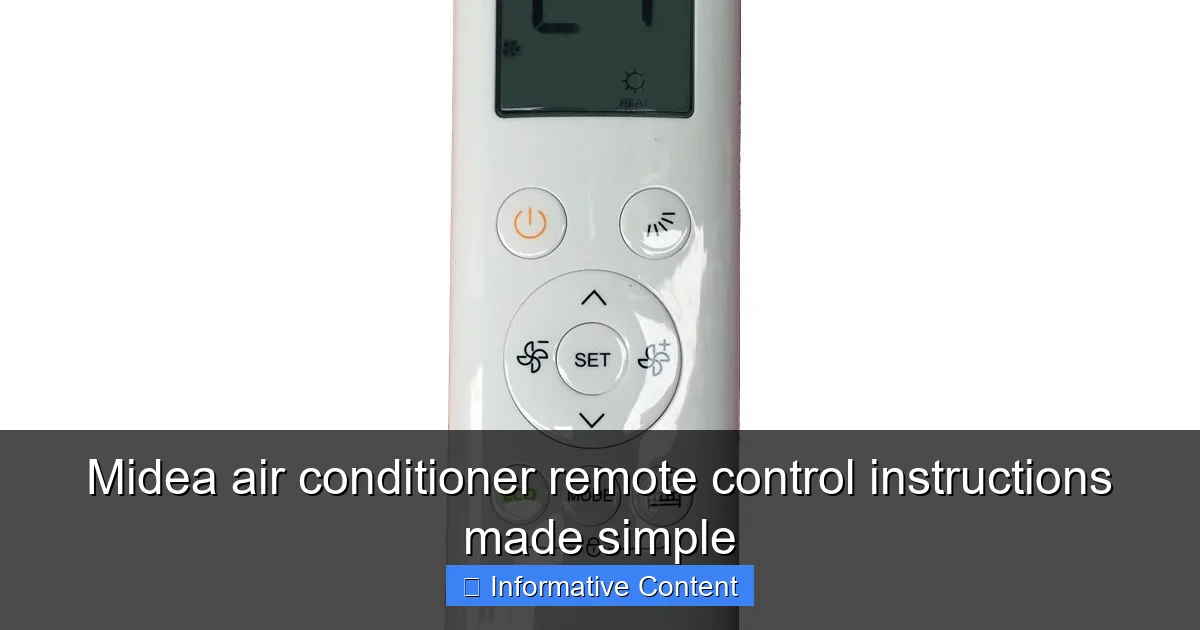
Featured image for midea air conditioner remote control instructions
Image source: m.media-amazon.com
Master your Midea air conditioner effortlessly with this simplified guide to the remote control. From adjusting temperature and fan speed to setting timers and sleep modes, every essential function is explained in clear, easy-to-follow steps. Whether you’re troubleshooting or optimizing comfort, this guide ensures you get the most out of your Midea AC with confidence and ease.
Key Takeaways
- Master the power button: Press once to turn on/off your Midea AC.
- Adjust modes easily: Cycle through Cool, Fan, Dry, or Heat with one button.
- Set precise temperatures: Use up/down arrows for 1°C adjustments.
- Optimize airflow: Press the swing button for even air distribution.
- Use timer settings: Schedule on/off times to save energy.
- Reset if unresponsive: Remove batteries and hold power for 5 seconds.
📑 Table of Contents
- Understanding Your Midea Air Conditioner Remote Control: A Simple Guide
- Getting Started: Setting Up Your Midea Remote Control
- Mastering the Basic Functions: Cool, Heat, and Fan
- Advanced Features: Timer, Sleep Mode, and Energy Saving
- Troubleshooting Common Remote Issues
- Maximizing Comfort and Efficiency: Tips and Best Practices
- Remote Control Comparison: Midea Models at a Glance
- Final Thoughts: Your Remote, Your Comfort
Understanding Your Midea Air Conditioner Remote Control: A Simple Guide
So, you’ve just brought home a sleek new Midea air conditioner—congratulations! You’re probably excited to enjoy cool, refreshing air on those sweltering summer days. But then you open the box, pull out the remote, and… pause. It looks like something from a sci-fi movie, with more buttons than you can count and symbols that might as well be hieroglyphics.
Don’t worry—you’re not alone. Many of us have stood there, remote in hand, wondering, “What does this button even do?” The good news? Once you understand the basics, your Midea air conditioner remote control becomes your best friend. It’s not just a gadget—it’s your personal climate command center. Whether you’re adjusting the temperature, switching modes, or setting a timer, the remote puts all the power in your hands. And the best part? Once you get the hang of it, you’ll wonder how you ever lived without it.
In this guide, we’ll walk you through everything you need to know about using your Midea air conditioner remote control—step by step, button by button. No tech jargon, no confusing manuals. Just clear, simple instructions that anyone can follow. Whether you’re a first-time AC user or just upgrading to a newer Midea model, this guide will help you master your remote in no time.
Getting Started: Setting Up Your Midea Remote Control
Before you start pressing buttons, let’s make sure your remote is ready to go. The last thing you want is to be sweating while your remote refuses to respond. Setting it up is easier than you think—just follow these simple steps.
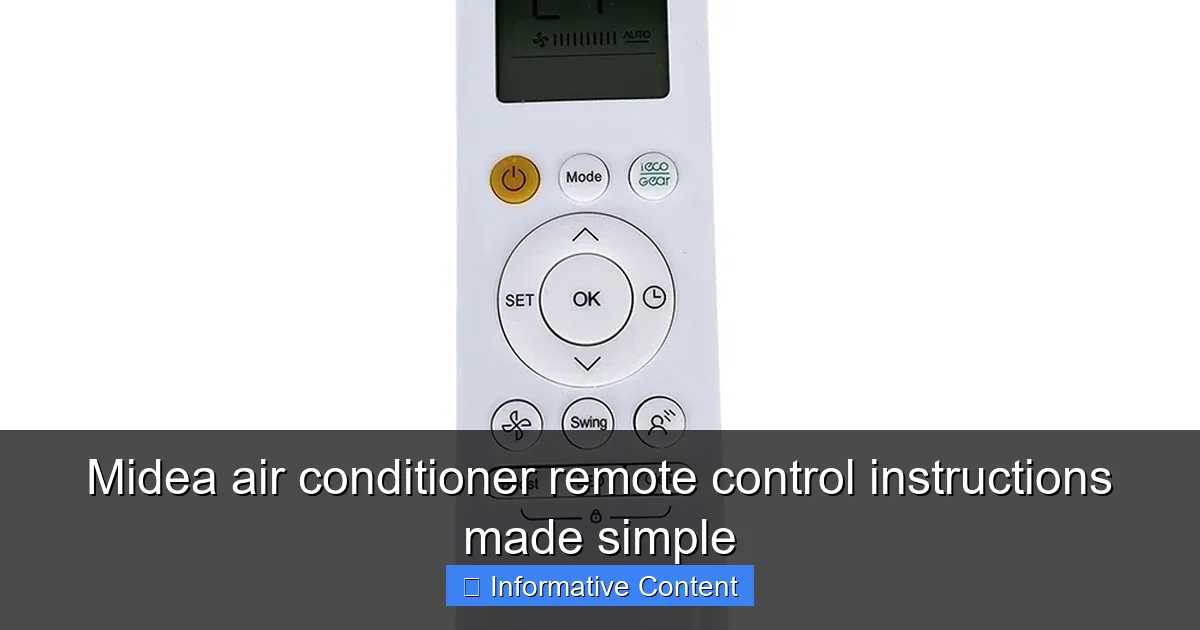
Visual guide about midea air conditioner remote control instructions
Image source: down-my.img.susercontent.com
Inserting the Batteries
Most Midea remotes use two AAA batteries. Here’s how to install them properly:
- Flip the remote over and locate the battery compartment on the back.
- Slide the cover off (usually by pressing a small tab).
- Insert the batteries, making sure the positive (+) and negative (-) ends match the markings inside.
- Replace the cover securely.
💡 Pro Tip: Always use fresh alkaline batteries. Weak batteries can cause the remote to respond slowly or not at all. If your remote starts acting up, the first thing to check is the battery level.
Pairing the Remote with Your AC Unit
In most cases, your Midea remote is pre-paired with your air conditioner. But if it’s not working, you may need to sync it manually. Here’s how:
- Turn on your air conditioner using the power button on the unit itself.
- Point the remote directly at the AC unit (within 20 feet).
- Press and hold the “Power” button on the remote for 3–5 seconds.
- Wait for the AC unit to beep or flash a light—this means it’s recognized the remote.
If that doesn’t work, consult your user manual for model-specific pairing instructions. Some newer Midea models support infrared learning or app-based pairing via Wi-Fi.
Checking the Remote Display
Once powered, your remote should light up with a digital display. You’ll typically see:
- Current temperature setting
- Mode (Cool, Heat, Fan, etc.)
- Fan speed
- Timer settings
If the screen is blank or dim, double-check the batteries. If it’s still not working, try resetting the remote by removing the batteries for 30 seconds and reinserting them.
Mastering the Basic Functions: Cool, Heat, and Fan
Now that your remote is set up, let’s dive into the core functions. These are the buttons you’ll use every day to stay comfortable. Think of them as the “big three” of air conditioning: Cool, Heat, and Fan. Once you understand these, you’re already 80% of the way to remote mastery.
How to Use the Cool Mode
The Cool mode is probably the one you’ll use most, especially during summer. Here’s how to activate it:
- Press the Mode button until “Cool” appears on the display.
- Use the Temperature Up/Down buttons to set your desired temperature (usually between 60°F and 86°F).
- Press the Fan Speed button to choose between Low, Medium, High, or Auto.
💡 Example: It’s a hot afternoon, and the room feels stuffy. You press “Mode” until “Cool” shows up, set the temperature to 72°F, and choose “High” fan speed for quick cooling. Within minutes, the room feels refreshing.
Why Auto Fan is Smart: In Auto mode, the fan adjusts automatically based on how much cooling is needed. This saves energy and keeps the airflow consistent.
Switching to Heat Mode (for Winter Comfort)
Yes, your Midea air conditioner can also heat your room! If you have a heat pump model, here’s how to use Heat mode:
- Press the Mode button until “Heat” appears.
- Set your desired temperature (e.g., 70°F).
- Adjust fan speed as needed.
💡 Note: Not all Midea AC units support heating. Check your model number or user manual to confirm. Heat pump models are more energy-efficient than electric heaters.
Using Fan Mode for Air Circulation
Fan mode doesn’t cool or heat—it just circulates air. This is great for mild days when you want a breeze without changing the temperature.
- Press the Mode button until “Fan” appears.
- Choose your fan speed: Low, Medium, or High.
💡 When to Use Fan Mode: On cool evenings, use Fan mode to keep air moving without overcooling. It’s also useful for drying out a damp room or reducing stuffiness.
Advanced Features: Timer, Sleep Mode, and Energy Saving
Now that you’ve got the basics down, let’s explore the smarter features that make your Midea remote even more useful. These aren’t just fancy extras—they’re designed to save energy, improve comfort, and make your life easier.
Setting the Timer: Cool on Demand
The timer function lets you schedule when your AC turns on or off. Perfect for coming home to a cool house or avoiding wasted energy.
How to Set a Timer to Turn On
- Press the Timer button.
- Use the Up/Down arrows to set the number of hours until the AC turns on.
- Press Timer again to confirm.
How to Set a Timer to Turn Off
- Press the Timer button.
- Set the number of hours until the AC turns off.
- Press Timer to confirm.
💡 Real-Life Example: You leave for work at 8 a.m. but want the house cool by 6 p.m. Set the timer to turn on 30 minutes before you get home. Your AC kicks in at 5:30 p.m., so you walk into a perfectly chilled living room.
Sleep Mode: Comfort That Adapts Overnight
Sleep mode gradually adjusts the temperature while you sleep, so you stay comfortable without wasting energy.
- Press the Sleep button.
- The AC will slowly increase the temperature (in Cool mode) by 1–2°F over the first hour, then maintain it.
💡 Why It’s Great: Your body cools down as you sleep, so you don’t need the AC as cold. Sleep mode prevents you from waking up shivering—and saves up to 20% on energy.
Energy-Saving (Eco) Mode
Eco mode optimizes performance to reduce power consumption. It works by slightly raising the temperature and adjusting fan speed.
- Press the Eco button (may be labeled “Energy Saver” or have a leaf icon).
- The AC will run more efficiently, often with a slight increase in temperature.
💡 Tip: Use Eco mode during mild weather or when you’re not in the room. It’s a simple way to cut electricity bills without sacrificing comfort.
Troubleshooting Common Remote Issues
Even the best remotes can act up sometimes. If your Midea remote isn’t working as expected, don’t panic. Most issues are easy to fix with a few simple checks.
Remote Not Responding
If your AC doesn’t respond to the remote:
- Check the batteries: Weak or dead batteries are the #1 cause.
- Ensure line of sight: Point the remote directly at the AC unit. Obstructions like furniture or curtains can block the signal.
- Reset the remote: Remove batteries for 30 seconds, then reinsert.
- Check for interference: Bright sunlight, fluorescent lights, or other electronics can interfere with infrared signals.
Buttons Sticking or Unresponsive
If buttons feel sticky or don’t press smoothly:
- Clean the remote with a soft, dry cloth.
- Avoid using liquids—moisture can damage internal components.
- If debris is stuck under buttons, gently use a toothpick or compressed air.
Display Flickering or Blank
A flickering or blank screen usually points to a power issue:
- Replace the batteries with fresh ones.
- Ensure the battery contacts are clean and not corroded.
- If the problem persists, the remote may need replacement.
Remote Works Intermittently
If the remote only works sometimes:
- Move closer to the AC unit—signal strength drops with distance.
- Avoid using the remote near windows with direct sunlight.
- Check if the AC’s receiver (usually a small window on the unit) is dirty or blocked.
💡 Final Tip: If nothing works, consult your user manual or contact Midea customer support. Most models have a reset procedure or diagnostic mode.
Maximizing Comfort and Efficiency: Tips and Best Practices
Now that you know how to use your remote, let’s talk about using it wisely. A little know-how goes a long way in keeping your home comfortable and your energy bills low.
Optimal Temperature Settings
The Department of Energy recommends setting your AC to 78°F when you’re home and 85°F when you’re away. In Heat mode, aim for 68°F in winter.
- Every degree you lower the temperature below 78°F can increase energy use by 6–8%.
- Use a programmable timer to automate temperature changes.
Using Fan Speed Wisely
Fan speed affects both comfort and efficiency:
- High: Best for quick cooling or heating.
- Medium: Good for steady comfort.
- Low: Quieter and more energy-efficient for mild weather.
- Auto: Lets the AC decide—ideal for most situations.
Combining Features for Best Results
Use multiple features together for maximum comfort:
- Set Cool mode + Eco + Auto fan for energy-efficient cooling.
- Use Sleep mode at night to avoid overcooling.
- Program the timer to turn off the AC when you leave for work.
Maintaining Your Remote and AC Unit
Keep both in top shape:
- Clean the remote monthly with a dry cloth.
- Replace batteries every 6–12 months.
- Clean or replace your AC’s air filter every 1–2 months.
- Keep the outdoor unit free of debris.
💡 Bonus Tip: If your Midea model supports it, download the Midea Air app. You can control your AC from your phone—perfect for adjusting settings when you’re not near the remote.
Remote Control Comparison: Midea Models at a Glance
Not all Midea remotes are the same. Depending on your model, you may have different buttons and features. Here’s a quick comparison of common Midea remote types:
| Feature | Basic Remote (e.g., MSR1-12CRN1) | Advanced Remote (e.g., MSR1-18CRN1-QB6) | Wi-Fi Enabled Remote (e.g., U-Shaped Inverter) |
|---|---|---|---|
| Cool/Heat/Fan Modes | ✅ Yes | ✅ Yes | ✅ Yes |
| Timer Function | ✅ Yes | ✅ Yes | ✅ Yes |
| Sleep Mode | ✅ Yes | ✅ Yes | ✅ Yes |
| Eco Mode | ❌ No | ✅ Yes | ✅ Yes |
| Wi-Fi/App Control | ❌ No | ❌ No | ✅ Yes |
| Backlit Display | ❌ No | ✅ Yes | ✅ Yes |
| Turbo Mode | ❌ No | ✅ Yes | ✅ Yes |
This table helps you understand what your remote can do. If you’re unsure about your model, check the label on the back of the remote or the AC unit itself.
Final Thoughts: Your Remote, Your Comfort
Your Midea air conditioner remote control might seem complicated at first, but once you understand its features, it becomes an intuitive tool for managing your home’s climate. From cooling your room on a hot day to saving energy with Eco mode, the remote puts comfort and efficiency at your fingertips.
Remember, the key is practice. Don’t be afraid to experiment with different settings. Try Sleep mode one night, set a timer the next day, and see how Eco mode affects your energy use. Over time, you’ll develop a routine that keeps you comfortable without overworking your AC.
And if you ever get stuck? Just come back to this guide. We’ve covered everything from battery installation to troubleshooting—so you’re never left in the heat. With a little know-how, your Midea remote isn’t just a gadget. It’s your personal comfort assistant, ready to help you beat the heat, stay cozy in winter, and save money all year long.
So go ahead—press that button. Your perfect temperature is just a click away.
Frequently Asked Questions
How do I pair my Midea air conditioner remote control with the unit?
To pair your Midea air conditioner remote, ensure the unit is powered on, then press and hold the “Pair” or “Reset” button on the remote for 3-5 seconds until the LED blinks. The remote and AC should connect automatically within a minute. Refer to your model’s manual for specific pairing steps.
What do the symbols on my Midea remote control mean?
The symbols on your Midea air conditioner remote control represent functions like fan speed (🌀), mode (cool/dry/fan), timer (⏲), and swing (🔁). A quick guide is often printed on the back of the remote or in the user manual for easy reference.
Why is my Midea remote not responding to the air conditioner?
Check the batteries first—weak or incorrectly inserted batteries are common culprits. Also, ensure there’s no obstruction between the remote and the AC sensor, and try re-pairing the remote if issues persist.
How do I set the timer on my Midea air conditioner remote control?
Press the “Timer” button on your Midea remote, then use the up/down arrows to set the desired on/off time. Confirm by pressing “OK” or “Enter.” The timer icon (⏲) will light up when activated.
Can I use a universal remote with my Midea air conditioner?
Yes, most universal remotes can work with Midea air conditioners if programmed correctly. Use the brand code for Midea listed in the universal remote’s manual or try auto-scan mode to find the right frequency.
How do I adjust the fan speed using the Midea remote?
Press the “Fan” or “Speed” button on your Midea remote to cycle through low, medium, high, or auto fan settings. The selected speed is usually shown on the remote’s display or via LED indicators.