
Featured image for lg thinq air conditioner instructions
Image source: machinologist.com
Master your LG ThinQ air conditioner with this comprehensive instructions guide, designed to help you set up, control, and optimize your smart cooling system effortlessly. From connecting to Wi-Fi and using the LG ThinQ app to adjusting settings and troubleshooting common issues, this guide covers everything you need for seamless operation and energy-efficient comfort all season long.
Key Takeaways
- Download the LG ThinQ app: Essential for remote control and smart features.
- Connect to Wi-Fi: Enables voice control and real-time monitoring via the app.
- Use voice commands: Works with Alexa and Google Assistant for hands-free operation.
- Set energy-saving modes: Optimize usage with AI Cool and Smart Diagnosis.
- Schedule cooling times: Automate on/off cycles to save energy and improve comfort.
- Clean filters regularly: Maintain efficiency and air quality with monthly maintenance.
- Access troubleshooting tools: Use Smart Diagnosis for quick error resolution.
📑 Table of Contents
- Complete LG ThinQ Air Conditioner Instructions Guide
- Getting Started: Unboxing and Initial Setup
- Using the Remote Control and Basic Functions
- Connecting to the LG ThinQ App and Smart Features
- Maintenance and Cleaning for Optimal Performance
- Troubleshooting Common Issues
- Maximizing Efficiency and Saving Energy
- Conclusion
Complete LG ThinQ Air Conditioner Instructions Guide
It’s a sweltering summer afternoon. You’ve just come home from work, drenched in sweat, and all you want is to walk into a cool, refreshing living room. You press the button on your LG ThinQ air conditioner remote—and nothing happens. Or worse, the unit turns on but doesn’t cool properly, or it’s making strange noises. Frustrating, right?
You’re not alone. Many LG ThinQ air conditioner owners love the smart features, energy efficiency, and sleek design—but when it comes to setup, troubleshooting, or daily use, the instructions can feel overwhelming. Whether you’re a first-time user or upgrading from an older model, understanding how to properly operate and maintain your LG ThinQ AC is key to getting the most out of your investment. That’s why this guide exists: to walk you through every step, from unboxing to advanced smart controls, in a way that’s clear, practical, and easy to follow.
In this comprehensive guide, we’ll cover everything you need to know about your LG ThinQ air conditioner—how to install it, use the remote and app, maintain it, troubleshoot common issues, and even integrate it with smart home systems. Think of this as your go-to manual, written in plain English, with real-life tips and examples to help you stay cool and confident all season long.
Getting Started: Unboxing and Initial Setup
What’s in the Box?
When you first open your LG ThinQ air conditioner box, you’ll find several components. Here’s a quick checklist to make sure nothing’s missing:
Visual guide about lg thinq air conditioner instructions
Image source: smartacsolutions.com
- Main air conditioning unit (indoor and outdoor sections for split models)
- Remote control with batteries
- User manual and quick start guide
- Mounting brackets and hardware (for window or wall installation)
- Drain hose and insulation tape
- Wi-Fi setup guide (for ThinQ-enabled models)
If anything is missing or damaged, contact LG customer support immediately. It’s always better to resolve this before installation begins.
Choosing the Right Location
Before you start drilling holes or mounting brackets, take time to choose the best spot for your AC. A poor location can reduce efficiency and increase energy bills. Here’s what to consider:
- Indoor Unit: Mount it high on the wall, away from direct sunlight and heat sources like lamps or TVs. Ensure there’s at least 6–8 inches of clearance on all sides for proper airflow.
- Outdoor Unit: Place it on a stable, level surface with good ventilation. Avoid areas with heavy dust, debris, or direct exposure to rain if not weatherproofed.
- Window Units: Make sure the window frame is strong enough to support the weight. Use support brackets if needed.
Pro Tip: Use a laser level and measuring tape to ensure the indoor unit is perfectly horizontal. Even a slight tilt can affect drainage and cooling performance.
Installing the Unit (Step-by-Step)
Installation can be DIY-friendly, but if you’re not comfortable with electrical work or heavy lifting, consider hiring a professional. Here’s a simplified process:
- Mount the indoor bracket: Use a drill and wall anchors to secure the bracket to the wall. Double-check alignment.
- Connect refrigerant lines and wiring: Follow the color-coded labels. Tighten connections securely but don’t over-tighten.
- Attach the indoor unit: Carefully hook it onto the bracket. Ensure it’s level and stable.
- Install the outdoor unit: Place it on a concrete pad or sturdy platform. Connect the refrigerant lines and power cable.
- Seal gaps and insulate: Use foam tape or sealant around the wall opening to prevent air leaks.
- Test the system: Turn on the power and run a test cycle. Listen for unusual noises and check for cool air output.
Real-Life Example: Sarah, a homeowner in Phoenix, installed her LG ThinQ split AC herself using YouTube tutorials and this guide. She saved $300 on installation and said, “It was tricky, but taking it step by step made it manageable.”
Using the Remote Control and Basic Functions
Understanding the Remote Layout
The LG ThinQ remote is intuitive, but it’s packed with buttons. Let’s break it down:
- Power Button: Turns the unit on/off.
- Mode Button: Cycles through Cool, Heat, Fan, Dry, and Auto modes.
- Temperature Arrows: Adjusts the set temperature (usually between 60°F and 86°F).
- Fan Speed: Lets you choose Low, Medium, High, or Auto fan speed.
- Timer: Sets on/off schedules.
- ThinQ Button: Activates smart features and Wi-Fi pairing.
- Sleep Mode: Gradually adjusts temperature for comfort during sleep.
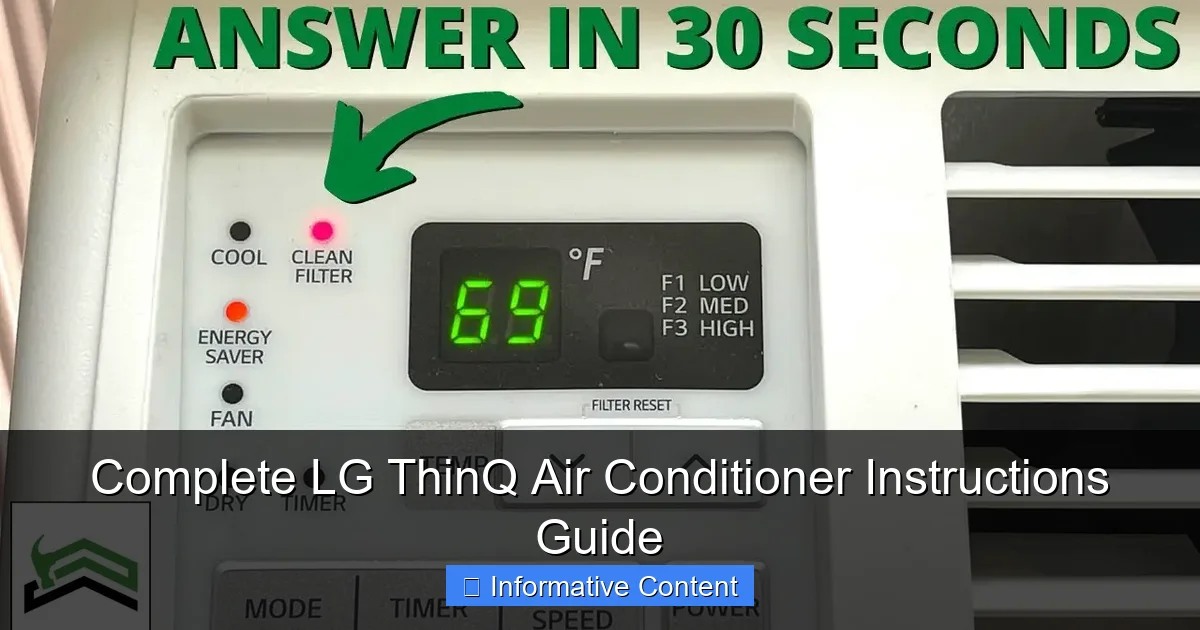
Most remotes also have an LED display showing the current mode, temperature, and timer settings.
Setting Your Ideal Temperature and Mode
For optimal comfort and energy savings, follow these guidelines:
- Cooling Mode: Set between 72°F and 78°F. Every degree below 72°F can increase energy use by 6–8%.
- Fan Mode: Use when you just need air circulation without cooling (great for spring or fall).
- Dry Mode: Ideal for humid days. It removes moisture without overcooling.
- Auto Mode: The unit automatically adjusts fan speed and temperature based on room conditions.
Tip: Use the “Follow Me” feature (if available) by pointing the remote at yourself. The AC will sense your body temperature and adjust accordingly.
Using the Timer and Sleep Mode
The timer function is perfect for saving energy. Here’s how to use it:
- On Timer: Set the AC to turn on at a specific time (e.g., 30 minutes before you get home).
- Off Timer: Schedule the unit to shut off after a set number of hours (great for overnight use).
Sleep Mode gradually increases the temperature by 1–2°F over 1–2 hours, mimicking your body’s natural cooling during sleep. This prevents you from waking up too cold while saving energy.
Example: Mark sets his LG ThinQ AC to turn on at 5:30 PM using the timer. By the time he arrives home at 6:00 PM, the house is perfectly cool—without running the AC all day.
Connecting to the LG ThinQ App and Smart Features
Downloading and Setting Up the App
The LG ThinQ app is available for both iOS and Android. Here’s how to get started:
- Download the LG ThinQ app from the App Store or Google Play.
- Create an account or log in with your existing LG ID.
- Tap “Add Product” and select “Air Conditioner.”
- Follow the on-screen instructions to connect your AC to Wi-Fi.
You’ll need your home Wi-Fi password and a stable 2.4 GHz network (most LG ThinQ ACs don’t support 5 GHz).
Pairing Your AC with the App
Once the app is installed, pairing is straightforward:
- Press and hold the ThinQ button on the remote for 3 seconds until the LED blinks.
- In the app, tap “Scan for Devices” or enter the model number manually.
- Follow the prompts to complete the connection.
Pro Tip: If pairing fails, try moving closer to the AC or restarting your router. Some users also benefit from temporarily disabling VPNs or firewalls.
Using Smart Controls and Voice Assistants
Once connected, you can control your AC from anywhere. Here’s what you can do:
- Turn the AC on/off remotely.
- Adjust temperature and fan speed.
- Set schedules (e.g., cool the house from 4–6 PM every weekday).
- Monitor energy usage and receive maintenance alerts.
You can also integrate with Google Assistant or Amazon Alexa for voice control. Just say, “Hey Google, set the living room AC to 74 degrees,” and it’ll respond.
Real-Life Example: Lisa, a busy mom, uses the ThinQ app to cool her home before she arrives from school pickup. “It’s a game-changer,” she says. “No more coming home to a hot, stuffy house.”
Energy Monitoring and Usage Reports
One of the best features of the LG ThinQ app is energy tracking. You can:
- View daily, weekly, and monthly energy consumption.
- Compare usage across different modes.
- Receive tips to reduce energy use (e.g., “You used 20% more energy this week—try raising the temperature by 2°F”).
This data helps you make smarter decisions and can lower your utility bills by up to 15%.
Maintenance and Cleaning for Optimal Performance
Regular Cleaning Schedule
To keep your LG ThinQ AC running efficiently, follow this monthly maintenance routine:
| Task | Frequency | How-To |
|---|---|---|
| Clean Air Filter | Every 2–4 weeks | Remove filter, rinse with water, let dry, reinstall. |
| Wipe Indoor Unit | Monthly | Use a damp cloth to clean the front panel and vents. |
| Check Drainage | Monthly | Ensure the drain hose is clear and water flows freely. |
| Inspect Outdoor Unit | Every 3 months | Remove debris, check for obstructions, clean coils if needed. |
| Professional Service | Annually | Schedule a technician to check refrigerant levels and electrical connections. |
How to Clean the Air Filter
The air filter is the most important component to clean. A dirty filter restricts airflow, reduces cooling, and increases energy use. Here’s how:
- Turn off the AC and unplug it.
- Open the front panel and locate the filter.
- Gently pull the filter out.
- Rinse it under lukewarm water. Do not use soap or harsh chemicals.
- Let it air dry completely (at least 2 hours).
- Reinsert the filter and close the panel.
Tip: If the filter is damaged or very dirty, replace it. LG recommends replacement every 6–12 months.
Seasonal Maintenance Tips
Before summer hits, do a full check:
- Test all modes (cool, heat, fan, dry).
- Check for refrigerant leaks (look for oily spots near connections).
- Ensure the outdoor unit is level and secure.
- Update the ThinQ app and firmware if available.
At the end of the season, cover the outdoor unit with a breathable cover to protect it from snow and debris.
Troubleshooting Common Issues
AC Not Cooling Properly
If your LG ThinQ AC isn’t cooling, try these fixes:
- Check the filter: A clogged filter is the #1 cause of poor cooling.
- Verify temperature setting: Make sure it’s set below room temperature.
- Ensure doors and windows are closed: Cool air escapes, making the AC work harder.
- Inspect outdoor unit: Clear any debris blocking airflow.
- Check for refrigerant leaks: Hissing sounds or ice buildup may indicate a leak—call a technician.
Unit Not Turning On
If the AC won’t start:
- Confirm power is on (check circuit breaker).
- Replace remote batteries.
- Try using the app or manual controls on the unit.
- Reset the unit by unplugging it for 5 minutes, then plugging it back in.
If it still doesn’t work, contact LG support—there may be an internal fault.
Strange Noises or Odors
Unusual sounds or smells can signal problems:
- Rattling: Loose panels or debris in the fan. Tighten screws or clean the unit.
- Buzzing: Electrical issue—turn off and call a technician.
- Musty smell: Mold in the drain pan or evaporator coil. Clean with a mild bleach solution.
- Burning smell: Overheating motor or electrical fault—stop use immediately.
Wi-Fi or App Connection Problems
If the ThinQ app won’t connect:
- Ensure your phone and AC are on the same Wi-Fi network.
- Restart the router and the AC.
- Update the app and AC firmware.
- Re-pair the device through the app.
LG’s support team can also help with advanced troubleshooting.
Maximizing Efficiency and Saving Energy
Smart Scheduling and Automation
Use the ThinQ app to create energy-saving schedules:
- Set the AC to turn off when you leave for work.
- Program it to cool the house 30 minutes before you return.
- Use geofencing (if supported) to detect when you’re near home and start cooling automatically.
This prevents wasted energy and keeps your home comfortable.
Using Eco Mode and Inverter Technology
Most LG ThinQ ACs feature Eco Mode and inverter technology:
- Eco Mode: Reduces power consumption by limiting compressor speed.
- Inverter Compressor: Adjusts speed based on demand, avoiding frequent on/off cycles.
Together, these can reduce energy use by up to 30% compared to non-inverter models.
Tips for Lowering Your Energy Bill
Small changes make a big difference:
- Use ceiling fans to circulate cool air—this lets you raise the thermostat by 4°F without sacrificing comfort.
- Close blinds and curtains during the day to block heat from sunlight.
- Seal gaps around windows and doors.
- Avoid using heat-generating appliances (oven, dryer) during peak hours.
Example: After implementing these tips, James reduced his summer electricity bill from $180 to $120 per month.
Conclusion
Your LG ThinQ air conditioner is more than just a cooling device—it’s a smart, energy-efficient system designed to keep you comfortable while saving money and reducing environmental impact. From the initial setup to daily use, maintenance, and troubleshooting, this guide has covered everything you need to know to get the most out of your unit.
Remember, regular cleaning, smart scheduling, and timely maintenance are the keys to long-term performance. And with the LG ThinQ app, you’re not just controlling your AC—you’re optimizing it. Whether you’re cooling a small bedroom or a large living space, these instructions will help you stay cool, confident, and in control.
So the next time you walk into your home on a hot day, you’ll know exactly how to make it refreshingly cool—with just a tap on your phone or a press of a button. Stay comfortable, stay smart, and enjoy every breath of cool, clean air your LG ThinQ air conditioner delivers.
Frequently Asked Questions
How do I connect my LG ThinQ air conditioner to Wi-Fi?
To connect your LG ThinQ air conditioner to Wi-Fi, download the LG ThinQ app, create an account, and follow the in-app setup wizard. Ensure your AC is in pairing mode (usually by holding the Wi-Fi button for 3 seconds) and select it in the app. The process typically takes 2-3 minutes.
What are the basic LG ThinQ air conditioner instructions for remote control?
The LG ThinQ air conditioner remote lets you adjust temperature, fan speed, and modes (cool, heat, dry, etc.). For advanced features like scheduling or energy monitoring, use the LG ThinQ app instead of the physical remote.
How do I troubleshoot if my LG ThinQ AC isn’t cooling properly?
First, check if the air filter is clogged and clean it if needed. Ensure the outdoor unit is debris-free and the thermostat is set to the correct mode. If issues persist, consult the LG ThinQ air conditioner instructions for error code meanings or contact support.
Can I control my LG ThinQ air conditioner with voice commands?
Yes, LG ThinQ ACs are compatible with Google Assistant and Amazon Alexa. Link your LG ThinQ account to your preferred voice assistant app and use commands like “Turn on the living room AC” after setup.
How do I set up energy-saving modes on my LG ThinQ AC?
Open the LG ThinQ app, select your AC, and navigate to the “Energy” or “Eco” section. Enable features like Sleep Mode or Smart Diagnosis to optimize energy use. These modes automatically adjust settings based on usage patterns.
Where can I find a PDF of the full LG ThinQ air conditioner instructions?
Visit LG’s official support website, enter your AC model number, and download the full manual under the “Documentation” tab. Alternatively, scan the QR code in your unit’s quick-start guide for instant access.