
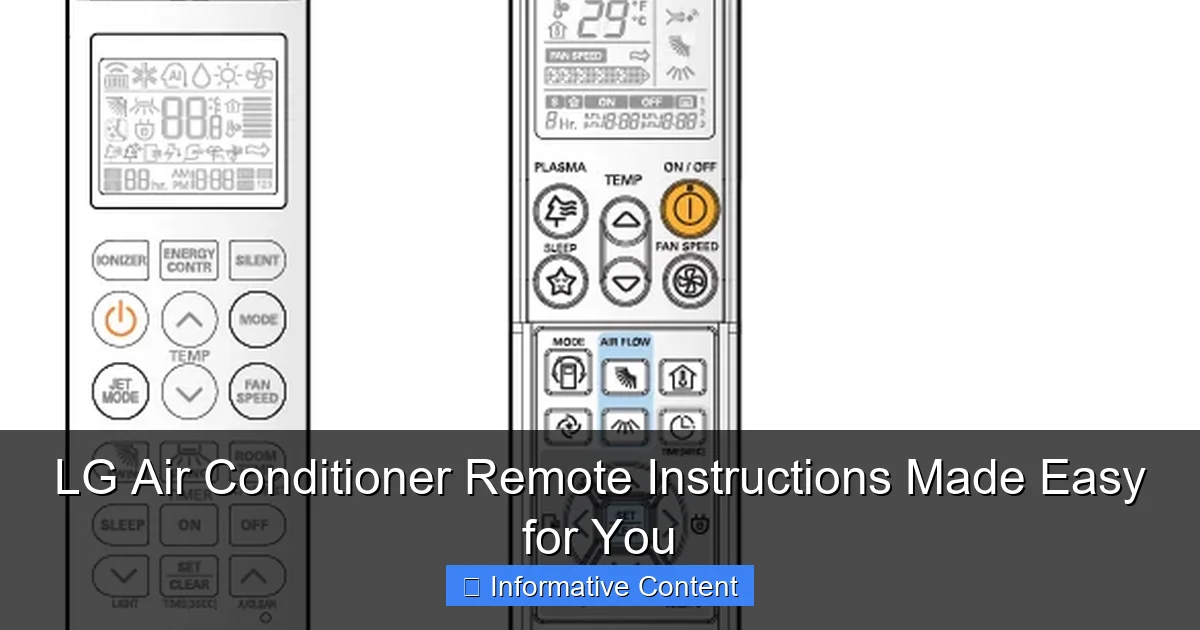
Featured image for lg air conditioner remote instructions
Image source: gscs.lge.com
Master your LG air conditioner remote in minutes with our simplified, step-by-step guide to every button, mode, and hidden feature. No more confusion—just cool comfort, as we break down settings like temperature control, fan speed, sleep mode, and troubleshooting tips for seamless operation.
Key Takeaways
- Power on/off easily: Press the Power button to start or stop cooling.
- Adjust temperature quickly: Use +/- buttons to set your ideal room temperature.
- Select modes effortlessly: Tap Mode to switch between Cool, Fan, Dry, or Auto.
- Control fan speed: Press Fan to cycle through low, medium, or high airflow.
- Use Timer for efficiency: Set Timer to auto-off or on at specific times.
- Lock settings securely: Hold Lock to prevent accidental changes to your preferences.
📑 Table of Contents
- Getting to Know Your LG Air Conditioner Remote
- Understanding the Basic Layout of the LG Air Conditioner Remote
- Step-by-Step: How to Use Common Functions
- Advanced Features and Hidden Gems
- Troubleshooting Common Remote and AC Issues
- Comparing LG Remote Features Across Models
- Final Thoughts: Making the Most of Your LG Remote
Getting to Know Your LG Air Conditioner Remote
Let’s be honest—air conditioner remotes can feel like they speak a different language. You press a button, and suddenly the display flashes something like “PLASMA” or “JET COOL.” What does that even mean? If you’ve ever stood in front of your LG air conditioner, remote in hand, wondering how to make the room just a few degrees cooler without triggering a mysterious eco-mode, you’re not alone. I’ve been there too—sweating in the middle of a summer night, squinting at a tiny screen, wondering if I accidentally turned on a dehumidifier instead of cooling.
The good news? LG air conditioner remote instructions don’t have to be a mystery. Whether you’ve just unboxed a new LG split AC, moved into a place with an existing unit, or simply lost the manual (don’t worry, we’ve all been there), this guide is here to help. We’ll walk through every button, mode, and setting with simple, real-life examples—no tech jargon, no confusing diagrams. Think of this as your friendly neighbor explaining how to use the remote over a cup of coffee. By the end, you’ll feel confident adjusting temperature, setting timers, switching modes, and even troubleshooting common issues—all with just a few presses.
Understanding the Basic Layout of the LG Air Conditioner Remote
Before we dive into the functions, let’s get familiar with what you’re holding. The LG air conditioner remote might look like a simple rectangle with a bunch of buttons, but each one plays a specific role. Most models—like the LG Dual Inverter, LG Art Cool, or LG PuriCare—share a similar layout, so once you learn one, you’ll be able to navigate others with ease.
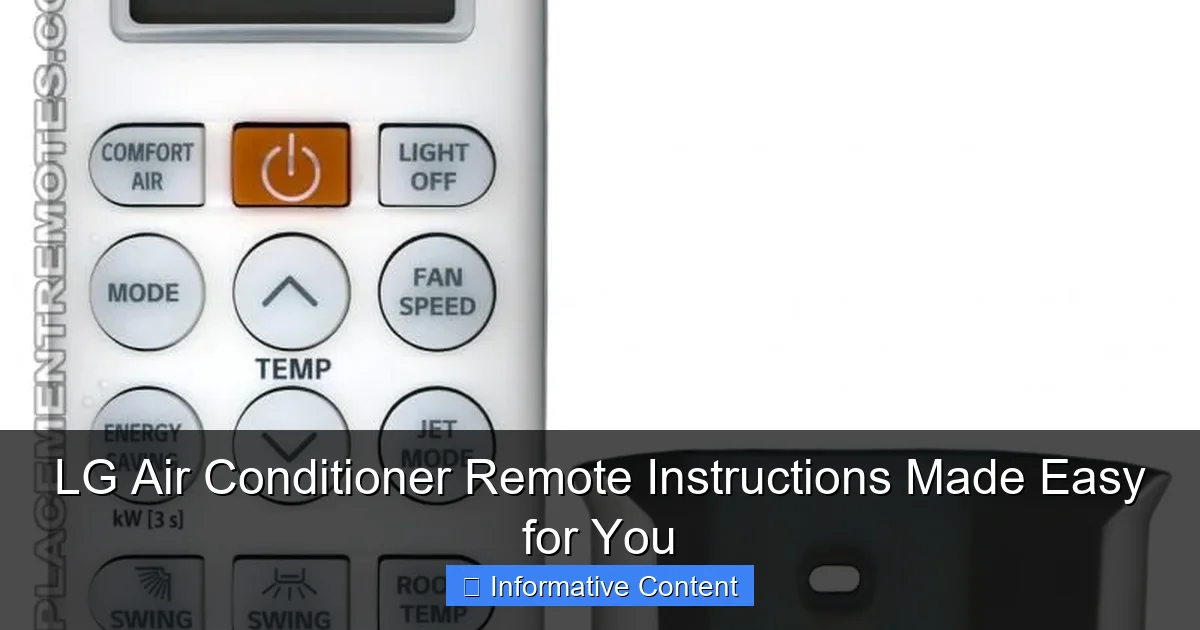
Visual guide about lg air conditioner remote instructions
Image source: replacementremotes.com
Key Buttons and What They Do
Here’s a quick breakdown of the most common buttons you’ll see:
- Power (On/Off): This is your main switch. Press it once to turn the AC on, and again to turn it off. Simple, right? But note: if the AC doesn’t respond, check the batteries or make sure you’re pointing the remote at the unit.
- Mode: This cycles through different operating modes: Cool, Dry (Dehumidify), Fan, Heat (on heat pump models), and sometimes Auto. Press it repeatedly to switch.
- Temp Up/Down: These buttons adjust the set temperature. Most LG units let you set it between 16°C and 30°C (60°F–86°F). A good rule of thumb: 24°C (75°F) is comfortable for most people.
- Fan Speed: Controls how fast the indoor fan blows. Options are usually Low, Medium, High, and Auto. Auto is great for consistent comfort without noise.
- Swing: Makes the air vents move up and down (vertical swing) or side to side (horizontal swing) to distribute air evenly. Some models let you lock the swing in place.
- Timer: Sets the AC to turn on or off at a specific time. Handy for cooling your room before you get home or turning it off while you sleep.
Display Screen and Icons
The small screen on your remote shows important info. Here’s what to watch for:
- Set Temperature: Usually the biggest number on screen.
- Current Mode: Look for icons like a snowflake (Cool), water drop (Dry), fan (Fan), or sun (Heat).
- Timer Status: A clock icon appears when a timer is active.
- Swing Indicator: Arrows or a moving line show if swing is on.
- Battery Icon: Appears when batteries are low—replace them ASAP!
Pro tip: If the screen is blank, check the batteries first. Use fresh alkaline batteries—avoid rechargeables unless specified, as they can cause erratic behavior.
Step-by-Step: How to Use Common Functions
Now that you know the buttons, let’s put them to work. These step-by-step instructions will walk you through the most common tasks you’ll do with your LG air conditioner remote.
Turning On and Setting the Temperature
- Press the Power button. The unit should beep and the display will light up.
- Press Mode until you see the snowflake icon (Cool) or sun icon (Heat).
- Use the Temp Up/Down buttons to set your desired temperature. For example, if it’s 32°C outside, try setting it to 24°C. Your body will thank you.
- Press Fan Speed to choose Low, Medium, High, or Auto. Auto is often the best choice—it adjusts fan speed based on room temperature.
- Press Swing to enable air oscillation. This helps cool the whole room faster and avoids cold spots.
Example: You come home from work at 6 PM and the house feels like a sauna. Turn on the AC, set it to Cool mode, 23°C, Auto fan, and swing on. Within 10 minutes, you’ll feel a noticeable difference.
Using the Timer Function
The timer is a game-changer for energy savings and comfort. You can set the AC to turn on before you arrive or off while you sleep.
- On-Timer: Press Timer until “On” appears. Use the Temp Up/Down buttons to set the time (e.g., 6:00 AM). The AC will turn on at that time.
- Off-Timer: Press Timer until “Off” appears. Set the time (e.g., 10:30 PM). The AC will shut off automatically.
- Combined Timer: Some models let you set both On and Off timers. Useful if you want the AC on only between 7 PM and 11 PM.
Tip: Use the Off-Timer at night. It’s safer than leaving the AC running all night and helps save electricity. Plus, you’ll sleep better in a slightly warmer room after midnight.
Switching Modes: Cool, Dry, Fan, and Heat
Each mode serves a different purpose. Here’s when to use them:
- Cool: For hot days. The AC removes heat and humidity. Ideal when temps are above 28°C (82°F).
- Dry: For humid but not too hot days. It reduces moisture in the air without overcooling. Great during monsoon season or in damp climates.
- Fan: Only circulates air—no cooling or heating. Use it when you just want airflow, not temperature change. Saves energy.
- Heat: Available on heat pump models. Warms your room in winter. Set it between 20°C–24°C (68°F–75°F) for comfort.
Real-life example: It’s 26°C outside but feels muggy. Switch to Dry mode. The AC runs quietly, removes moisture, and you feel less sticky—without freezing your toes.
Advanced Features and Hidden Gems
LG doesn’t just give you basic cooling—they pack in smart features that make your life easier. Some are right on the remote, others require a few extra button presses. Let’s uncover the hidden gems.
Jet Cool and Jet Heat (Rapid Cooling/Heating)
Need to cool or heat a room fast? Use Jet Cool or Jet Heat. This mode ramps up the fan and compressor to maximum for 30 minutes, then returns to normal.
- Make sure the AC is on and in Cool or Heat mode.
- Press and hold the Fan Speed button for 3 seconds. You’ll see “JET” appear on screen.
- The AC will blast air at high speed. After 30 minutes, it auto-switches back to your previous settings.
When to use it: After a long day at work, before guests arrive, or during a heatwave. Just don’t overuse it—it uses more power.
Sleep Mode (Quiet and Energy-Saving)
Sleep Mode gradually increases the temperature (in Cool mode) or decreases it (in Heat mode) over a few hours. This mimics natural body temperature changes during sleep and saves energy.
- Press the Sleep button (usually near the Timer button).
- The AC will run for 6–8 hours, then turn off automatically.
- Temperature adjusts slowly—usually +1°C per hour in Cool mode.
Why it’s great: You won’t wake up freezing at 3 AM. Plus, your electricity bill will be lower.
Energy Saving Mode (Eco Mode)
This feature reduces power consumption by limiting compressor output and fan speed. It’s not as strong as full cooling, but it’s efficient.
- Press and hold the Temp Down button for 3 seconds. “ECO” will appear.
- The AC runs more quietly and uses less energy.
- To exit, press and hold again.
Best for: Mild days when you just need a little cooling. Not ideal if it’s scorching outside.
Auto Clean Function
After turning off the AC, press and hold the Power button for 3 seconds. The unit will run the fan for 30 minutes to dry the evaporator coil. This prevents mold and bad smells.
Why it matters: A damp AC coil breeds bacteria. Auto Clean keeps your unit fresh and healthy.
Troubleshooting Common Remote and AC Issues
Even the best LG air conditioner remote can have hiccups. Don’t panic—most issues are fixable with a few simple steps.
Remote Not Working?
If the AC doesn’t respond, check these:
- Batteries: Replace them. Use AA alkaline batteries. Remove old ones and wait 10 seconds before inserting new ones.
- Line of Sight: Point the remote directly at the indoor unit. Obstacles like furniture or thick walls can block signals.
- Distance: Stay within 8 meters (25 feet) of the unit.
- IR Sensor: Wipe the front of the indoor unit with a dry cloth. Dust or grime can block the signal.
- Reset: Remove batteries, wait 30 seconds, reinsert. This resets the remote.
Anecdote: My remote once stopped working after a thunderstorm. Turns out, a power surge fried the receiver. A quick call to LG support and a $20 part fixed it.
Display Shows “F1” or “CL”?
These codes mean different things:
- F1: Usually a sensor issue. Try resetting the unit by turning it off, unplugging for 1 minute, then turning back on.
- CL: Filter cleaning reminder. Clean the air filter (see below).
- PF: Power failure. Check your circuit breaker.
Tip: If codes keep appearing, check the user manual or visit LG’s support site. Most have troubleshooting guides.
Air Filter Maintenance
A dirty filter reduces efficiency and air quality. Clean it every 2–4 weeks in summer, less in winter.
- Turn off and unplug the AC.
- Open the front panel of the indoor unit.
- Pull out the air filter.
- Rinse with lukewarm water. Let it dry completely (1–2 hours).
- Reinsert and close the panel.
Why it’s important: A clean filter improves airflow, lowers energy use, and prevents allergies.
Comparing LG Remote Features Across Models
Not all LG air conditioner remotes are the same. Features vary by model, price, and technology. Here’s a quick comparison to help you understand what you have—or what to look for next time.
| Feature | Basic Model (e.g., LG Standard Split) | Mid-Range (e.g., LG Dual Inverter) | Premium (e.g., LG Art Cool, LG PuriCare) |
|---|---|---|---|
| Jet Cool/Heat | Yes | Yes | Yes (with auto-shutoff) |
| Sleep Mode | Yes | Yes (with temperature curve) | Yes (with humidity control) |
| Eco Mode | Yes | Yes | Yes (with AI learning) |
| Auto Clean | No | Yes | Yes (with UV sterilization) |
| Wi-Fi/App Control | No | Optional (via add-on) | Yes (LG ThinQ app) |
| Display Type | Basic LED | Backlit LCD | Touchscreen or OLED |
| Timer Options | On/Off | On/Off + Weekly | On/Off + Weekly + Sunrise/Sunset |
Takeaway: If you’re buying a new unit, consider how much control you want. Basic models are great for simple cooling. Premium models offer smart features that adapt to your habits—like turning on before you get home using geolocation in the LG ThinQ app.
Pro tip: If your current model doesn’t have Wi-Fi, you can buy a separate LG SmartThinQ IR adapter. It plugs into the AC and lets you control it via your phone.
Final Thoughts: Making the Most of Your LG Remote
Using your LG air conditioner remote doesn’t have to be a chore. With a little practice, you’ll find yourself adjusting the temperature, setting timers, and switching modes without even looking at the buttons. The key is to start simple—master Cool mode, temperature, and fan speed first. Then, gradually explore features like Sleep Mode, Jet Cool, and Auto Clean.
Remember, your remote is more than just a temperature dial. It’s your tool for comfort, energy savings, and air quality. Use the timer to avoid running the AC all night. Use Dry mode to beat humidity. Use Auto Clean to keep your unit fresh. And don’t forget to clean the filter—it makes a bigger difference than you think.
Over time, you’ll develop your own routine. Maybe you set the timer to turn on at 5:30 PM so the house is cool when you get home. Or you use Sleep Mode every night because you hate waking up cold. These small habits add up—to better sleep, lower bills, and a longer-lasting AC.
And if you ever get stuck? Don’t toss the remote in frustration. Check the batteries, reset it, or refer back to this guide. You’ve got this. With the right knowledge, your LG air conditioner remote becomes not just easy to use—but a true ally in staying cool, calm, and comfortable all year round.
Frequently Asked Questions
How do I pair my LG air conditioner remote with the unit?
To pair your LG air conditioner remote, point it at the indoor unit and press the Reset button (or hold the Power button for 3–5 seconds) until the unit beeps. Ensure the remote has fresh batteries and is within 10 feet of the AC for a successful connection.
What do the symbols on my LG air conditioner remote mean?
The LG air conditioner remote uses intuitive icons, like a fan for airflow, snowflake for cooling, and a sun for heating. Refer to your model’s manual for specific symbols, but most models include a Mode button to cycle between cooling, heating, and fan-only settings.
Why is my LG air conditioner remote not working?
If your remote isn’t responding, replace the batteries and check for obstructions between the remote and AC. For persistent issues, reset the remote by removing batteries for 1 minute or consult the LG air conditioner remote instructions for troubleshooting steps.
How do I adjust the timer settings on my LG remote?
Press the Timer button to set on/off times; use the up/down arrows to adjust hours. Hold the button to activate sleep mode, which gradually adjusts temperature for comfort. Always ensure the clock is set correctly for accurate scheduling.
Can I use my LG air conditioner remote for multiple units?
Most LG remotes are designed for single-unit control, but some models support multi-split systems with unique zone codes. Check your LG air conditioner remote instructions to see if your remote includes a Zone or Unit Select button for multi-AC setups.
How do I activate energy-saving mode on my LG remote?
Press the Energy Saver or Eco button (often labeled with a leaf icon) to reduce power usage. This mode optimizes temperature and fan speed automatically, helping lower electricity bills while maintaining comfort.