
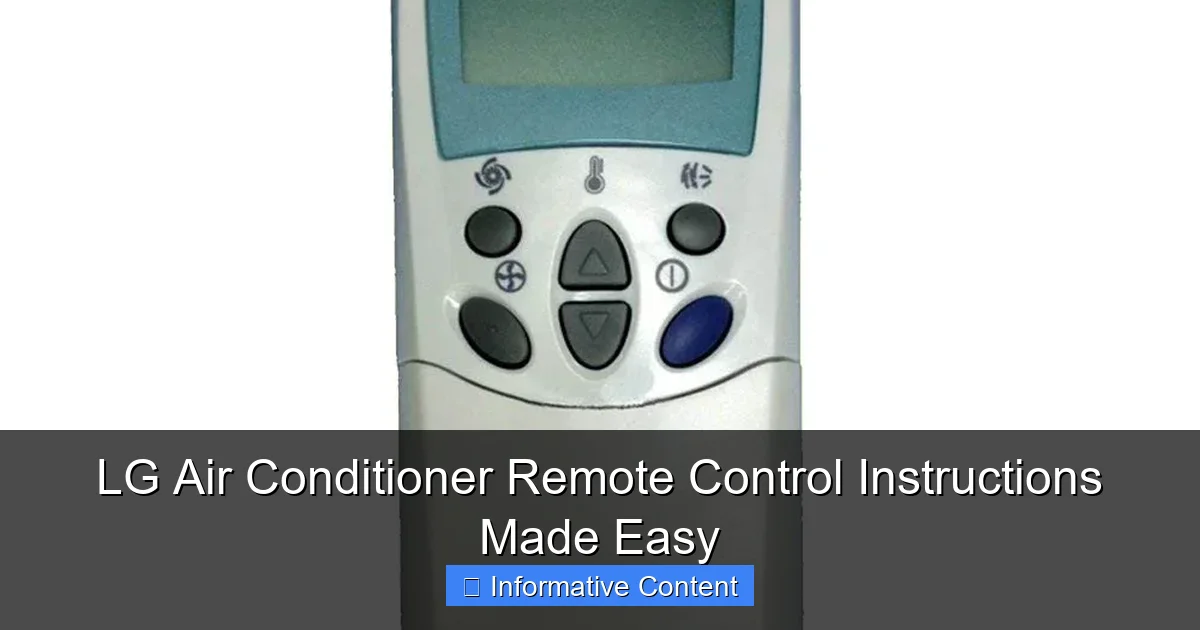
Featured image for lg air conditioner remote control instructions
Image source: cdn.shopify.com
Master your LG air conditioner with ease using the intuitive remote control instructions designed for quick setup and seamless operation. From adjusting temperature and fan speed to activating energy-saving modes, every function is clearly explained to help you maximize comfort and efficiency. No more guesswork—just simple, step-by-step guidance for year-round climate control.
Key Takeaways
- Master basic functions: Use MODE, FAN, and POWER for quick climate control.
- Adjust temperature precisely: Press +/- buttons in 1°C increments for comfort.
- Optimize airflow: Set vertical/horizontal swing for even room cooling.
- Use timers effectively: Schedule ON/OFF to save energy and automate cooling.
- Replace batteries correctly: Match polarity (+/-) to avoid remote malfunction.
- Clean remote regularly: Wipe with dry cloth to maintain button responsiveness.
📑 Table of Contents
- Why Your LG Air Conditioner Remote Control Matters
- Getting to Know Your LG Air Conditioner Remote Control
- Step-by-Step Guide to Using Basic Functions
- Advanced Features and Hidden Gems
- Troubleshooting Common Remote Control Issues
- Pro Tips for Maximum Efficiency and Comfort
- Final Thoughts: Master Your Comfort
Why Your LG Air Conditioner Remote Control Matters
Let’s be honest: few things feel as satisfying as coming home to a perfectly cooled room on a sweltering summer day. For many of us, that comfort is made possible by our trusty LG air conditioner—and the remote control is its unsung hero. I still remember the first time I fumbled with mine, pressing every button twice, only to realize I’d accidentally switched it to “Fan” mode instead of “Cool.” Sound familiar?
The LG air conditioner remote control is more than just a plastic gadget with buttons. It’s the bridge between you and your ideal indoor climate. But without clear LG air conditioner remote control instructions, even the most advanced features can feel like a puzzle. Whether you’ve just unboxed your unit or you’ve been using it for years and still can’t figure out the sleep mode, this guide is here to help. We’ll walk through everything from the basics to pro-level hacks—no technical jargon, no fluff. Just clear, practical advice so you can get the most out of your LG AC remote.
Getting to Know Your LG Air Conditioner Remote Control
Before we dive into the nitty-gritty, let’s get familiar with the remote itself. Think of this as your “meet and greet” with the device that’s going to make your life easier. Most LG AC remotes share a similar layout, though there are slight variations depending on the model (like the LG Dual Inverter, Art Cool, or standard window units). But don’t worry—once you understand the core functions, you’ll be able to adapt quickly.
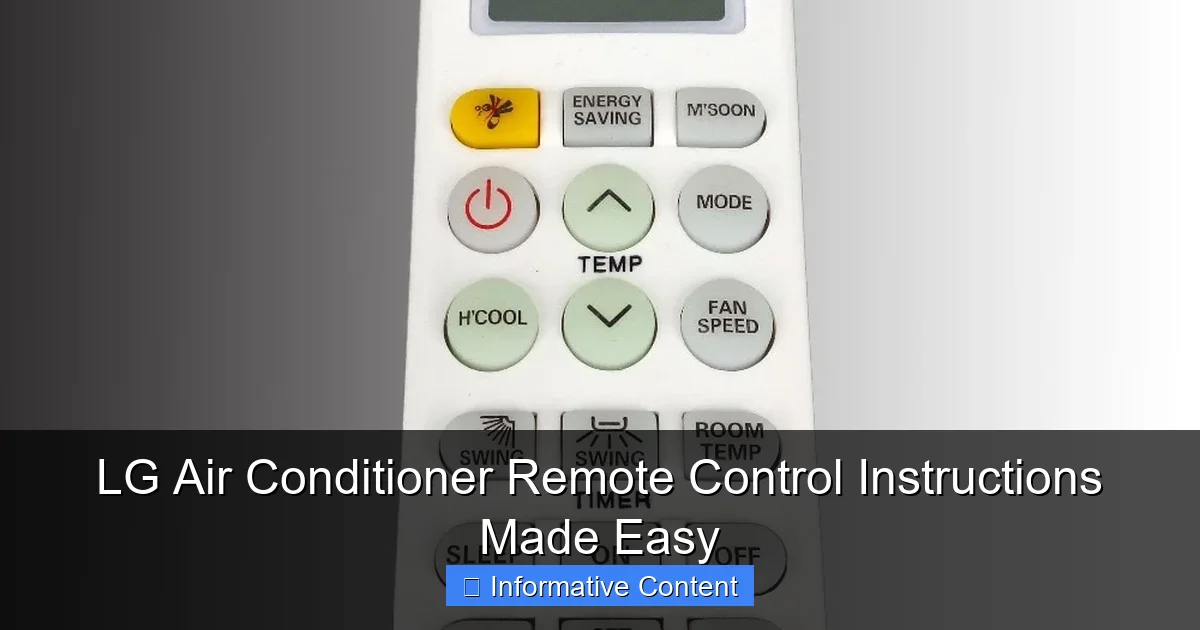
Visual guide about lg air conditioner remote control instructions
Image source: cf.shopee.ph
Common Buttons and Their Functions
- Power (On/Off): This one’s straightforward. Press it once to turn the AC on or off. Pro tip: if your AC doesn’t respond, check the batteries or make sure there’s no obstruction between the remote and the unit.
- Mode: Cycles through Cool, Fan, Dry, Heat, and Auto modes. In Cool, the AC lowers temperature. Fan only circulates air without cooling. Dry reduces humidity (great for muggy days), and Heat is for reverse-cycle units that provide heating.
- Temperature Up/Down: Adjusts the target temperature. Most LG models let you set it between 16°C and 30°C (60°F–86°F). A common mistake? Setting it too low. Your AC won’t cool faster—it just keeps running.
- Fan Speed: Controls airflow. Options usually include Low, Medium, High, and Auto. Use Auto for energy efficiency—the AC adjusts fan speed based on room temperature.
- Timer: Lets you schedule on/off times. Perfect for turning the AC on 30 minutes before you get home or shutting it off after you fall asleep.
- Swing: Activates the louvers to move air side-to-side. Some remotes also have a Vertical Swing button for up-and-down movement.
One thing I love about LG remotes is the LED backlight—tiny, but so helpful when you’re adjusting settings in the dark. If your remote doesn’t light up, it might be a low-battery issue.
Model-Specific Features to Look For
Not all LG AC remotes are the same. For example:
- Dual Inverter models often have a Turbo button for rapid cooling.
- Art Cool or SmartThinQ units may include a Wi-Fi or Smart Diagnosis button for app control.
- Window or portable ACs might have a Sleep mode that gradually increases temperature over time to save energy.
Check your AC’s manual or the back of the remote for the model number. That’ll help you find the exact LG air conditioner remote control instructions online if needed.
Step-by-Step Guide to Using Basic Functions
Let’s walk through the most common tasks you’ll use every day. Think of this as your “quick start” manual—no fluff, just what works.
Turning On and Setting the Mode
- Press the Power button. You’ll hear a beep and see the display light up.
- Press Mode until the desired setting appears (e.g., Cool for summer).
- Use Temp Up/Down to set your ideal temperature. I recommend starting at 24°C (75°F)—it’s comfortable and energy-efficient.
- Press Fan Speed to choose airflow. For quiet operation, pick Low. For fast cooling, go with High or Auto.
Real-world example: My living room gets direct sunlight in the afternoon. I set the mode to Cool, temperature to 23°C, and fan to Auto. The AC runs for 15 minutes, then cycles off once the room reaches the target—perfect balance.
Using the Timer for Energy Savings
The timer is a game-changer. Here’s how to use it:
- On-Timer: Schedule the AC to turn on at a specific time (e.g., 5:30 PM). Press Timer, then use the arrow buttons to set the hour and minute. Confirm with Set.
- Off-Timer: Set it to shut off after a certain duration (e.g., 2 hours). Great for falling asleep without waking up cold.
Pro tip: If you’re using the Off-Timer, pair it with Sleep Mode (if available). The AC will gradually raise the temperature by 1–2°C over 1–3 hours, so you don’t freeze at 3 AM.
Activating Swing and Airflow Control
Stagnant air feels stuffy. Use the Swing button to distribute airflow evenly:
- Press Swing once for side-to-side movement.
- On some models, press Vertical Swing for up-and-down.
- To stop the louvers at a specific angle, press the button again when the louvers are in your preferred position.
I keep my louvers angled slightly upward to avoid blowing air directly on my desk—no more cold shoulders!
Advanced Features and Hidden Gems
Now that you’ve mastered the basics, let’s unlock the remote’s full potential. These features might not be obvious, but they’re worth knowing.
Sleep Mode: Comfort Without the Chill
Sleep Mode is designed to adjust temperature and airflow as you sleep. Here’s how it works:
- Press the Sleep button (usually labeled with a moon icon).
- The AC will gradually increase the temperature by 1°C every hour for 3 hours (total +3°C). This prevents overcooling.
- Fan speed automatically shifts to Low or Auto to reduce noise.
Why it’s great: You save energy and avoid waking up shivering. My kids used to wake up cold in the middle of the night—Sleep Mode fixed that.
Turbo Mode for Rapid Cooling (Dual Inverter Models)
If you’re coming home to a hot house, Turbo mode kicks the AC into high gear:
- Press the Turbo button (often labeled “Jet Cool”).
- The AC runs at maximum fan speed and compressor output for 30–60 minutes.
- After the turbo cycle, it returns to your previous settings.
Caution: Turbo uses more energy. Use it sparingly—maybe just on the hottest days or when you need quick relief.
Smart Diagnosis and Wi-Fi Control (SmartThinQ)
Some LG ACs have Wi-Fi and app support. Here’s how to use it:
- Download the LG ThinQ app on your phone.
- Press and hold the Wi-Fi button on the remote for 3 seconds to enable pairing.
- Follow the app’s prompts to connect your AC to your home Wi-Fi.
Benefits: Control your AC from anywhere, set schedules, and get filter-cleaning reminders. I once turned on my AC from the office—coming home to a cool house felt like magic.
Troubleshooting Common Remote Control Issues
Even the best remotes can act up. Let’s fix the most common problems—no technician needed.
Remote Not Responding: 5 Quick Fixes
- Check the batteries: Weak batteries are the #1 culprit. Replace them with fresh AAAs. I once spent 20 minutes troubleshooting before realizing my batteries were dead—classic!
- Clean the infrared sensor: Dust or fingerprints on the front of the remote can block signals. Wipe it with a soft cloth.
- Ensure line of sight: The remote must “see” the AC’s receiver. Avoid pointing it through glass or around corners.
- Reset the remote: Remove batteries, wait 30 seconds, then reinsert. This often resolves glitches.
- Check for interference: Fluorescent lights, TVs, or other electronics can interfere with infrared signals. Move the AC or remote away from sources.
Display Issues: Blank Screen or Flickering
- If the screen is blank but the AC works, the remote’s LCD might be damaged. Try resetting it (see above).
- If it flickers, the batteries are likely low. Replace them immediately.
- For persistent issues, the remote may need replacement. Contact LG support or check if your AC has a built-in control panel as a backup.
Buttons Not Working: Sticky or Unresponsive
Over time, buttons can get stuck or wear out. Try:
- Using a cotton swab and rubbing alcohol to clean around the buttons.
- Pressing each button firmly to ensure contact.
- For stubborn issues, consider a remote cover to prevent dust buildup.
Note: If the AC’s built-in panel works but the remote doesn’t, the remote is likely faulty—not the AC.
Pro Tips for Maximum Efficiency and Comfort
You’ve got the skills—now let’s optimize your setup for comfort, savings, and longevity.
Energy-Saving Settings for Lower Bills
- Use Auto Mode: The AC adjusts temperature and fan speed based on room conditions. I saved 15% on my energy bill after switching from manual settings.
- Set the timer wisely: Turn the AC off 30 minutes before you leave. It’ll keep cooling the room without running all day.
- Clean the filter monthly: A dirty filter makes the AC work harder. Most LG units have a Filter Reset button—press it after cleaning.
- Close curtains during the day: Less heat enters the room, so the AC runs less.
Customizing Airflow for Your Space
Airflow direction matters. For example:
- Living rooms: Use Swing to cover the whole area.
- Bedrooms: Angle louvers upward to avoid blowing air directly on the bed.
- Offices: Point louvers slightly away from your desk to reduce drafts.
Maintaining Your Remote for Longevity
A few simple habits keep your remote in top shape:
- Store it in a cool, dry place—not near a window or heater.
- Use a remote cover to prevent spills and dust.
- Keep it away from pets and kids (I learned this the hard way when my dog chewed my first remote).
- Replace batteries every 6–12 months, even if they still work. Leaking batteries can damage the remote.
Data Table: LG Remote Control Features by Model Type
| Feature | Standard Models | Dual Inverter | Art Cool / SmartThinQ |
|---|---|---|---|
| Turbo Mode | No | Yes | Yes |
| Sleep Mode | Yes | Yes | Yes |
| Wi-Fi/App Control | No | Optional | Yes |
| LED Backlight | Yes | Yes | Yes |
| Auto Fan Speed | Yes | Yes | Yes |
| Smart Diagnosis | No | No | Yes |
Final Thoughts: Master Your Comfort
Your LG air conditioner remote control is more powerful than it looks. From basic cooling to advanced energy-saving tricks, mastering it means you’re not just surviving the heat—you’re thriving in comfort. I’ll never forget the day I finally figured out the Sleep Mode after years of fumbling. It was like unlocking a secret level in a game.
Remember, the key to getting the most out of your LG air conditioner remote control instructions is consistency. Set a schedule, clean the filter, and experiment with airflow. Over time, you’ll find the perfect balance for your home. And if something feels off? Don’t panic. Most issues are fixable with a little patience and the steps we’ve covered here.
So go ahead—grab that remote, press a few buttons, and make your space exactly how you like it. Whether it’s a cool 22°C for movie night or a gentle fan breeze for a nap, you’ve got the tools to create your ideal environment. After all, comfort isn’t a luxury. It’s a right—and your LG remote is here to help you claim it.
Frequently Asked Questions
How do I pair my LG air conditioner remote control with the unit?
To pair your LG air conditioner remote, point it toward the indoor unit and press the Reset button on the remote for 3 seconds until the unit beeps. Ensure there’s no obstruction between the remote and the receiver for seamless pairing.
What do the symbols on my LG AC remote control mean?
The symbols on your LG air conditioner remote control represent modes (cool, heat, fan), fan speeds, swing, timer, and energy-saving features. Refer to your user manual for a detailed breakdown of each icon specific to your model.
Why isn’t my LG AC responding to the remote control instructions?
First, replace the remote batteries and check for blocked infrared signals. If issues persist, reset the remote by removing the batteries for 5 minutes and re-pair it to the unit using the Reset button.
How do I set the timer on my LG air conditioner remote control?
Press the Timer button on your LG remote, then use the up/down arrows to adjust the hours. Press Enter to confirm. This feature lets you schedule on/off times for energy efficiency.
Can I use my LG AC remote control without line-of-sight to the unit?
No, the remote uses infrared technology, so it requires a clear line of sight to the indoor unit’s sensor. Remove obstacles like furniture or curtains blocking the signal path for reliable operation.
How do I enable energy-saving mode on my LG air conditioner remote?
Press the Jet Cool/Heat or Energy Saver button (varies by model) on your LG remote to activate energy-saving mode. This optimizes temperature and fan speed to reduce power consumption while maintaining comfort.