

Featured image for lg air conditioner panel instructions
Image source: i.ytimg.com
Master your LG air conditioner with ease using this straightforward guide to panel controls and settings. From adjusting temperature and fan speed to activating energy-saving modes, this concise resource ensures you get optimal comfort and efficiency with every use. Whether you’re a first-time user or troubleshooting an issue, these clear instructions simplify operation for any LG AC model.
Key Takeaways
- Master the display icons: Understand symbols for quick mode and setting identification.
- Use the power button: Press once to turn on/off; no need to hold.
- Adjust temperature precisely: Tap up/down arrows for 1°C changes.
- Select modes wisely: Choose Cool, Heat, Dry, or Fan for optimal comfort.
- Set the timer: Schedule on/off times via the timer button.
- Enable sleep mode: Reduce energy use and noise at night.
📑 Table of Contents
- LG Air Conditioner Panel Instructions Easy Guide to Controls and Settings
- Understanding Your LG Air Conditioner Control Panel
- Step-by-Step Guide to Using LG Air Conditioner Panel Buttons
- Advanced Features and Smart Settings on LG AC Panels
- Maintaining Your LG Air Conditioner Panel for Long-Term Use
- Common Issues and How to Fix Them Using the Panel
- Comparing LG Air Conditioner Panel Features by Model Type
- Final Thoughts: Master Your LG Air Conditioner with Confidence
LG Air Conditioner Panel Instructions Easy Guide to Controls and Settings
It’s a sweltering summer afternoon. You’ve just gotten home from work, drenched in sweat, and all you want is to walk into a cool, refreshing living room. You reach for the remote, press a few buttons, and… nothing. The air conditioner hums but doesn’t cool. Frustrated, you glance at the control panel on the unit itself and realize you’ve never actually used it directly. Sound familiar?
Many of us rely solely on the remote control for our LG air conditioners, assuming the panel on the unit is just for show or emergencies. But the truth is, understanding the LG air conditioner panel instructions can save you time, energy, and frustration—especially when the remote goes missing or the batteries die. Whether you’re dealing with a window unit, a split system, or a portable AC, the control panel holds the key to unlocking your unit’s full potential. In this guide, we’ll walk you through every button, setting, and function so you can master your LG air conditioner like a pro—no tech degree required.
Understanding Your LG Air Conditioner Control Panel
Before diving into specific settings, it’s important to get familiar with the physical layout of your LG air conditioner’s control panel. While designs vary slightly depending on the model—window, split, or portable—the core components remain consistent. Most LG units feature a sleek, minimalist panel with LED indicators, tactile buttons, and sometimes a small digital display.
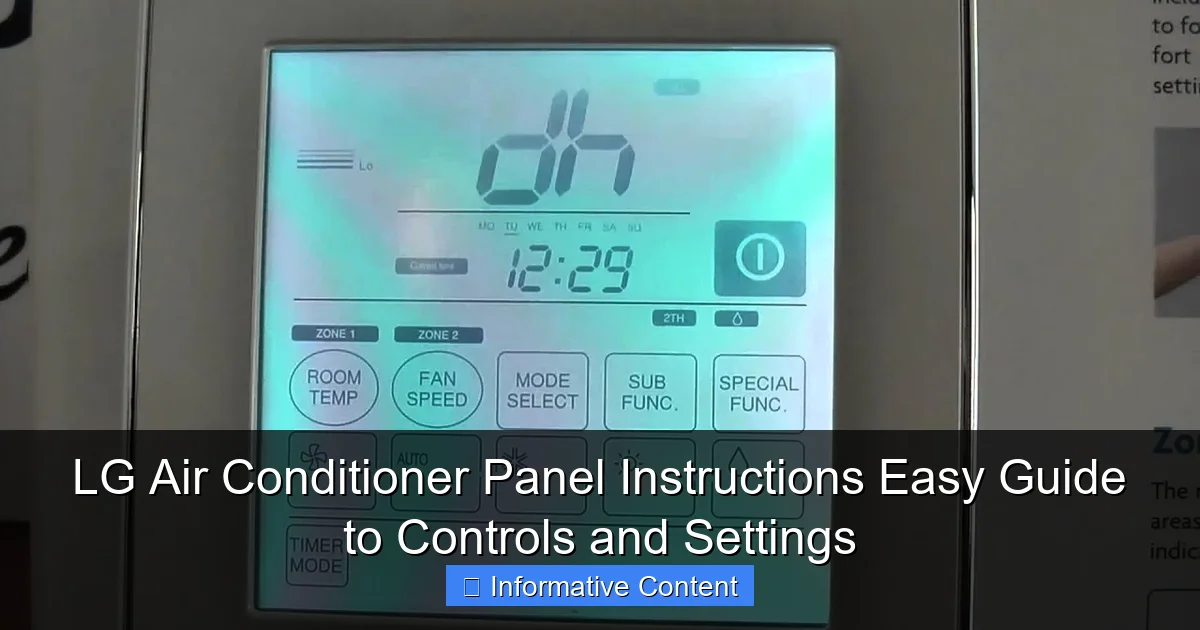
Visual guide about lg air conditioner panel instructions
Image source: i.ytimg.com
Common Components of the LG AC Panel
The control panel typically includes the following elements:
- Power Button: Usually marked with a circle or power symbol, this turns the unit on or off.
- Mode Button: Cycles through operating modes like Cool, Heat, Fan, Dry, and Auto.
- Temperature Up/Down Buttons: Adjust the desired temperature in one-degree increments.
- Fan Speed Button: Controls airflow intensity—options often include Low, Medium, High, and Auto.
- Timer Button: Allows you to set automatic on/off schedules.
- Swing or Airflow Direction Button: Adjusts the louvers to direct airflow up, down, left, or right.
- Display Screen: Shows current temperature, mode, timer settings, and error codes (if any).
Some newer LG models also include smart features like Wi-Fi connectivity indicators, eco mode buttons, or sleep mode toggles. Even if your model looks a bit different, the core functions are usually present in some form.
Why Use the Panel Instead of the Remote?
You might wonder, “If the remote works fine, why bother with the panel?” Great question! Here are a few practical reasons:
- Battery-Free Operation: The panel doesn’t rely on batteries, so it’s always functional.
- Quick Access During Emergences: If the remote is lost or malfunctioning, the panel lets you reset or adjust settings immediately.
- Better Understanding of Functions: Using the panel helps you learn what each button does, making remote use more intuitive.
- Child or Pet Safety: Locking the panel (if supported) prevents accidental changes from curious hands or paws.
Think of the control panel as your air conditioner’s “home base.” It’s reliable, always available, and packed with features you might not even know exist.
Step-by-Step Guide to Using LG Air Conditioner Panel Buttons
Now that you know what each part does, let’s walk through how to use them effectively. We’ll break it down button by button, with real-life examples to make it relatable.
Powering On and Off
Start with the basics: turning your unit on and off. Locate the Power Button—it’s usually the largest button or clearly labeled. Press it once to turn the AC on. You’ll hear a soft beep (on some models) and see the display light up. To turn it off, press the same button again.
Pro Tip: If your unit doesn’t respond, check the power cord and ensure the outlet is working. Also, some models have a child lock feature that disables the panel—press and hold the Power and Mode buttons for 3 seconds to unlock.
Selecting the Right Mode
The Mode Button is your gateway to comfort. Each press cycles through the available modes. Here’s what they do:
- Cool: Lowers room temperature. Ideal for hot days.
- Heat: Warms the room (available on heat pump models).
- Fan: Circulates air without cooling or heating—great for mild weather.
- Dry: Reduces humidity without overcooling. Perfect for damp, muggy days.
- Auto: The unit automatically selects Cool or Heat based on the room temperature.
For example, on a humid spring morning, you might choose Dry mode to remove moisture without making the room too cold. On a chilly evening, Heat mode keeps you cozy without cranking up the thermostat.
Adjusting Temperature and Fan Speed
Once you’ve selected a mode, use the Temperature Up/Down Buttons to set your desired comfort level. Most LG units allow settings between 16°C and 30°C (60°F–86°F). A good rule of thumb is to set it around 24°C (75°F) for energy efficiency and comfort.
Next, use the Fan Speed Button to control airflow. Options typically include:
- Low: Quiet operation, ideal for nighttime.
- Medium: Balanced noise and cooling.
- High: Maximum cooling power for quick temperature drops.
- Auto: The unit adjusts fan speed based on room conditions.
Imagine you’re hosting guests and want to cool the room fast—set the fan to High. Later, when everyone’s relaxing, switch to Low for a peaceful environment.
Using the Timer Function
The Timer Button is a game-changer for energy savings and convenience. You can set the AC to turn on or off after a certain number of hours.
Here’s how it works:
- Press the Timer button once to activate the timer function.
- Use the Up/Down buttons to set the delay (e.g., 2 hours).
- Press Timer again to confirm.
For instance, if you’re leaving for work but want the house cool when you return at 6 PM, set the timer to turn on 30 minutes before your arrival. This way, you come home to a comfortable space without running the AC all day.
Controlling Airflow Direction
The Swing Button (sometimes labeled “Airflow” or “Louver”) lets you direct cool or warm air where you need it most. Press it to toggle between fixed and oscillating modes.
In fixed mode, you can manually adjust the louvers up or down using the buttons. In oscillating mode, the louvers move automatically, distributing air evenly across the room.
Example: If you’re sitting on the couch, tilt the airflow downward. If you’re lying in bed, aim it slightly upward to avoid direct drafts.
Advanced Features and Smart Settings on LG AC Panels
Modern LG air conditioners come packed with intelligent features designed to enhance comfort, save energy, and simplify operation. Let’s explore some of the more advanced options you might find on your control panel.
Eco Mode for Energy Efficiency
Many LG models include an Eco Mode button, often marked with a leaf or energy symbol. When activated, this mode optimizes cooling performance while reducing power consumption.
How it works: The compressor runs at a lower capacity, and the fan adjusts automatically to maintain comfort without overworking the system. You’ll notice a slight reduction in cooling speed, but the energy savings can be significant—especially during peak summer months.
Tip: Use Eco Mode during mild weather or when you’re not in the room for extended periods. It’s a simple way to cut electricity bills without sacrificing comfort.
Sleep Mode for Nighttime Comfort
The Sleep Mode is perfect for bedtime. When activated, the AC gradually increases the temperature by 1–2°C (2–4°F) over the first hour, then maintains a steady, quiet operation.
This mimics the body’s natural temperature drop during sleep, helping you rest comfortably without waking up cold. The fan also slows down to minimize noise.
Example: Set Sleep Mode at 10 PM with a target temperature of 23°C. By 11 PM, the room will be slightly warmer, and the unit will run quietly all night.
Turbo Mode for Rapid Cooling
Need instant relief from the heat? Hit the Turbo Mode button (sometimes called “Quick Cool” or “Max Cool”). This setting runs the compressor and fan at maximum power for 15–30 minutes, rapidly lowering the room temperature.
Use it when you first enter a hot room or during heatwaves. Just remember to switch back to a normal mode afterward to avoid excessive energy use.
Child Lock and Panel Lock
If you have kids or pets, the Child Lock feature is a lifesaver. It disables all panel buttons except the Power button, preventing accidental changes.
To activate: Press and hold the Power and Mode buttons for 3 seconds. A lock icon will appear on the display. To unlock, repeat the same step.
This is especially useful during parties or when cleaning near the unit—no more worrying about someone pressing buttons by mistake.
Error Codes and Troubleshooting
Sometimes, your LG AC panel will display an error code—like “CH 01” or “E1”—instead of the temperature. Don’t panic! These codes are designed to help you diagnose issues quickly.
Common error codes include:
- CH 01: Indoor temperature sensor error.
- E1: Communication error between indoor and outdoor units (split systems).
- PF: Power failure or voltage issue.
- CL: Clean filter reminder.
If you see an error code, consult your user manual or LG’s support website. Often, a simple reset—turning the unit off for 5 minutes—can resolve minor glitches.
Maintaining Your LG Air Conditioner Panel for Long-Term Use
Just like any part of your home, your air conditioner’s control panel needs occasional care to function smoothly. A little maintenance goes a long way in preventing issues and extending the life of your unit.
Cleaning the Panel Safely
Dust and fingerprints can build up on the panel over time, making buttons sticky or hard to press. To clean it:
- Turn off the AC and unplug it for safety.
- Use a soft, dry cloth to wipe the surface.
- For stubborn smudges, lightly dampen the cloth with water—never spray liquid directly on the panel.
- Avoid abrasive cleaners or alcohol-based wipes, which can damage the finish.
Pro Tip: Clean the panel every 1–2 months, especially during heavy usage seasons.
Checking for Wear and Tear
Over time, buttons may become less responsive due to repeated use. If a button feels loose or doesn’t register when pressed, it might be worn out.
Before assuming it’s broken, try cleaning around the button with compressed air. If the issue persists, contact LG support—some panels can be replaced without replacing the entire unit.
Keeping the Area Around the Panel Clear
Ensure nothing blocks the panel—furniture, curtains, or decorations. Obstructions can trap heat, interfere with button access, or even trigger false sensor readings.
Leave at least 6–12 inches of clearance around the unit for proper airflow and easy operation.
Updating Firmware (For Smart Models)
If your LG AC has Wi-Fi capabilities, it may receive firmware updates that improve performance or add new features. These updates are usually delivered via the LG ThinQ app.
To check for updates:
- Open the LG ThinQ app on your phone.
- Select your air conditioner.
- Go to “Settings” > “Firmware Update.”
- Follow the on-screen instructions.
Keeping your unit updated ensures you have the latest bug fixes and optimizations.
Common Issues and How to Fix Them Using the Panel
Even the most reliable appliances can run into problems. The good news? Many common LG air conditioner issues can be resolved using the control panel—no technician required.
AC Won’t Turn On
If pressing the Power button does nothing, try these steps:
- Check the power cord and outlet.
- Ensure the unit isn’t in Child Lock mode.
- Press and hold the Power button for 5 seconds to reset.
- If using a split system, check if the outdoor unit is powered.
Buttons Are Unresponsive
Sticky or unresponsive buttons are often caused by dirt or moisture. Clean the panel as described earlier. If that doesn’t work, try resetting the unit by unplugging it for 10 minutes.
Display Shows Wrong Temperature
The temperature sensor near the panel might be blocked or dirty. Gently clean the sensor area with a dry cloth. Avoid covering the unit with blankets or placing heat sources nearby, as this can skew readings.
AC Turns On but Doesn’t Cool
This could be due to incorrect mode selection. Double-check that you’re in Cool mode, not Fan or Dry. Also, ensure the temperature is set lower than the current room temperature.
If the issue persists, check the air filter—a clogged filter restricts airflow and reduces cooling efficiency.
Strange Noises from the Panel
Clicking or buzzing sounds are usually normal, especially when the unit starts or stops. However, if you hear grinding or rattling, it could indicate a loose component. Turn off the unit and contact LG support.
Comparing LG Air Conditioner Panel Features by Model Type
LG offers a wide range of air conditioners, and the control panel varies slightly depending on the type. Here’s a quick comparison to help you understand what to expect:
| Model Type | Panel Features | Unique Functions |
|---|---|---|
| Window AC | Basic buttons: Power, Mode, Temp, Fan, Timer | Swing control, Sleep mode |
| Split System | Digital display, Wi-Fi indicator, advanced modes | Smart controls, voice assistant compatibility |
| Portable AC | Compact panel, often with remote-only operation | Auto-evaporation, 360° airflow |
| Smart AC (Wi-Fi Enabled) | Touch-sensitive buttons, app sync, voice control | Remote monitoring, scheduling via app |
While window units have simpler panels, split and smart models offer more customization. Portable units may rely more on remotes, but many still include basic panel controls for emergencies.
Final Thoughts: Master Your LG Air Conditioner with Confidence
Understanding your LG air conditioner panel instructions isn’t just about fixing problems—it’s about taking full control of your comfort. From adjusting temperature and airflow to using energy-saving modes and troubleshooting issues, the panel is your direct line to a cooler, more efficient home.
We’ve covered everything from basic button functions to advanced features like Eco Mode, Sleep Mode, and error code interpretation. We’ve also shared practical tips for maintenance and real-life examples to make the information relatable. Whether you’re a first-time AC owner or a seasoned user, this guide empowers you to get the most out of your LG unit.
So the next time you walk into a hot room, don’t just reach for the remote. Take a moment to explore the panel. You might discover a feature that makes your life easier—or solves a problem you didn’t even know you had. After all, comfort shouldn’t be complicated. With a little knowledge and the right settings, your LG air conditioner can keep you cool, calm, and in control—all summer long.
Frequently Asked Questions
How do I use the LG air conditioner panel instructions to adjust the temperature?
To adjust the temperature, press the “Temp +” or “Temp -” buttons on the control panel. The display will show the current temperature setting, allowing you to fine-tune it to your comfort level.
What do the different modes (Cool, Fan, Dry, Auto) mean on my LG air conditioner panel?
The modes control how your unit operates: “Cool” lowers the temperature, “Fan” circulates air without cooling, “Dry” reduces humidity, and “Auto” automatically selects the best mode based on room conditions. Refer to your LG air conditioner panel instructions for detailed guidance.
How do I activate the timer function on my LG air conditioner?
Press the “Timer” button to set the unit to turn on or off after a specified time. Use the arrow buttons to adjust the timer duration, then press “Enter” to confirm.
Why is my LG air conditioner panel not responding to button presses?
If the panel is unresponsive, check if the unit is in “Sleep” or “Child Lock” mode. Also, ensure the remote control isn’t interfering, and try resetting the unit by unplugging it for a few minutes.
How do I switch between Celsius and Fahrenheit on the LG air conditioner display?
Press and hold the “Temp +” and “Temp -” buttons simultaneously for 3 seconds to toggle between Celsius and Fahrenheit. The change will reflect on the display immediately.
Can I control my LG air conditioner with a smartphone instead of the panel?
Yes, if your model supports LG ThinQ, download the app and pair it with your unit. This lets you adjust settings remotely, but the LG air conditioner panel instructions remain helpful for troubleshooting and manual use.