
Setting the temperature on your LG air conditioner is simple and intuitive, whether you’re using the remote, the LG ThinQ app, or the unit’s control panel. This guide walks you through every method, including energy-saving tips and troubleshooting common issues, so you can stay cool and comfortable all year long.
Key Takeaways
- Use the remote control for quick temperature adjustments: The LG remote is the most common way to set your desired temperature—just press the up or down arrows and confirm.
- Control your AC remotely with the LG ThinQ app: Download the app, connect your compatible LG air conditioner, and adjust settings from anywhere using your smartphone.
- Access temperature settings directly on the unit: If the remote is lost or the app isn’t working, use the physical buttons on the air conditioner to change the temperature.
- Enable energy-saving modes for efficiency: Use modes like “Energy Saver” or “Smart Cool” to maintain comfort while reducing electricity usage.
- Calibrate temperature for accuracy: Ensure your thermostat reads correctly by avoiding heat sources near the unit and cleaning air filters regularly.
- Troubleshoot common issues easily: If your AC isn’t responding, check the remote batteries, Wi-Fi connection, or power supply before calling support.
- Schedule temperature changes for convenience: Use the timer or schedule feature to automatically adjust temperatures based on your daily routine.
How to Set Temperature on LG Air Conditioner: A Complete 2026 Guide
Welcome to your ultimate guide on how to set temperature on LG air conditioner in 2026. Whether you’re cooling down on a hot summer afternoon or maintaining a cozy indoor climate during mild weather, knowing how to adjust your LG AC’s temperature is essential for comfort and energy efficiency. With smart features, intuitive controls, and multiple access points, LG air conditioners make temperature management easier than ever.
In this comprehensive how-to guide, you’ll learn everything you need to know about setting the temperature on your LG air conditioner. We’ll cover using the remote control, the LG ThinQ app, and the unit’s built-in buttons. You’ll also discover tips for maximizing efficiency, troubleshooting common problems, and using advanced features like scheduling and eco modes. By the end, you’ll be able to control your indoor climate with confidence—no matter which LG model you own.
Understanding Your LG Air Conditioner’s Temperature Controls
Before diving into the steps, it’s helpful to understand how temperature control works on LG air conditioners. Most LG models, whether window units, split systems, or portable ACs, use a digital thermostat to regulate cooling. The thermostat reads the room’s ambient temperature and adjusts the compressor and fan speed accordingly to reach and maintain your set point.
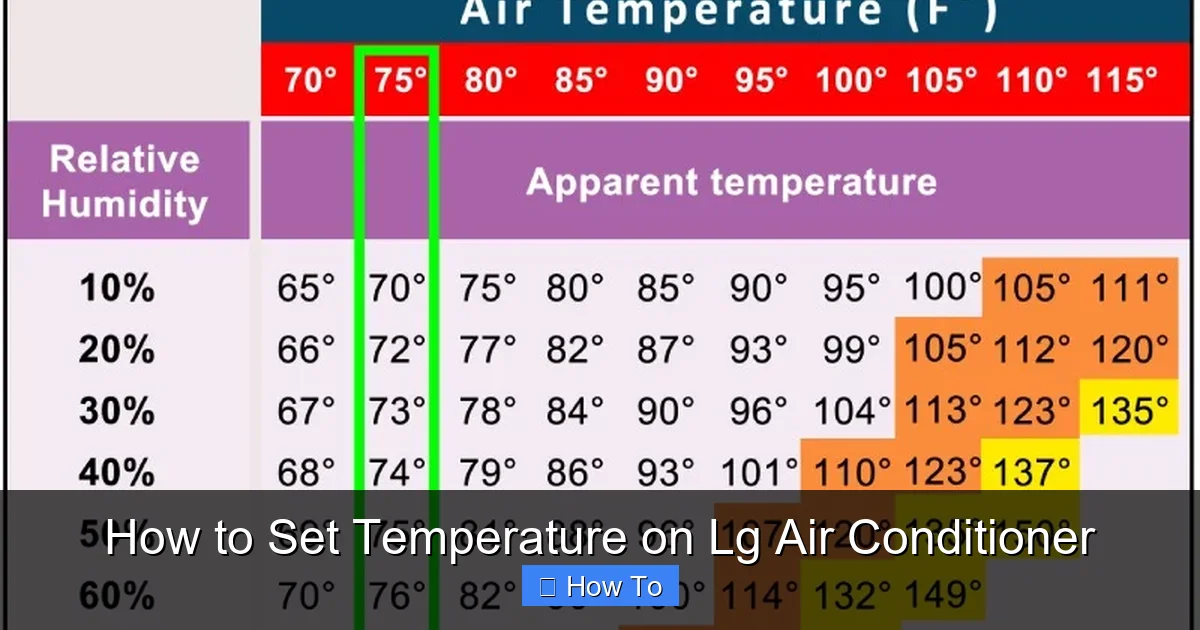
Visual guide about How to Set Temperature on Lg Air Conditioner
Image source: learnmetrics.com
LG air conditioners typically allow temperature settings between 60°F (15.5°C) and 86°F (30°C), though this range may vary slightly by model. The system uses sensors inside the unit or remote to detect room temperature, so placement and cleanliness matter for accuracy. Modern LG units also support smart connectivity, enabling remote control via Wi-Fi and voice assistants like Google Assistant and Amazon Alexa.
Knowing your model type—window, split, portable, or ductless mini-split—will help you follow the right steps. Most instructions apply across models, but we’ll highlight differences where they matter. Always refer to your user manual for model-specific details, but this guide covers the most common scenarios in 2026.
Method 1: Setting Temperature Using the Remote Control
The remote control is the most straightforward way to set the temperature on your LG air conditioner. It’s included with nearly all LG AC units and offers quick, precise adjustments. Here’s how to use it effectively.
Step 1: Power On the Air Conditioner
Make sure your LG air conditioner is plugged in and turned on. Look for the power indicator light on the unit or remote. If the remote doesn’t respond, check the batteries—most LG remotes use two AAA batteries. Replace them if needed and ensure the remote is pointed at the AC’s receiver (usually on the front panel).
Step 2: Select the Cooling Mode
Press the Mode button on the remote until “Cool” appears on the display. Some models may show “COOL” or a snowflake icon. Avoid “Fan Only” or “Dry” modes if you want the unit to actively cool the room. The cooling mode activates the compressor, which is necessary for temperature control.
Step 3: Adjust the Temperature
Use the ▲ (Up) and ▼ (Down) arrow buttons to set your desired temperature. Each press changes the temperature by 1°F (or 0.5°C on some models). The new setting will appear on the remote’s LCD screen and the unit’s display. For example, if it’s 80°F and you want 72°F, press the down arrow eight times.
Step 4: Confirm and Wait
Once you’ve selected your temperature, the AC will begin cooling to reach that level. It may take a few minutes for the room to feel noticeably cooler, especially on hot days. The fan will run continuously or cycle on and off depending on the mode and settings.
Tips for Remote Use
- Keep the remote clean: Dust and grime can block the infrared signal. Wipe the front with a dry cloth regularly.
- Avoid direct sunlight on the remote: Heat can damage internal components over time.
- Use the “Turbo” or “Quick Cool” button: This boosts fan speed and compressor output for faster cooling—great for sudden heatwaves.
- Check the display brightness: Some remotes have a backlight—press the “Light” or “Display” button to activate it in low light.
Method 2: Setting Temperature via the LG ThinQ App (2026 Smart Features)
In 2026, LG continues to lead in smart home integration with the LG ThinQ app. If your air conditioner is Wi-Fi enabled (look for “Wi-Fi” or “ThinQ” on the label), you can control it remotely using your smartphone or tablet. This method is perfect for adjusting the temperature before you arrive home or managing multiple LG appliances from one app.
Step 1: Download and Install the LG ThinQ App
Go to the Apple App Store or Google Play Store and search for “LG ThinQ.” Download and install the latest version (ensure it’s updated for 2026 compatibility). The app is free and supports iOS and Android devices.
Step 2: Create or Log In to Your LG Account
Open the app and sign in with your existing LG account or create a new one. You’ll need a valid email and password. This account syncs your devices and preferences across platforms.
Step 3: Add Your Air Conditioner to the App
Tap the “+” or “Add Device” button in the app. Select “Air Conditioner” from the list. Follow the on-screen prompts to connect your AC to your home Wi-Fi network. You may need to press and hold the Wi-Fi button on the unit (usually for 3–5 seconds) until the indicator blinks.
Step 4: Set the Temperature Remotely
Once connected, your AC will appear in the app’s dashboard. Tap on it to open the control panel. You’ll see a temperature slider or up/down arrows—adjust to your desired setting. The change happens instantly, and you’ll see a confirmation message.
Step 5: Use Advanced Features
The app offers more than just temperature control. You can:
- Set schedules (e.g., cool to 70°F at 6 PM daily)
- Enable “Away Mode” to save energy when no one’s home
- Receive maintenance alerts (e.g., filter replacement reminders)
- Control multiple rooms if you have more than one LG AC
Tips for App Use
- Ensure strong Wi-Fi signal: Weak connections can cause delays or disconnections. Place your router near the AC or use a Wi-Fi extender.
- Update the app regularly: LG releases updates for bug fixes and new features—enable auto-updates in your phone settings.
- Use voice commands: Link the app to Google Assistant or Alexa and say, “Hey Google, set the living room AC to 72 degrees.”
- Enable notifications: Get alerts when the AC reaches your set temperature or if there’s a power outage.
Method 3: Setting Temperature Using the Unit’s Control Panel
If your remote is lost, the app isn’t working, or you prefer physical buttons, you can set the temperature directly on the air conditioner. Most LG units have a small control panel on the front or side with basic buttons.
Step 1: Locate the Control Panel
Look for a panel with buttons labeled “Power,” “Mode,” “Temp,” and “Fan.” On window units, it’s usually on the front grille. On split systems, it may be on the indoor unit or behind a flap. Portable ACs often have a panel on the top or side.
Step 2: Turn On the Unit
Press the Power button. The display should light up, showing the current mode and temperature. If nothing happens, check the power cord and outlet.
Step 3: Switch to Cooling Mode
Press the Mode button until “Cool” is selected. The display may show “COOL” or a snowflake symbol. Avoid “Fan” or “Dry” modes for temperature control.
Step 4: Adjust the Temperature
Use the Temperature buttons (often labeled “+” and “–” or “▲” and “▼”) to set your desired level. Each press changes the temperature by 1°F. The new setting will appear on the display.
Step 5: Confirm and Monitor
The AC will start cooling to reach your set temperature. Wait a few minutes and feel the airflow to confirm it’s working. If the unit doesn’t respond, try resetting it by unplugging for 30 seconds and plugging back in.
Tips for Panel Use
- Clean the panel regularly: Dust can interfere with button responsiveness. Use a soft, dry cloth.
- Check for child lock: Some models have a lock feature to prevent accidental changes. Look for a “Lock” icon or refer to the manual.
- Use a flashlight in low light: The display may be hard to read at night—shine a light on it for better visibility.
Advanced Temperature Control Features in 2026
LG air conditioners in 2026 come with smart features that go beyond basic temperature setting. These help you save energy, improve comfort, and automate your cooling routine.
Energy Saver Mode
This mode reduces power consumption by cycling the compressor and adjusting fan speed. It’s ideal for mild weather or when you’re away. To enable it, press the “Energy Saver” button on the remote or select it in the ThinQ app. The AC will maintain comfort while using up to 30% less energy.
Smart Cool (AI Mode)
Available on newer LG models, Smart Cool uses AI to learn your preferences and adjust temperature automatically. It considers room occupancy, time of day, and weather forecasts. Enable it in the app under “Smart Settings.” Over time, it creates a personalized cooling schedule.
Sleep Mode
Sleep Mode gradually increases the temperature by 1–2°F per hour while you sleep, reducing energy use and preventing overcooling. Activate it by pressing the “Sleep” button on the remote or in the app. Most models run Sleep Mode for 6–8 hours before returning to the original setting.
Timer and Scheduling
Set your AC to turn on or off at specific times. For example, program it to cool your home to 72°F by 6 PM so it’s ready when you get home. Use the “Timer” button on the remote or the “Schedule” feature in the ThinQ app. You can create daily or weekly routines.
Geofencing (Location-Based Control)
The ThinQ app can detect when you’re leaving or approaching home using your phone’s GPS. It automatically adjusts the temperature to save energy when you’re away and cool the house before you arrive. Enable this in the app’s “Smart Settings” menu.
Troubleshooting Common Temperature Setting Issues
Even with advanced technology, issues can arise. Here’s how to solve the most common problems when setting the temperature on your LG air conditioner.
Remote Not Responding
If the remote doesn’t change the temperature:
- Replace the batteries with fresh AAA cells.
- Ensure the remote is pointed at the AC’s receiver (usually on the front).
- Check for obstructions or bright light interfering with the signal.
- Reset the remote by removing batteries for 1 minute, then reinserting.
App Not Connecting or Updating Temperature
If the ThinQ app won’t connect or changes don’t take effect:
- Verify your Wi-Fi is working and the AC is connected to the same network.
- Restart your router and the air conditioner.
- Update the ThinQ app to the latest version.
- Re-add the device in the app if it’s not responding.
Unit Not Cooling to Set Temperature
If the AC runs but doesn’t reach your desired temperature:
- Check the air filter—clean or replace it if dirty.
- Ensure vents are unobstructed by furniture or curtains.
- Close windows and doors to prevent warm air from entering.
- Verify the thermostat isn’t near a heat source (e.g., lamp, TV).
- Consider if the room is too large for the AC’s capacity—upgrade if needed.
Display Shows Incorrect Temperature
If the AC shows a temperature that doesn’t match the room:
- Clean the internal sensor (usually behind the front grille).
- Move heat-emitting devices away from the unit.
- Use a separate thermometer to verify accuracy.
- Reset the unit by unplugging for 5 minutes.
Buttons on Unit Are Stuck or Unresponsive
If the control panel buttons don’t work:
- Clean around the buttons with a dry cloth.
- Check for moisture or debris inside the panel.
- Ensure the child lock isn’t activated.
- Contact LG support if the issue persists—it may be a hardware fault.
Best Practices for Optimal Temperature Control
To get the most from your LG air conditioner, follow these expert tips:
- Set a comfortable, energy-efficient temperature: 72°F–76°F (22°C–24°C) is ideal for most people. Every degree lower can increase energy use by 6–8%.
- Use fans to enhance cooling: Ceiling or portable fans help circulate cool air, allowing you to set the AC higher without sacrificing comfort.
- Maintain your unit regularly: Clean filters monthly, check for leaks, and schedule professional maintenance annually.
- Seal your home: Use weather stripping and caulk to prevent air leaks around windows and doors.
- Use curtains or blinds: Block sunlight during the day to reduce heat gain.
- Avoid frequent temperature changes: Set it once and let the AC maintain it—constant adjustments waste energy.
- Leverage smart features: Use scheduling and geofencing to automate cooling and save money.
Conclusion
Setting the temperature on your LG air conditioner in 2026 is easier than ever, thanks to intuitive remotes, powerful apps, and smart home integration. Whether you’re using the physical buttons, the remote, or the LG ThinQ app, you have full control over your indoor climate. By following the steps in this guide, you’ll enjoy consistent comfort, lower energy bills, and fewer maintenance headaches.
Remember to keep your unit clean, use energy-saving modes, and take advantage of scheduling features. If you run into issues, the troubleshooting tips above will help you resolve them quickly. With the right approach, your LG air conditioner will keep you cool and comfortable all year long—efficiently and effortlessly.