
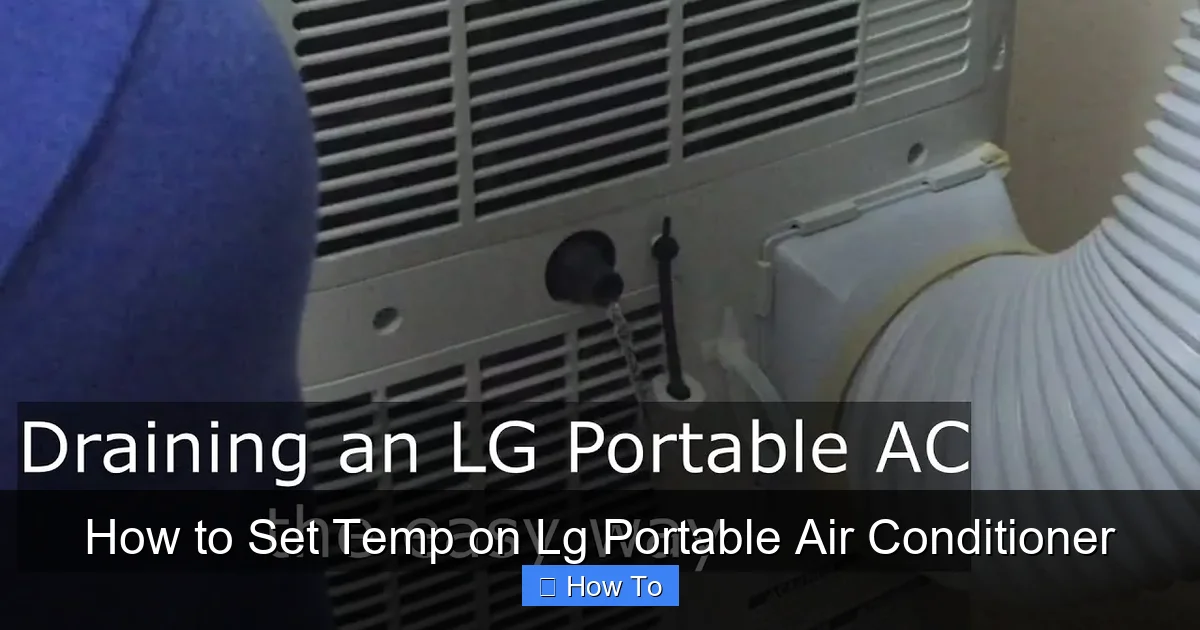
Setting the temperature on your LG portable air conditioner is simple once you know the steps. This guide walks you through using the control panel, remote, and smart app to adjust settings, optimize cooling, and troubleshoot common issues in 2026.
Key Takeaways
- Use the control panel or remote to set your desired temperature. Most LG portable ACs allow adjustments between 60°F and 86°F (16°C–30°C) for optimal comfort.
- Enable Eco Mode to save energy while maintaining comfort. This feature adjusts cooling based on room conditions and reduces power consumption.
- Connect to the LG ThinQ app for remote temperature control. Manage your AC from anywhere using Wi-Fi and smart home integration.
- Ensure proper placement for accurate temperature readings. Keep the unit away from heat sources and direct sunlight to avoid false sensor readings.
- Clean filters regularly to maintain efficiency. Dirty filters can restrict airflow and cause the unit to work harder, affecting temperature control.
- Use the timer function to automate cooling. Set the AC to turn on or off at specific times, saving energy and keeping your space comfortable.
- Troubleshoot common issues like unresponsive controls or incorrect temps. Reset the unit, check the remote batteries, or update the app if problems persist.
How to Set Temp on LG Portable Air Conditioner: A Complete 2026 Guide
As summer heat intensifies in 2026, staying cool at home has never been more important. LG portable air conditioners are a popular choice for their energy efficiency, smart features, and ease of use. One of the most essential functions—setting the right temperature—can make all the difference in comfort and energy savings. Whether you’re new to portable ACs or upgrading your setup, this guide will walk you through everything you need to know about how to set temp on LG portable air conditioner.
In this comprehensive how-to guide, you’ll learn how to adjust the temperature using the control panel, remote control, and the LG ThinQ app. We’ll also cover best practices for placement, energy-saving tips, and troubleshooting common issues. By the end, you’ll be able to control your LG portable AC like a pro and enjoy a cooler, more comfortable living space all season long.
Understanding Your LG Portable Air Conditioner
Before diving into temperature settings, it’s helpful to understand how your LG portable air conditioner works. These units are self-contained systems that cool and dehumidify the air in a room. Unlike window units, they don’t require permanent installation—just plug them in, attach the exhaust hose to a window kit, and you’re ready to go.
Most LG portable ACs in 2026 come with digital displays, intuitive controls, and smart connectivity. They typically offer cooling, fan-only, and dehumidifier modes. The temperature range usually spans from 60°F to 86°F (16°C to 30°C), giving you flexibility depending on the season and your comfort preferences.
One key feature is the built-in thermostat, which monitors room temperature and adjusts cooling output accordingly. This ensures the unit doesn’t overwork itself and helps maintain a consistent climate. Some models also include sensors that detect when a door or window is open, pausing cooling to save energy.
Step-by-Step: Setting the Temperature Using the Control Panel
The control panel on your LG portable air conditioner is the most direct way to set the temperature. Here’s how to do it:
Locate the Control Panel
The control panel is usually found on the top or front of the unit. It includes a digital display, power button, mode selector, fan speed control, and temperature adjustment buttons (often labeled “+” and “-”).
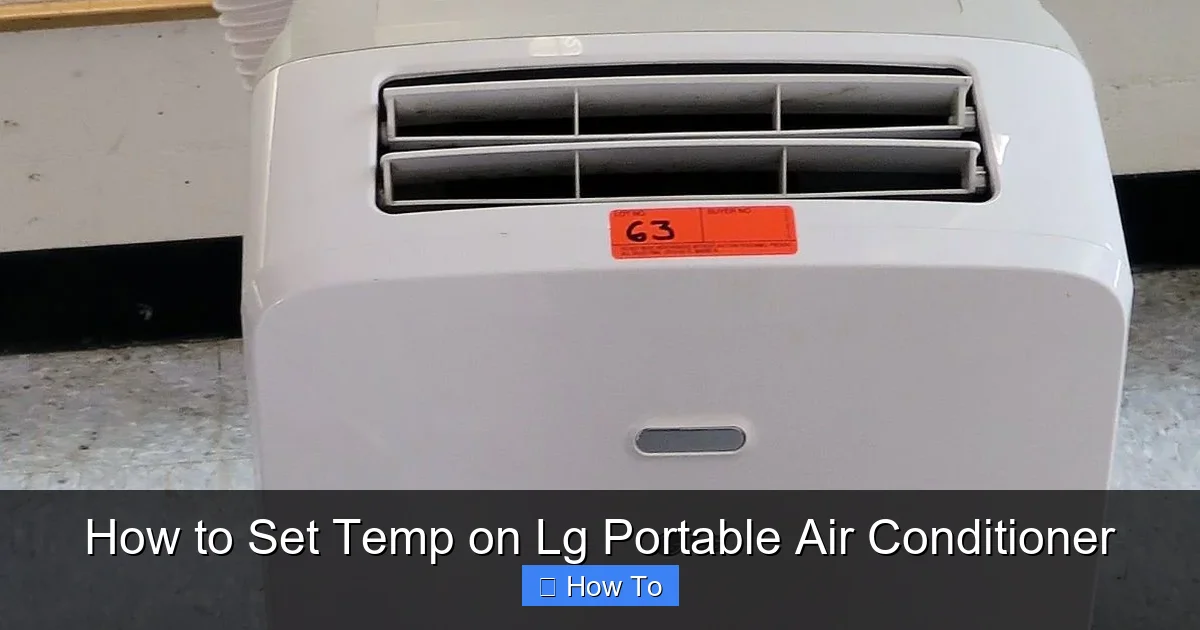
Visual guide about How to Set Temp on Lg Portable Air Conditioner
Image source: dygtyjqp7pi0m.cloudfront.net
Turn On the Unit
Press the power button to turn on the air conditioner. The display will light up, showing the current room temperature and default settings.
Select Cooling Mode
Use the mode button to cycle through available options until “Cool” is displayed. This ensures the unit will actively lower the room temperature.
Adjust the Temperature
Press the “+” button to increase the temperature or the “-” button to decrease it. Each press typically changes the setting by 1°F (or 1°C, depending on your unit’s configuration). The display will update in real time.
Confirm and Wait
Once you’ve set your desired temperature, the unit will begin cooling. It may take a few minutes for the room to reach the target temperature, especially if it’s very hot.
Example: Setting to 72°F
Imagine it’s a hot afternoon, and the room is at 80°F. You want a comfortable 72°F. Press the “-” button eight times until the display shows “72.” The AC will start cooling, and the fan will run until the thermostat detects the room has reached 72°F.
Using the Remote Control to Set Temperature
The remote control offers convenience, especially when you’re across the room. Here’s how to use it to set the temperature:
Insert Batteries
Make sure the remote has fresh batteries. Low power can cause unresponsiveness or delayed commands.
Point at the Unit
Aim the remote directly at the air conditioner’s sensor, usually located near the control panel. Avoid obstacles like furniture or curtains.
Turn On and Select Mode
Press the power button, then use the mode button to select “Cool.” The display on the unit will confirm the change.
Adjust Temperature
Use the “Temp +” and “Temp -” buttons on the remote to set your desired temperature. The unit’s display will update accordingly.
Use Additional Features
Many LG remotes include extra buttons for fan speed, timer, and sleep mode. For example, pressing “Fan Speed” lets you choose between Low, Medium, High, or Auto for quieter or stronger airflow.
Pro Tip: Use Sleep Mode
Sleep mode gradually increases the temperature by 1–2°F after you fall asleep, reducing energy use and preventing overcooling. It’s perfect for nighttime use.
Setting Temperature via the LG ThinQ App (2026 Edition)
In 2026, smart home integration is standard. The LG ThinQ app lets you control your portable air conditioner from your smartphone, tablet, or voice assistant. Here’s how to set the temperature remotely:
Download and Install the App
Search for “LG ThinQ” in the App Store (iOS) or Google Play (Android). Download and install the latest version compatible with 2026 models.
Create or Log In to Your Account
Open the app and sign in with your LG account. If you don’t have one, create it using your email and a secure password.
Add Your Air Conditioner
Tap the “+” icon to add a new device. Select “Air Conditioner” and follow the on-screen instructions. You’ll need to connect the unit to your home Wi-Fi network.
Connect to Wi-Fi
On the AC’s control panel, press and hold the Wi-Fi button (or “Connect” button) until the indicator light blinks. In the app, select your network and enter the password. Wait for the connection to complete.
Set the Temperature Remotely
Once connected, your AC will appear in the app. Tap on it to open the control interface. Use the temperature slider or +/- buttons to adjust the setting. Changes are applied instantly.
Use Smart Features
The app offers advanced options like scheduling, energy monitoring, and geofencing. For example, set the AC to cool your living room 30 minutes before you arrive home. Or enable “Away Mode” to pause cooling when no one is home.
Voice Control with Alexa or Google Assistant
Link your LG ThinQ account to Alexa or Google Assistant. Then say, “Hey Google, set the living room AC to 70 degrees,” and it will adjust automatically.
Best Practices for Accurate Temperature Control
To get the most out of your LG portable air conditioner, follow these tips for accurate and efficient temperature control:
Place the Unit Correctly
Position the AC in the center of the room or near the area you want to cool. Avoid placing it near heat sources like ovens, lamps, or electronics. Keep it away from direct sunlight, which can trick the thermostat into thinking the room is hotter than it is.
Ensure Proper Ventilation
The exhaust hose must be securely connected to the window kit and not kinked or blocked. Poor ventilation reduces cooling efficiency and can cause the unit to overheat.
Close Doors and Windows
Keep interior doors closed and windows shut while the AC is running. Openings allow hot air to enter, making the unit work harder and reducing effectiveness.
Use Curtains or Blinds
Close curtains or blinds during the day to block solar heat gain. This helps maintain a stable temperature and reduces cooling load.
Maintain Airflow
Don’t block the front air intake or rear exhaust. Leave at least 12–18 inches of clearance around the unit for optimal airflow.
Clean Filters Monthly
Remove and clean the air filter every 4–6 weeks, or more often if you have pets or allergies. A dirty filter restricts airflow, reduces cooling, and can trigger error codes.
Check for Obstructions
Inspect the exhaust hose and window kit regularly. Dust, debris, or warping can affect performance. Clean or replace parts as needed.
Energy-Saving Tips for 2026
With rising energy costs and environmental concerns, saving power is more important than ever. Here’s how to use your LG portable AC efficiently:
Use Eco Mode
Eco Mode adjusts cooling based on room conditions and reduces compressor usage. It’s ideal for mild weather or when you don’t need maximum cooling.
Set a Reasonable Temperature
Aim for 72°F–76°F (22°C–24°C) for comfort and efficiency. Every degree lower can increase energy use by 3–5%. Use fans to circulate air and enhance the cooling effect.
Use the Timer Function
Set the timer to turn the AC on 30 minutes before you arrive home or off after you fall asleep. This avoids unnecessary runtime and saves energy.
Seal Air Leaks
Check for drafts around windows, doors, and electrical outlets. Use weatherstripping or caulk to seal gaps and keep cool air inside.
Upgrade Insulation
If your home is poorly insulated, consider adding insulation to walls, attics, or windows. This reduces heat gain and helps the AC work less.
Use Smart Scheduling
In the LG ThinQ app, create custom schedules based on your daily routine. For example, cool the bedroom from 10 PM to 6 AM and the living room from 5 PM to 10 PM.
Troubleshooting Common Temperature Issues
Even the best air conditioners can have issues. Here’s how to fix common problems with temperature control:
Unit Not Cooling to Set Temperature
Possible Causes: Dirty filter, blocked airflow, low refrigerant, or incorrect mode.
Solutions: Clean the filter, check for obstructions, ensure the unit is in “Cool” mode, and verify the exhaust hose is properly installed. If the problem persists, contact LG support.
Remote Not Responding
Possible Causes: Dead batteries, blocked sensor, or interference.
Solutions: Replace the batteries, clean the remote and sensor, and ensure nothing is blocking the signal. Try using the control panel instead.
App Shows Wrong Temperature
Possible Causes: Sensor error, Wi-Fi lag, or app glitch.
Solutions: Restart the app, reconnect the AC to Wi-Fi, or reset the unit by unplugging it for 30 seconds. Update the app to the latest version.
Unit Turns On and Off Frequently
Possible Causes: Thermostat sensitivity, small room size, or dirty filter.
Solutions: Clean the filter, increase the temperature setting slightly, or move the unit to a larger space. Avoid placing it near heat sources.
Error Codes on Display
Common Codes: “E1” (sensor error), “E2” (communication error), “E3” (drain issue).
Solutions: Refer to the user manual for specific error codes. Often, a simple reset (unplug for 30 seconds) resolves the issue. For persistent problems, contact LG customer service.
Conclusion
Setting the temperature on your LG portable air conditioner is a straightforward process that can greatly enhance your comfort and energy efficiency. Whether you use the control panel, remote, or the LG ThinQ app, you have multiple ways to achieve the perfect indoor climate in 2026.
By following the steps in this guide, you’ll be able to adjust settings with confidence, troubleshoot common issues, and make the most of your unit’s smart features. Remember to maintain your AC regularly, use energy-saving modes, and keep it properly positioned for optimal performance.
With the right setup, your LG portable air conditioner will keep you cool all summer long—without breaking the bank or harming the environment. Stay comfortable, stay smart, and enjoy the cool breeze!