
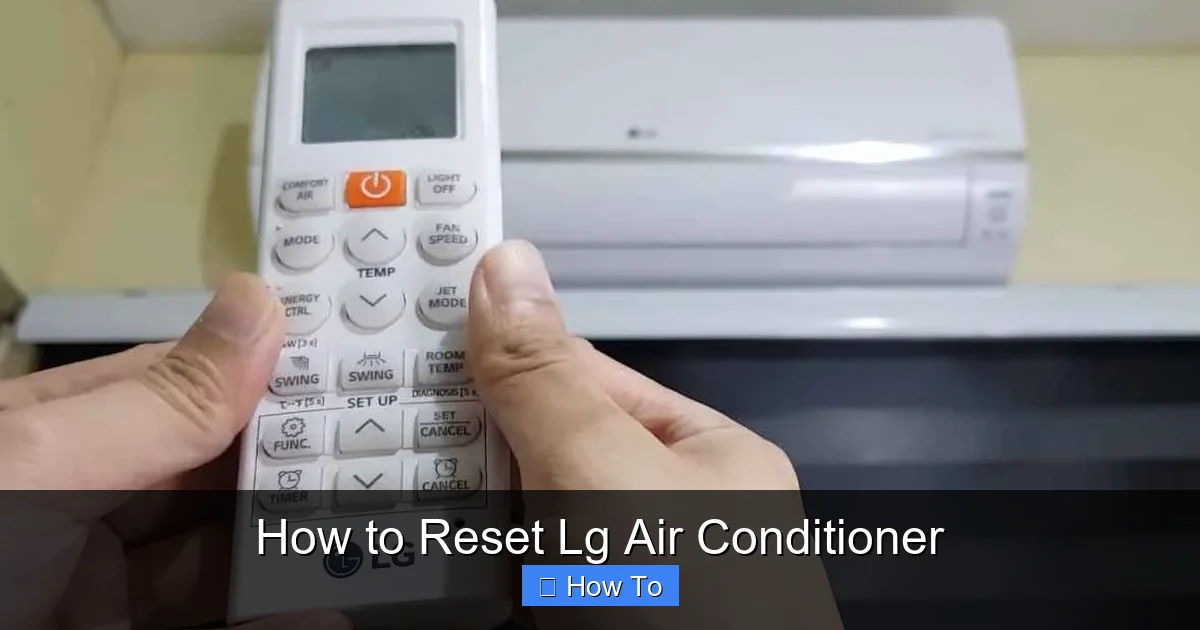
Resetting your LG air conditioner can fix common issues like unresponsive controls, cooling problems, or error codes. This guide walks you through simple reset methods—from power cycling to factory resets—ensuring your unit runs smoothly in 2026.
Key Takeaways
- Power cycling is the first step: Turn off the unit, unplug it for 5–10 minutes, then plug it back in to resolve minor glitches.
- Use the reset button on select models: Some LG window and portable ACs have a physical reset button—press and hold it for 3–5 seconds.
- Remote control resets work for smart models: Use the remote to access the menu and select “Reset” or “Factory Reset” for Wi-Fi-enabled units.
- Check for error codes before resetting: Error lights or codes (like CH 01 or CH 29) help identify the root cause and guide the reset process.
- Wi-Fi and app resets may be needed for smart ACs: Reconnect your LG ThinQ app if the unit loses network settings after a reset.
- Regular maintenance prevents frequent resets: Clean filters and coils every 1–2 months to avoid performance issues.
- Contact LG support if problems persist: If a reset doesn’t fix the issue, professional help ensures safety and warranty protection.
How to Reset LG Air Conditioner: A Complete 2026 Guide
Is your LG air conditioner acting up? Maybe it’s not cooling, the remote isn’t responding, or it’s showing a strange error code. Before you panic or call a technician, try resetting your unit. In 2026, LG air conditioners—whether window, portable, or split systems—are smarter and more reliable than ever, but like any tech, they occasionally need a fresh start.
This step-by-step guide will show you exactly how to reset your LG air conditioner safely and effectively. Whether you’re dealing with a frozen display, connectivity issues with the LG ThinQ app, or just want to restore factory settings, we’ve got you covered. By the end of this guide, you’ll know multiple reset methods, understand when to use each one, and learn how to keep your AC running smoothly all year long.
Why Reset Your LG Air Conditioner?
Resetting your LG air conditioner isn’t just a troubleshooting trick—it’s a smart maintenance move. Over time, your AC’s internal software can get stuck, especially after power outages, software updates, or prolonged use. A reset clears temporary glitches, restores default settings, and often fixes performance issues without the need for professional repair.
Common reasons to reset include:
- The unit won’t turn on or respond to the remote
- Cooling or heating is inconsistent
- Error codes appear on the display (e.g., CH 01, CH 29, or E1)
- The Wi-Fi connection drops in smart models
- Unusual noises or fan speed changes
In 2026, LG has improved its self-diagnostic systems, so many issues can be resolved with a simple reset. Plus, with more homes using smart thermostats and voice assistants, keeping your AC’s software in sync is more important than ever.
Before You Reset: Safety and Preparation
Safety first! Before performing any reset, make sure you’re working safely and have the right tools.
Turn Off the Power
Always turn off your air conditioner at the unit and unplug it from the wall outlet. For split systems or central units, locate the circuit breaker and switch it off. This prevents electrical shock and protects the internal components during the reset.
Gather Your Tools
- Your LG remote control (if applicable)
- Smartphone with the LG ThinQ app (for smart models)
- A small paperclip or pen (for physical reset buttons)
- Access to your home’s circuit breaker panel
Check the User Manual
Every LG air conditioner model is slightly different. If you still have your user manual, refer to it for model-specific instructions. If not, you can download the latest version from the LG support website using your model number (usually found on a sticker on the side or back of the unit).
Method 1: Power Cycling (The Universal Reset)
Power cycling—also known as a “soft reset”—is the easiest and most effective way to reset almost any LG air conditioner. It’s the first method you should try, especially if your unit is unresponsive or acting strangely.
Step 1: Turn Off the Air Conditioner
Use the remote or the power button on the unit to turn off the AC. Make sure it’s completely off—no lights or fans running.
Step 2: Unplug the Unit
Locate the power cord and unplug it from the wall outlet. For window units, this is usually straightforward. For portable or split systems, you may need to access a dedicated outlet or disconnect from a power strip.
Step 3: Wait 5–10 Minutes
This is crucial. Let the unit sit unplugged for at least 5 minutes, but 10 minutes is better. This allows the internal capacitors to fully discharge and the system memory to clear. Think of it like restarting your phone—it gives the electronics time to “forget” any temporary errors.
Step 4: Plug It Back In
After the wait, plug the unit back into the outlet. Make sure the outlet is working—test it with another device if needed.
Step 5: Turn It On
Press the power button on the unit or use the remote to turn it back on. Wait a minute or two for the system to boot up. You should hear the fan start and see the display light up.
Step 6: Test the Functionality
Set the AC to cool or heat mode and check if it’s working properly. Try adjusting the temperature and fan speed. If the issue is resolved, you’re all set!
Pro Tip: Power cycling works for all LG models, including window, portable, and ductless mini-split systems. It’s especially helpful after a power outage or storm.
Method 2: Using the Reset Button (For Select Models)
Some LG air conditioners—particularly portable and window units—come with a physical reset button. This is a small, recessed button usually located near the power cord or behind a panel. It’s designed for quick resets when the unit freezes or malfunctions.
Step 1: Locate the Reset Button
Check the sides, back, or bottom of your unit. The reset button is often labeled “Reset” or “RST.” If you can’t find it, consult your user manual or search online using your model number.
Step 2: Press and Hold the Button
Use a paperclip, pen, or similar thin object to press and hold the reset button for 3–5 seconds. You may hear a beep or see the display flash, indicating the reset is complete.
Step 3: Wait for Reboot
Release the button and wait for the unit to restart. This may take 30 seconds to a minute. The display should return to normal, and the unit should power on automatically.
Step 4: Test the System
Try using the remote or control panel to adjust settings. If the AC responds normally, the reset was successful.
Note: Not all LG models have a physical reset button. This feature is more common in portable ACs like the LG LP1419IVSM or window units such as the LG LW8016ER. If your model doesn’t have one, skip to the next method.
Method 3: Remote Control Reset (For Smart and Standard Models)
Many LG air conditioners can be reset using the remote control—even without a physical button. This method works for both standard and Wi-Fi-enabled models and is especially useful for split systems.
Step 1: Turn On the Remote
Make sure the remote has working batteries. Point it at the AC unit and press the power button to ensure it’s communicating.
Step 2: Access the Menu
Press and hold the “Mode” and “Fan Speed” buttons simultaneously for 5–7 seconds. On some models, you may need to press “Timer” and “Sleep” instead. Watch the display for a menu or reset option.
Step 3: Select Reset Option
Use the arrow or mode buttons to navigate to “Reset” or “Factory Reset.” Confirm by pressing the “Set” or “OK” button. The unit will beep and restart.
Step 4: Wait for Reboot
Allow the system to restart fully. This may take a minute or two. Once done, test the AC to ensure it’s working.
Alternative Method (For Older Models): Some older LG remotes have a “Reset” button directly on the remote. Press and hold it for 3 seconds to initiate a soft reset.
Pro Tip: If your remote isn’t working, try replacing the batteries or using the control panel on the unit itself. Some models allow you to access reset options directly from the unit’s display.
Method 4: Factory Reset via LG ThinQ App (For Smart ACs)
In 2026, most new LG air conditioners come with smart features and connect to the LG ThinQ app. If your AC is Wi-Fi enabled, you can reset it remotely using your smartphone—perfect for troubleshooting when you’re not near the unit.
Step 1: Open the LG ThinQ App
Launch the app on your iPhone or Android device. Make sure you’re logged into your account and that your AC is listed under “My Devices.”
Step 2: Select Your Air Conditioner
Tap on your AC unit from the device list. You’ll see current settings like temperature, mode, and fan speed.
Step 3: Access Settings
Look for a gear icon or “Settings” option. Tap it to open the device settings menu.
Step 4: Choose “Reset” or “Factory Reset”
Scroll down to find the “Reset” or “Factory Reset” option. Tap it and confirm when prompted. The app will send a reset command to the AC.
Step 5: Wait for Confirmation
The app will notify you when the reset is complete. The AC will restart automatically. You may need to reconnect it to Wi-Fi afterward.
Step 6: Reconnect to Wi-Fi (If Needed)
If the reset clears your network settings, follow the in-app instructions to reconnect your AC to your home Wi-Fi. This usually involves pressing a button on the unit or remote to enter pairing mode.
Pro Tip: A factory reset via the app will erase all custom settings, including schedules, favorite modes, and Wi-Fi credentials. Only use this method if other resets fail.
Troubleshooting Common Reset Issues
Even with the right steps, resetting your LG air conditioner can sometimes run into problems. Here’s how to handle the most common issues in 2026.
The Unit Won’t Turn On After Reset
If your AC doesn’t power on after a reset, check the following:
- Is the outlet working? Test it with another device.
- Is the circuit breaker tripped? Reset it at the panel.
- Are the batteries in the remote dead? Replace them.
- Is there a blown fuse inside the unit? This may require professional repair.
Error Codes Keep Appearing
LG air conditioners display error codes to help diagnose problems. Common ones include:
- CH 01: Indoor temperature sensor issue. Reset may help, but if it returns, the sensor may need replacement.
- CH 29: Communication error between indoor and outdoor units. Power cycle both units and check wiring.
- E1: Low refrigerant or pressure issue. This requires a technician—do not ignore it.
Always note the error code before resetting. If it reappears, consult the LG support website or contact customer service.
Wi-Fi Won’t Reconnect After Reset
If your smart AC won’t reconnect to Wi-Fi after a factory reset:
- Make sure your router is working and within range.
- Restart your router and try reconnecting.
- Use the LG ThinQ app to re-add the device as if it’s new.
- Ensure your phone and AC are on the same Wi-Fi network (2.4 GHz, not 5 GHz).
The Remote Still Doesn’t Work
If the remote is unresponsive even after a reset:
- Replace the batteries.
- Clean the infrared sensor on the remote and the receiver on the AC.
- Try using the control panel on the unit to see if it’s a remote issue.
- Consider purchasing a replacement remote from LG.
Preventing Future Issues: Maintenance Tips for 2026
Resetting your LG air conditioner fixes problems, but regular maintenance prevents them. In 2026, with smarter systems and better diagnostics, a little care goes a long way.
Clean the Air Filter Monthly
A dirty filter restricts airflow, makes the AC work harder, and can trigger error codes. Remove the filter, rinse it with water, and let it dry completely before reinstalling. Do this every 1–2 months during peak use.
Check the Coils and Vents
Dust and debris on the evaporator and condenser coils reduce efficiency. Use a soft brush or vacuum to clean them gently. Make sure vents are unobstructed by furniture or curtains.
Inspect the Drain Line
Clogged drain lines cause water leaks and humidity issues. Pour a cup of vinegar down the drain line every few months to prevent mold and clogs.
Schedule Professional Maintenance
Even with DIY care, have a certified technician inspect your AC once a year. They’ll check refrigerant levels, electrical connections, and software updates—especially important for smart models.
Update Firmware When Available
LG releases firmware updates for smart ACs to improve performance and fix bugs. Use the LG ThinQ app to check for updates regularly.
When to Call a Professional
While most issues can be fixed with a reset, some problems require expert help. Contact LG support or a licensed HVAC technician if:
- The AC still doesn’t work after multiple resets
- You hear loud grinding, buzzing, or clicking noises
- There’s a burning smell or smoke
- Refrigerant is leaking (oily residue or hissing sound)
- The unit trips the circuit breaker repeatedly
Attempting to fix electrical or refrigerant issues yourself can be dangerous and may void your warranty. Always prioritize safety.
Conclusion
Resetting your LG air conditioner in 2026 is simpler than ever, thanks to smart features, user-friendly controls, and clear error diagnostics. Whether you use power cycling, a physical reset button, the remote, or the LG ThinQ app, a reset can often restore your AC to peak performance without a service call.
Remember: start with a soft reset (power cycle), then try more advanced methods if needed. Always check for error codes, maintain your unit regularly, and don’t hesitate to call a professional when necessary. With these tips, you’ll keep your home cool, comfortable, and energy-efficient all year long.
Now that you know how to reset your LG air conditioner, share this guide with friends and family—because everyone deserves a perfectly working AC, especially in the summer heat of 2026!