
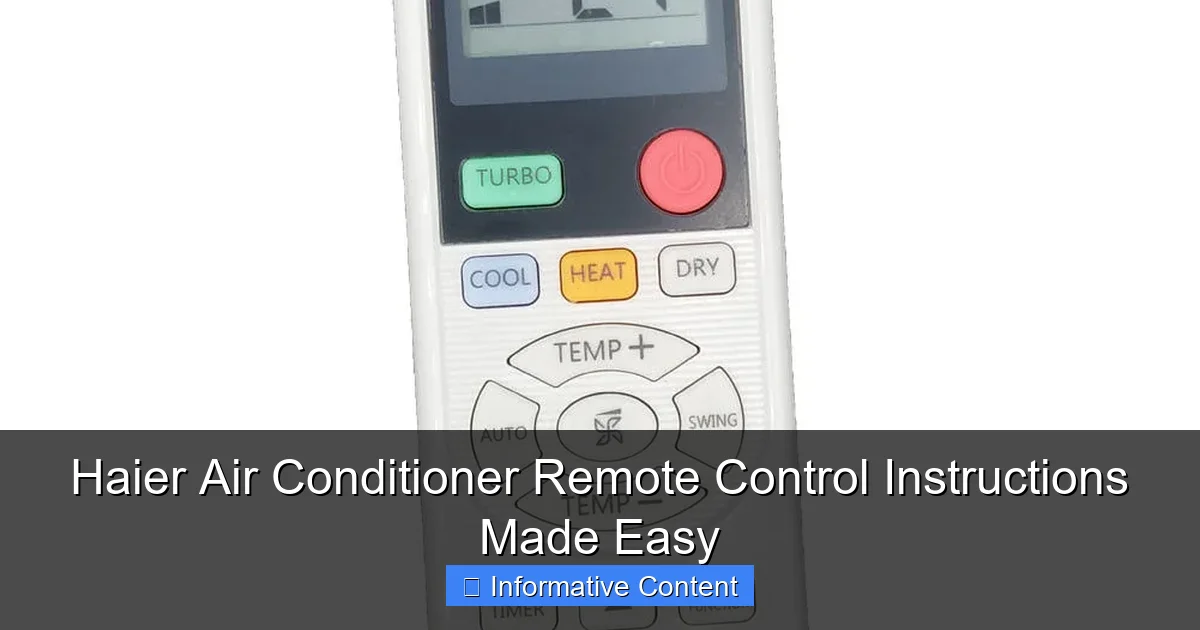
Featured image for haier air conditioner remote control instructions
Image source: remotecontrolwarehouse.com.au
Master your Haier air conditioner with ease using the intuitive remote control instructions designed for quick setup and seamless operation. From adjusting temperature and fan speed to activating sleep mode and timer functions, every feature is clearly explained for hassle-free use. Say goodbye to confusion and enjoy perfect comfort in minutes.
Key Takeaways
- Master the basics: Familiarize yourself with essential buttons like power, mode, and temperature.
- Use Auto mode: Optimize comfort and efficiency with automated temperature control.
- Set timers: Schedule on/off times to save energy and enhance convenience.
- Clean the remote: Wipe regularly to prevent dust from affecting functionality.
- Check batteries: Replace weak batteries immediately for uninterrupted operation.
- Reset if needed: Restore default settings to fix unresponsive or glitchy behavior.
📑 Table of Contents
- Getting to Know Your Haier Air Conditioner Remote Control
- Understanding the Buttons and Layout of Your Haier Remote
- How to Set Up and Pair Your Haier Remote
- Mastering Temperature, Modes, and Fan Settings
- Using Advanced Features: Timer, Sleep Mode, and I-Feel
- Maintenance Tips and Remote Care
- Conclusion: Take Control of Your Comfort
Getting to Know Your Haier Air Conditioner Remote Control
Let’s face it—air conditioner remote controls can be confusing. You’ve got buttons with symbols you’ve never seen, modes you don’t understand, and settings that seem to do nothing. If you’ve ever stared at your Haier air conditioner remote control and wondered, “What does *this* even do?”, you’re not alone. I’ve been there. In fact, I remember the first time I used my Haier AC unit. I pressed every button, hoping something would magically make my room cooler. Spoiler: it didn’t. But after a little trial, error, and a lot of reading, I cracked the code.
The good news? Once you understand how to use your Haier air conditioner remote control, operating your AC becomes second nature. Whether you’re trying to cool down on a sweltering summer day, dehumidify your room, or just set a timer for bedtime, your remote is your best friend. In this guide, I’ll walk you through everything—from basic functions to hidden tricks—so you can get the most out of your unit without feeling like you need a degree in HVAC engineering. No fluff, no sales pitch—just real, practical advice to make your life easier.
Understanding the Buttons and Layout of Your Haier Remote
Before you start pressing buttons, it helps to know what each one does. The Haier air conditioner remote control has a clean, user-friendly design, but some symbols and labels might not be immediately obvious. Let’s break it down so you can stop guessing and start controlling.
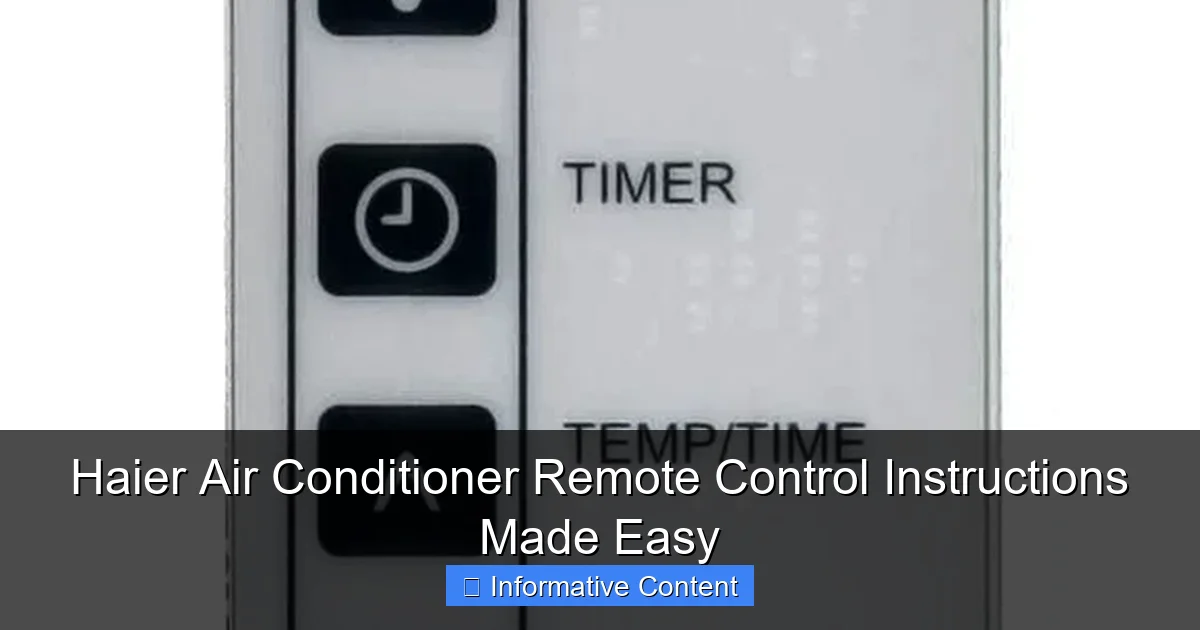
Visual guide about haier air conditioner remote control instructions
Image source: remotesremade.com
Key Buttons and Their Functions
- Power (On/Off): This is your main switch. Press it once to turn the AC on or off. A red LED usually lights up when the unit is on.
- Mode (Cool, Dry, Fan, Heat, Auto): This cycles through operating modes. For example, in Cool mode, the AC lowers the temperature. In Dry mode, it reduces humidity without cooling much. Fan just circulates air. Heat is for colder months (if your model supports it), and Auto lets the AC decide based on room temperature.
- Temperature Up/Down (+/-): Adjusts your desired temperature. Most Haier remotes let you set it from 16°C to 30°C (60°F to 86°F).
- Fan Speed (Low, Medium, High, Auto): Controls airflow. Auto adjusts speed based on temperature difference.
- Timer (On/Off): Sets a delay before turning on or off. Great for saving energy or waking up to a cool room.
- Swing (Up/Down, Left/Right): Adjusts the airflow direction. Some models have horizontal and vertical swing controls.
- Sleep Mode: Gradually adjusts temperature over time for comfort while sleeping.
- I-Feel / Follow Me: Uses a sensor in the remote to adjust cooling based on *your* location, not the indoor unit.
- Turbo/Quick Cool: Boosts cooling power for rapid temperature drop—perfect for when you walk in from the heat.
Hidden or Less-Obvious Features
Here’s where things get interesting. Many people don’t realize their Haier air conditioner remote control has extra tricks up its sleeve:
- Reset Button (Small Hole): Use a paperclip to reset the remote if it’s unresponsive or acting glitchy.
- LED Backlight: Press any button in the dark, and the display lights up for 5–10 seconds—super handy at night.
- Child Lock: Hold the Mode and Fan buttons for 3 seconds to lock the remote. Prevents kids (or pets) from changing settings.
- Filter Reset: After cleaning the air filter, press and hold the Timer and Sleep buttons for 5 seconds to reset the filter indicator light.
Pro Tip: If your remote has a “Turbo” or “Quick Cool” button, use it sparingly. It works fast, but it also uses more energy. Great for emergencies, not for all-day use.
How to Set Up and Pair Your Haier Remote
Most Haier remotes come pre-paired with the AC unit—just pop in the batteries and you’re good to go. But what if it’s not working? Or you’ve replaced the remote? Here’s how to get everything synced up properly.
Step-by-Step Pairing Guide
- Turn on your AC using the unit’s manual power button (if available).
- Insert two AAA batteries into the remote. Make sure they’re fresh—weak batteries can cause signal issues.
- Point the remote at the indoor unit, about 3–5 feet away.
- Press and hold the Power button for 3–5 seconds. The AC should beep or the display should flash.
- If it doesn’t respond, try resetting the remote (use the reset hole with a paperclip), then repeat.
- For newer models with infrared (IR) and RF (radio frequency) pairing, check the manual for specific syncing steps—some require a “pair” button on the unit itself.
Real-Life Example: My neighbor once called me because her Haier AC wouldn’t respond to the remote. After checking, I found the batteries were old and corroded. A quick clean and fresh batteries fixed it instantly. Always check the basics first!
Troubleshooting Connection Issues
- No response? Check battery orientation and clean the battery contacts.
- Signal blocked? Make sure nothing is between the remote and the AC (like furniture or curtains).
- Interference? Other electronics (TVs, microwaves) can sometimes interfere. Try moving the remote closer.
- Remote not recognized? Reset both the remote and the AC unit. Turn off the AC, unplug it for 1 minute, then plug it back in.
Note: Some Haier models use a learning function. If you’re using a universal remote, you’ll need to program it using Haier’s IR codes (usually found online or in the manual).
Mastering Temperature, Modes, and Fan Settings
Now that your remote is working, it’s time to get comfortable. The right combination of temperature, mode, and fan speed can make all the difference in how cool—or cozy—your room feels.
Choosing the Right Mode for the Season
- Cool Mode: Use in hot weather. Set to 24–26°C (75–78°F) for balance between comfort and energy use.
- Dry Mode: Ideal for humid climates or rainy days. It reduces moisture without overcooling. Great for preventing mold and musty smells.
- Fan Mode: Just moves air. No cooling. Perfect for mild days or when you want a gentle breeze.
- Heat Mode: Available on heat pump models. Use in winter. Set to 20–22°C (68–72°F) for comfort.
- Auto Mode: Lets the AC decide. It switches between cool and heat based on room temperature. Convenient, but not always the most efficient.
Example: In my home, I use Auto during spring and fall, Cool in summer, and Heat in winter. But in summer, I switch to Cool and set the fan to Auto so it adjusts based on how hot it gets.
Optimizing Fan Speed and Airflow
- Low Fan: Quiet, gentle airflow. Good for sleeping.
- Medium Fan: Balanced noise and cooling. My go-to for daytime.
- High Fan: Fast cooling, but louder. Use when you need to cool down quickly.
- Auto Fan: The AC adjusts speed based on temperature difference. Saves energy and maintains comfort.
Pro Tip: Use the Swing function to direct airflow where you want it. Point it away from your bed at night to avoid direct cold air. For even cooling, set it to oscillate up and down.
Setting the Perfect Temperature
The ideal temperature depends on your comfort and the season. But here’s a rule of thumb:
- Summer: 24–26°C (75–78°F)
- Winter: 20–22°C (68–72°F)
- Nighttime: 1–2°C higher than daytime to save energy
Remember: Every degree lower in summer can increase energy use by 6–8%. So, 25°C is often more efficient than 22°C.
Using Advanced Features: Timer, Sleep Mode, and I-Feel
Your Haier air conditioner remote control isn’t just for turning the AC on and off. It has smart features that can save energy, improve comfort, and even help you sleep better.
Timer: Schedule Your Cooling
The timer lets you set when the AC turns on or off. It’s perfect for:
- Cooling your room before you get home
- Turning off the AC after you fall asleep
- Running the AC only during off-peak electricity hours
How to Set the Timer:
- Press the Timer button.
- Use the + and – buttons to set hours (up to 24 hours).
- Press Timer again to confirm.
- Choose On Timer (AC turns on after X hours) or Off Timer (AC turns off after X hours).
Example: I set my Off Timer for 2 hours every night. The AC cools the room just enough, then shuts off—saving energy and preventing overcooling.
Sleep Mode: Comfort All Night Long
Sleep Mode adjusts the temperature over time. It usually:
- Starts at your set temperature
- Gradually increases by 1°C every 30–60 minutes (in cooling mode)
- Stops after 6–8 hours
This mimics the body’s natural temperature drop during sleep. No more waking up shivering!
How to Activate: Press the Sleep button. The AC will show a moon or sleep icon.
I-Feel / Follow Me: Cool Where You Are
This is one of my favorite features. The remote has a built-in temperature sensor. When you enable I-Feel, the AC cools based on *your* location, not the unit’s sensor.
- Hold the remote near you (not near a cold window or hot lamp).
- Press the I-Feel button (usually labeled or under a menu).
- The AC will adjust to keep *you* comfortable, even if you’re far from the unit.
Real-World Use: My AC is in the corner, but I sit on the couch. Without I-Feel, the unit thinks the room is cool and stops early. With it, it keeps cooling until *I’m* comfortable. Game-changer!
Maintenance Tips and Remote Care
A well-maintained remote works better and lasts longer. Here’s how to keep yours in top shape.
Cleaning and Handling
- Wipe the remote with a soft, dry cloth. Avoid liquids or harsh cleaners.
- Don’t leave it in direct sunlight—heat can damage the LCD screen.
- Store it in a cool, dry place. A remote holder or small drawer works great.
Battery Tips
- Use alkaline or lithium batteries. Avoid rechargeables—they have lower voltage and can cause issues.
- Replace batteries every 6–12 months, even if they seem fine. Weak batteries reduce signal range.
- Remove batteries if you won’t use the AC for weeks. Prevents corrosion.
Common Issues and Fixes
| Problem | Likely Cause | Solution |
|---|---|---|
| Remote not responding | Dead batteries, blocked IR signal | Replace batteries, clean remote lens, point directly at AC |
| Display is blank | Low battery, damaged screen | Replace batteries; if still blank, contact support |
| Buttons not working | Dirt under buttons, internal fault | Clean with compressed air; if persistent, get a replacement |
| AC turns on but not cooling | Remote set to Fan mode, low refrigerant | Check mode setting; call technician if refrigerant is low |
| Remote signal weak | Old batteries, interference | Replace batteries, move away from other electronics |
Final Tip: If your remote is damaged beyond repair, Haier sells replacements. Check their website or contact customer service. You’ll need your AC model number (usually on a sticker on the unit).
Conclusion: Take Control of Your Comfort
Using your Haier air conditioner remote control doesn’t have to be a guessing game. Once you understand the buttons, modes, and smart features, you’ll wonder how you ever lived without them. From setting the perfect temperature to using I-Feel for personalized cooling, your remote is packed with tools to make your home more comfortable and energy-efficient.
Remember: small changes make a big difference. Use the timer to save electricity. Try Sleep Mode for better rest. And don’t forget to clean and maintain your remote—it’s the key to long-term performance. Whether you’re a first-time AC owner or a seasoned pro, these tips will help you get the most out of your Haier unit.
So the next time you reach for your remote, don’t just press “on.” Take a moment to explore. Adjust the fan, set the timer, enable I-Feel. You’re not just cooling a room—you’re creating your perfect environment. And that, my friend, is what smart comfort is all about.
Frequently Asked Questions
How do I pair my Haier air conditioner remote control with the unit?
To pair your Haier air conditioner remote control, ensure the unit is powered on, then press and hold the “On/Off” button on the remote for 3-5 seconds until the unit beeps. Make sure you’re within 30 feet of the AC and there are no obstructions blocking the signal.
Why is my Haier AC remote not responding or working?
First, replace the batteries and ensure they’re inserted correctly. If the issue persists, check for interference from other electronics or obstructions between the remote and the AC unit. For persistent problems, try resetting the remote by removing the batteries for 30 seconds.
How do I set the timer on my Haier air conditioner remote control?
Press the “Timer” button on your Haier air conditioner remote control, then use the up/down arrows to set the desired hours. Press “Enter” or “Timer” again to confirm. The AC will turn on/off automatically at the scheduled time.
What do the different symbols on my Haier AC remote mean?
Symbols like the snowflake (cool mode), sun (heat), fan (airflow), and droplet (dry mode) control your AC’s functions. Refer to your model’s manual for a full legend, as icons may vary slightly depending on your Haier air conditioner remote control model.
Can I use a universal remote with my Haier air conditioner?
Yes, but ensure the universal remote supports Haier ACs and is programmed with the correct code. Check the universal remote’s manual for instructions. Note that some advanced features may not work as seamlessly as with the original Haier remote.
How do I reset my Haier air conditioner remote control to factory settings?
Remove the batteries, press all buttons once to discharge residual power, then reinsert the batteries. If your model has a reset button, press it with a paperclip. This restores default settings without affecting the AC unit’s programming.