
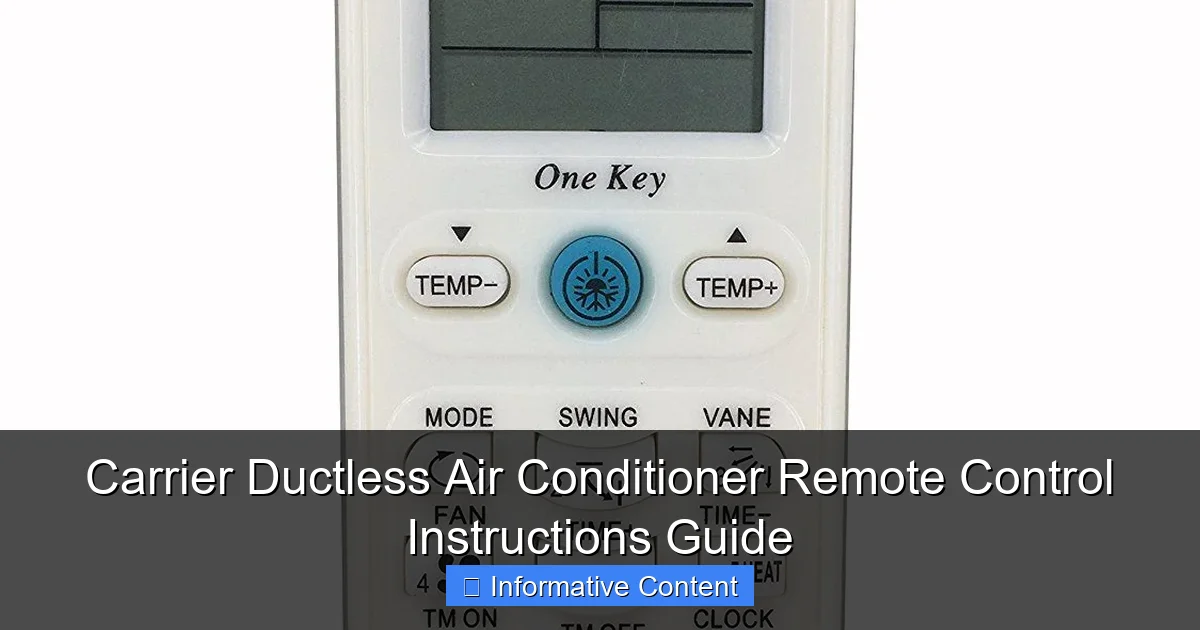
Featured image for carrier ductless air conditioner remote control instructions
Image source: paylessminisplit.com
Master your Carrier ductless air conditioner with ease using the remote control instructions guide, designed to help you navigate settings, modes, and troubleshooting steps efficiently. From adjusting temperature and fan speed to activating sleep mode or timer functions, this guide ensures optimal comfort and energy savings at your fingertips.
Key Takeaways
- Power on/off: Press the Power button to toggle the AC.
- Set temperature: Use +/- buttons to adjust cooling levels.
- Mode selection: Cycle through Cool, Fan, Dry with Mode.
- Fan speed: Press Fan to toggle low/medium/high speeds.
- Timer function: Schedule on/off times via Timer settings.
- Reset filter: Hold Filter after cleaning to reset alerts.
- Lock controls: Press Hold to disable remote buttons.
📑 Table of Contents
- Why Your Carrier Ductless Remote Matters More Than You Think
- Getting to Know Your Carrier Ductless Remote: The Basics
- Mastering the Operating Modes: Cool, Heat, Dry, and More
- Advanced Features: Timer, Sleep, Swing, and More
- Wi-Fi and Smart Home Integration (For Connected Models)
- Common Problems and Quick Fixes
- Data Table: Carrier Ductless Remote Features by Model
- Final Thoughts: Your Remote, Your Comfort
Why Your Carrier Ductless Remote Matters More Than You Think
Let’s be real—when you buy a high-quality Carrier ductless air conditioner, you expect comfort, efficiency, and ease of use. But what happens when the remote control starts acting like it’s from another planet? You’re not alone. I’ve been there: standing in front of my unit, pressing buttons that do nothing, sweating through what should be a cool evening. It’s frustrating, especially when you just want to relax after a long day.
The truth is, the remote control is the brain of your ductless AC system. It’s not just a gadget to change the temperature. It’s your personal climate manager. From setting schedules to switching modes, the Carrier ductless air conditioner remote control gives you full command over your indoor environment. But without knowing how to use it properly, you’re only getting a fraction of what your system can do. Whether you’re new to ductless systems or just upgrading to a newer Carrier model, this guide will walk you through every button, every setting, and every hidden trick—so you can stop guessing and start controlling.
Getting to Know Your Carrier Ductless Remote: The Basics
Before we dive into advanced features, let’s start with the foundation: understanding the layout and basic functions of your remote. Most Carrier ductless remotes follow a similar design, but small differences exist between models. Don’t worry—we’ll cover the most common versions, including the Carrier 52S, 53S, and newer Wi-Fi-enabled remotes.
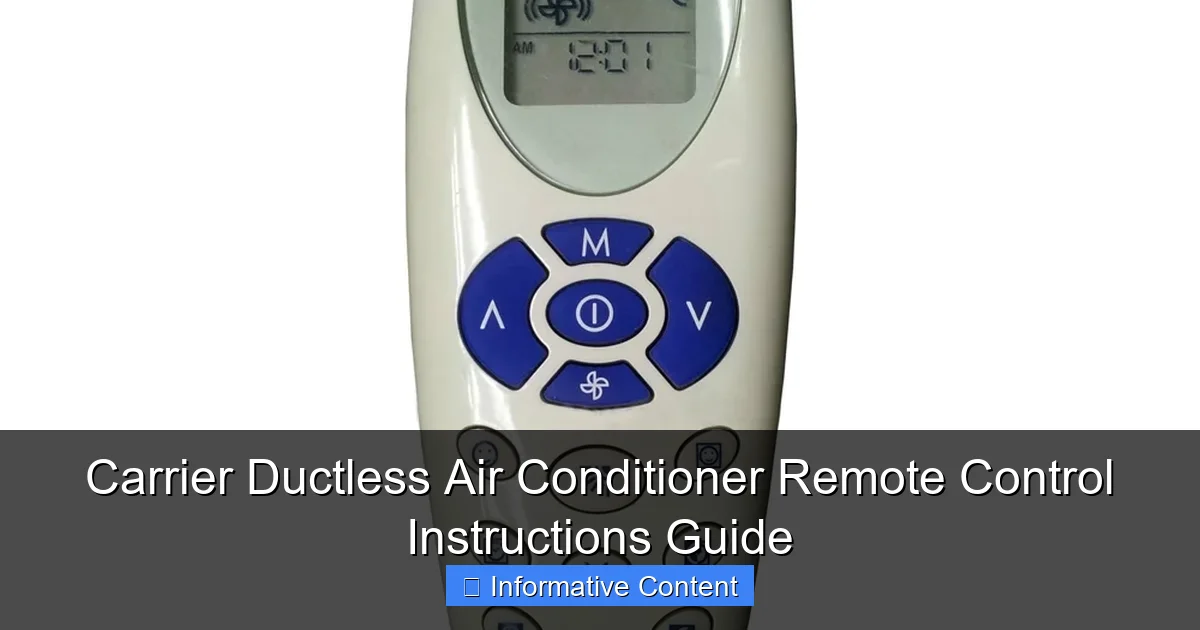
Visual guide about carrier ductless air conditioner remote control instructions
Image source: alquilercastilloshinchables.info
Remote Control Layout: What Each Button Does
Here’s a breakdown of the standard buttons you’ll find on most Carrier remotes:
- Power Button (On/Off): The red or green button at the top. Press once to turn on, again to turn off. Simple, but essential.
- Mode Button (Auto, Cool, Dry, Fan, Heat): Cycles through operating modes. More on this in the next section.
- Temperature Up/Down Arrows: Adjust your desired temperature. Most models let you set from 62°F to 86°F (17°C to 30°C).
- Fan Speed Button: Lets you choose between Auto, Low, Medium, High, or sometimes Turbo.
- Swing Button: Controls the louvers (airflow direction). You can set it to swing automatically or lock in one position.
- Timer Button: Sets on/off schedules for energy savings.
- Sleep Button: Activates a quiet, energy-efficient mode that gradually adjusts temperature while you sleep.
- Display Button: Toggles the indoor temperature display on the remote screen.
- Reset or Filter Button: Resets the filter cleaning reminder after maintenance.
Pro tip: If your remote has a backlight, press any button to activate it in the dark. This is a small but life-saving feature on late-night bathroom trips!
Understanding the Display Screen
The screen on your Carrier ductless air conditioner remote control isn’t just for show. It gives you real-time feedback. Here’s what to look for:
- Set Temperature: Large, bold number showing your target temp.
- Current Room Temperature: Smaller number (often toggled with the Display button).
- Operating Mode Icon: A symbol (e.g., snowflake for Cool, sun for Heat).
- Fan Speed Indicator: Arrows or bars showing current fan level.
- Timer Icon: A clock symbol if a timer is active.
- Filter Alert: A filter icon or message when it’s time to clean.
- Signal Strength: A few bars showing remote-to-unit connectivity.
One thing I learned the hard way: if the signal icon is low or blinking, your remote might not be communicating properly. Try moving closer to the indoor unit or replacing the batteries (yes, even new remotes can have weak batteries).
Inserting and Replacing Batteries
Most Carrier remotes use two AAA batteries. Here’s how to handle them:
- Flip the remote over and locate the battery compartment.
- Slide the cover off (no tools needed).
- Insert batteries, making sure the + and – ends match the diagram inside.
- Snap the cover back on.
Tip: Use alkaline batteries for longer life. I once tried rechargeable NiMH batteries—they worked, but drained faster than expected. Stick with standard alkaline for best results.
Mastering the Operating Modes: Cool, Heat, Dry, and More
Your Carrier ductless AC isn’t just a cooler—it’s a full climate control system. The mode button is your gateway to different functions. Let’s break down each one with real-world examples.
Cool Mode: Beating the Heat
This is the mode most people use during summer. Press the Mode button until you see the snowflake icon. Then set your desired temperature (e.g., 72°F). The unit will cool the room until it reaches that temp, then cycle on and off to maintain it.
Practical tip: In humid climates, pair Cool mode with a lower fan speed. High fan speeds cool fast but don’t dehumidify as well. For sticky summer nights, try Medium fan speed for better moisture removal.
Heat Mode: Warmth Without the Ducts
Yes, your ductless system heats too! Switch to Heat mode (sun icon), set your temp (say, 68°F), and enjoy warm air. Carrier’s inverter technology means it heats efficiently—even in cold weather (down to about 14°F for most models).
Pro tip: If your unit has “Defrost” mode (some models show a snowflake with a sun), it means it’s automatically clearing ice buildup on the outdoor unit. Don’t worry—this is normal in winter.
Dry Mode: Fighting Humidity (Not Just Temperature)
This is a hidden gem. Dry mode (sometimes called “Dehumidify”) runs the fan slower and compressor less frequently. It removes moisture without drastically cooling the room. Perfect for muggy spring days or damp basements.
Example: In my basement, Cool mode made it too cold but didn’t dry out the air. Switching to Dry mode at 78°F reduced humidity by 10% in just two hours—without freezing me out.
Fan Mode: Air Circulation Without Cooling
Use this when you just want airflow—like on mild days or to circulate air after cooking. No cooling or heating, just fresh air movement. You can choose Low, Medium, or High speed.
Bonus use: Run Fan mode for 10 minutes after turning off Cool mode. This helps dry the indoor coil, reducing mold risk and musty smells.
Auto Mode: Let the Unit Decide
Auto mode (sometimes labeled “Auto Changeover”) lets the system switch between Cool and Heat based on the room temperature. Set your desired temp, and it will heat or cool as needed. Great for homes with fluctuating seasons.
Caution: Auto mode can be less efficient in extreme temps. If it’s 100°F outside, let it stay in Cool mode. Same in winter. Use Auto for shoulder seasons (spring/fall).
Eco or Energy Saver Mode (If Available)
Some newer Carrier remotes have an “Eco” or “Energy Saver” button. This slightly raises the cooling setpoint (e.g., 78°F instead of 75°F) or reduces fan speed. It saves energy without sacrificing comfort.
My experience: I use Eco mode during the day when I’m not home. It keeps the house from getting too hot, but doesn’t run the AC full blast. My electricity bill dropped 8% after I started using it consistently.
Advanced Features: Timer, Sleep, Swing, and More
Now let’s unlock the features that make your Carrier ductless air conditioner remote control truly smart. These aren’t just bells and whistles—they’re tools for comfort, efficiency, and convenience.
Timer Function: Schedule Your Comfort
The Timer button lets you set the AC to turn on or off at specific times. There are two main types:
- On Timer: Turns the unit on after a set delay (e.g., 2 hours).
- Off Timer: Turns the unit off after a set delay.
How to set a timer:
- Press the Timer button until the “On” or “Off” icon appears.
- Use the Up/Down arrows to set the delay (from 0.5 to 24 hours).
- Press Timer again to confirm.
Real-life example: I set the Off Timer for 3 hours when I go to bed. The AC runs for three hours, cools the room, then shuts off. No more waking up to a freezing bedroom. For On Timer, I use it to pre-cool the house 30 minutes before I get home from work. Instant comfort, no waiting.
Sleep Mode: Quiet, Gradual, and Smart
Sleep mode is designed for overnight use. It gradually adjusts the temperature and reduces fan speed for quieter operation.
- Press the Sleep button to activate.
- The unit will increase the set temperature by 2–3°F over 2–3 hours (to prevent overcooling).
- Fan speed drops to Low or Silent.
- After 8 hours, it returns to normal settings.
Why it works: Your body temperature drops at night. Sleep mode anticipates this, so you don’t wake up shivering at 4 a.m. I use it every night in summer. My wife says it’s the quietest AC she’s ever heard.
Swing (Airflow Direction) Control
The Swing button controls the horizontal and vertical louvers on the indoor unit. You can:
- Set it to swing automatically (great for even airflow).
- Lock it in one position (e.g., direct airflow away from your bed).
- Use “Wide Swing” (if available) to cover a larger area.
Tip: In winter, set the louvers to direct warm air downward. Warm air rises, so pointing it down helps heat the floor. In summer, point it upward to avoid blowing cold air directly on you.
Turbo Mode: Rapid Cooling or Heating
Found on some models, Turbo mode runs the compressor at maximum for 30 minutes to cool or heat a room fast.
Use case: I use Turbo when I come home to a 90°F house. Press Turbo, set to 72°F, and it cools down in 15 minutes instead of 45. After that, I switch to Cool mode with Auto fan for maintenance.
Display and Filter Alerts
Your remote reminds you when to clean the air filter. A “Filter” icon appears after about 2,000 hours of use (roughly 2–3 months).
How to reset:
- Turn off the AC.
- Press and hold the Filter button for 3–5 seconds.
- The icon should disappear.
Note: Cleaning the filter is easy. Just pop it out, vacuum or rinse it, and put it back. A clean filter means better airflow and efficiency.
Wi-Fi and Smart Home Integration (For Connected Models)
If you have a newer Carrier ductless system with Wi-Fi (like the 52S-W or 53S-W), your remote control experience goes digital. Here’s how to get the most from smart features.
Pairing Your Remote with the Carrier App
Most Wi-Fi remotes connect via the Carrier Home or Infinity app (depending on model). Here’s how:
- Download the app (iOS or Android).
- Create an account.
- In the app, tap “Add Device” and follow the prompts.
- On the remote, press and hold the Wi-Fi button (usually labeled with a cloud icon) for 5 seconds until it blinks.
- Connect to your home Wi-Fi through the app.
Pro tip: Use a strong 2.4 GHz Wi-Fi network. 5 GHz networks are faster but have shorter range and can cause connection issues.
Remote Control from Anywhere
Once connected, you can:
- Turn the AC on/off from your phone.
- Adjust temperature and modes.
- Set schedules (e.g., cool down before you get home).
- Receive filter and maintenance alerts.
Real example: Last summer, I was stuck in traffic. I opened the app, turned on the AC, and walked into a cool house. Total game-changer.
Voice Control with Alexa or Google Assistant
Link your Carrier system to Alexa or Google Home for voice commands:
- “Alexa, turn on the living room AC.”
- “Hey Google, set the bedroom temperature to 70.”
Setup: In the app, go to “Smart Home” and link your account. Follow the voice assistant prompts.
Troubleshooting Wi-Fi Issues
If your remote disconnects:
- Restart your router.
- Move the indoor unit closer to the router (or use a Wi-Fi extender).
- Reset the remote’s Wi-Fi: Hold the Wi-Fi button for 10 seconds until it flashes rapidly, then re-pair.
Common Problems and Quick Fixes
Even the best remotes have hiccups. Here are solutions to the most frequent issues with Carrier ductless air conditioner remote control systems.
Remote Not Responding
Check:
- Batteries: Replace with new ones.
- Signal: Stand within 20 feet of the indoor unit. Remove obstructions (e.g., furniture).
- IR sensor: Clean the front of the indoor unit with a dry cloth. Dust blocks the signal.
Buttons Stuck or Unresponsive
Fix:
- Turn off the remote and remove batteries.
- Use compressed air to blow under the buttons.
- Wipe the surface with a slightly damp cloth (no liquids!).
Display Not Working
Try:
- Replace batteries.
- Press the Display button to toggle it back on.
- If still dark, check for a “Backlight” setting in the menu (some models have it).
Unit Not Following Remote Commands
Possible causes:
- Unit is in “Auto” or “Timer” mode. Cancel these first.
- Remote is in “Sleep” mode. Turn it off.
- Outdoor unit is in defrost (normal in winter).
- System is in “Emergency Heat” (check thermostat or indoor unit display).
Wi-Fi Remote Offline
See the Wi-Fi troubleshooting section above. Also:
- Restart the indoor unit (turn off at the breaker for 30 seconds).
- Reinstall the app and re-pair the remote.
Data Table: Carrier Ductless Remote Features by Model
| Model | Cool/Heat | Wi-Fi | Sleep Mode | Turbo Mode | App Control | Voice Control |
|---|---|---|---|---|---|---|
| 52S (Standard) | Yes | No | Yes | Yes | No | No |
| 52S-W (Wi-Fi) | Yes | Yes | Yes | Yes | Yes | Yes |
| 53S (Premium) | Yes | No | Yes | Yes | No | No |
| 53S-W (Wi-Fi) | Yes | Yes | Yes | Yes | Yes | Yes |
| Infinity Series | Yes | Yes | Yes | Yes | Yes (via Infinity App) | Yes |
Note: Features may vary slightly by region and installation. Always check your user manual for exact specs.
Final Thoughts: Your Remote, Your Comfort
Your Carrier ductless air conditioner remote control isn’t just a tool—it’s your personal climate assistant. From cooling a sweltering living room to gently warming a drafty bedroom, it puts comfort in your hands. And once you master its features, you’ll wonder how you ever lived without them.
Remember: start simple. Learn the basics—power, mode, temperature. Then explore the timers, sleep mode, and airflow controls. If you have Wi-Fi, take the time to connect it. The convenience is worth it. And if something doesn’t work? Don’t panic. Most issues are fixable with a battery change, a quick reset, or a few taps in the app.
I’ve used Carrier ductless systems for over five years, and the remote has never let me down. It’s reliable, intuitive, and—dare I say—smart. So take this guide, keep it handy, and make every season a comfortable one. Your home, your rules. And your remote? That’s the key to it all.
Frequently Asked Questions
How do I turn on my Carrier ductless air conditioner using the remote control?
To turn on your Carrier ductless air conditioner, press the “Power” button on the remote control. Make sure the unit is plugged in and the remote has fresh batteries for proper operation.
What should I do if my Carrier ductless air conditioner remote control isn’t working?
First, check that the batteries are properly installed and have sufficient charge. Ensure there are no obstructions between the remote and the indoor unit’s receiver, as this can block the signal.
How do I change the temperature on my Carrier ductless air conditioner remote?
Use the up and down arrow buttons on the remote to adjust the temperature. The set temperature will display on the remote screen and the unit will respond accordingly.
Can I set a timer using the Carrier ductless air conditioner remote control?
Yes, press the “Timer” button on the remote to access timer settings. You can program the unit to turn on or off at specific times, helping save energy and maintain comfort.
How do I switch between heating and cooling modes on the remote?
Press the “Mode” button on the remote control to cycle through available modes, including Cool, Heat, Fan, and Auto. The current mode will be shown on the display screen.
Where can I find replacement instructions for my Carrier ductless air conditioner remote control?
Refer to the user manual included with your unit or visit the official Carrier website for downloadable guides. You can also contact Carrier customer support for assistance with remote control instructions.