
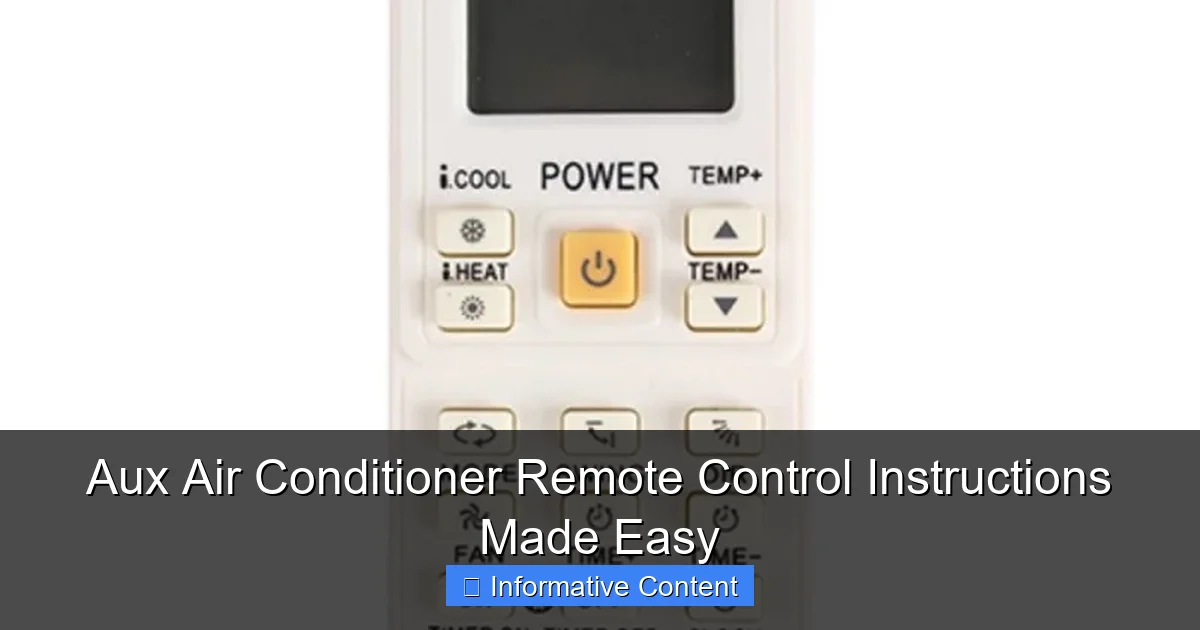
Featured image for aux air conditioner remote control instructions
Image source: sparepartsmarkt.com
Master your AUX air conditioner remote control in minutes with our simplified, step-by-step instructions designed for effortless setup and daily use. From power modes to timer settings and fan speeds, learn every function clearly—no manual confusion or guesswork required. Get cool comfort fast, just point, press, and relax.
Key Takeaways
- Power on/off: Press the ON/OFF button to start or stop the AUX AC unit.
- Adjust temperature: Use +/- buttons to set your ideal room temperature quickly.
- Select modes: Press MODE to cycle between cooling, heating, fan, or dehumidify.
- Control fan speed: Tap FAN to choose low, medium, or high airflow settings.
- Use sleep mode: Activate SLEEP for energy-saving, quieter nighttime operation.
- Set timer: Program TIMER to auto turn-on/off at scheduled times.
- Reset remote: Remove batteries for 10 seconds to fix unresponsive controls.
📑 Table of Contents
- Why the Aux Air Conditioner Remote Control Is Your Best Friend
- Getting to Know Your Aux Air Conditioner Remote Control
- Step-by-Step Guide to Basic Operation
- Advanced Features and Hidden Gems
- Troubleshooting Common Remote Control Issues
- Pro Tips for Maximum Efficiency and Longevity
- Final Thoughts: Master Your Remote, Master Your Comfort
Why the Aux Air Conditioner Remote Control Is Your Best Friend
Let’s be honest—there’s nothing quite as frustrating as standing in front of your air conditioner, remote in hand, and realizing you have no idea what half the buttons do. You just want to cool down (or heat up) your room, but instead, you’re staring at a tiny screen with icons that look like hieroglyphics. If you’ve ever felt that way with your aux air conditioner remote control, you’re not alone. I’ve been there too—fumbling with settings, accidentally turning on the timer when I just wanted to change the temperature, or worse, setting it to “dry mode” during a heatwave because the button looked similar.
But here’s the good news: once you understand how your remote works, it becomes one of the most convenient tools in your home. The aux air conditioner remote control is actually quite intuitive once you know what each button and function does. Whether you’re a first-time user or someone who’s been using it for years but still avoids the “advanced” features, this guide will walk you through everything step by step. No tech jargon, no confusing manuals—just simple, practical instructions that make sense. Think of this as the friend who finally shows you how to use that mysterious “sleep” mode or why the fan keeps turning on and off every few minutes.
Getting to Know Your Aux Air Conditioner Remote Control
Before you start pressing buttons randomly (we’ve all done it), it helps to understand what each part of the remote does. The aux air conditioner remote control is designed to be user-friendly, but only if you know what to look for. Let’s break it down into the key components.
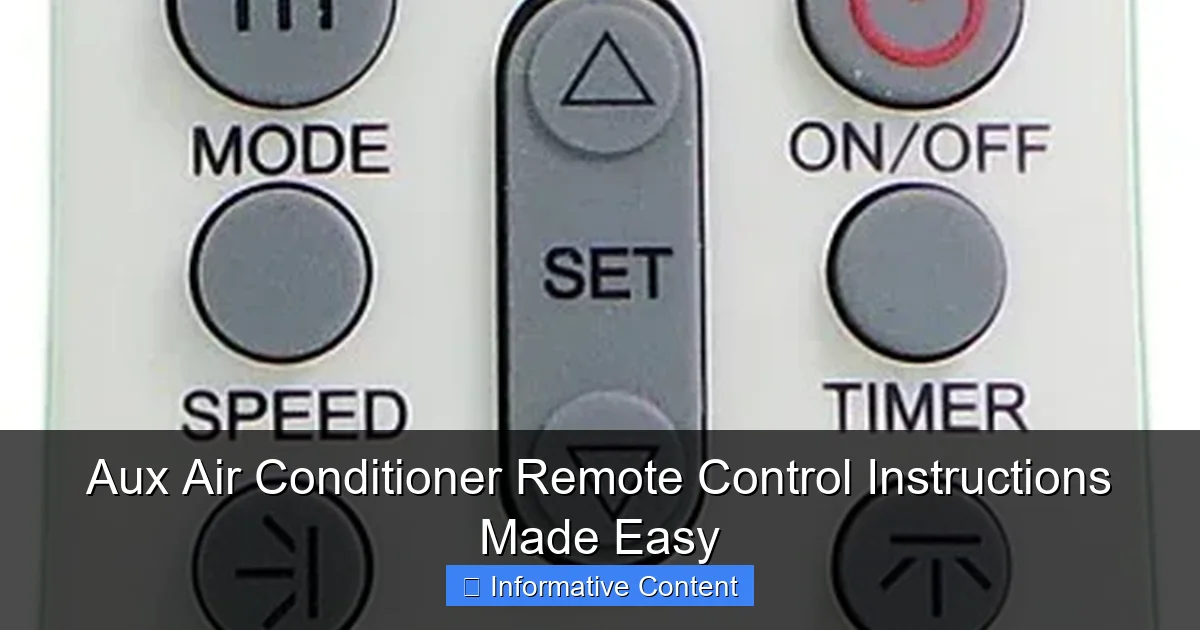
Visual guide about aux air conditioner remote control instructions
Image source: remotecontrolwarehouse.com.au
Main Buttons and Their Functions
The first thing you’ll notice is the cluster of buttons at the top. These are your primary controls:
- Power Button: This one’s obvious—it turns your AC on or off. Press and hold for a second or two to avoid accidental activation.
- Mode Button: Cycles through cooling, heating, fan-only, dehumidifying (dry mode), and auto mode. Each press changes the mode, and the current selection appears on the display.
- Fan Speed Button: Controls how fast the internal fan blows. Options usually include low, medium, high, and auto. Auto adjusts based on room temperature.
- Temperature Up/Down: These are the two arrows (or + and -) used to set your desired room temperature. Most models let you set between 16°C (60°F) and 30°C (86°F).
- Swing/Up-Down Button: Adjusts the vertical airflow direction. Pressing it toggles the louver movement to spread air evenly across the room.
Pro tip: If you notice the fan is blowing too hard or not enough, don’t just crank the temperature down—try adjusting the fan speed first. It’s often more energy-efficient and quieter.
Display Screen: What It Shows and Why It Matters
The small LCD or LED screen on your remote isn’t just for show. It gives you real-time feedback about your AC’s status. Here’s what you’ll typically see:
- Current Mode: A small icon (like a snowflake for cooling, flame for heating) shows which mode is active.
- Set Temperature: The number you’ve chosen, usually in degrees Celsius or Fahrenheit.
- Fan Speed: An indicator like “Lo,” “Med,” “Hi,” or “Auto.”
- Timer Status: If a timer is set, you’ll see a clock icon and the time it’s scheduled to turn on or off.
- Filter Reminder: Some models show a filter icon when it’s time to clean the air filter—don’t ignore this!
One thing I’ve learned from years of using different ACs: the display can sometimes lag by a few seconds. So if you press “cool” and nothing happens right away, give it 10–15 seconds before pressing again. Overloading the remote with repeated commands can confuse it.
Hidden Buttons and Less-Common Features
Not all buttons are labeled clearly, and some are tucked away for a reason. Here are a few you might not have noticed:
- Turbo/Speed Cool: Often labeled with a lightning bolt, this button runs the compressor at max power for 15–30 minutes to cool the room faster. Great for hot summer days when you’ve just walked in from outside.
- Sleep Mode: This isn’t just for bedtime. It gradually adjusts the temperature throughout the night to keep you comfortable while saving energy. For example, it might start at 24°C and slowly increase to 27°C by morning.
- LED Light Button: Some remotes have a button to turn off the AC’s front panel light. Super handy if you’re sensitive to light while sleeping.
- Reset/Test Button: Usually a small recessed button (you’ll need a paperclip). Pressing it resets the remote to factory settings—use with caution!
I once accidentally activated “Turbo” mode during a heatwave and nearly froze myself out of the room. Lesson learned: use it wisely!
Step-by-Step Guide to Basic Operation
Now that you know what each button does, let’s put it into practice. Whether you’re cooling down a room after a long day or warming it up on a chilly evening, these steps will help you get the most out of your aux air conditioner remote control.
Turning On and Setting the Mode
- Press the Power Button: A beep or light on the AC unit should confirm it’s on.
- Choose Your Mode: Press the Mode button until you see the icon for cooling, heating, fan, dry, or auto. For summer, pick cooling; for winter, heating. In spring/fall, “fan” or “auto” can be perfect.
- Set the Temperature: Use the up/down arrows. Start with 24–26°C (75–78°F) for cooling. For heating, 20–22°C (68–72°F) is usually comfortable.
Example: It’s a hot afternoon, and your room feels like a sauna. You press Power → Mode (cooling) → set temp to 24°C → Fan Speed to Auto. Within 10 minutes, the room feels much better—no guesswork.
Adjusting Fan Speed and Airflow Direction
Not all rooms cool evenly. The aux air conditioner remote control lets you fine-tune airflow:
- Fan Speed: Press the Fan Speed button. “Auto” is best for consistent comfort. “High” cools faster but is noisier. “Low” is quieter and better for sleeping.
- Swing Mode: Press the Swing button to make the louvers move up and down. This spreads cold air across the room, reducing hot spots.
- Manual Direction: Some remotes let you press and hold the Swing button to set a fixed angle. Useful if you want air blowing directly at you or away from your bed.
Tip: If you have a high ceiling or a long room, use “swing” mode. It prevents air from just blowing over your head or pooling in one corner.
Using the Timer: On and Off Scheduling
The timer is one of the most useful but underused features. It lets you schedule when your AC turns on or off—perfect for saving energy or coming home to a cool room.
- Press the Timer button. The display will show “Timer On” or “Timer Off.”
- Use the up/down arrows to set the time (e.g., 3 hours from now).
- Press Timer again to confirm.
Real-life example: You leave for work at 8 AM. You set a “Timer On” for 4:30 PM so your apartment is cool when you get home. Or, you set a “Timer Off” for 2 hours after bedtime to save electricity while you sleep.
Warning: If you set both “Timer On” and “Timer Off,” make sure the times don’t overlap. For instance, if you set “Off” for 9 PM and “On” for 8 PM the same day, the AC will just turn off and stay off.
Advanced Features and Hidden Gems
The aux air conditioner remote control isn’t just for basic cooling and heating. It has some clever features that can make your life easier—if you know how to use them.
Sleep Mode: Comfort While You Rest
Sleep mode is often misunderstood. It’s not just about saving energy; it’s about keeping you comfortable all night. Here’s how it works:
- Cooling Mode: The temperature rises by 1°C every hour for 2 hours, then stays steady. This prevents you from getting too cold in the middle of the night.
- Heating Mode: The temperature drops by 1°C every hour, then holds. Prevents overheating.
- Fan Speed: Automatically shifts to low, so it’s quieter.
How to use it: After setting your temperature, press the Sleep button. The display will show a moon or star icon. The AC will adjust automatically. I use this every night—no more waking up shivering or sweating.
Turbo and Energy-Saving Modes
These are great for specific situations:
- Turbo Mode: Press the Turbo button. The AC runs at maximum power for 15–30 minutes. Ideal when you’ve been away and need to cool the room fast. After that, it switches back to normal mode.
- Eco/Energy Saver: Some remotes have an “Eco” button. It limits compressor usage to save electricity. The room might take longer to cool, but your bill will thank you.
Tip: Don’t use Turbo mode all day. It’s meant for short bursts. And if you’re on a budget, Eco mode is your friend—especially during mild weather.
Remote Pairing and Reset (When Things Go Wrong)
Sometimes, the remote stops working. The AC doesn’t respond, or buttons don’t register. Here’s what to do:
- Check Batteries: Replace them with fresh ones. Weak batteries are the #1 cause of remote issues.
- Reset the Remote: Use a paperclip to press the recessed reset button for 3–5 seconds. This clears any glitches.
- Re-Pair the Remote: Some models need to be paired. Turn off the AC, hold the Power button on the remote for 10 seconds, then turn the AC back on. The remote should sync automatically.
I once spent 20 minutes troubleshooting a “broken” remote before realizing the batteries were dead. Always check the simple stuff first!
Troubleshooting Common Remote Control Issues
Even the best aux air conditioner remote control can have hiccups. Let’s tackle the most common problems—and how to fix them.
Remote Not Responding? Try These Fixes
- No Signal: Make sure there’s no obstacle between the remote and the AC. Point it directly at the unit. Even glass or thin walls can block infrared signals.
- Battery Contact: Clean the battery contacts with a dry cloth. Corrosion can prevent power flow.
- Distance: Stay within 8–10 meters (25–30 feet) of the AC. Walls, furniture, or even your hand can reduce range.
Pro tip: If the remote still doesn’t work, try covering the front of the AC unit with your hand for a few seconds. This can reset the infrared receiver.
Buttons Stuck or Unresponsive
Over time, dust and moisture can get under the buttons. Here’s what to do:
- Clean Gently: Use a cotton swab and a tiny bit of isopropyl alcohol to clean around the buttons. Let it dry completely before using.
- Remove and Reinsert Batteries: Sometimes, a power cycle helps. Take out the batteries, wait 30 seconds, then put them back in.
- Check for Physical Damage: If a button is cracked or stuck, the remote might need replacement. But try the above first.
Display Issues: Blank, Flickering, or Dim Screen
A blank screen usually means dead batteries. But if the screen is dim or flickering:
- Replace Batteries: Even if they’re not fully dead, weak batteries can cause screen issues.
- Adjust Contrast: Some remotes have a “Contrast” button (often labeled with a sun icon). Press it to make the display brighter.
- Temperature Sensitivity: Extreme heat or cold can affect the LCD. Keep the remote away from direct sunlight or freezing conditions.
One winter, I left my remote in a cold car overnight. The screen was almost invisible the next day. After warming it up indoors, it worked fine—but the lesson stuck.
Pro Tips for Maximum Efficiency and Longevity
Your aux air conditioner remote control is more than a tool—it’s a key part of your AC’s performance. Use these tips to get the most out of it (and your unit).
Energy-Saving Settings That Actually Work
- Use Auto Mode: The AC adjusts temperature and fan speed based on room conditions. Less work for you, more efficiency.
- Set a 2°C Difference: Keep the set temperature within 2°C of the outside temp. For example, if it’s 32°C outside, set your AC to 28°C—not 22°C. The bigger the gap, the harder your AC works.
- Timer + Sleep Mode Combo: Set the timer to turn on 30 minutes before you arrive home, then switch to sleep mode at bedtime. Perfect comfort with minimal energy use.
Maintenance: Keep Your Remote in Top Shape
- Clean Monthly: Wipe the remote with a dry cloth. Dust buildup can affect button sensitivity.
- Store Properly: Keep it in a cool, dry place. Avoid humid areas like bathrooms.
- Label Buttons: If you’re forgetful, use a small label maker or sticker to mark key buttons (e.g., “Sleep,” “Turbo”).
When to Replace Your Remote (And How)
Even the best remotes don’t last forever. Replace yours if:
- Buttons are permanently stuck or unresponsive.
- The screen is cracked or unreadable.
- It doesn’t work even after resetting and new batteries.
Replacement remotes are often available from the manufacturer or third-party sellers. Just make sure it’s compatible with your AC model. I once bought a “universal” remote that didn’t support the sleep mode—so check the specs!
Data Table: Aux Remote Control Feature Comparison
| Feature | Basic Model | Mid-Range Model | Advanced Model |
|---|---|---|---|
| Modes | Cool, Heat, Fan | Cool, Heat, Fan, Dry, Auto | Cool, Heat, Fan, Dry, Auto, Turbo |
| Timer | On/Off (24-hour) | On/Off (7-day) | On/Off + Weekly Schedule |
| Fan Speed | Low, High | Low, Med, High, Auto | Low, Med, High, Auto, Quiet |
| Sleep Mode | No | Yes | Yes (Customizable) |
| Display | LED | LCD | Backlit LCD |
As you can see, higher-end models offer more features—but the basics are often enough for most users. The key is using what you have effectively.
Final Thoughts: Master Your Remote, Master Your Comfort
Your aux air conditioner remote control isn’t just a gadget—it’s your gateway to comfort. Whether you’re cooling down after a long day, warming up on a winter morning, or just keeping the air fresh, knowing how to use it makes all the difference. You don’t need to be a tech expert. You just need a little patience and this guide.
I remember the first time I used the sleep mode properly. I woke up refreshed, not shivering, and my electricity bill was lower than usual. That’s the power of understanding your remote. It’s not about using every feature—it’s about using the right ones at the right time.
So take 5 minutes today to clean your remote, replace the batteries, and try out one new feature. Maybe set a timer for when you get home from work. Or experiment with sleep mode tonight. Small steps lead to big comfort. And remember: if something doesn’t work, don’t panic. Try the reset, check the batteries, and keep it simple.
You’ve got this. Your aux air conditioner remote control is easier than you think—and now, you’re in charge.
Frequently Asked Questions
How do I pair my AUX air conditioner remote control with the unit?
To pair your AUX air conditioner remote, ensure the unit is powered on, then press and hold the “Pair” or “Set” button on the remote for 3–5 seconds until the LED indicator flashes. The remote should sync automatically within a minute.
What do the symbols on my AUX air conditioner remote control mean?
The symbols typically represent modes (Cool, Heat, Fan), fan speed (Low/Med/High), timer, and swing functions. Refer to your user manual for a detailed breakdown of icons specific to your AUX remote model.
Why is my AUX remote not responding to the air conditioner?
Check if the remote’s batteries are depleted or inserted incorrectly. Also, ensure there’s no obstruction between the remote and the A/C’s sensor, and verify the unit is within the remote’s 26-foot range.
How do I reset my AUX air conditioner remote control instructions?
Remove the batteries, press all buttons for 10 seconds to discharge residual power, then reinsert the batteries. This soft reset often resolves unresponsive remotes without affecting A/C settings.
Can I use a universal remote with my AUX air conditioner?
Yes, many universal remotes support AUX models. Program it using the code from the universal remote’s manual or auto-search function. Confirm compatibility with your specific AUX A/C model first.
How do I adjust the temperature and timer using the AUX remote?
Press the “Temp+” or “Temp-” buttons to set the desired temperature. For the timer, press the “Timer” button and use the up/down arrows to select the hours for automatic shutoff or start.